

Smashingmagazine


Under Autumn’s Spell (October 2026 Wallpapers Edition)
Misty mornings, leaves shining in bright red, yellow, and orange hues, and spooky creatures making an appearance — October has a very special charm. So, how about some new desktop wallpapers to celebrate October’s beauty, and the upcoming Halloween season, of course? Well, we’ve got you covered.
Just like it has been a monthly tradition here at Smashing Magazine for more than 15 years already, the wallpapers in this post were created by artists and designers from across the globe. All of them come in a variety of screen resolutions and can be downloaded for free. A huge thank-you to everyone who shared their designs with us — you are truly smashing!
Now, before you pick your favorite for the month, did you know that you can also get featured in one of our upcoming wallpapers posts? We are always looking for creative talent, so please don’t hesitate to join in. We’d love to see what you come up with!
- You can click on every image to see a larger preview.
- We respect and carefully consider the ideas and motivation behind each and every artist’s work. This is why we give all artists the full freedom to explore their creativity and express emotions and experience through their works. This is also why the themes of the wallpapers weren’t anyhow influenced by us but rather designed from scratch by the artists themselves.
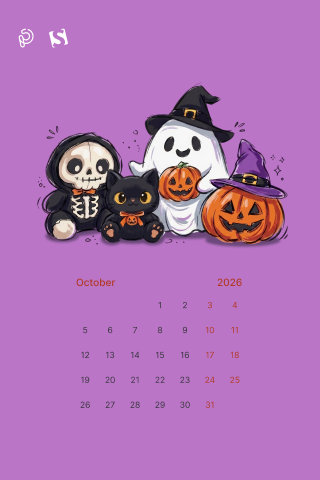
“From candlelit streets in Europe to vibrant festivals across the Americas, Halloween has become a global celebration that unites people of all ages. It is a magical night where children step into the shoes of their favorite heroes for candy-filled adventures, while adults rediscover the pure, playful excitement of childhood. Across cultures and continents, glowing pumpkins and festive costumes light up the autumn dark, bringing neighbors together, sparking laughter, and proving that joy knows no age limit.” — Designed by PopArt Studio from Novi Sad, Serbia.

- preview
- with calendar: 320x480, 640x480, 800x480, 800x600, 1024x768, 1024x1024, 1152x864, 1280x720, 1280x800, 1280x960, 1280x1024, 1400x1050, 1440x900, 1600x1200, 1680x1050, 1680x1200, 1920x1080, 1920x1200, 1920x1440, 2560x1440
- without calendar: 320x480, 640x480, 800x480, 800x600, 1024x768, 1024x1024, 1152x864, 1280x720, 1280x800, 1280x960, 1280x1024, 1400x1050, 1440x900, 1600x1200, 1680x1050, 1680x1200, 1920x1080, 1920x1200, 1920x1440, 2560x1440








































Designed by Ricardo Gimenes from Spain.

- preview
- with calendar: 640x480, 800x480, 800x600, 1024x768, 1024x1024, 1152x864, 1280x720, 1280x960, 1280x1024, 1366x768, 1400x1050, 1440x900, 1600x1200, 1680x1050, 1680x1200, 1920x1080, 1920x1200, 1920x1440, 2560x1440, 3840x2160
- without calendar: 640x480, 800x480, 800x600, 1024x768, 1024x1024, 1152x864, 1280x720, 1280x960, 1280x1024, 1366x768, 1400x1050, 1440x900, 1600x1200, 1680x1050, 1680x1200, 1920x1080, 1920x1200, 1920x1440, 2560x1440, 3840x2160









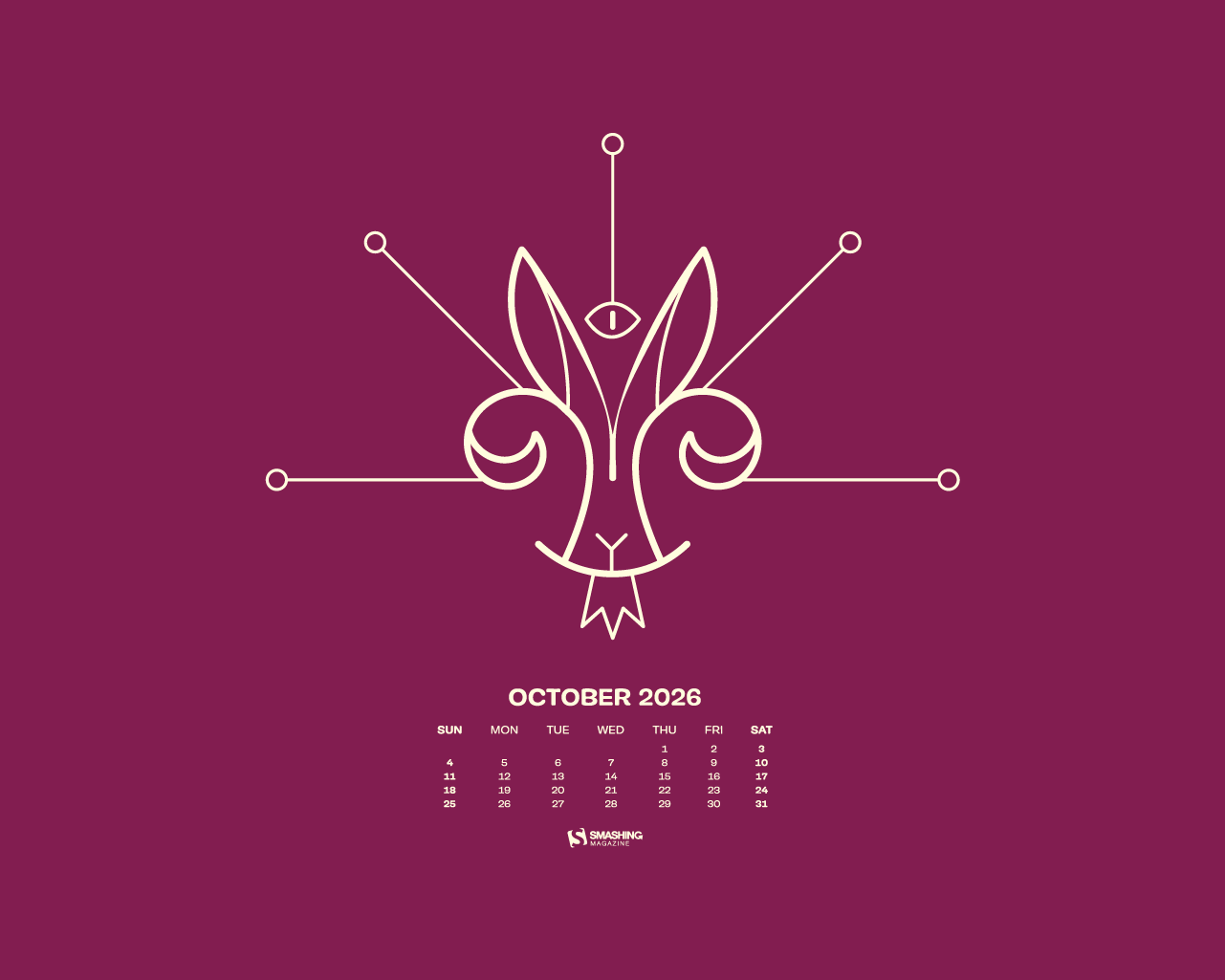































Designed by Ricardo Gimenes from Spain.
- preview
- with calendar: 640x480, 800x480, 800x600, 1024x768, 1024x1024, 1152x864, 1280x720, 1280x800, 1280x960, 1280x1024, 1366x768, 1400x1050, 1440x900, 1600x1200, 1680x1050, 1680x1200, 1920x1080, 1920x1200, 1920x1440, 2560x1440, 3840x2160
- without calendar: 640x480, 800x480, 800x600, 1024x768, 1024x1024, 1152x864, 1280x720, 1280x800, 1280x960, 1280x1024, 1366x768, 1400x1050, 1440x900, 1600x1200, 1680x1050, 1680x1200, 1920x1080, 1920x1200, 1920x1440, 2560x1440, 3840x2160
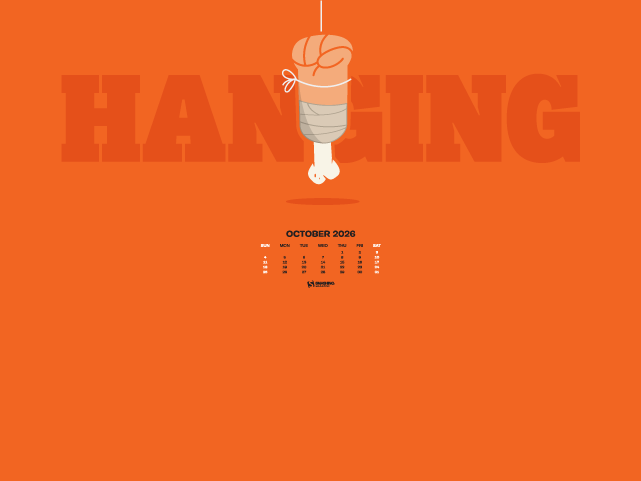
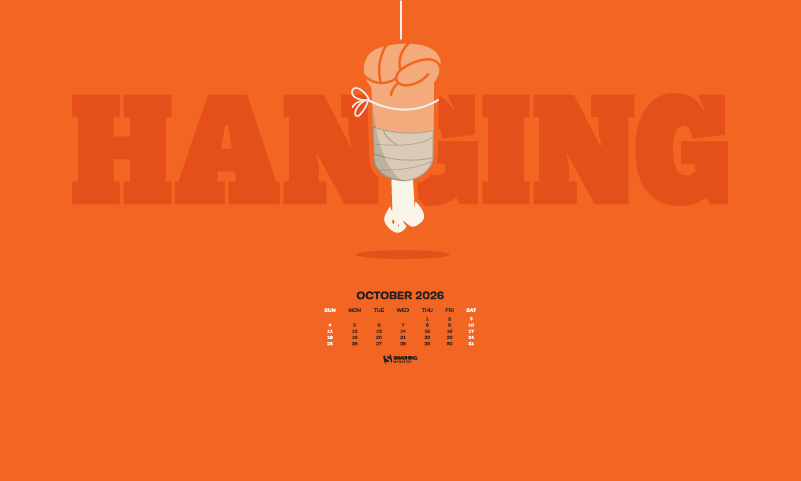
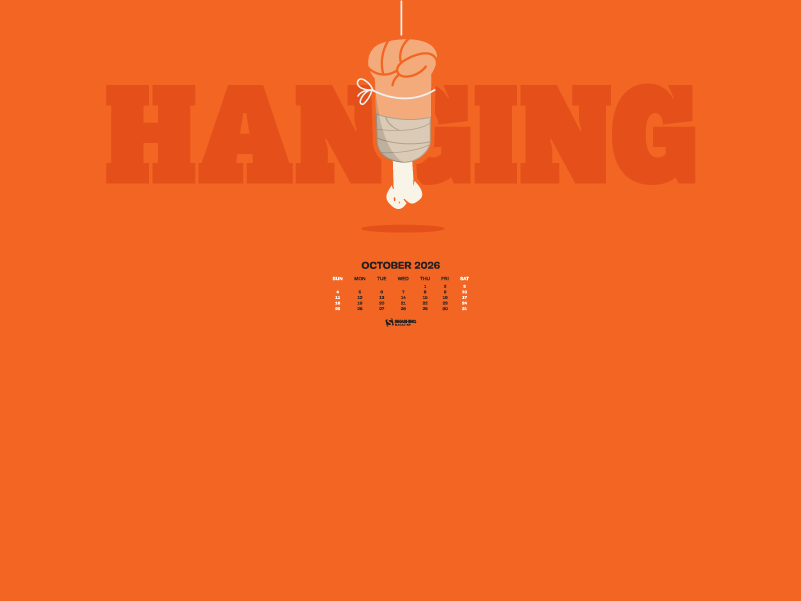
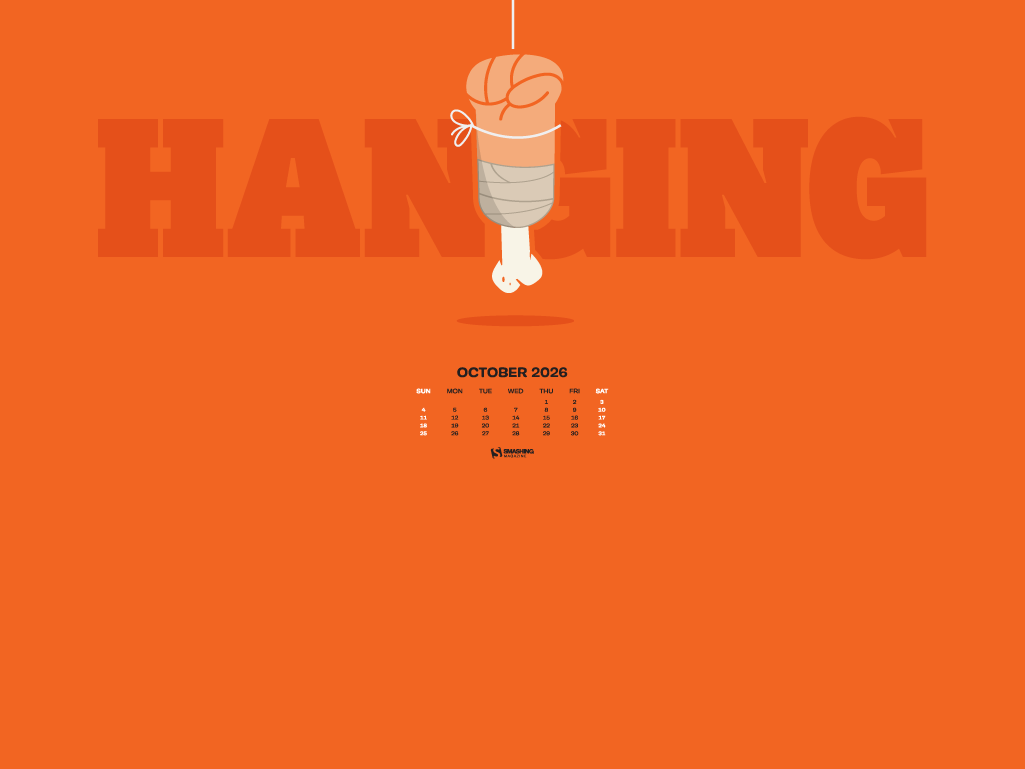
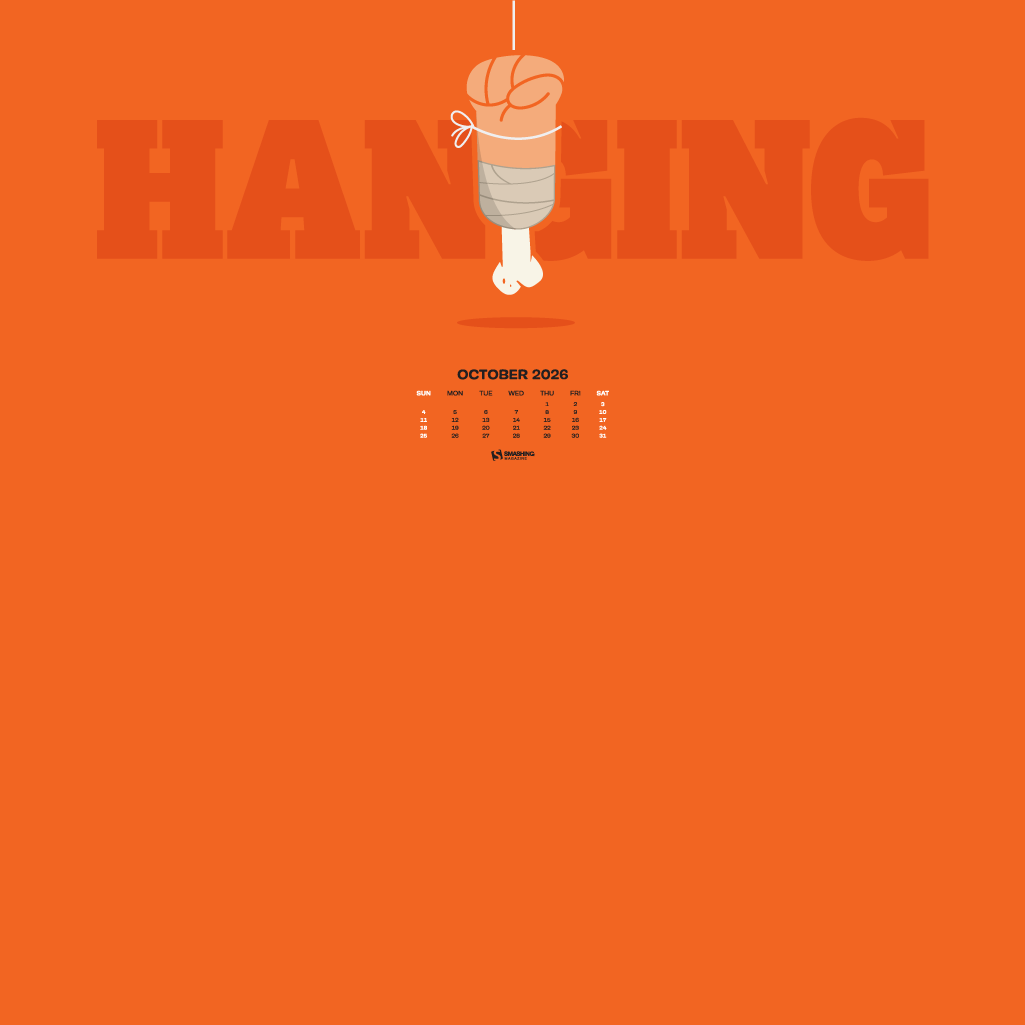
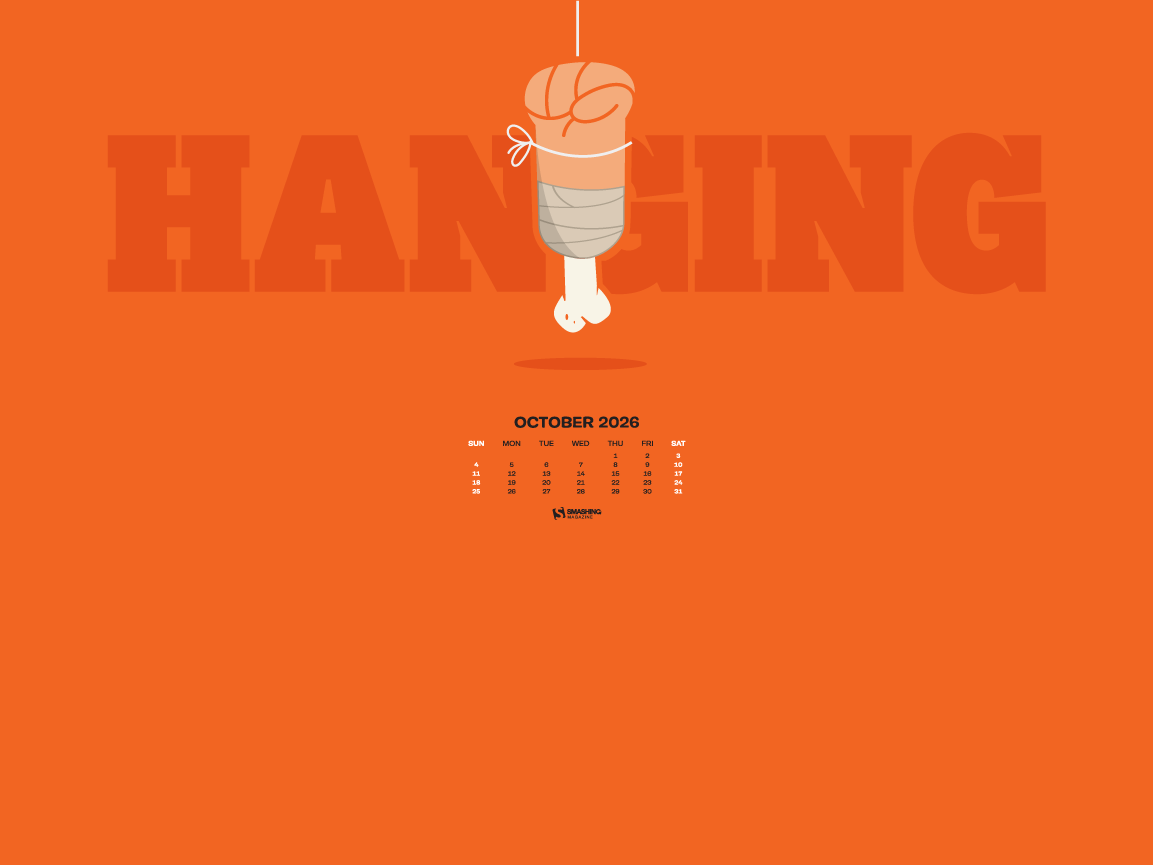
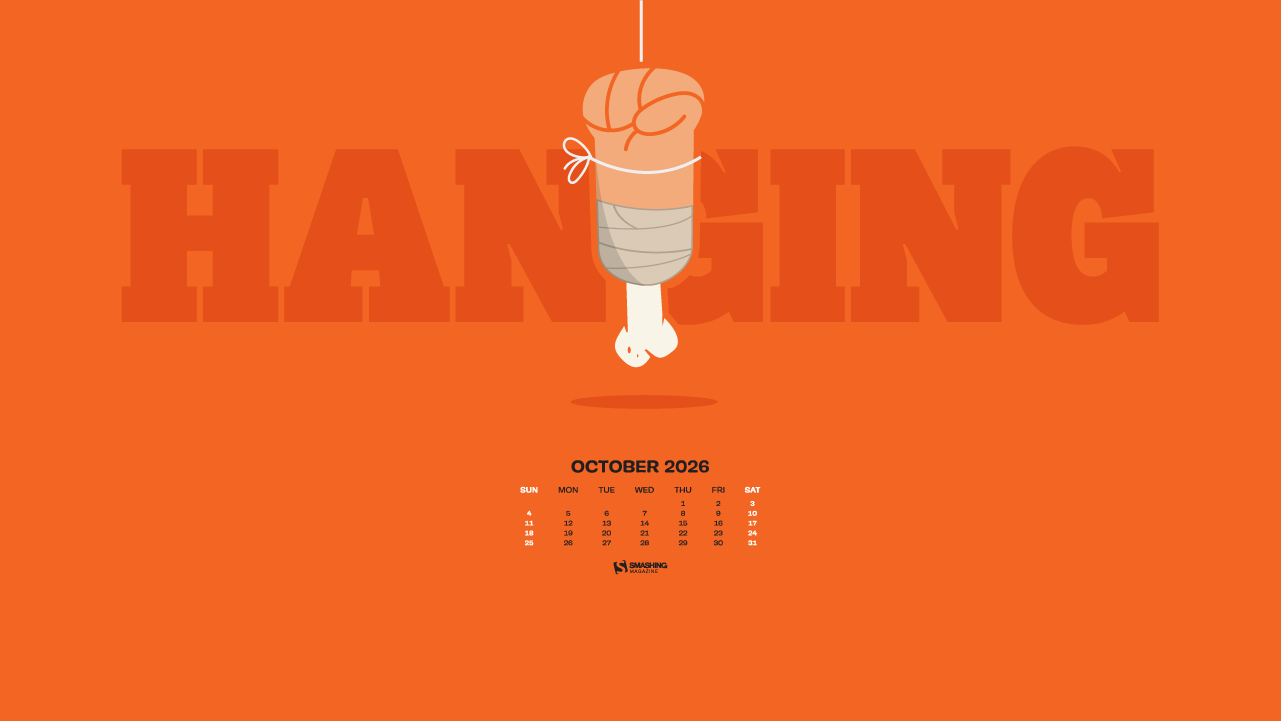
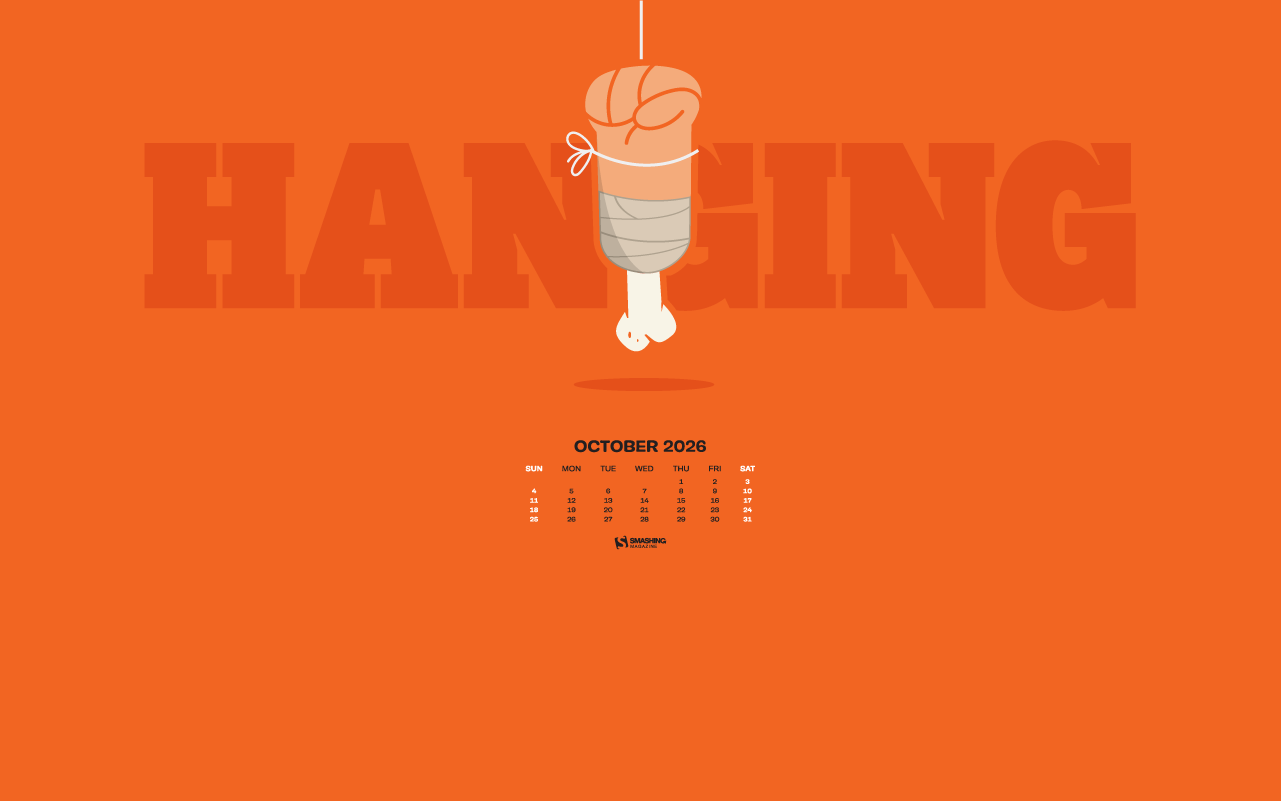
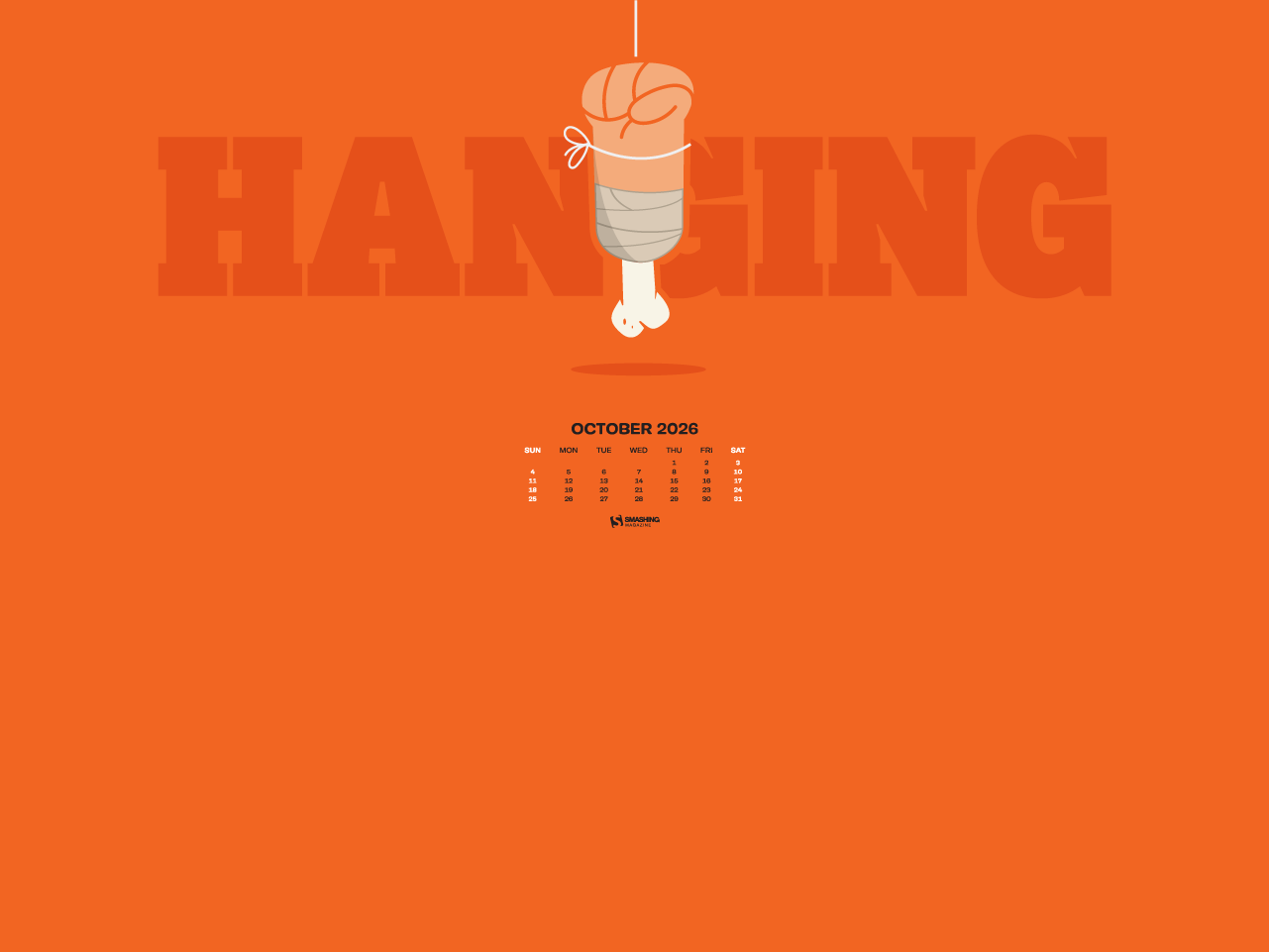
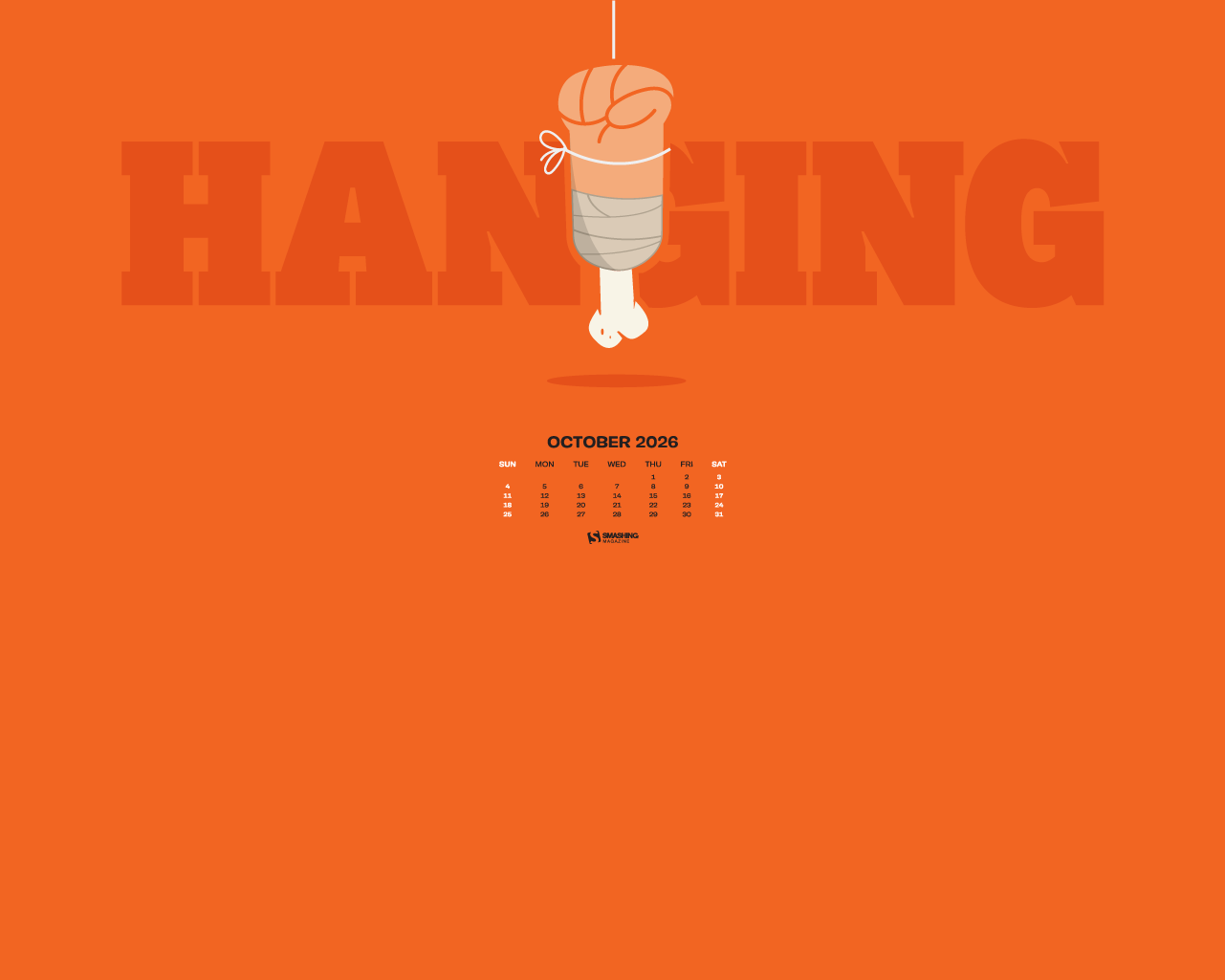
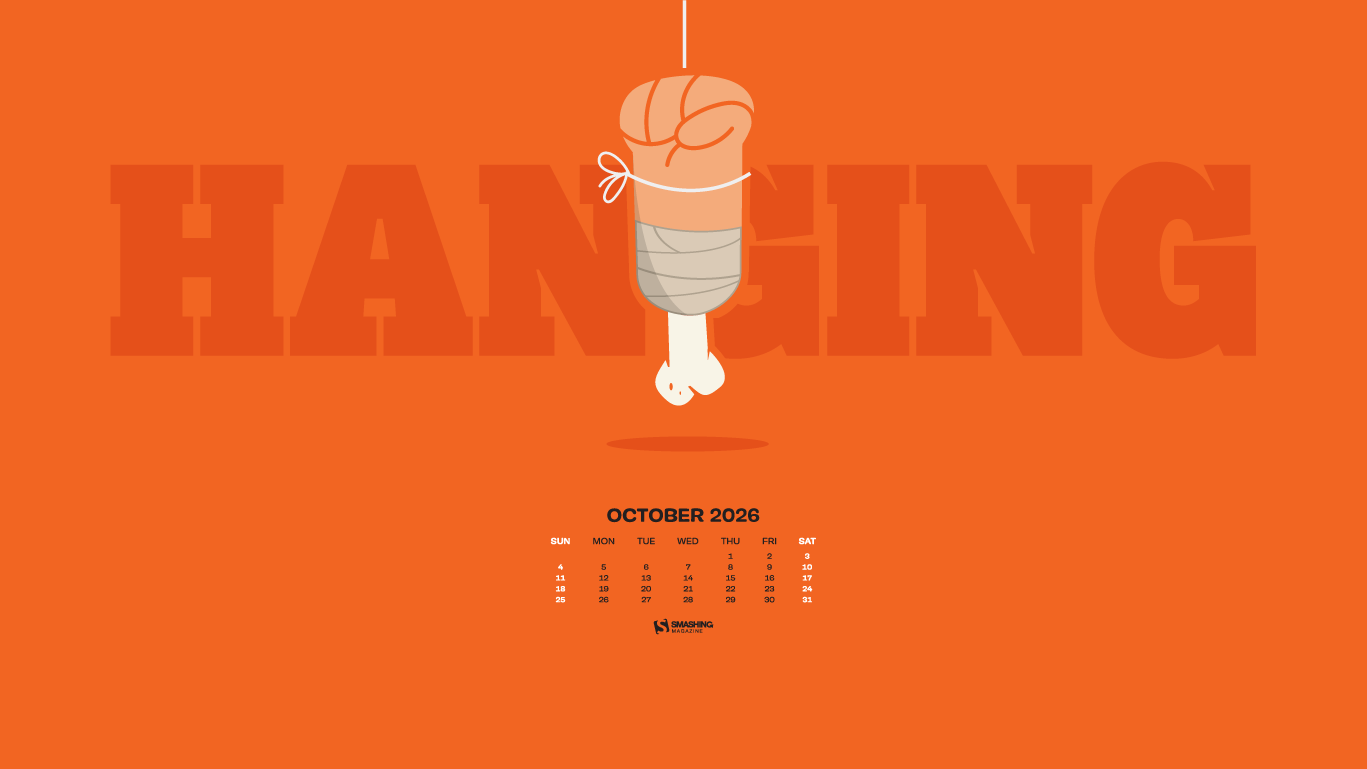
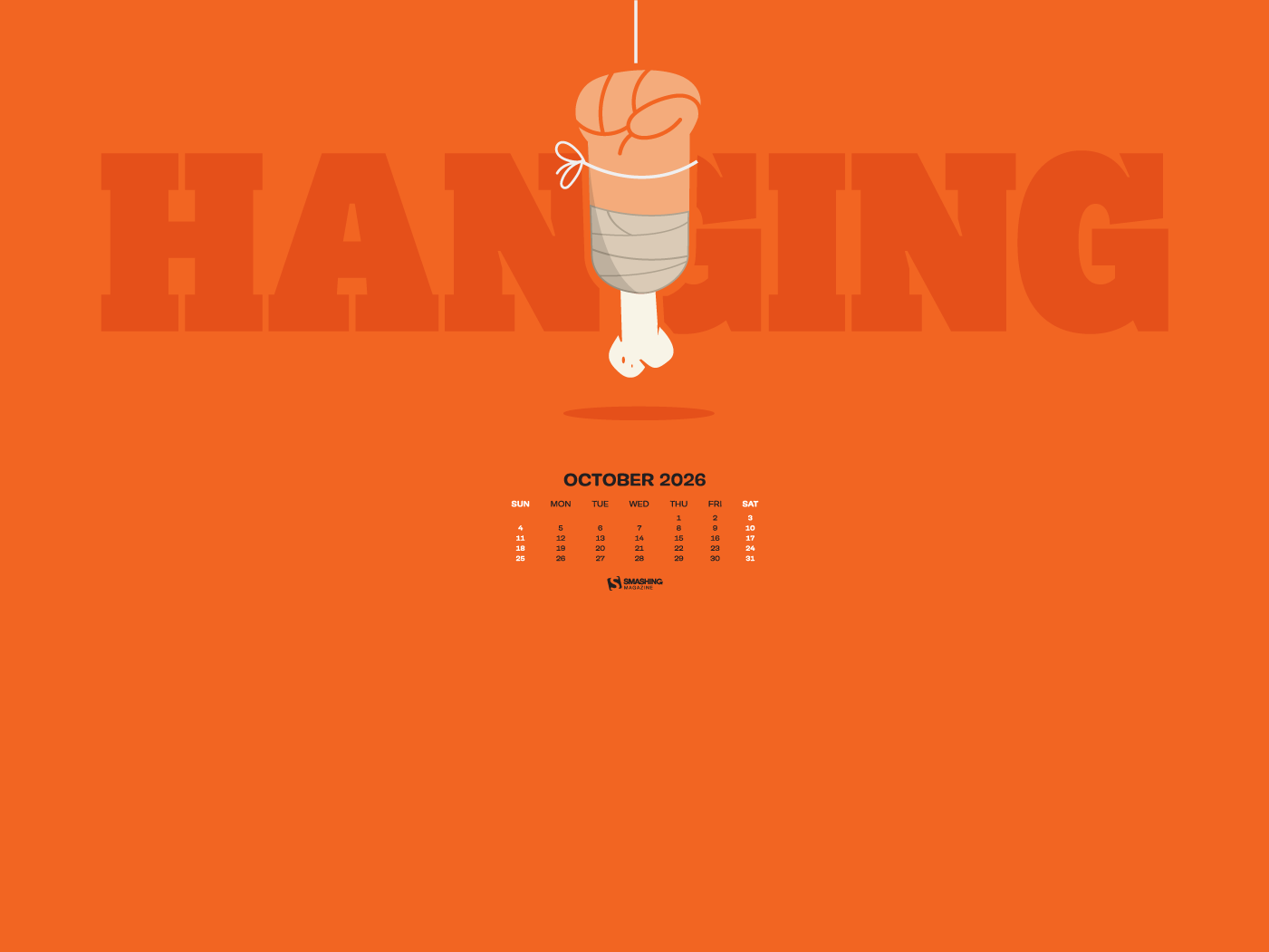
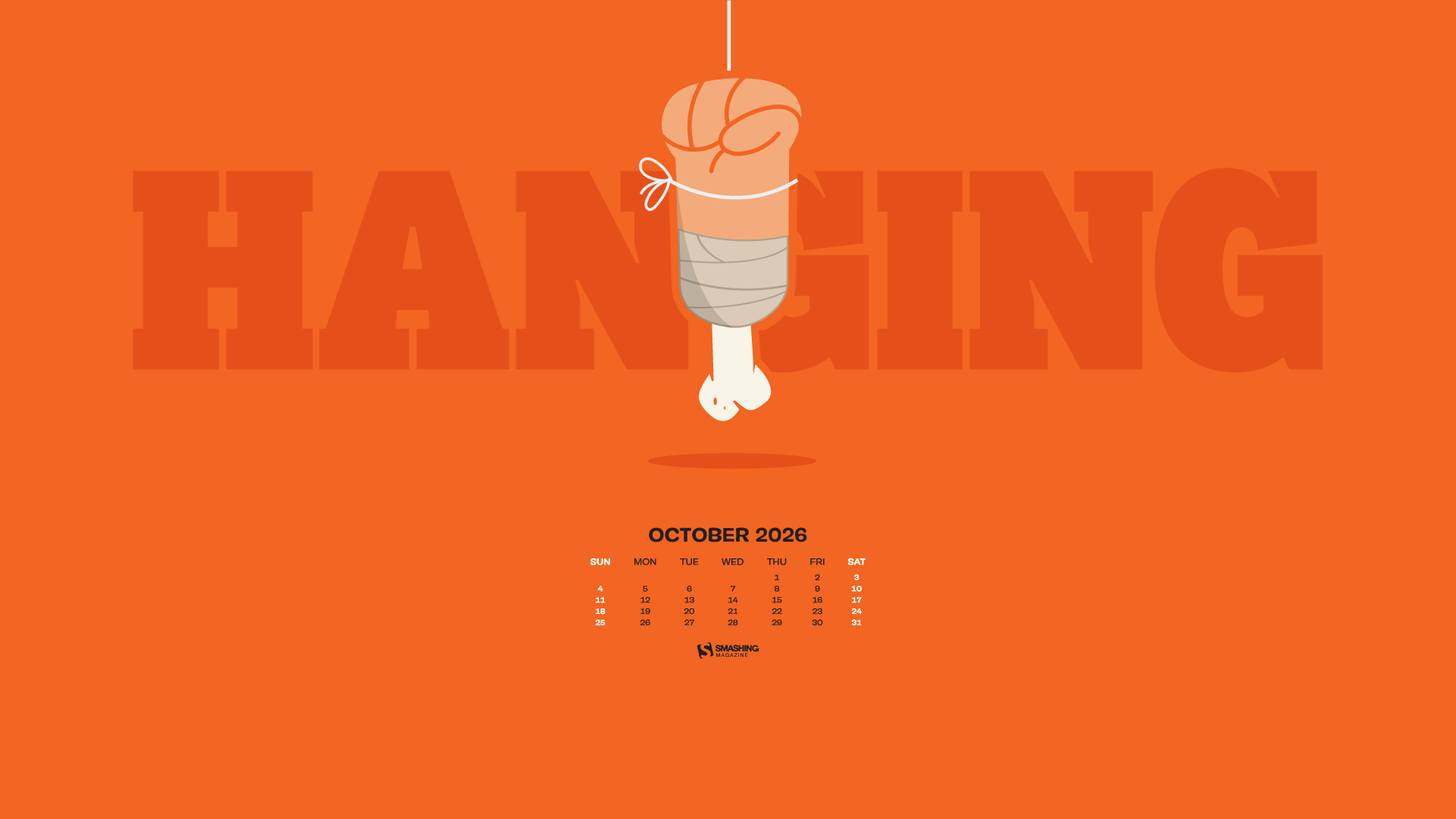
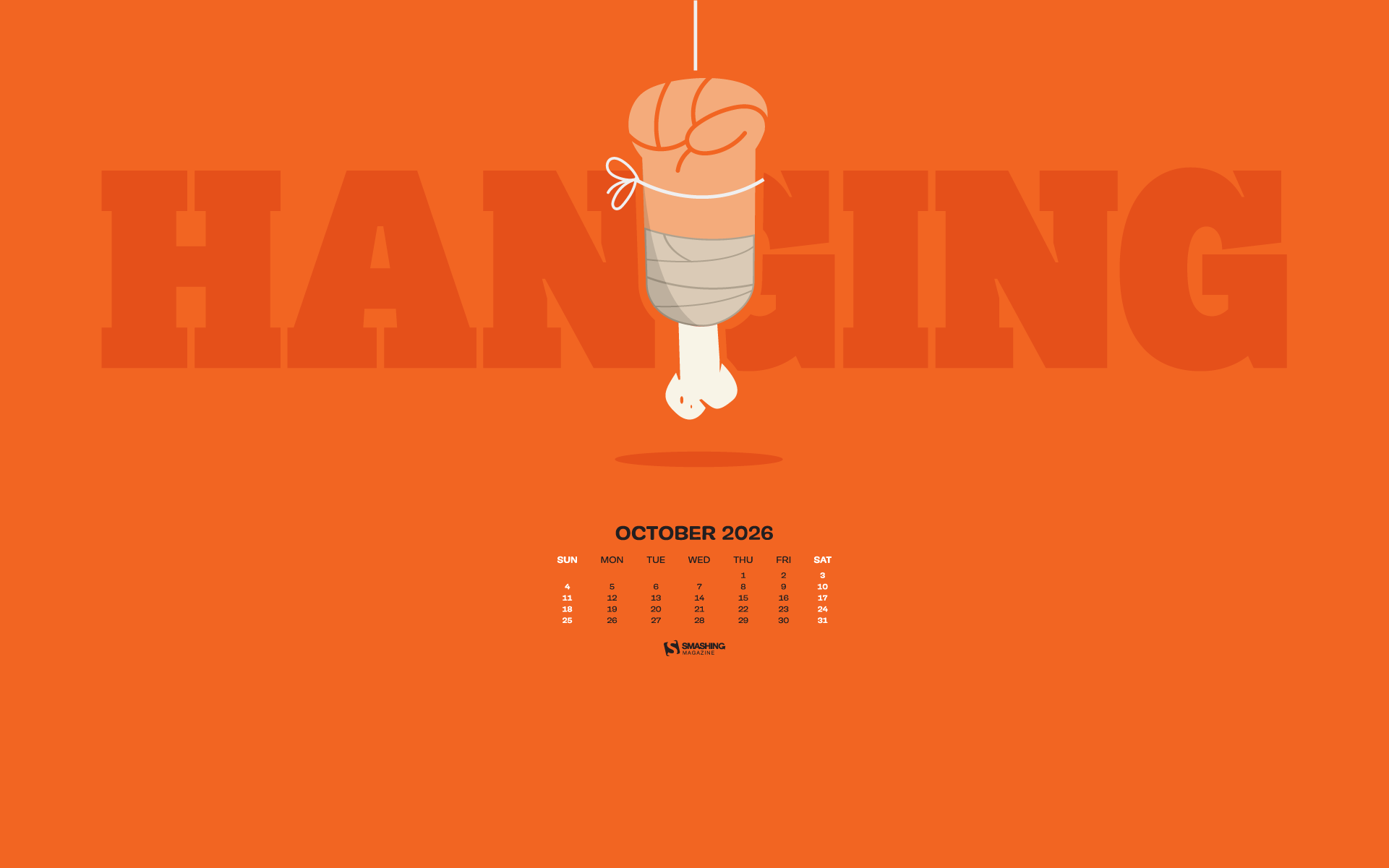
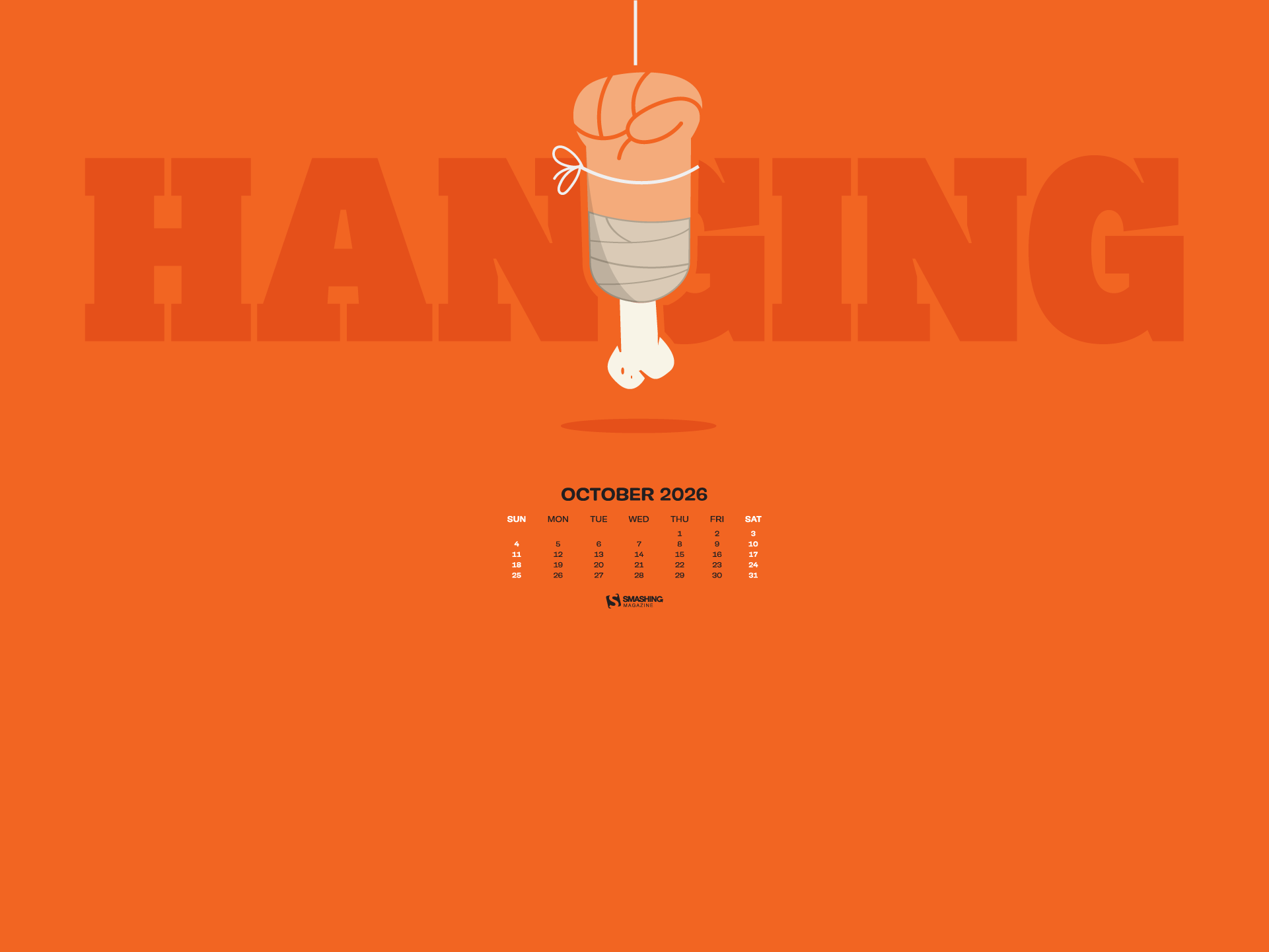
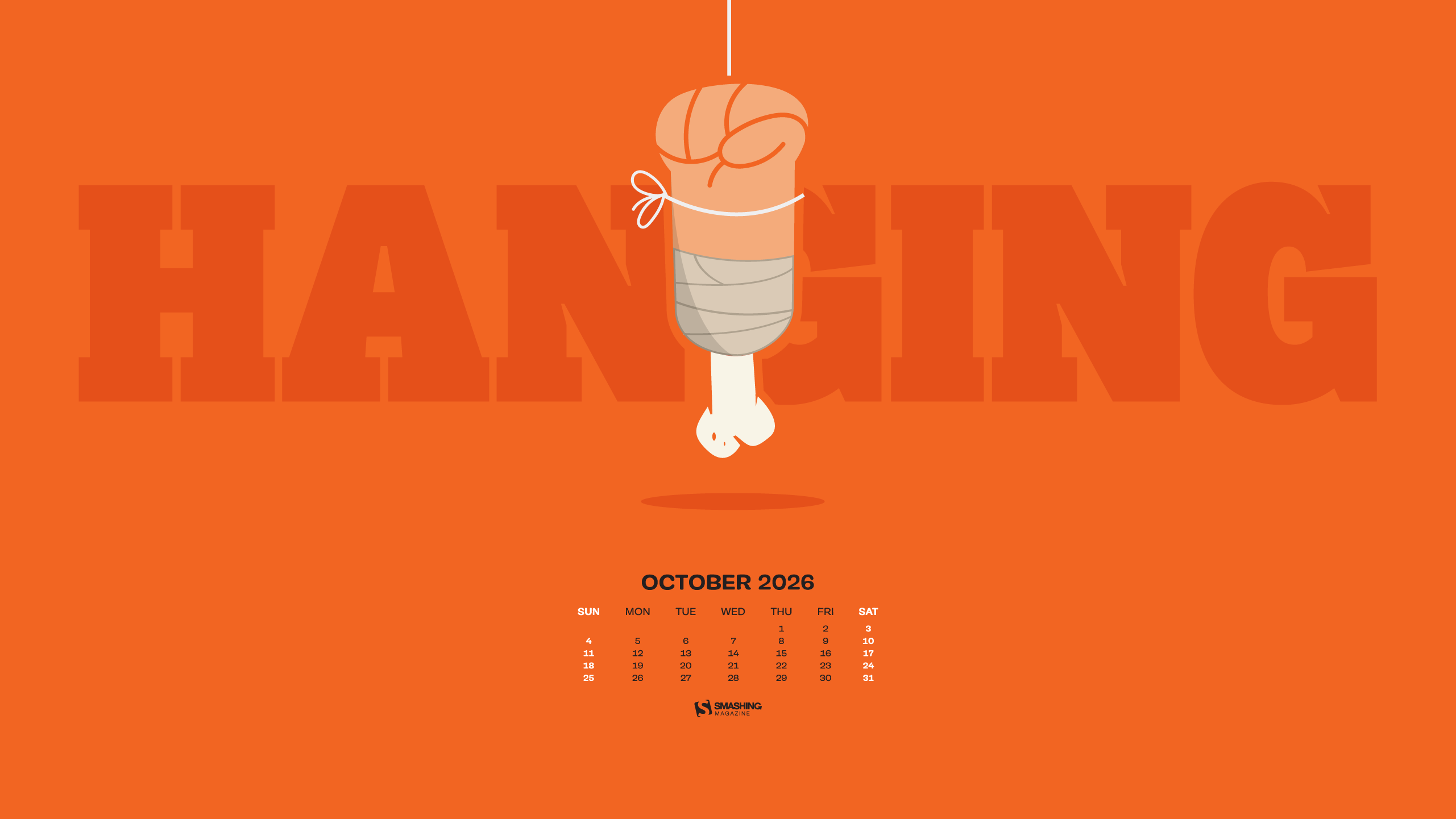
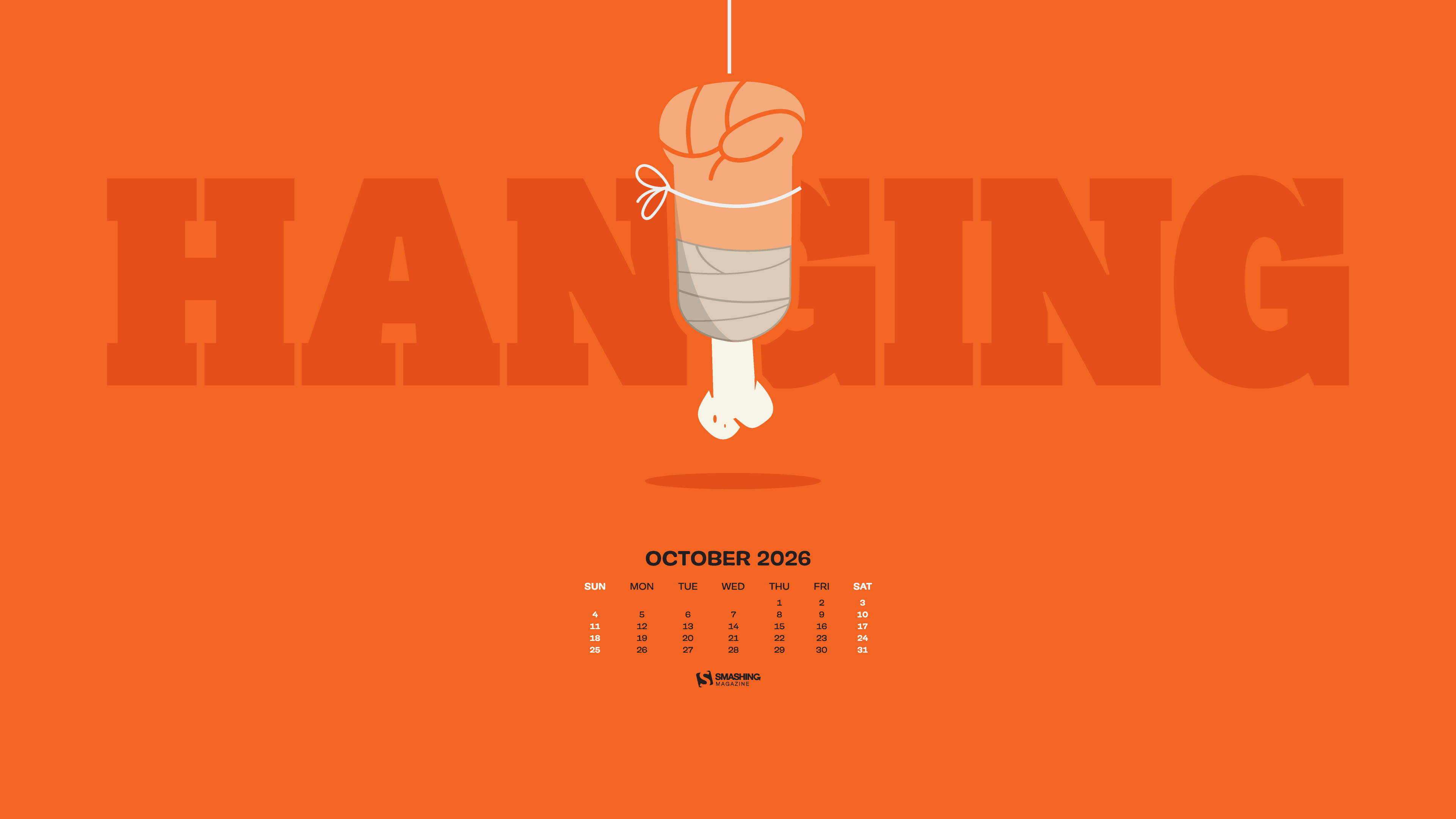
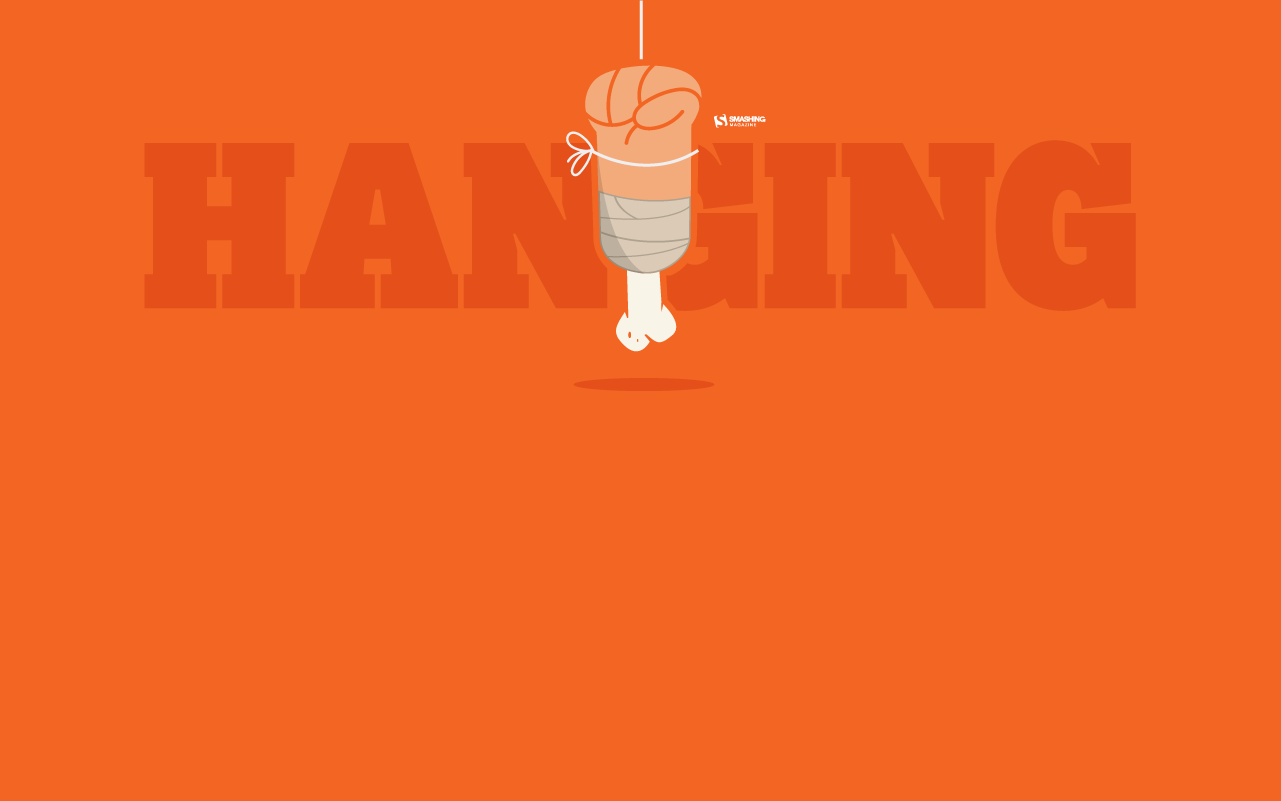
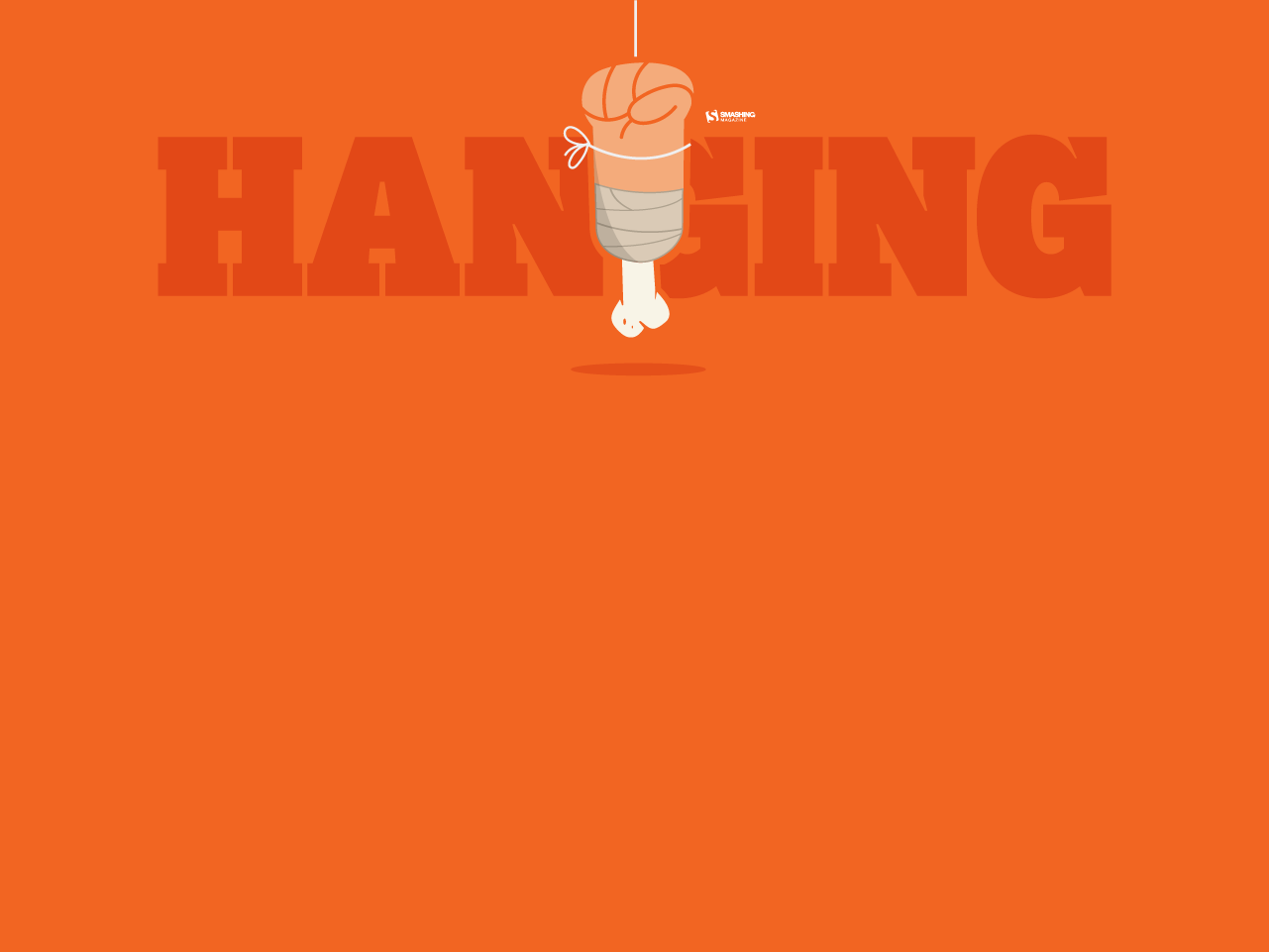
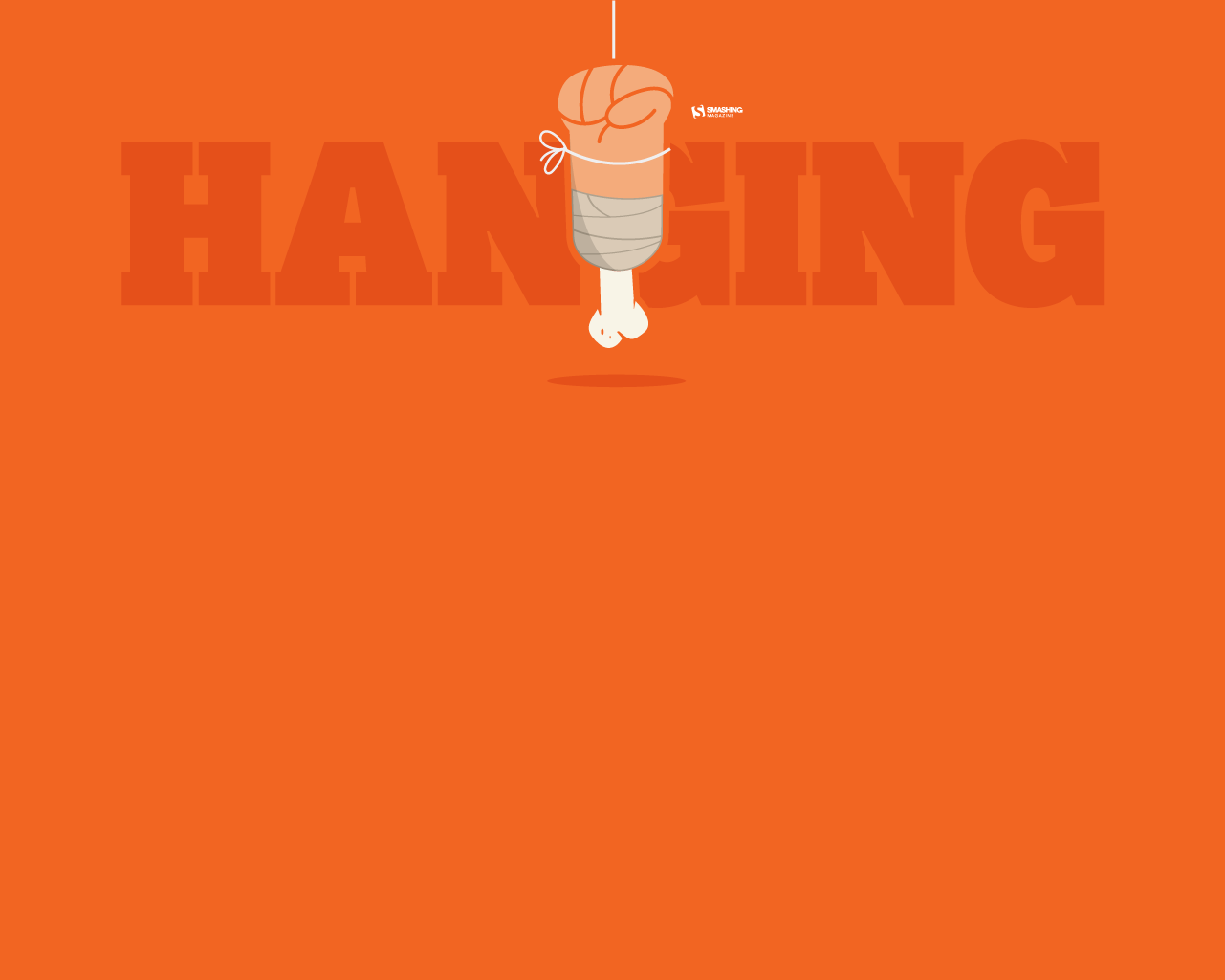
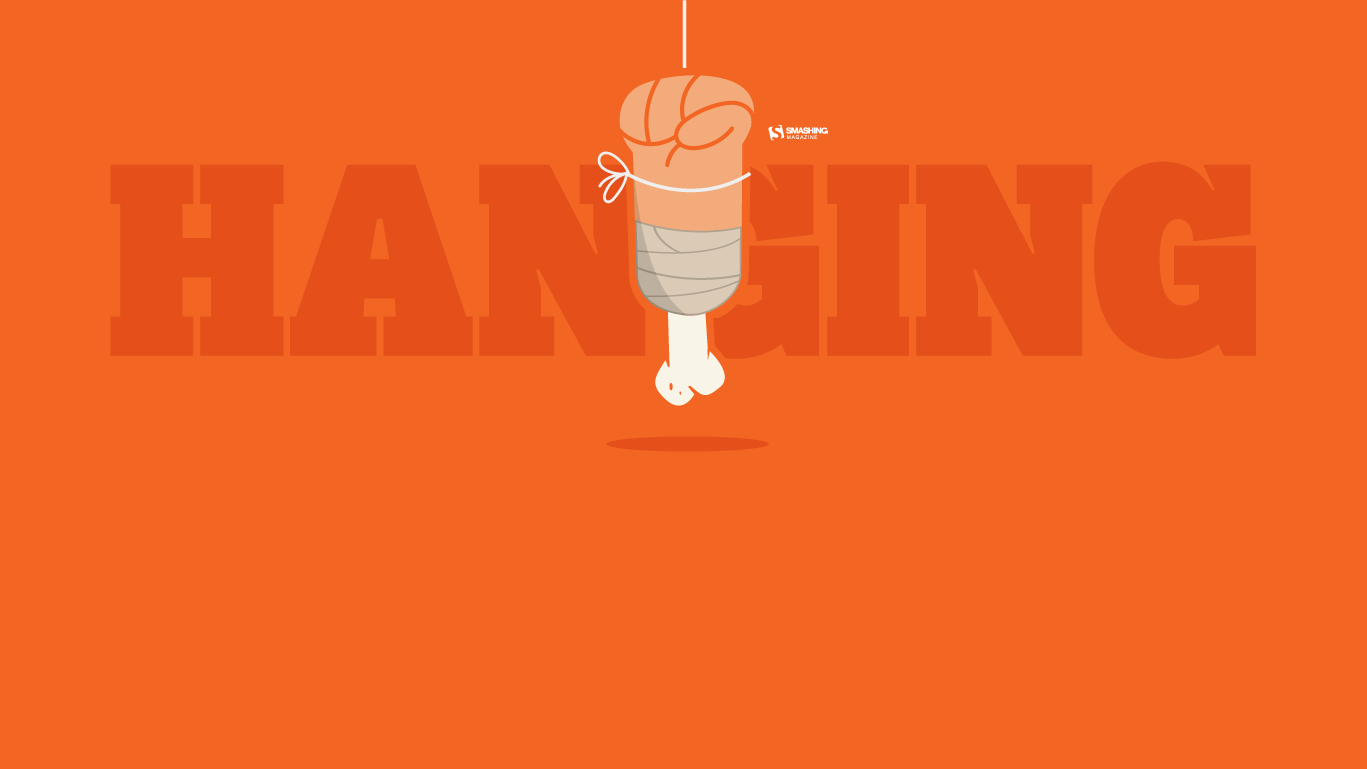
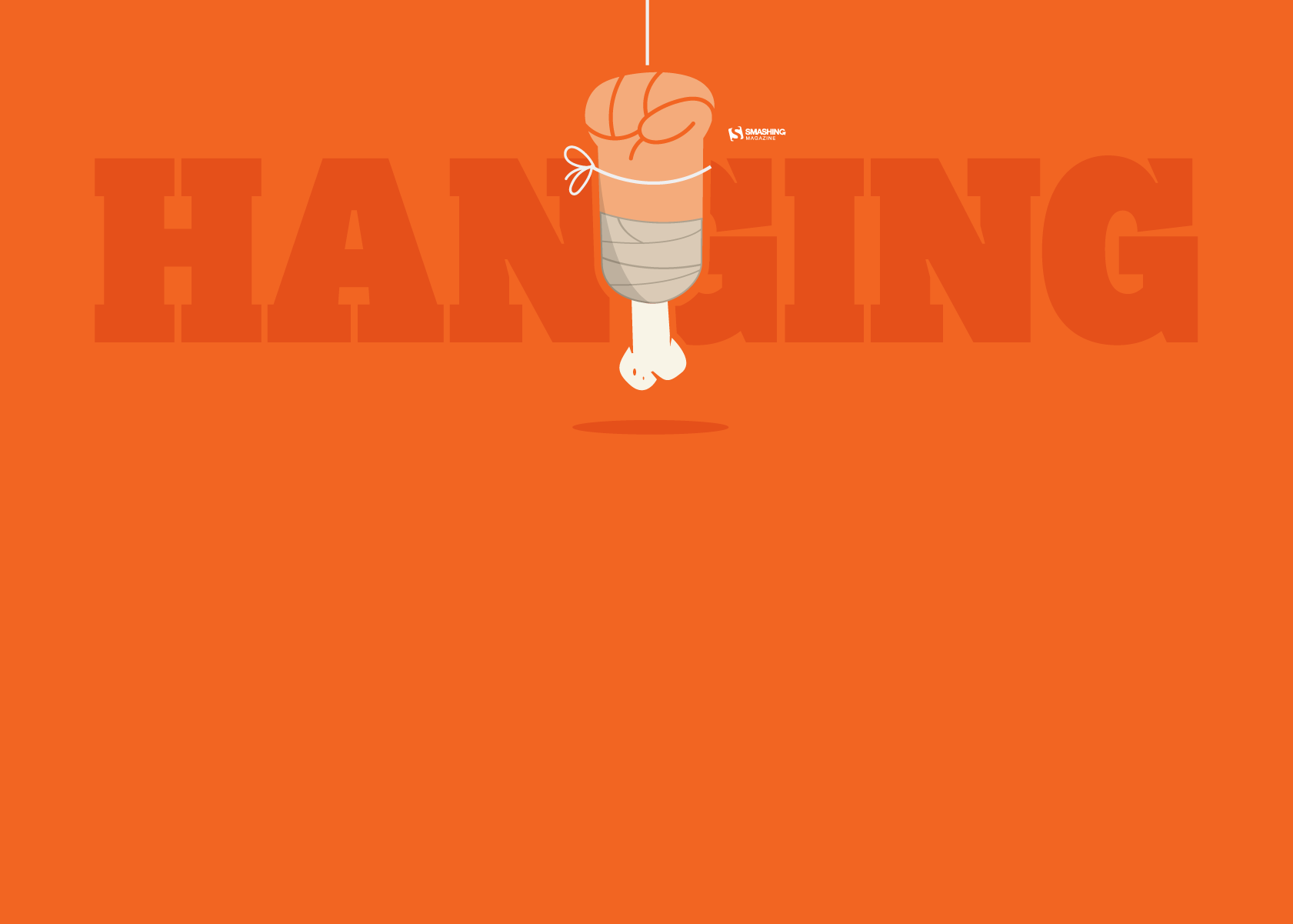
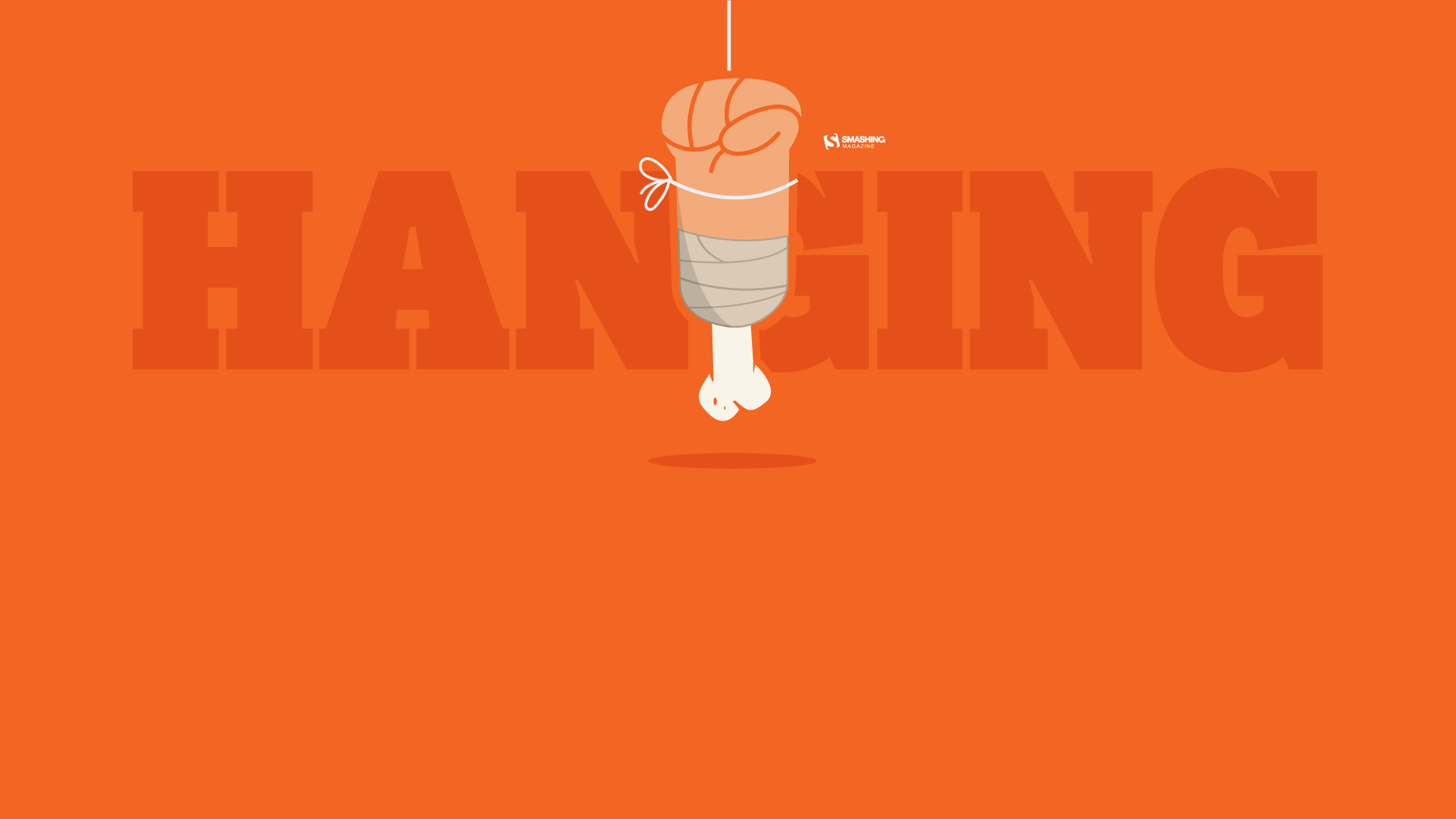
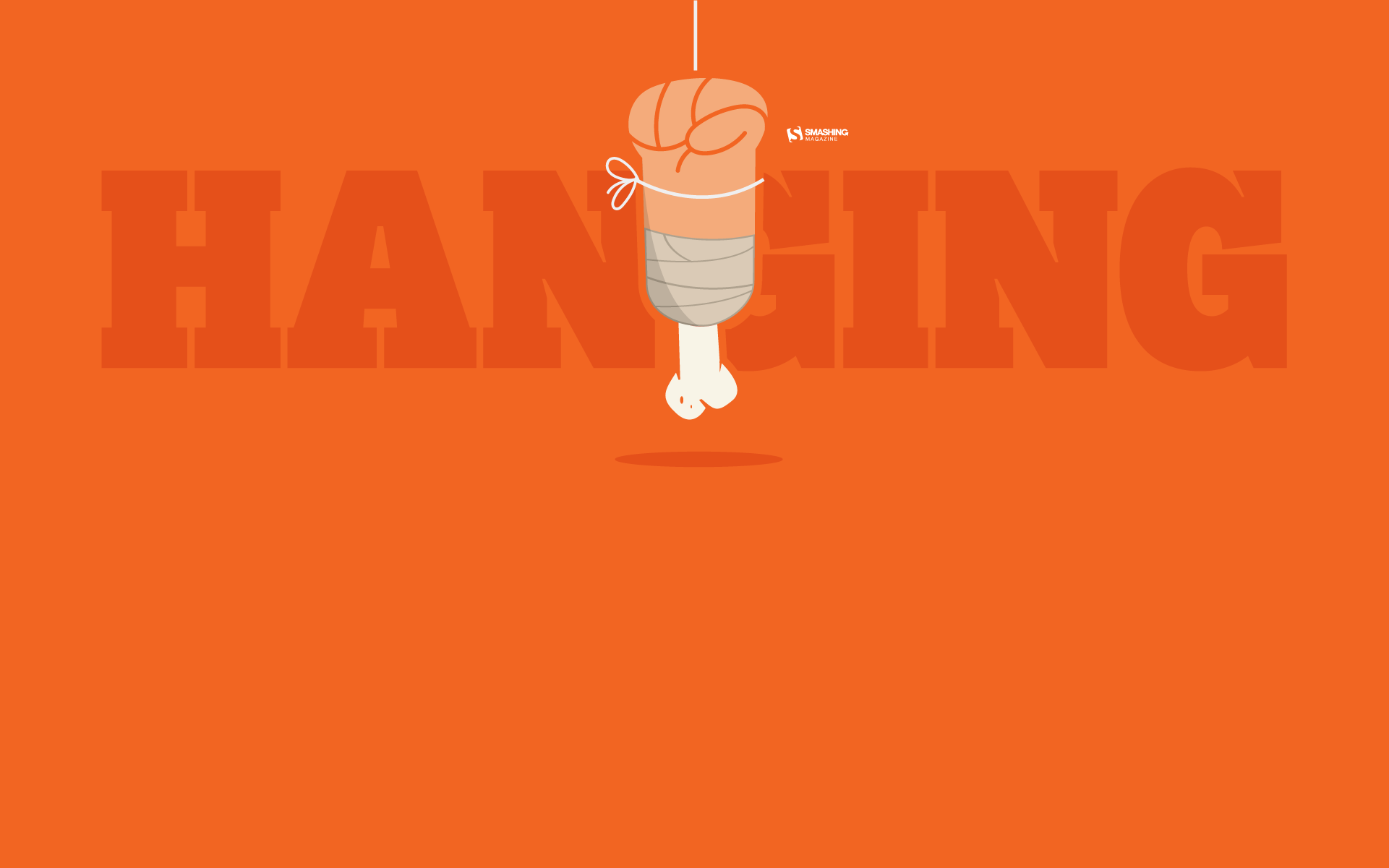
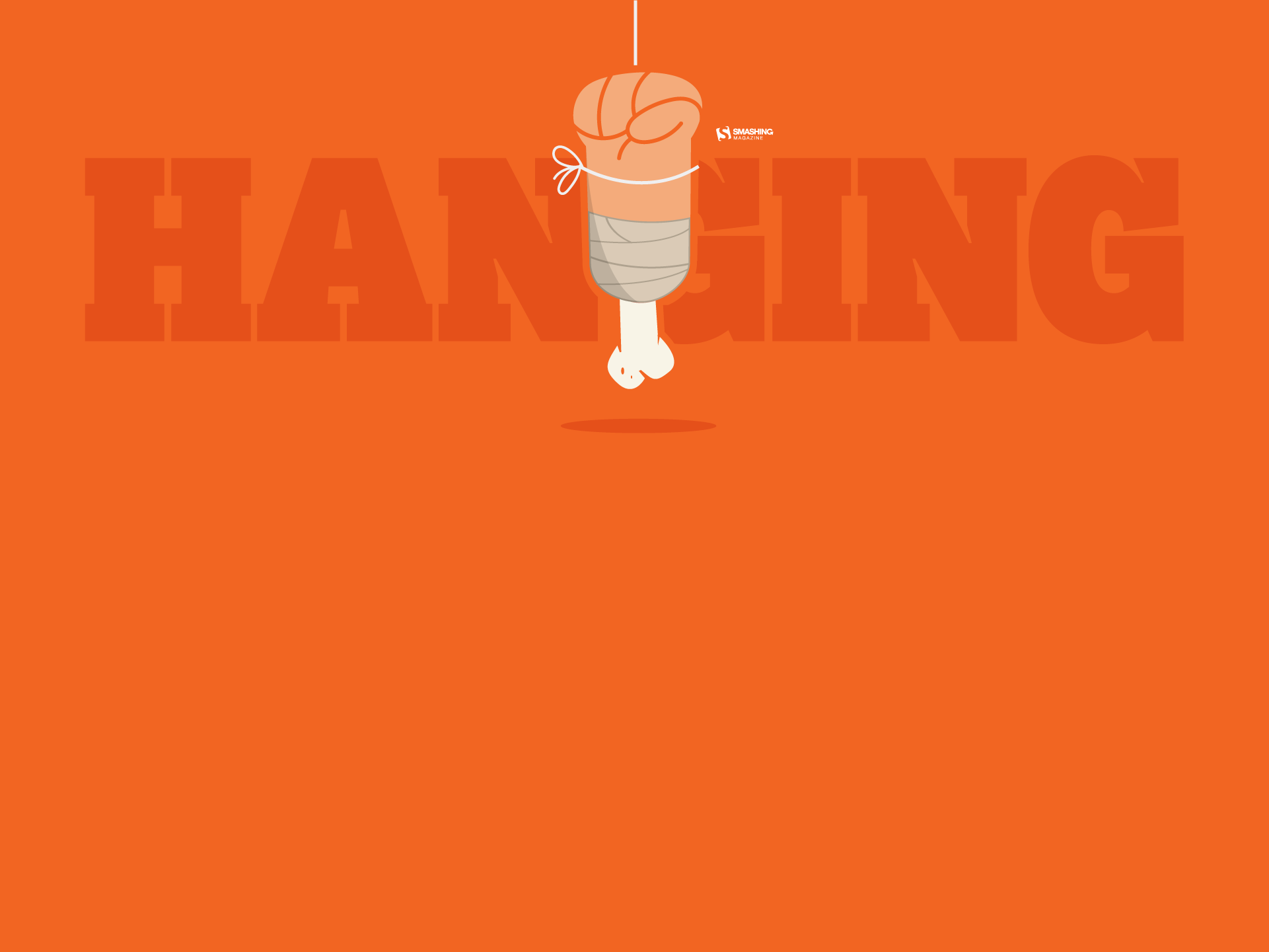
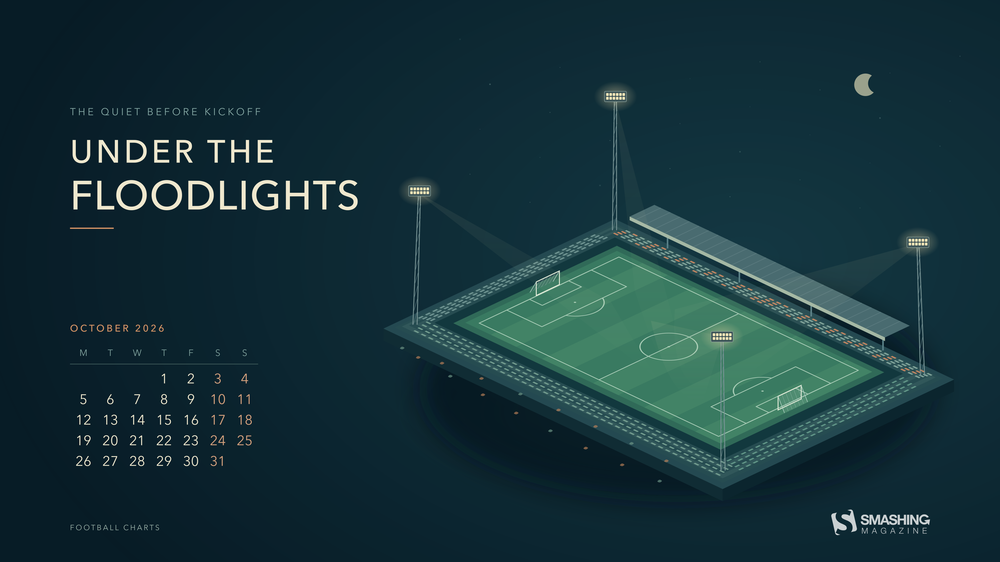
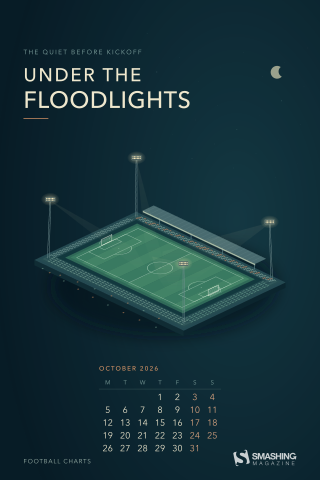
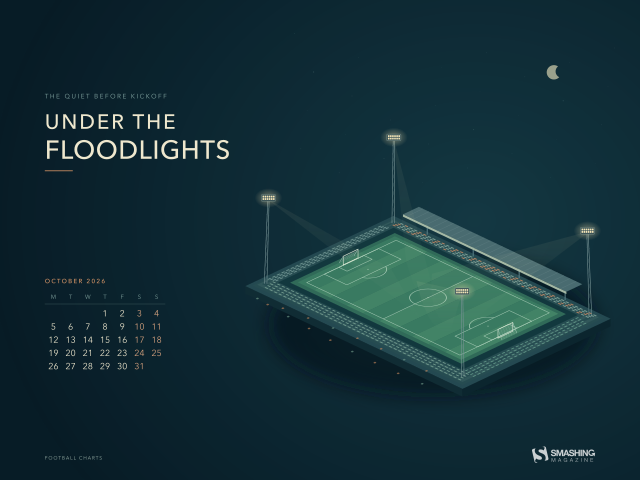
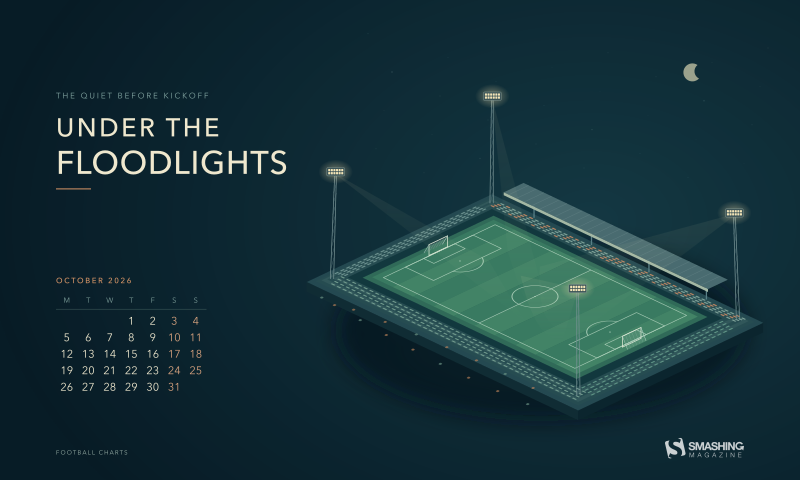
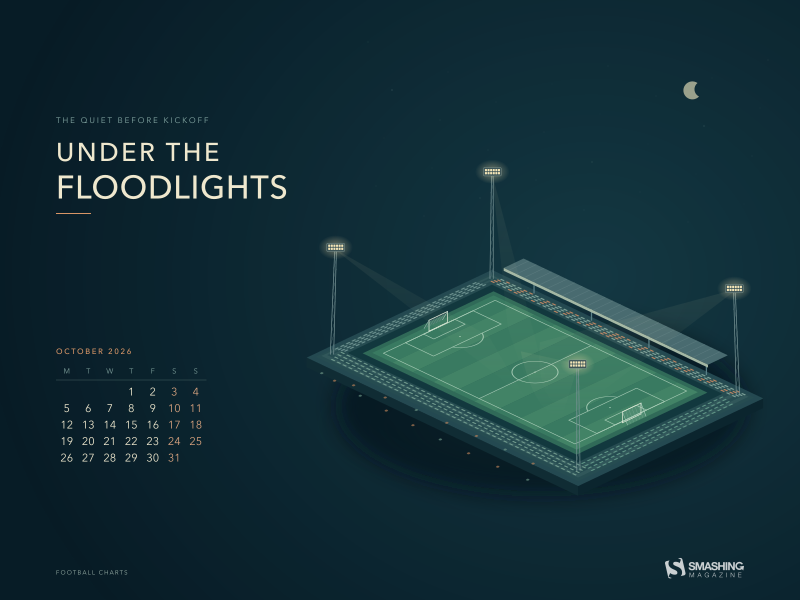
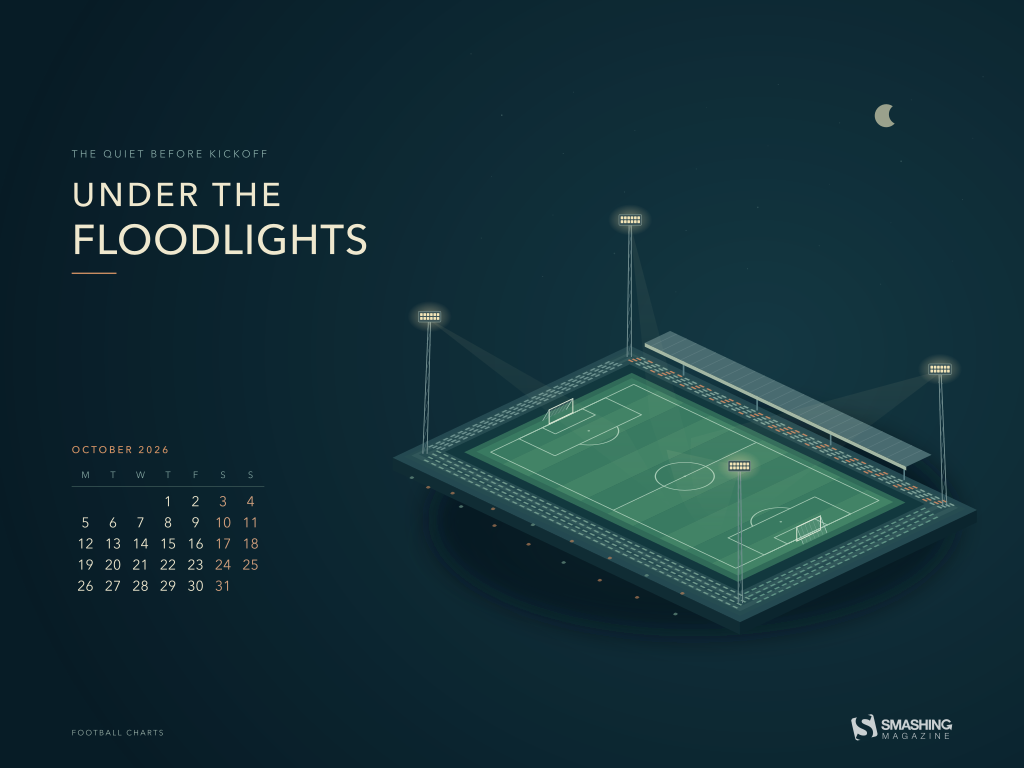
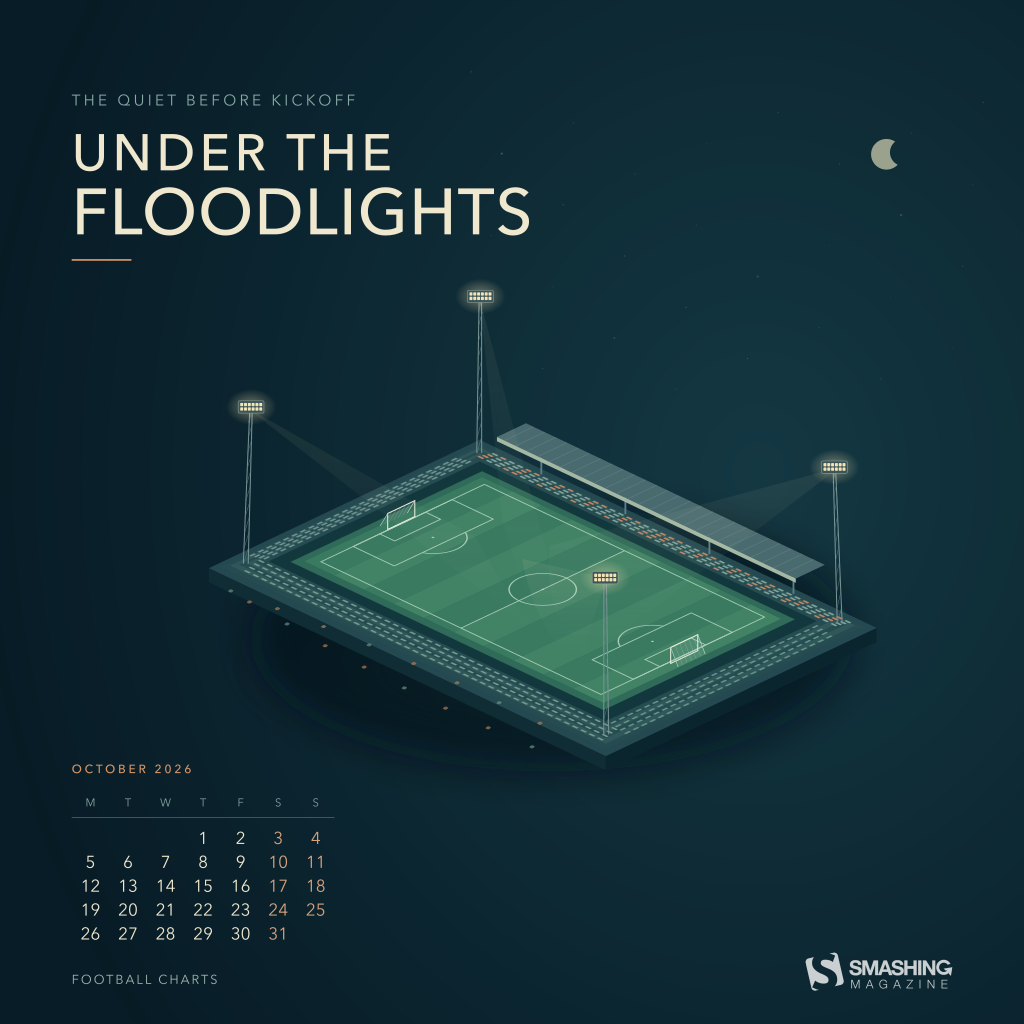
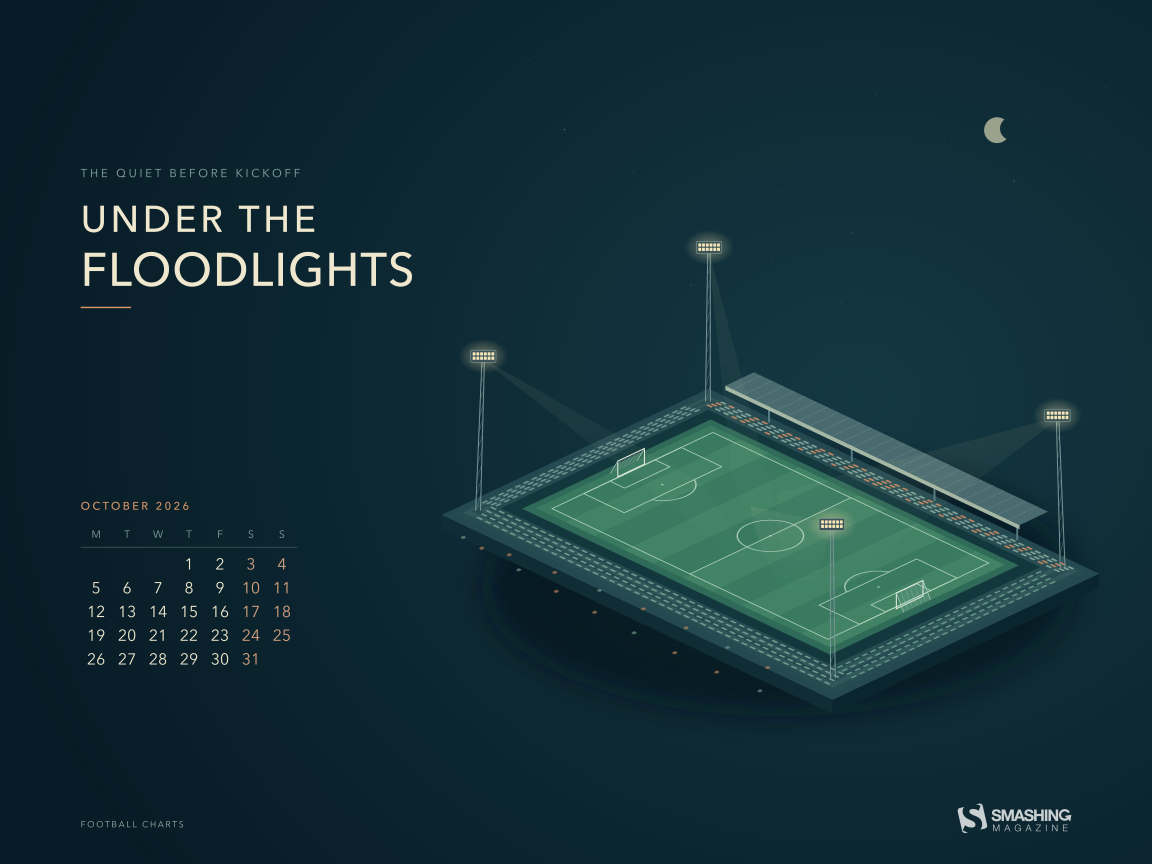
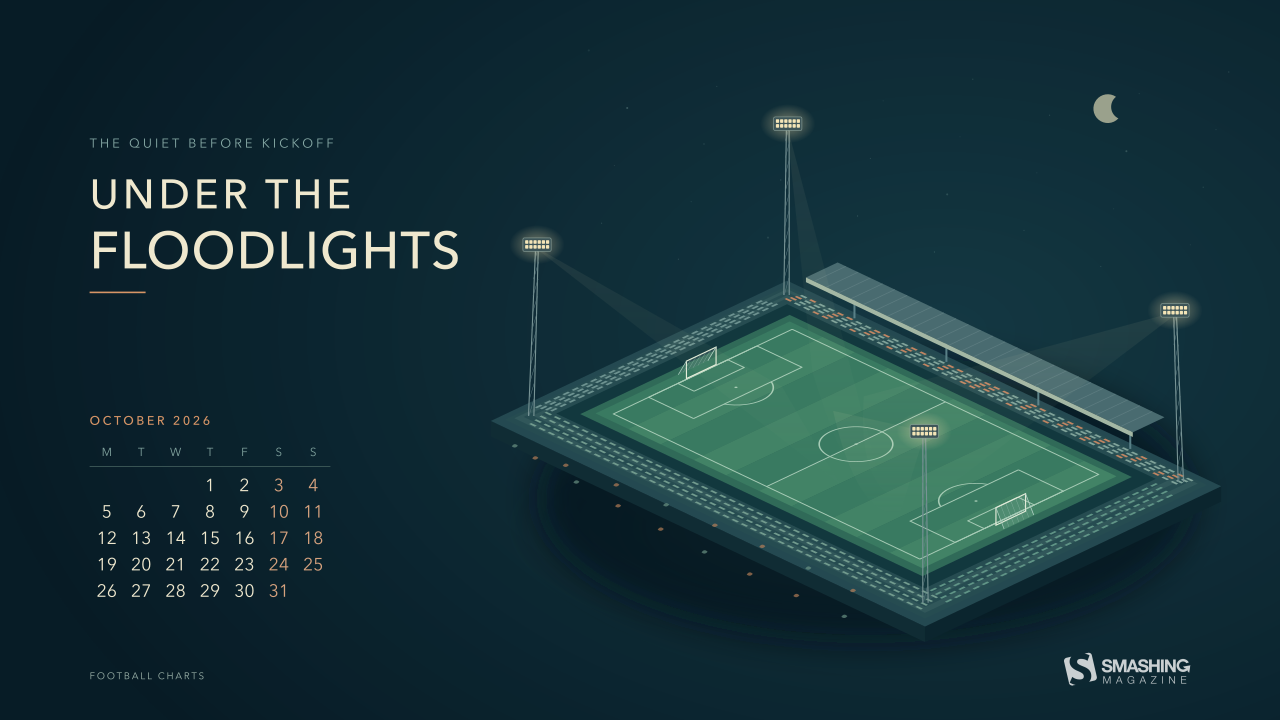
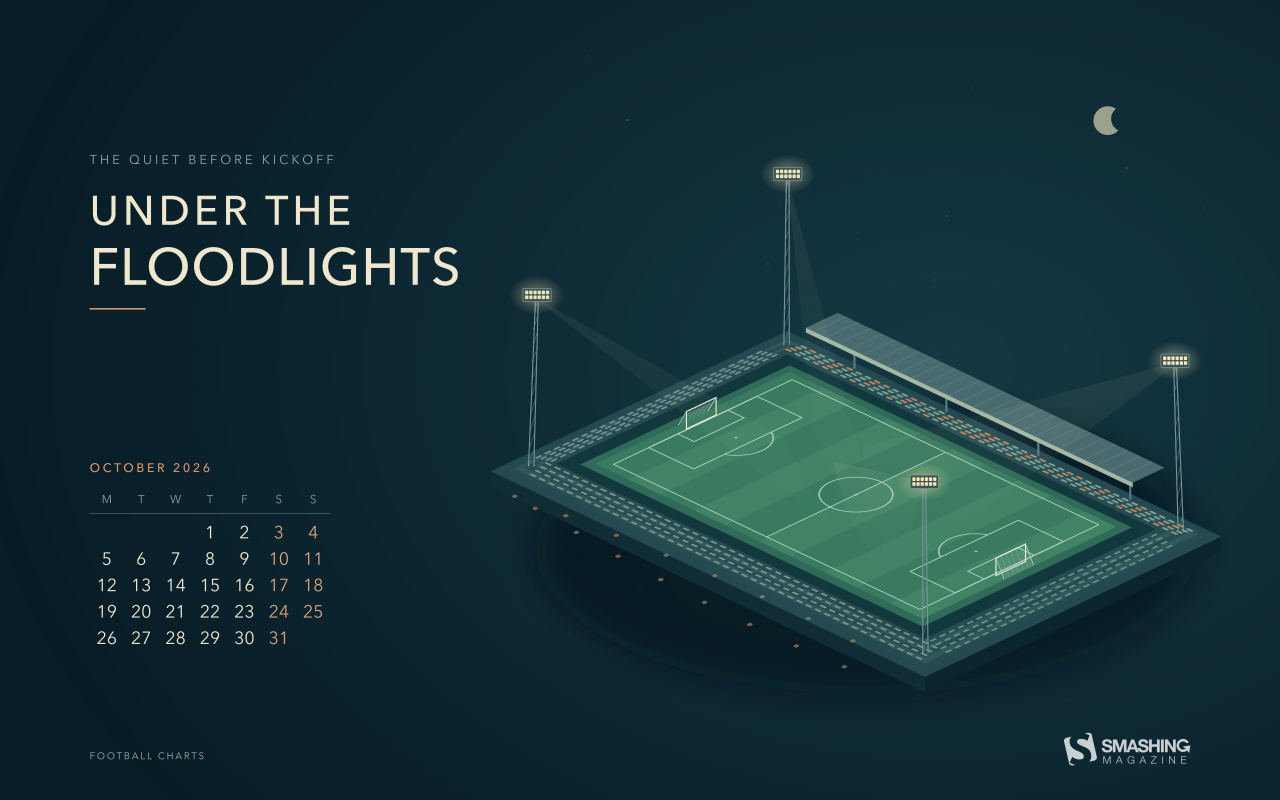
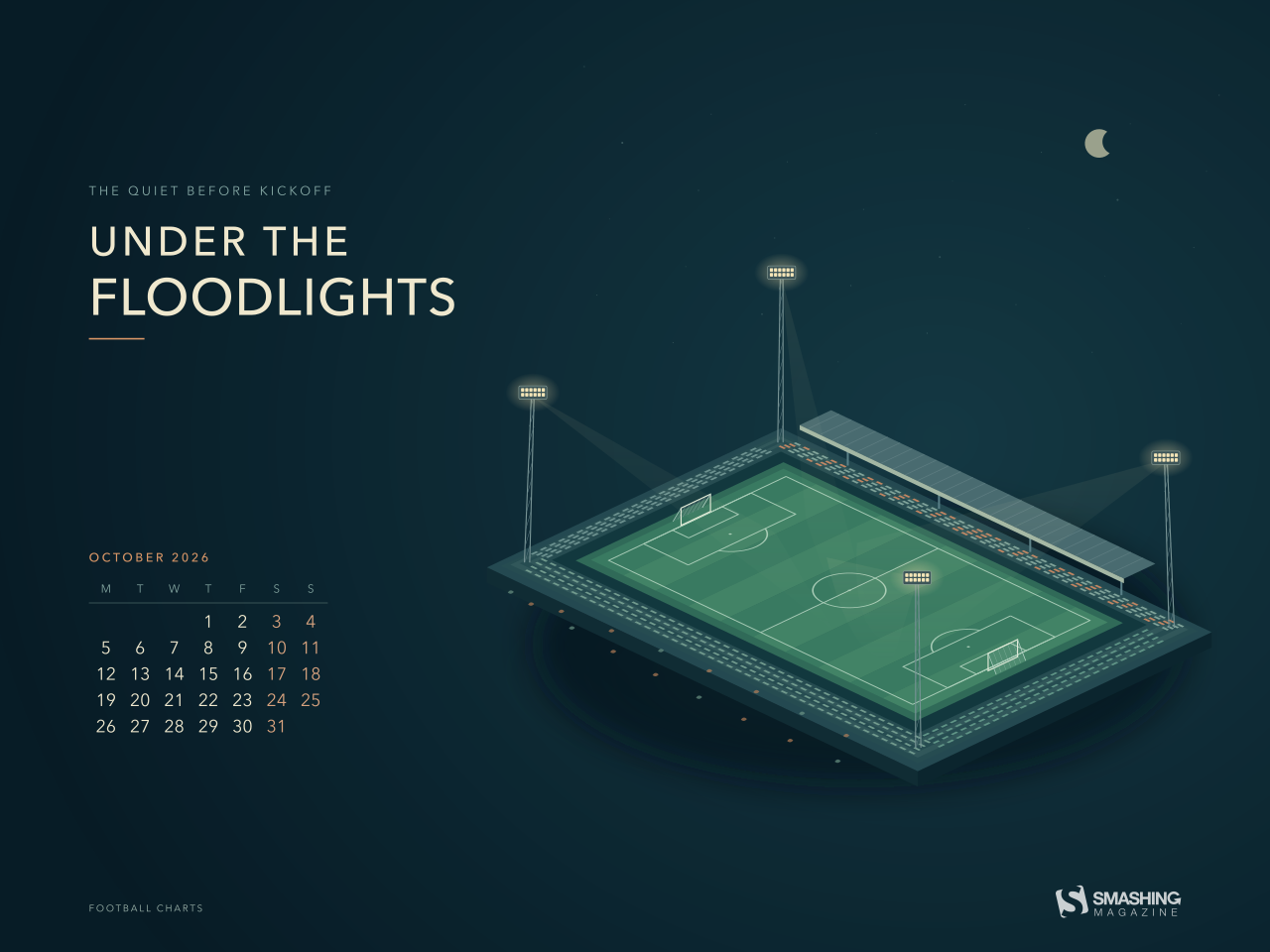
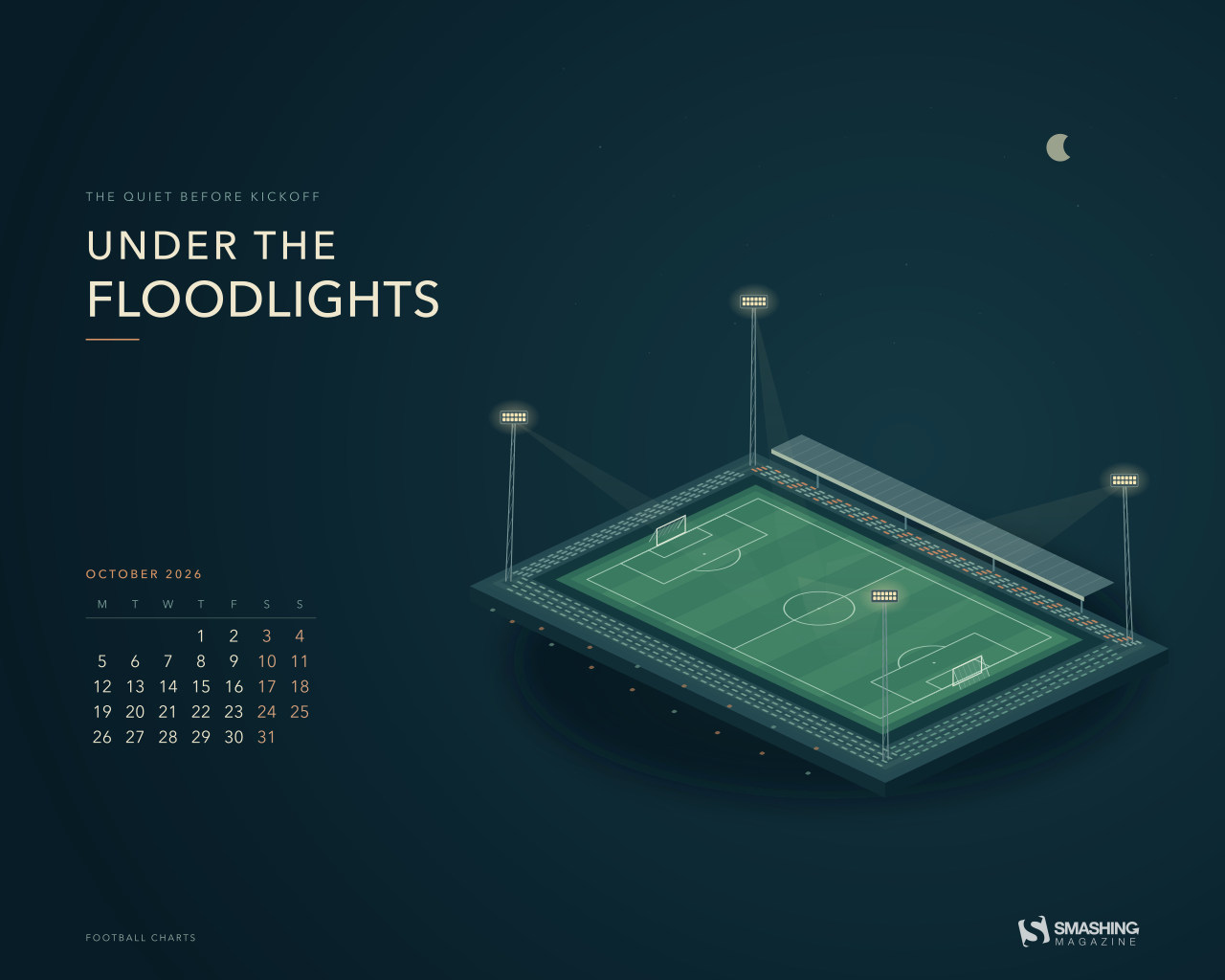
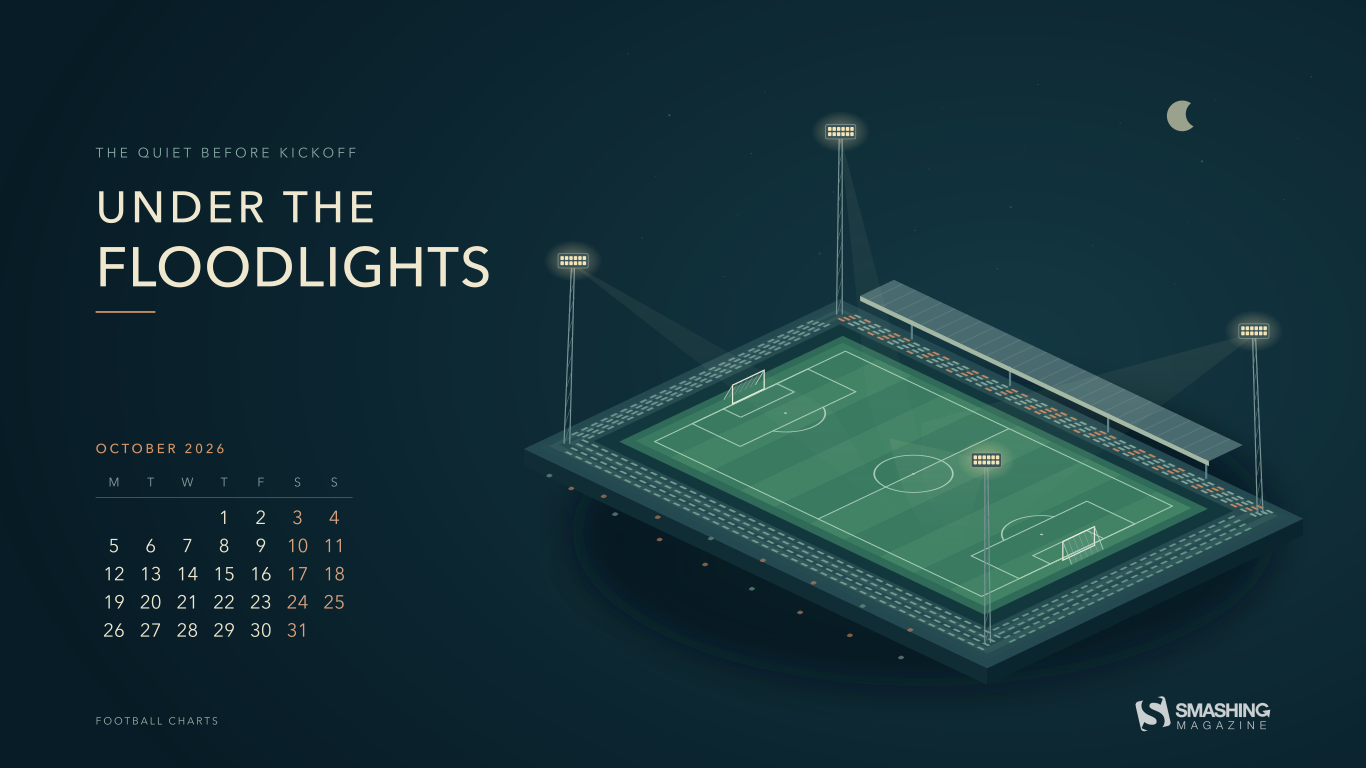
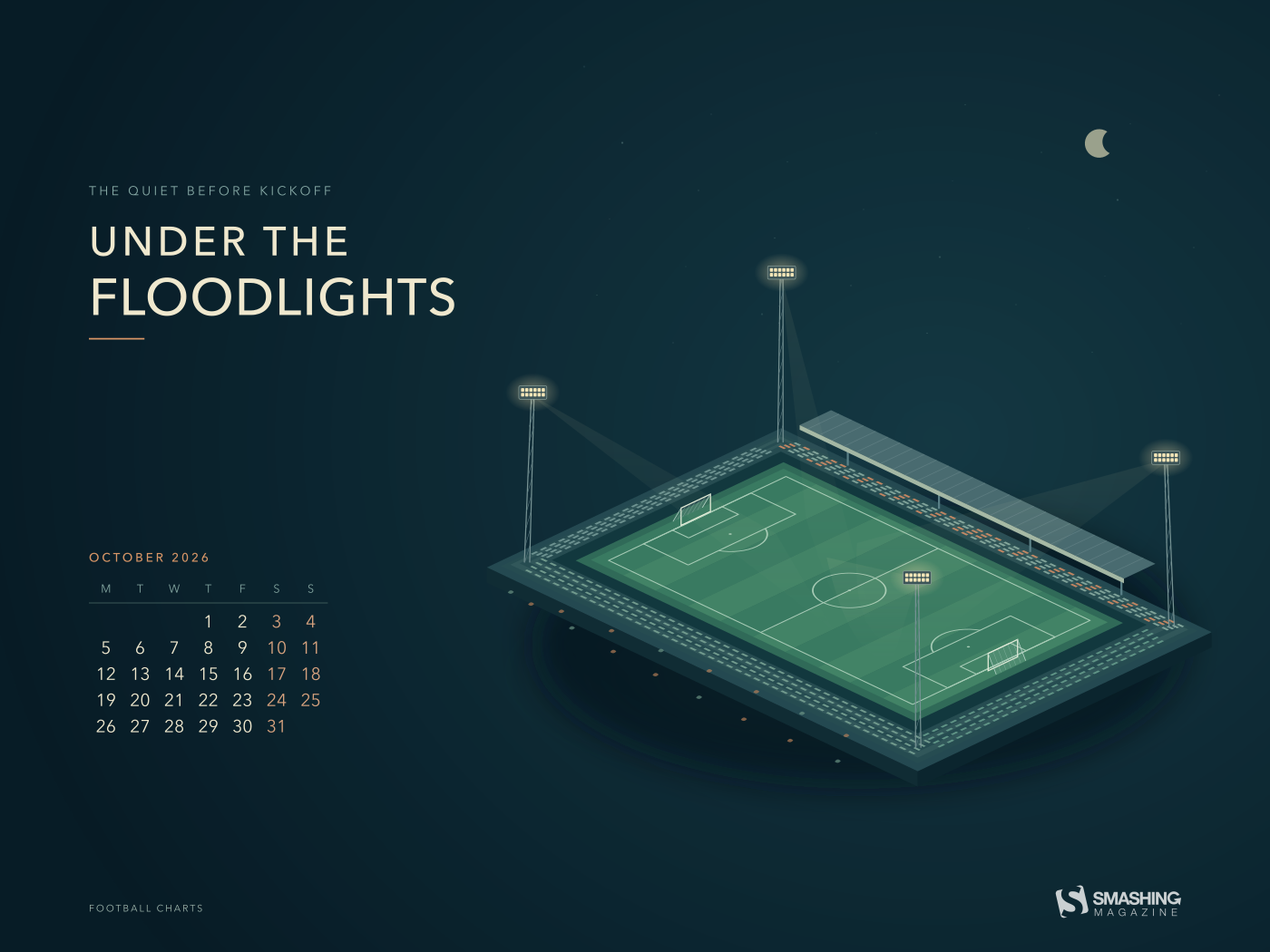
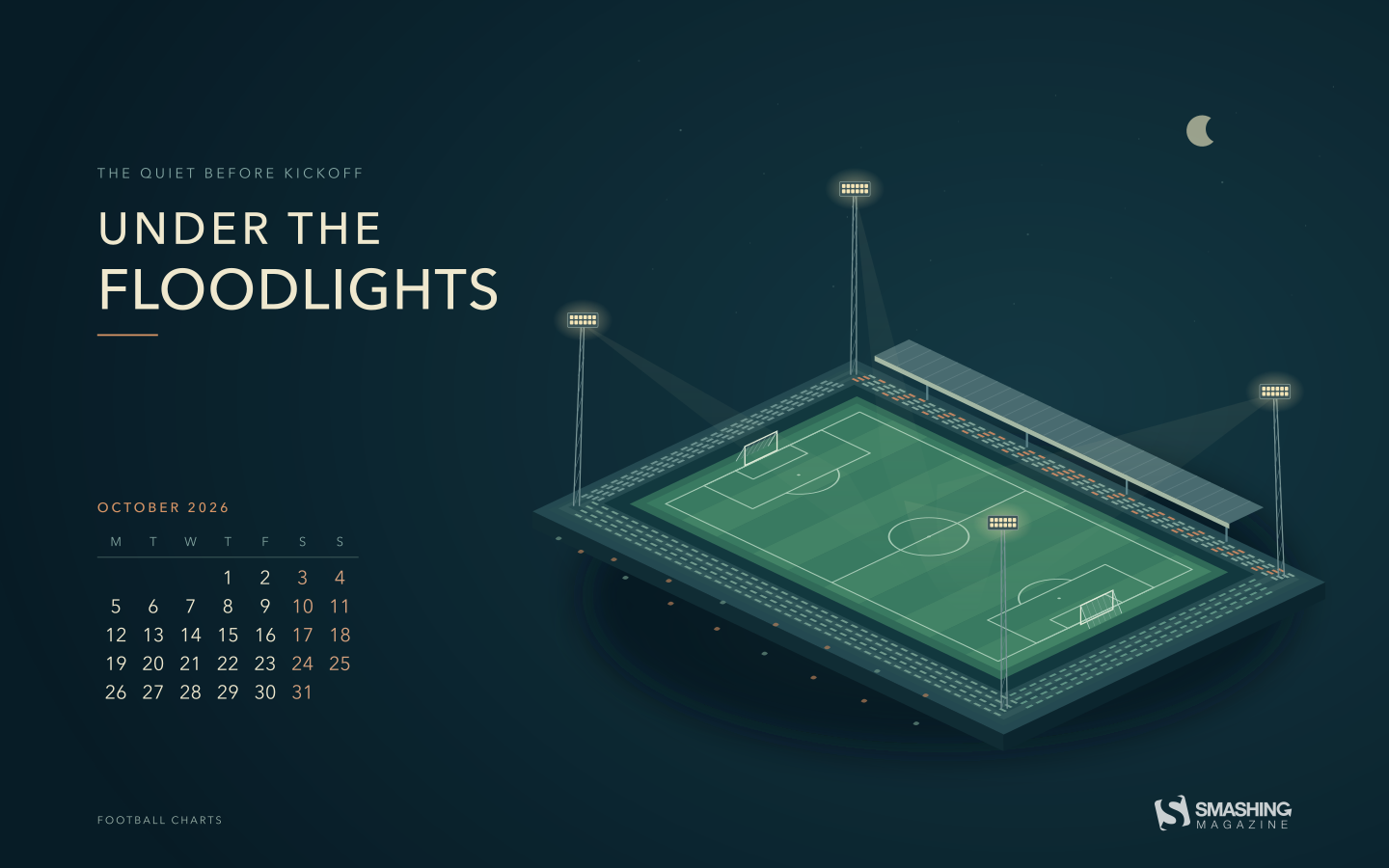
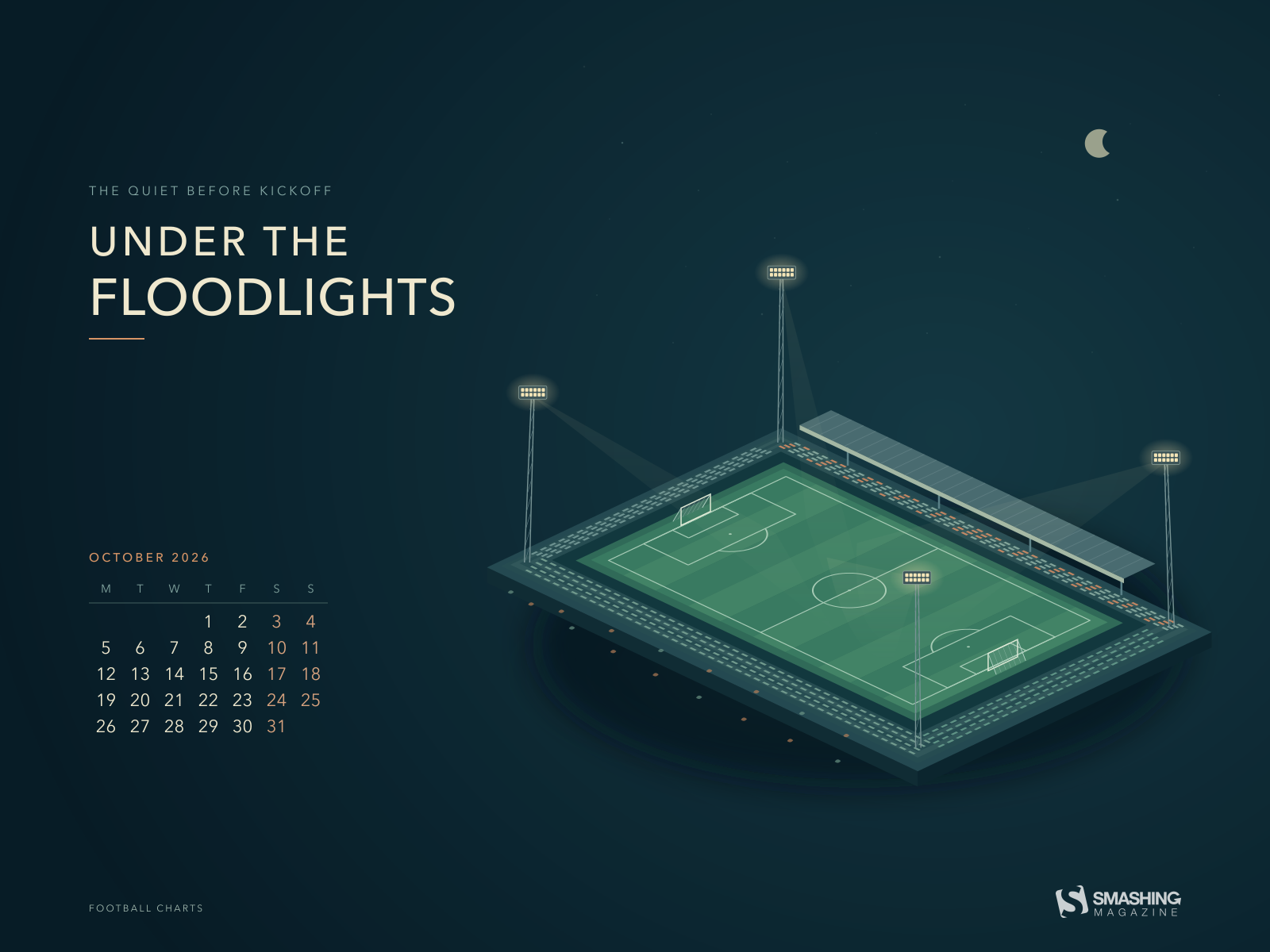
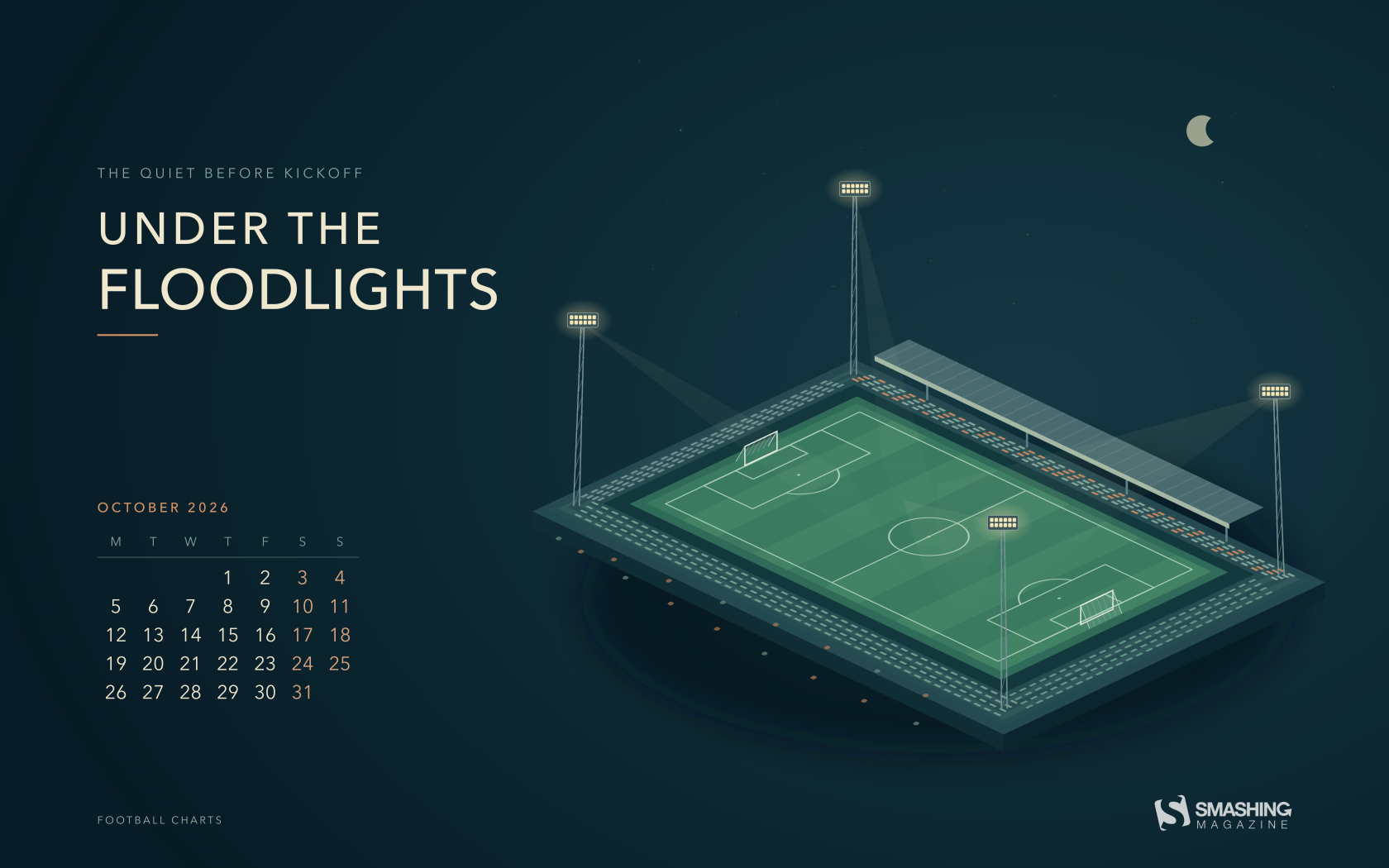
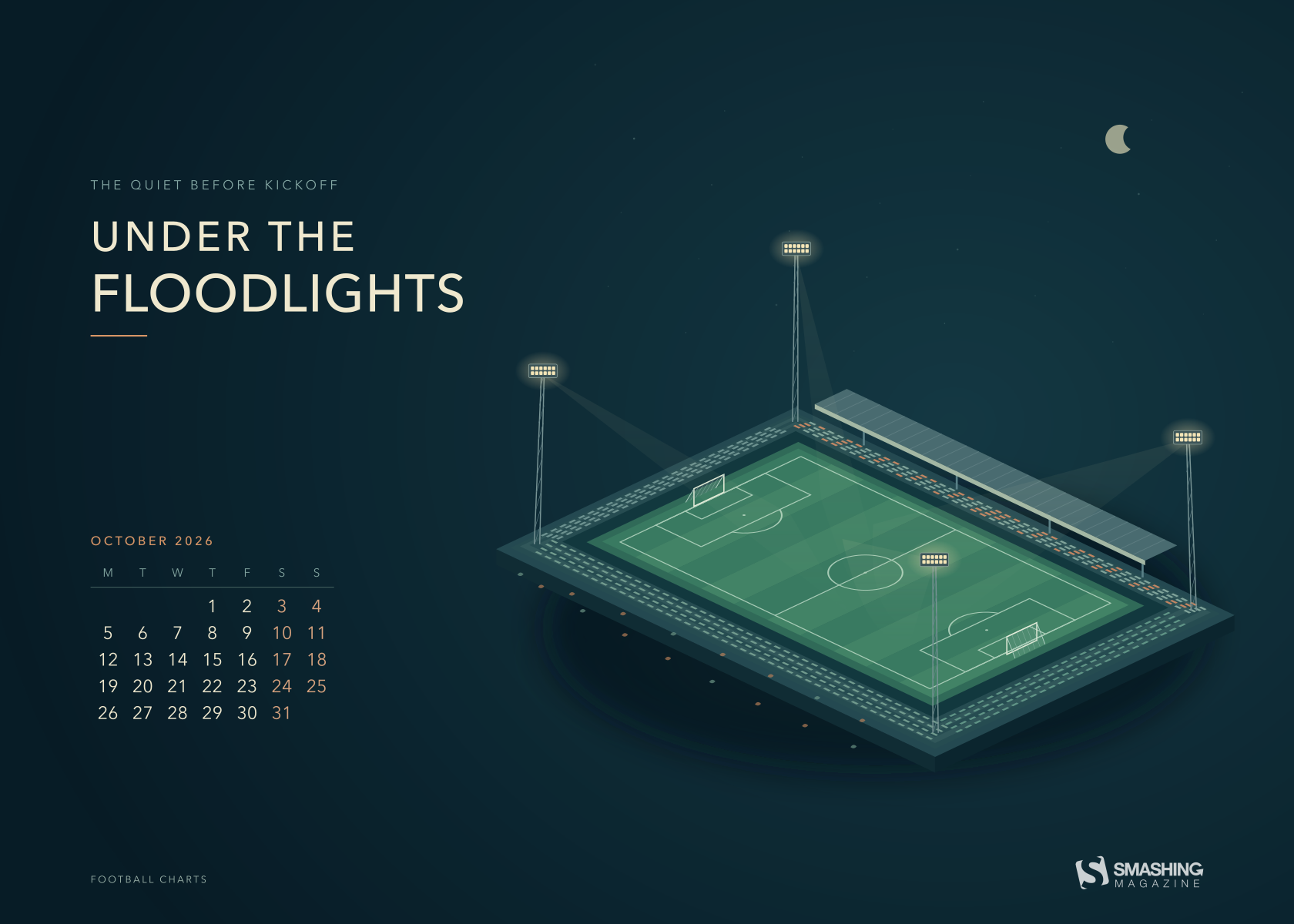
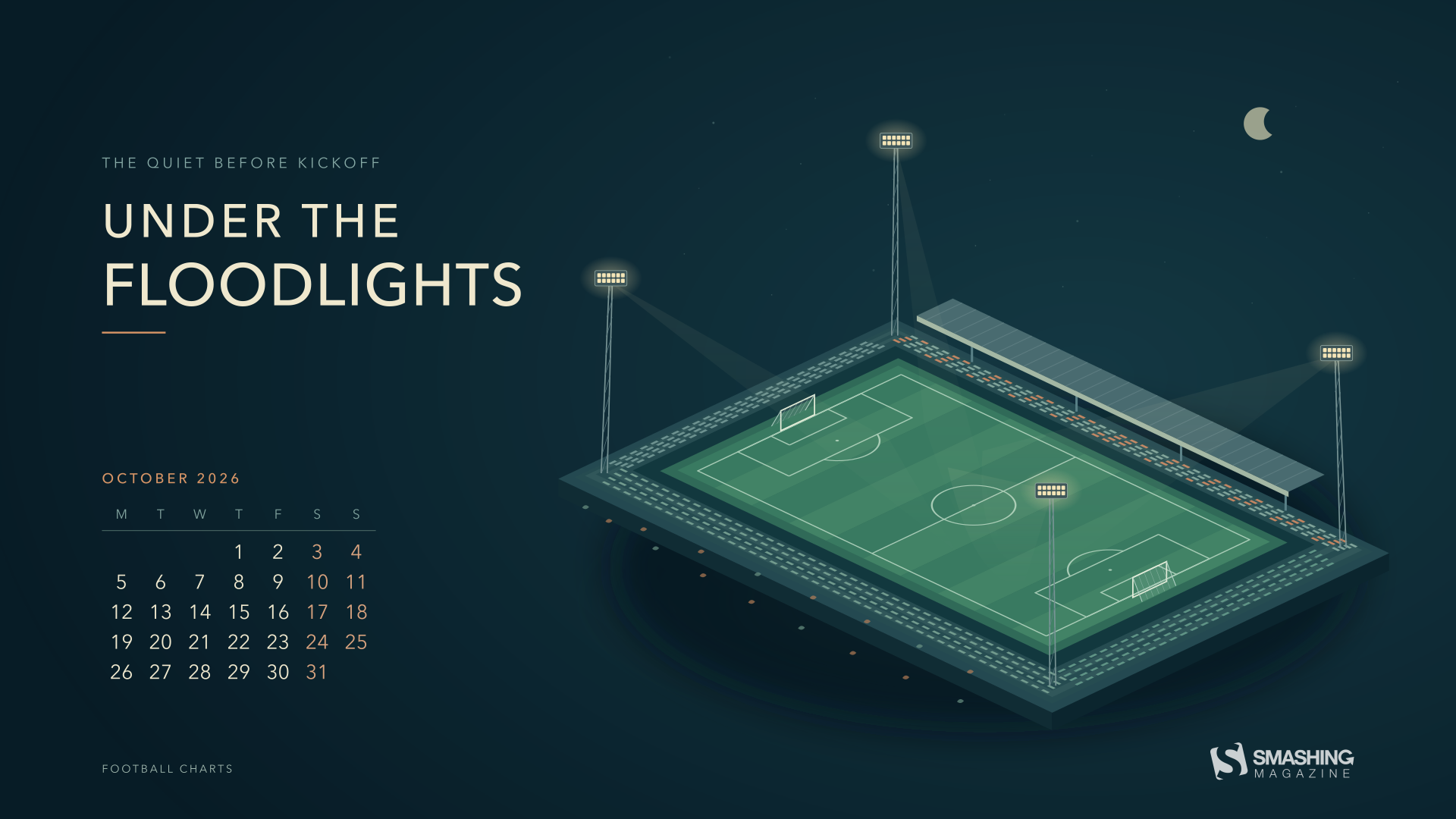
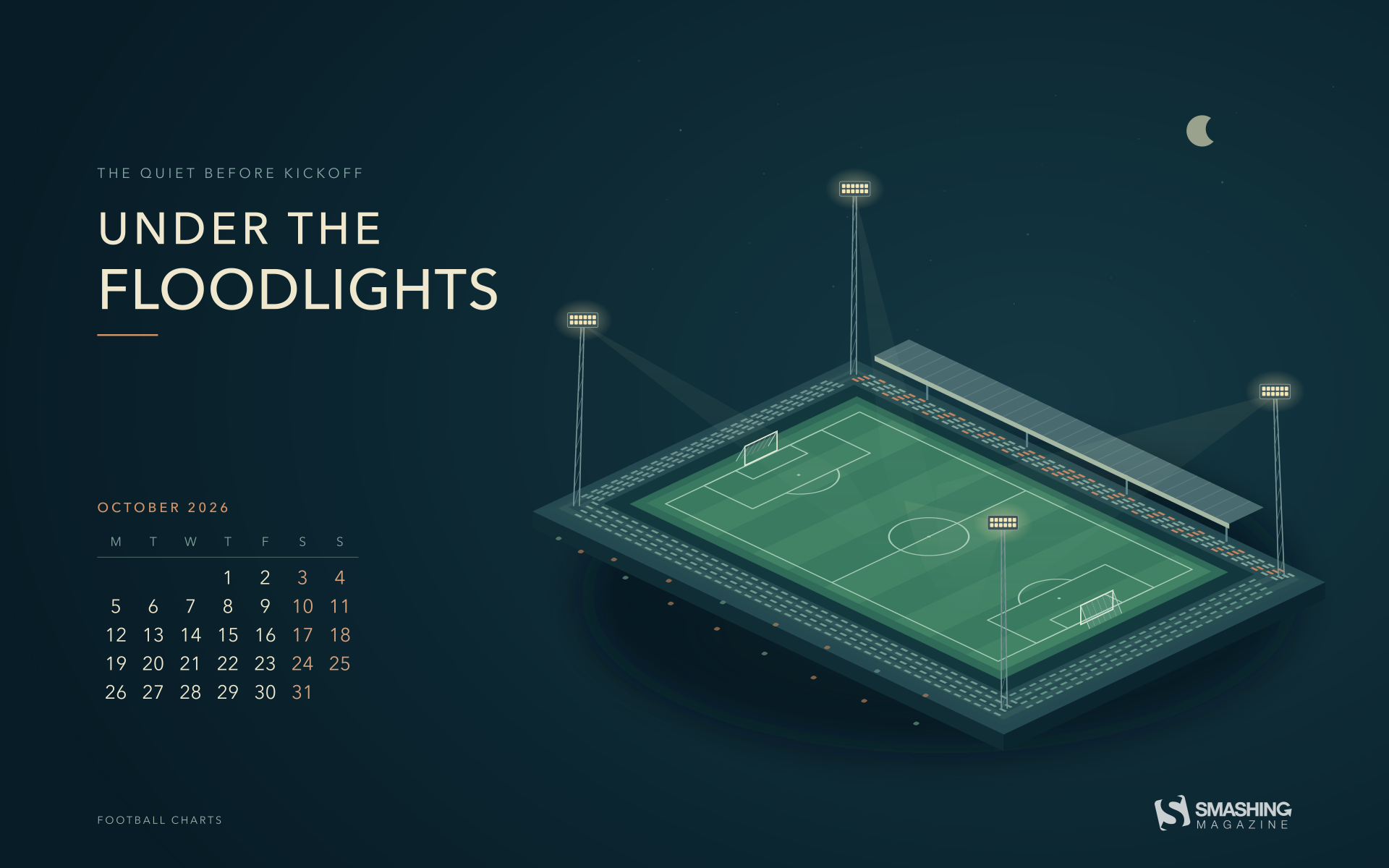
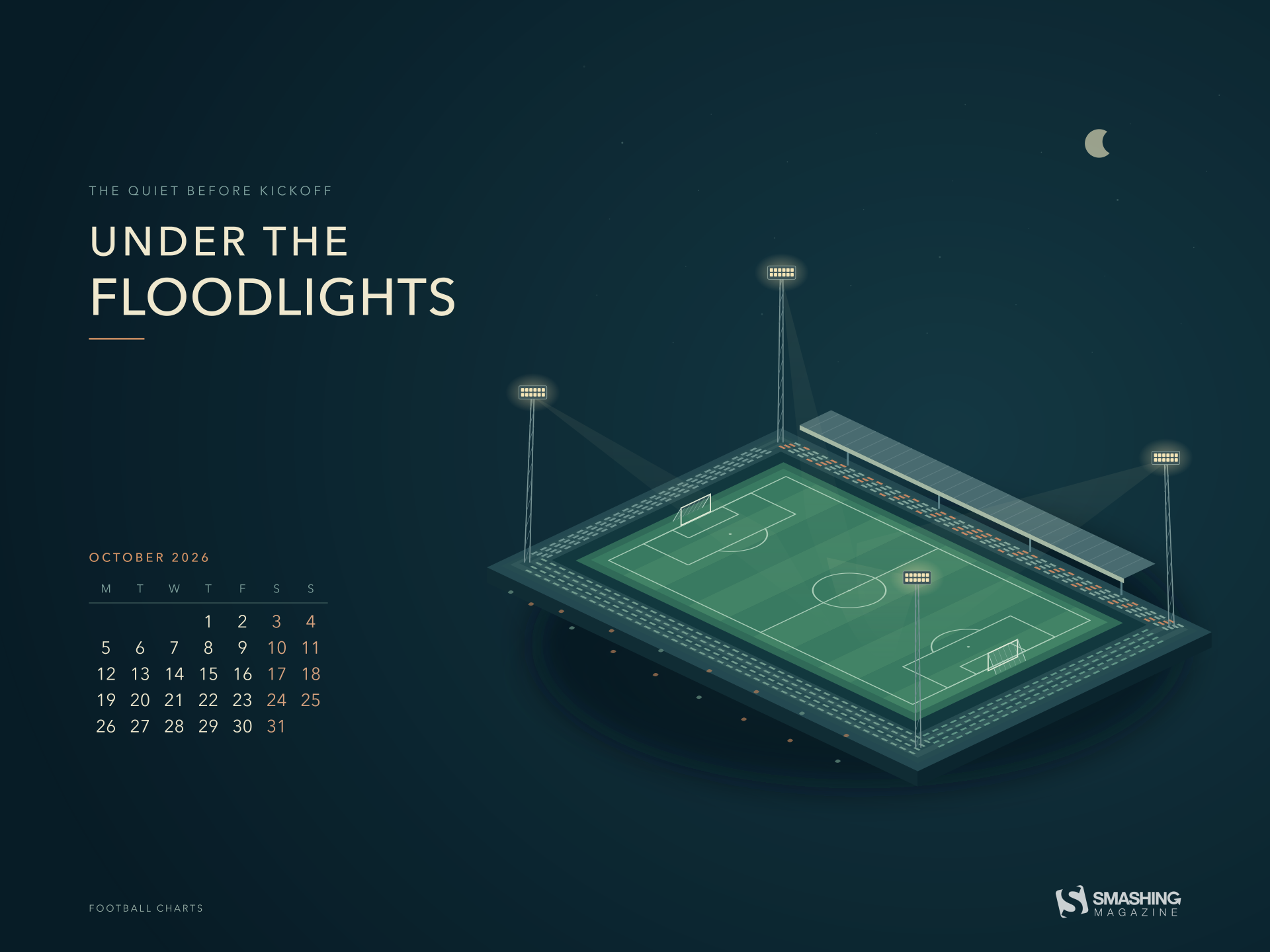
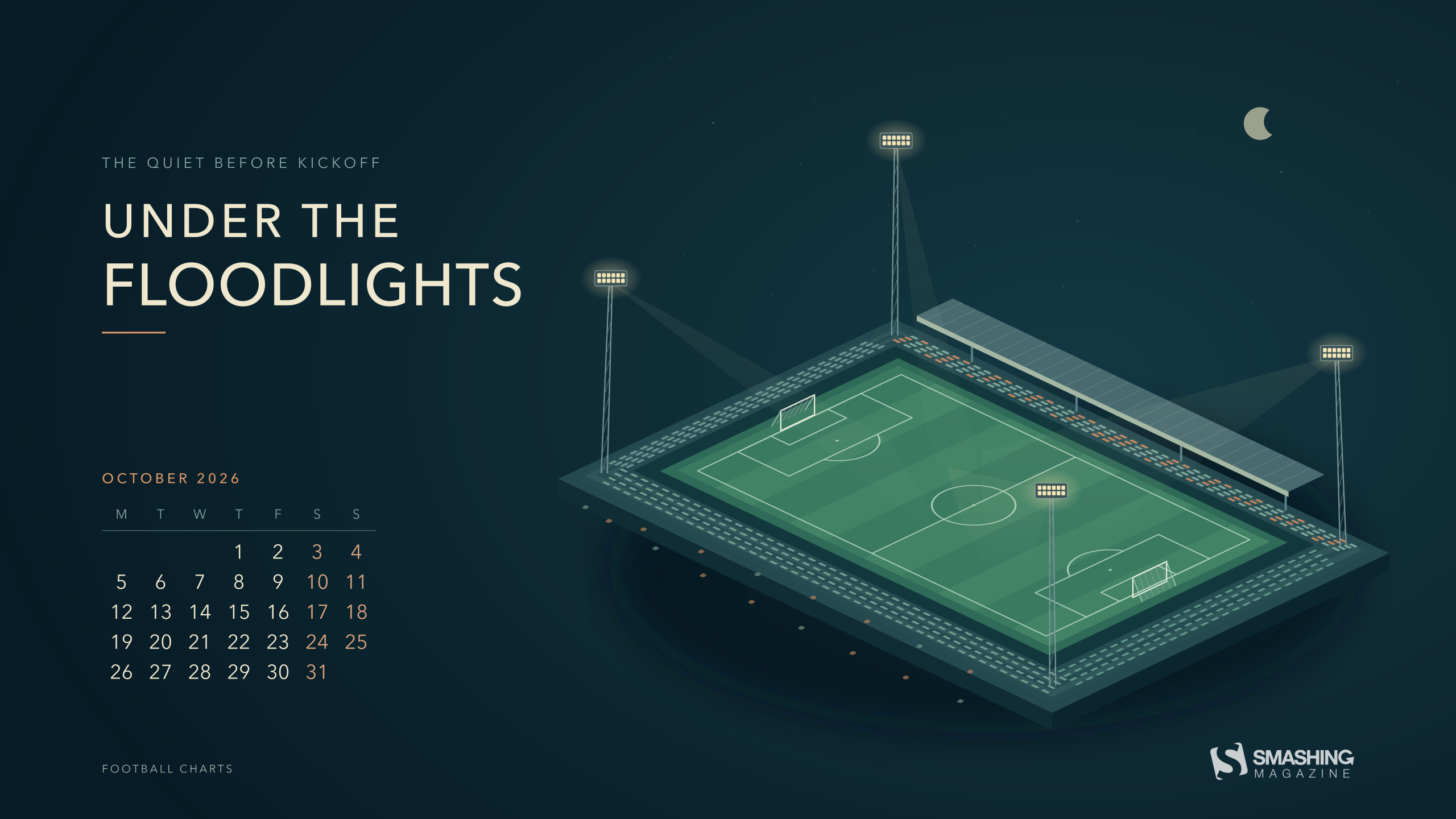
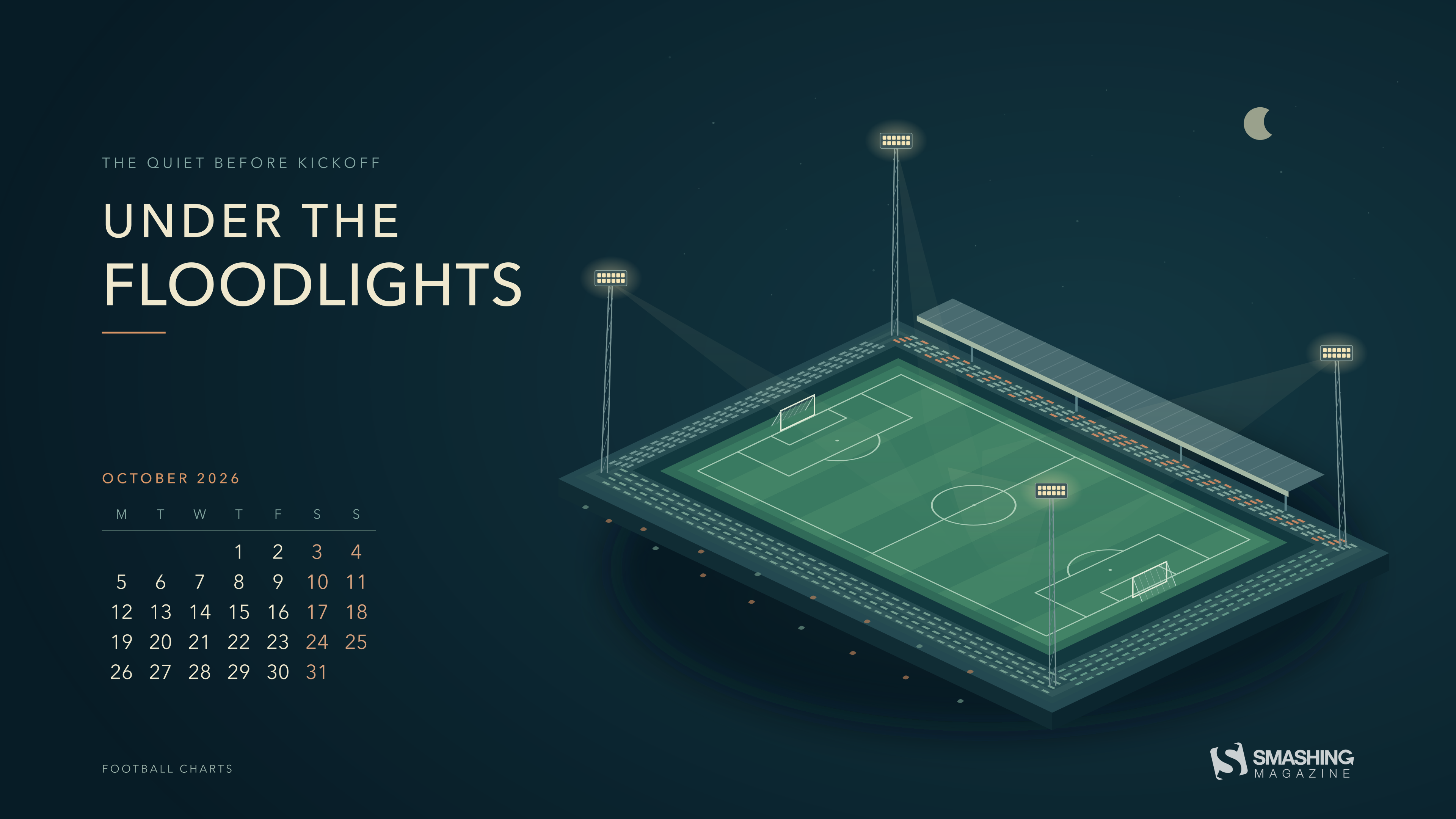
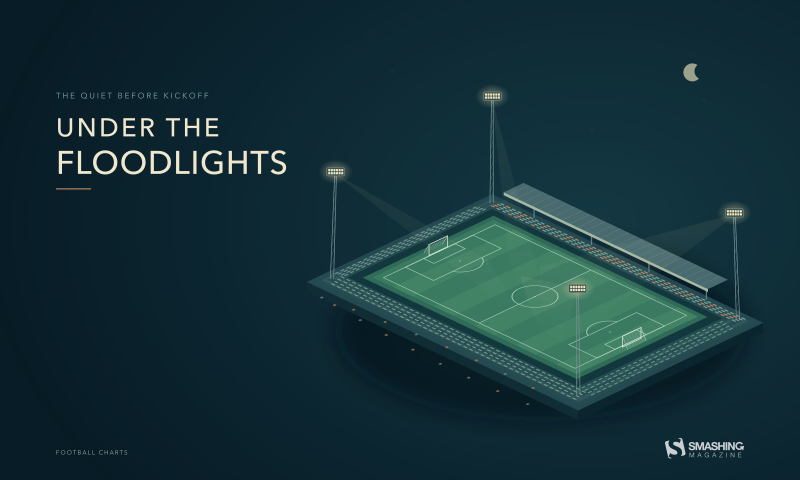
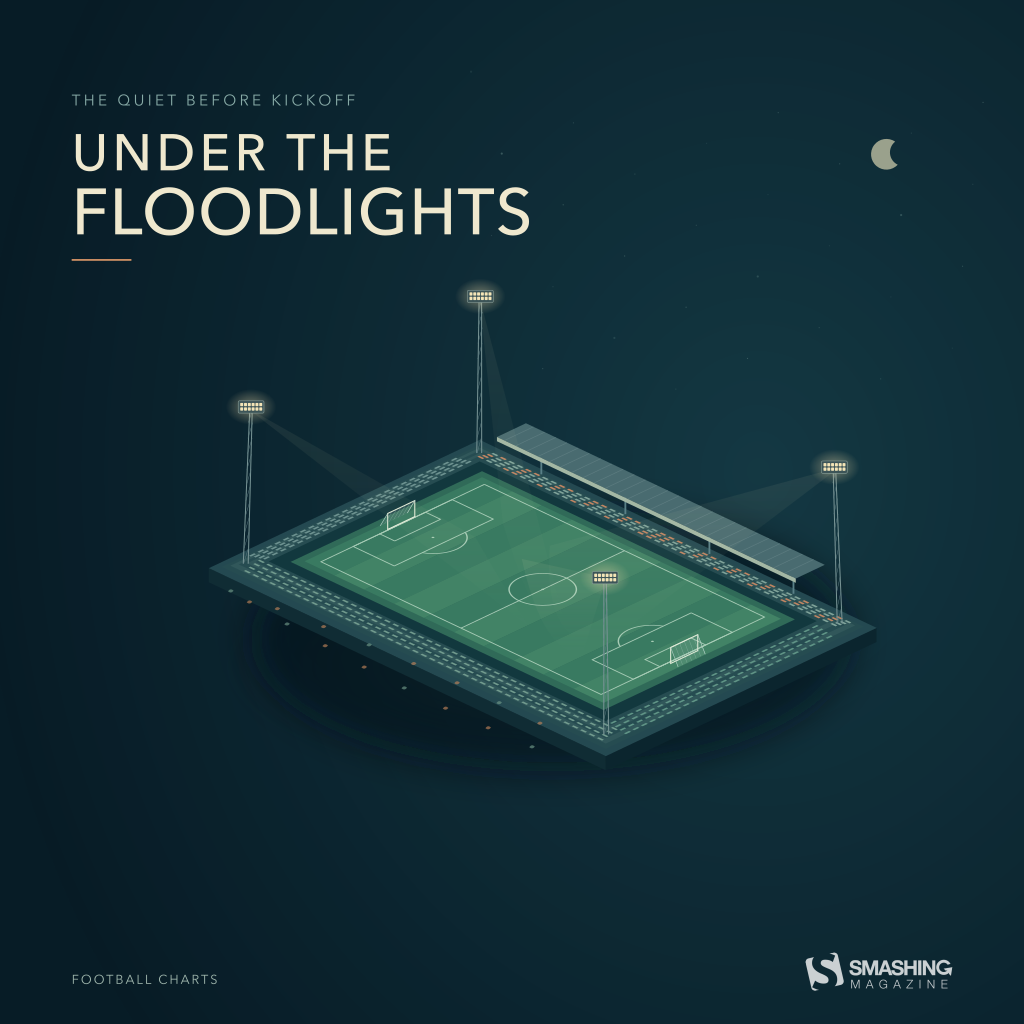
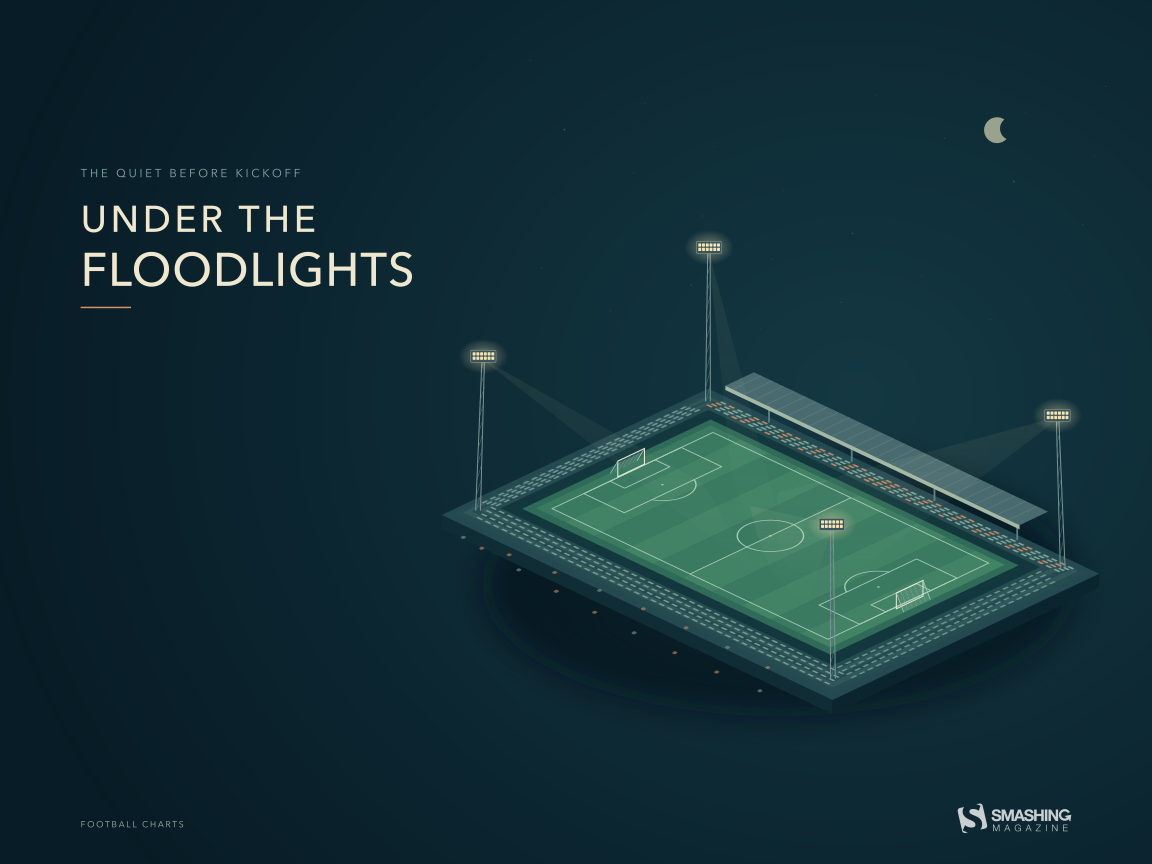
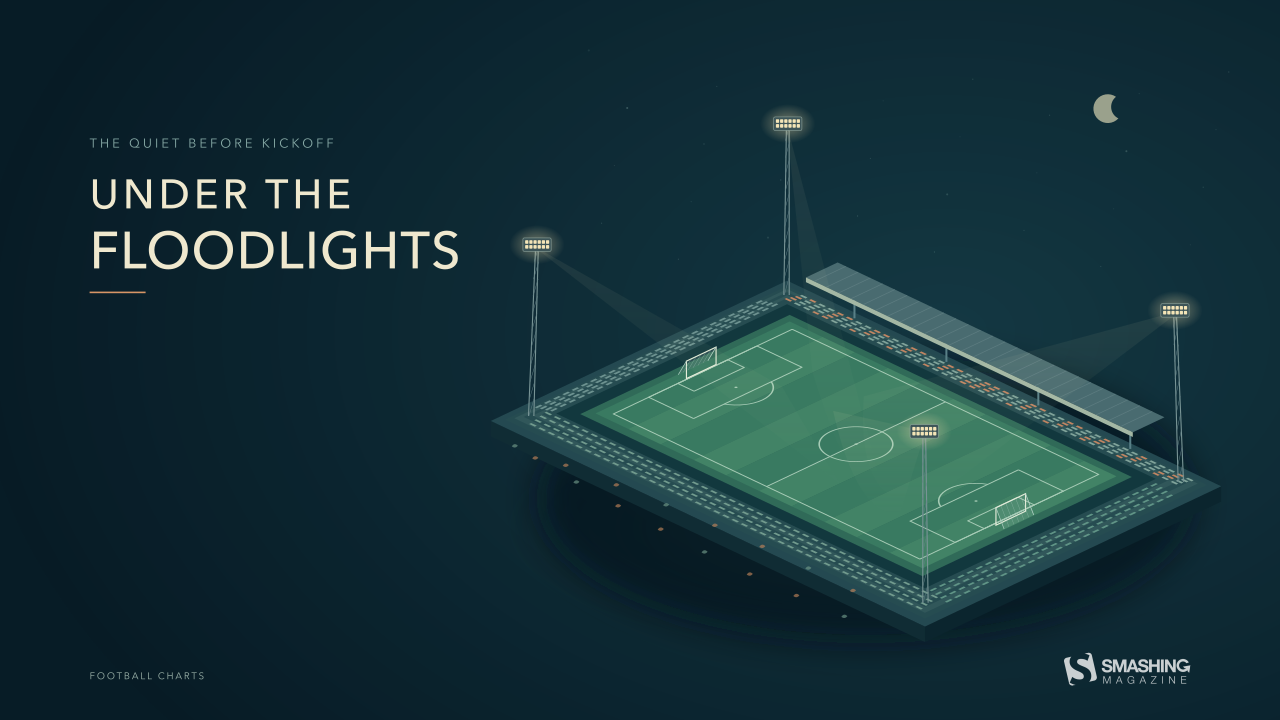
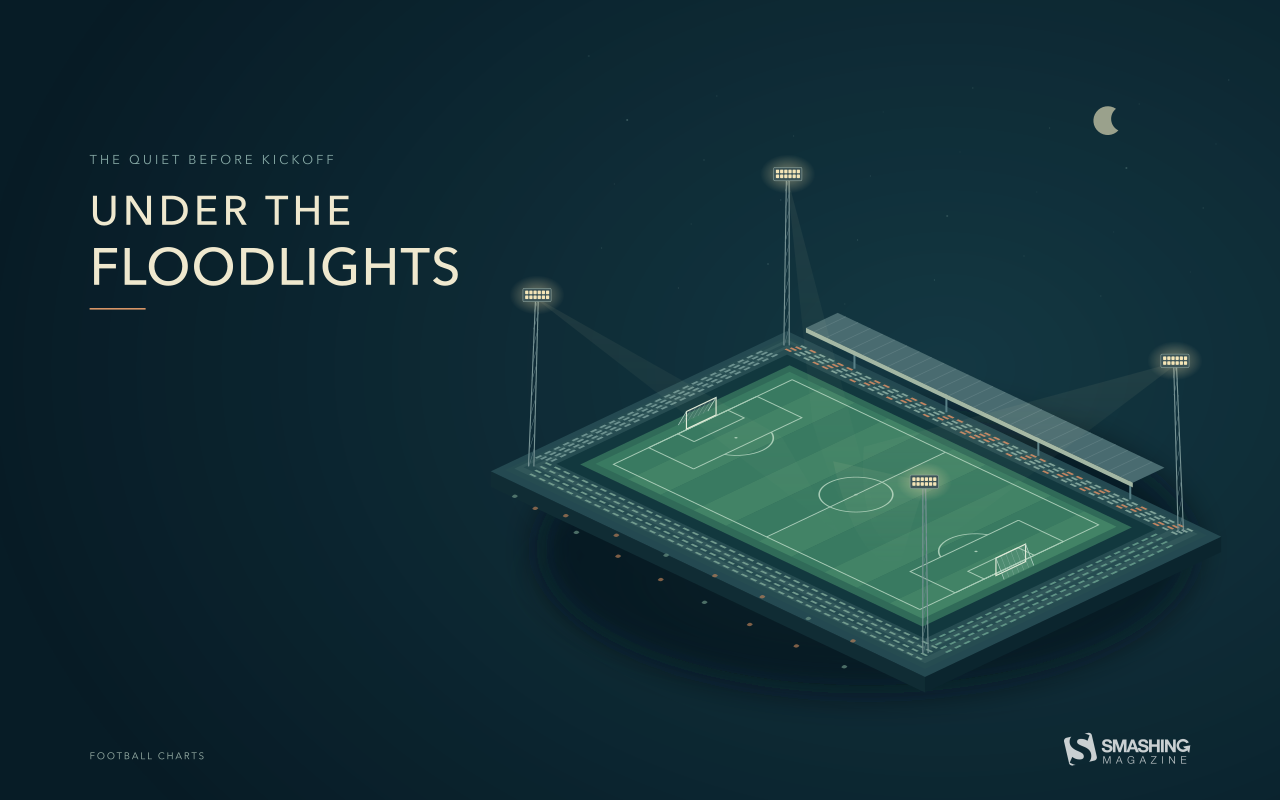
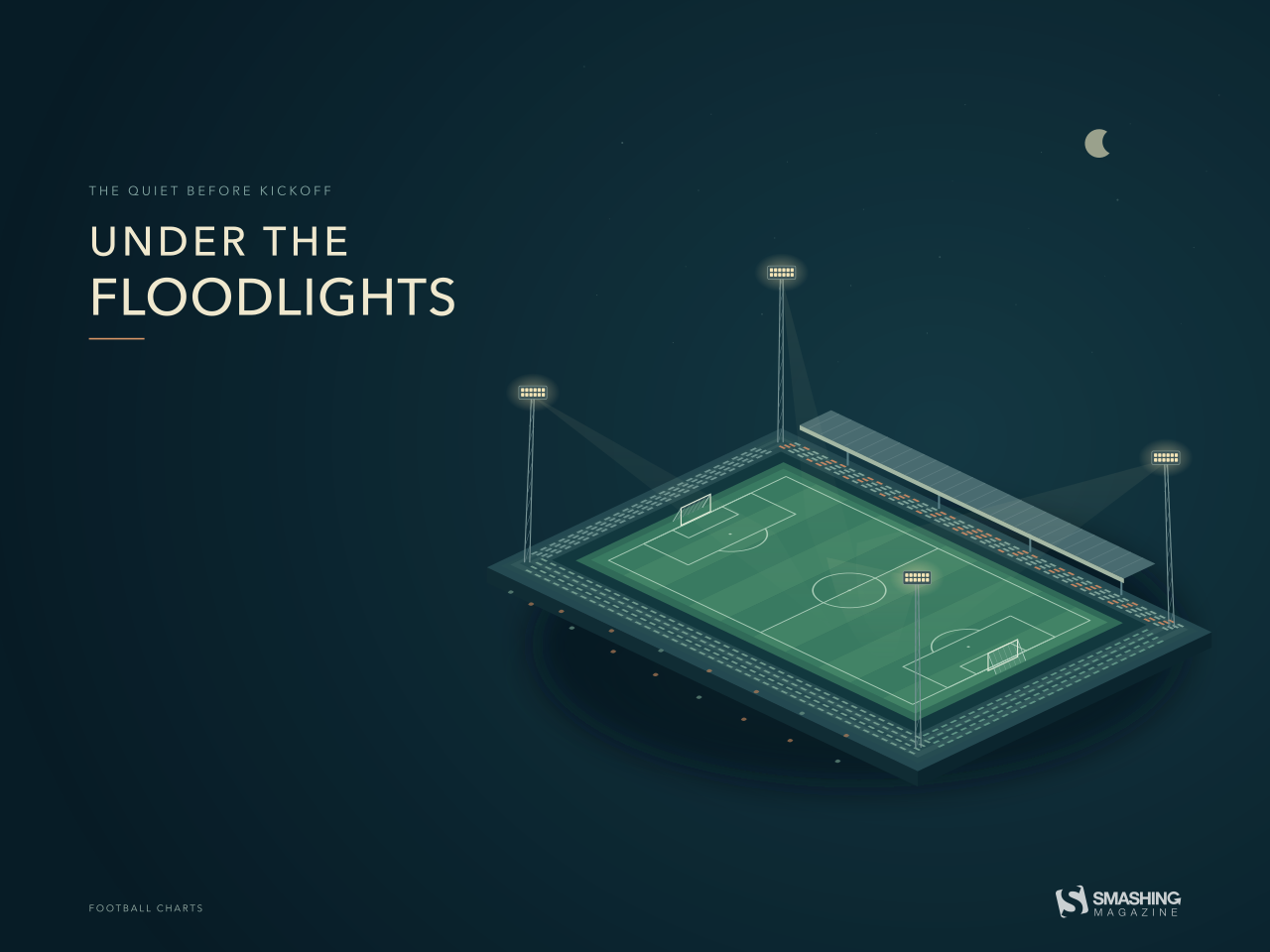
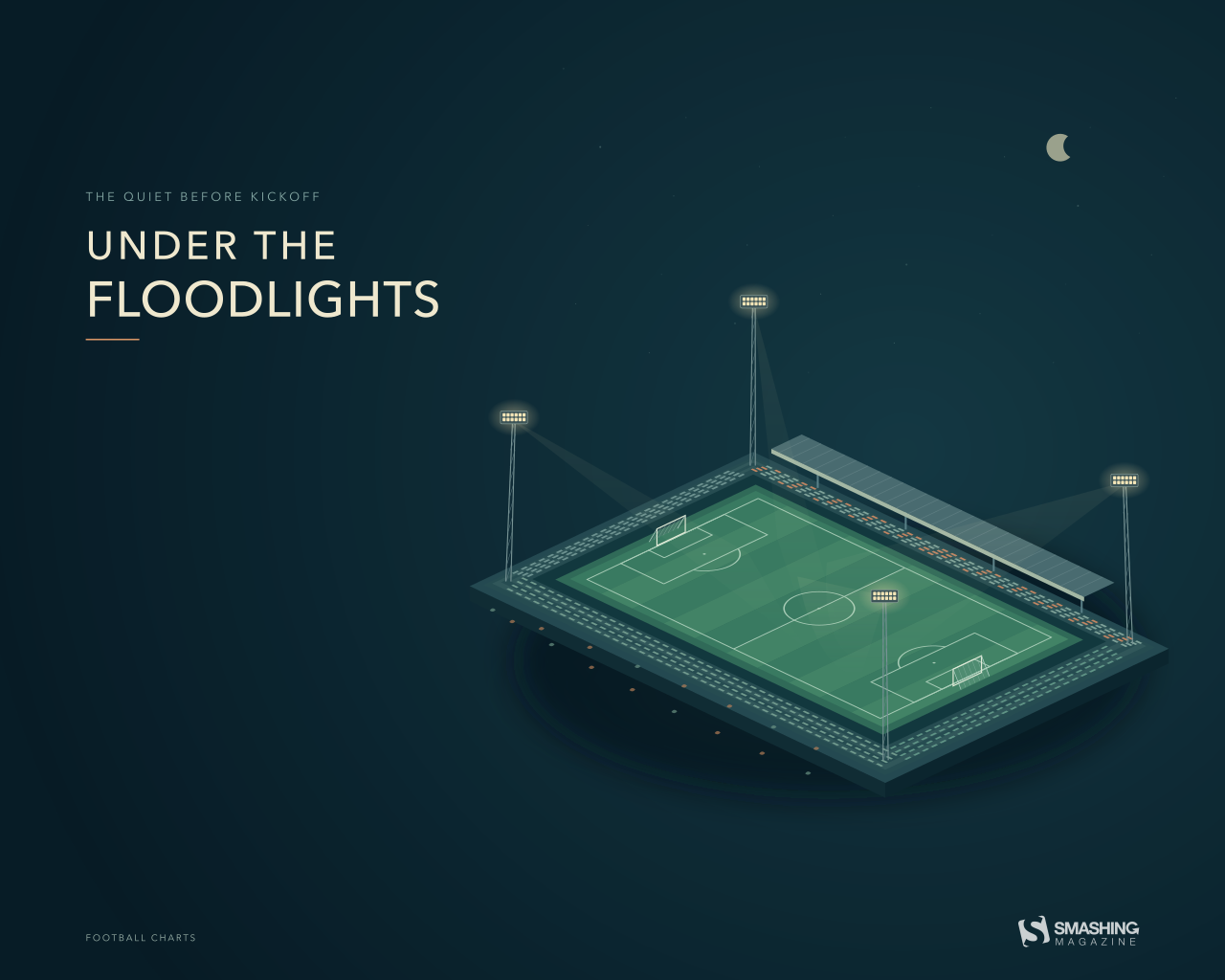
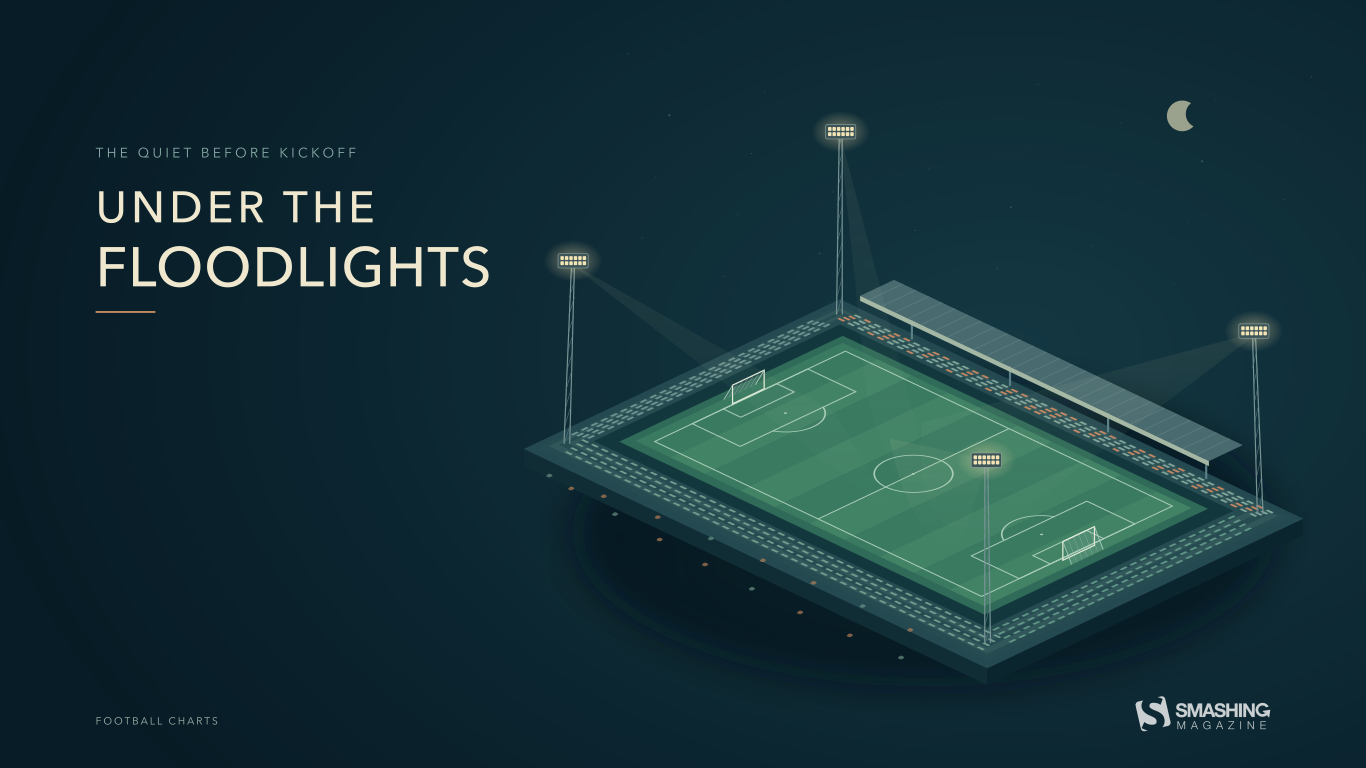
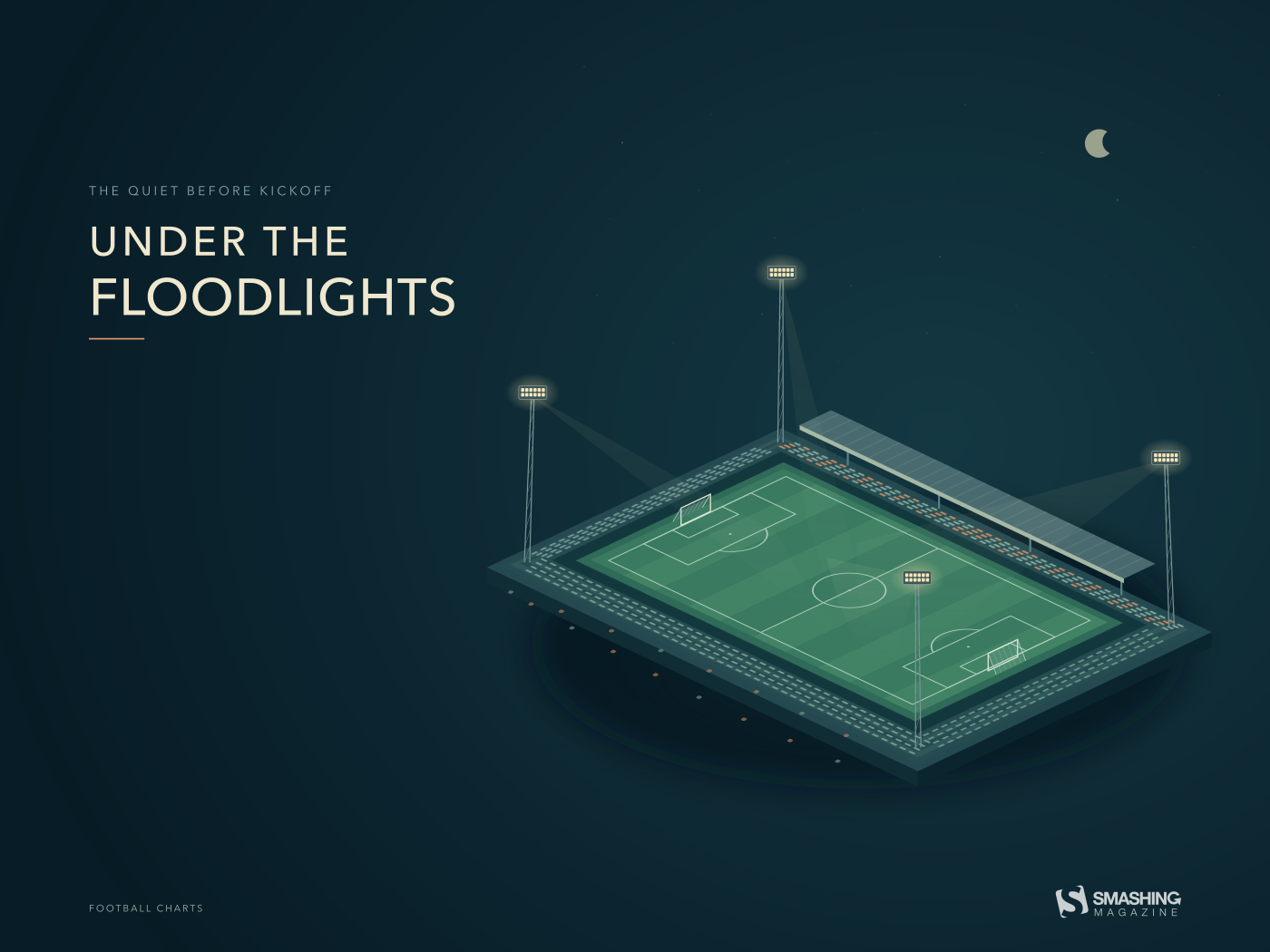
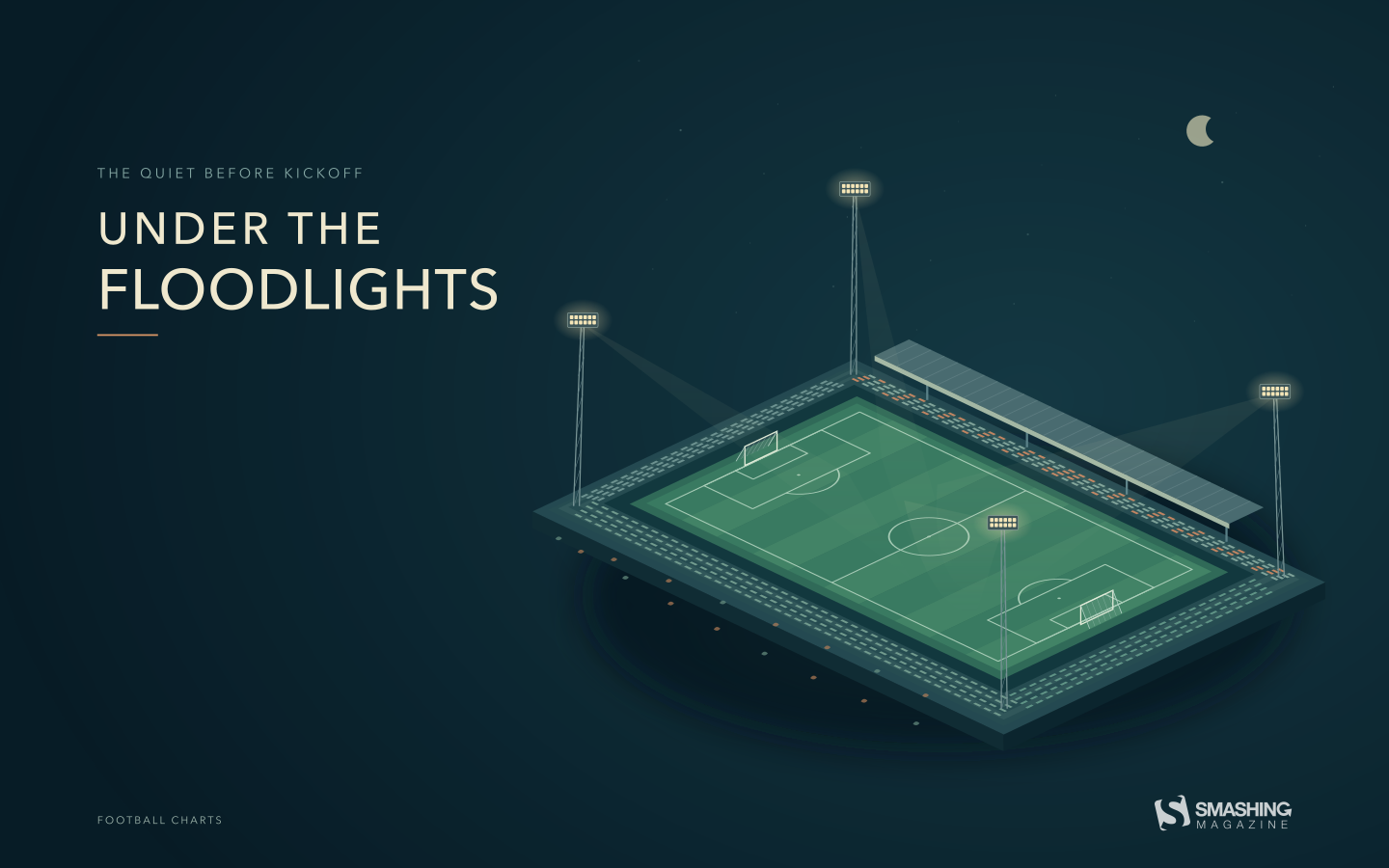
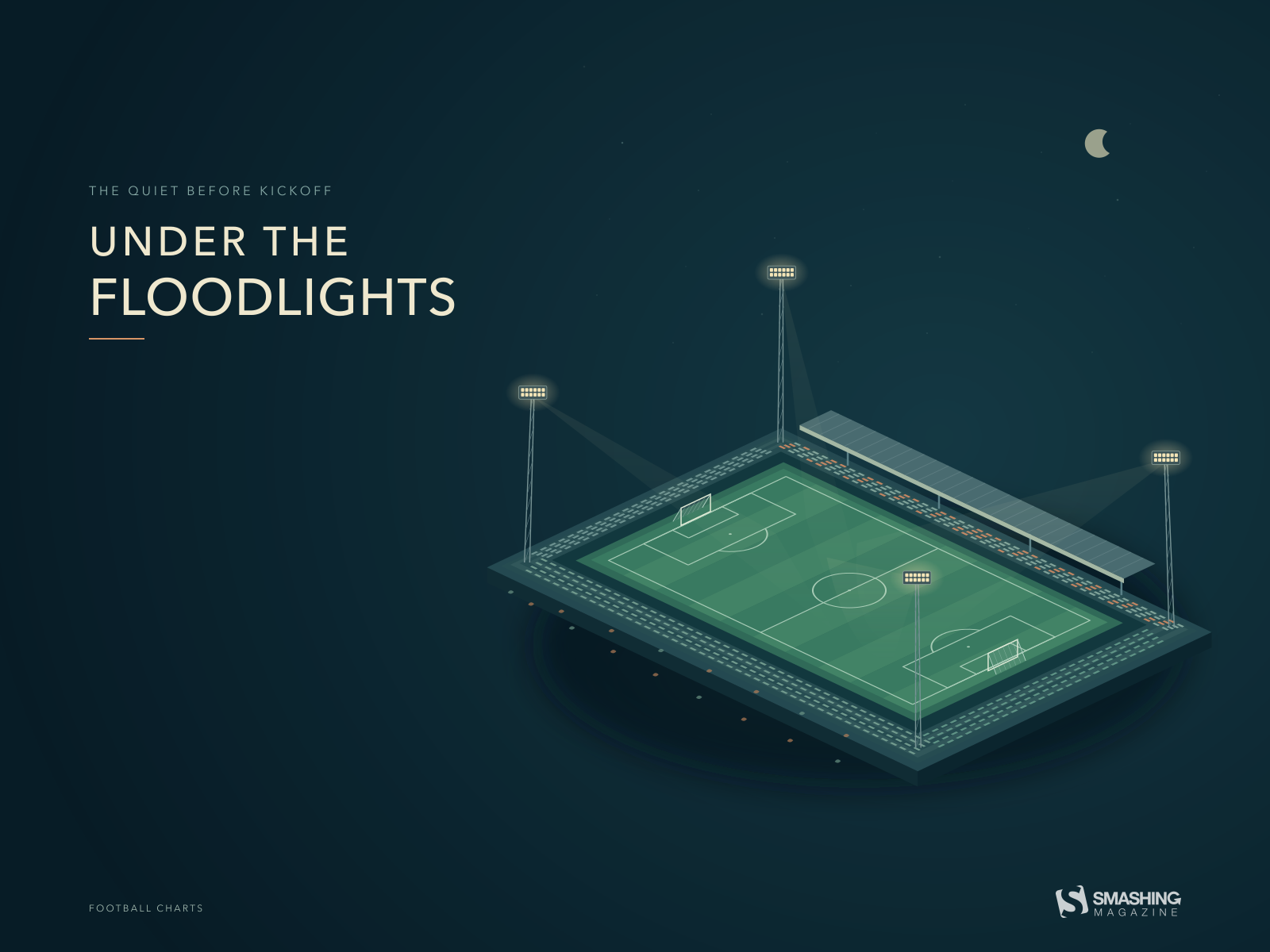
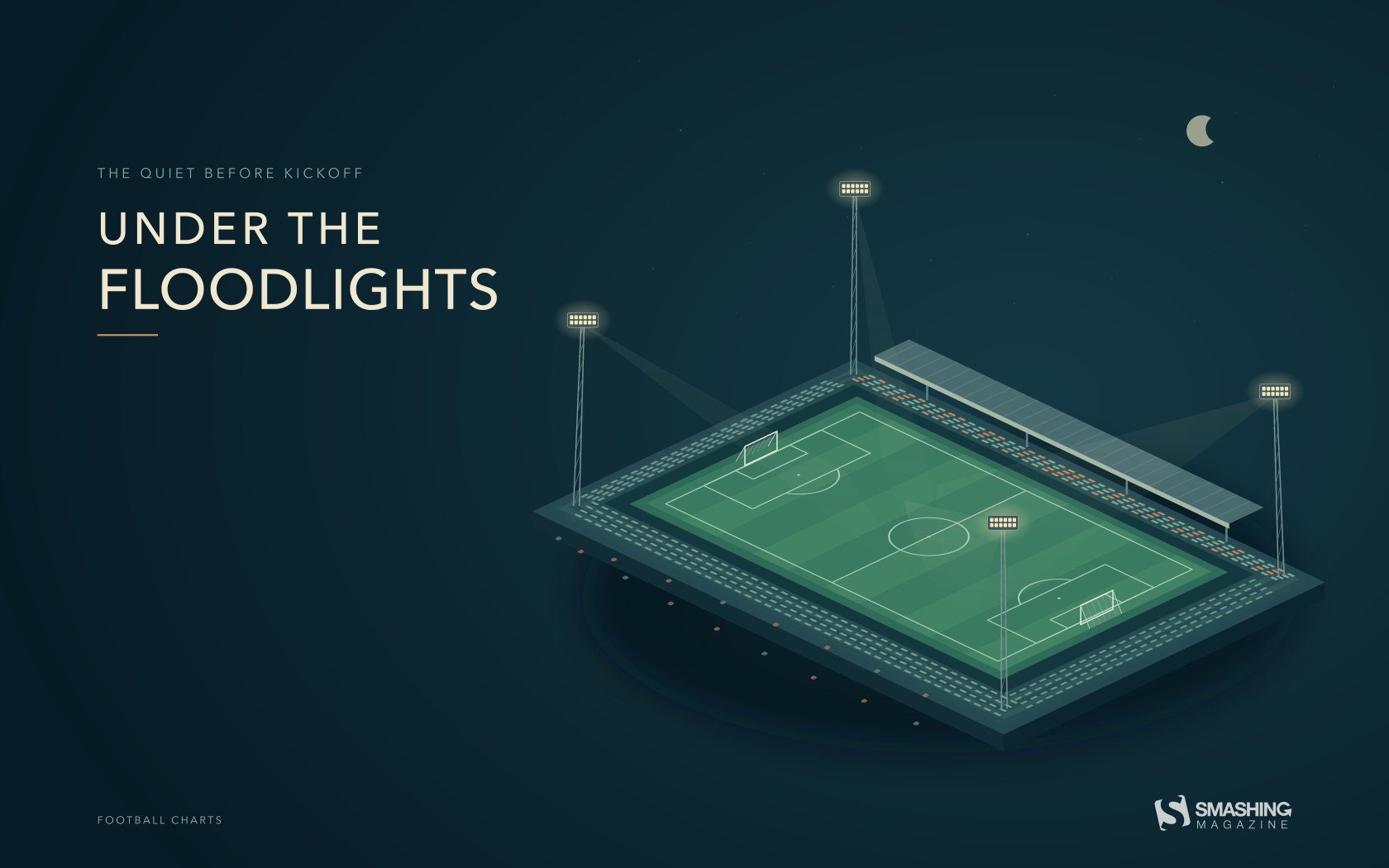
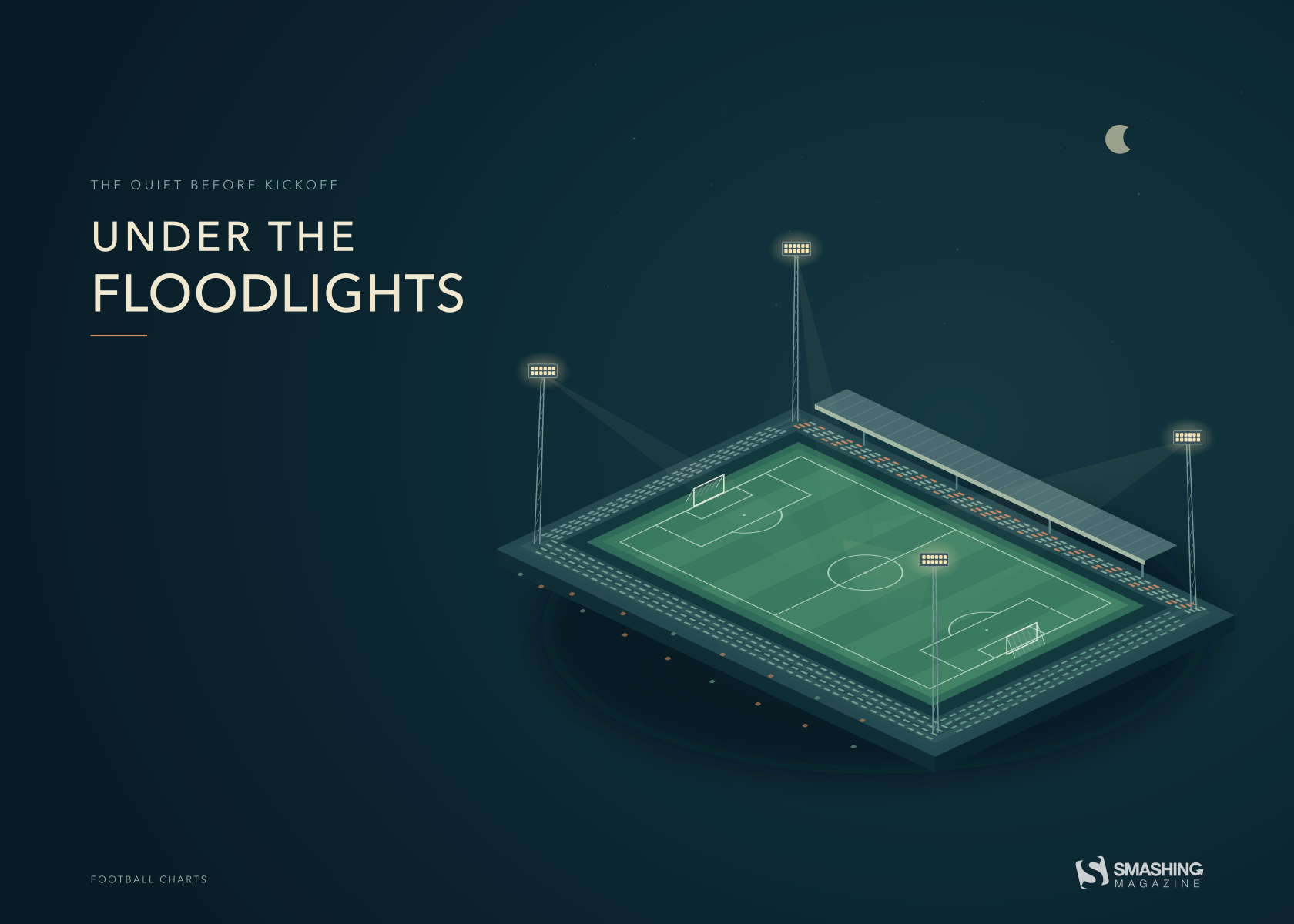
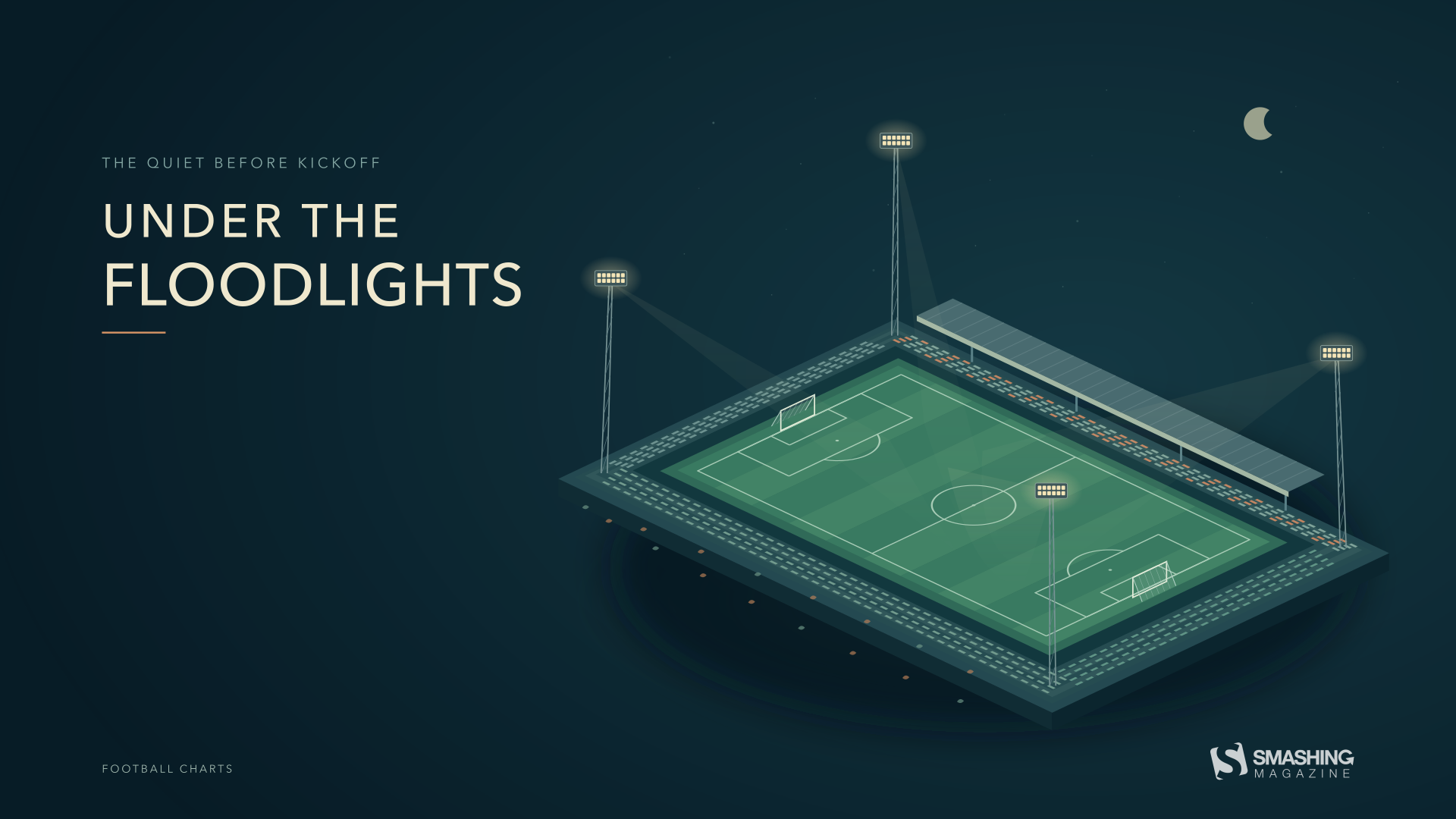
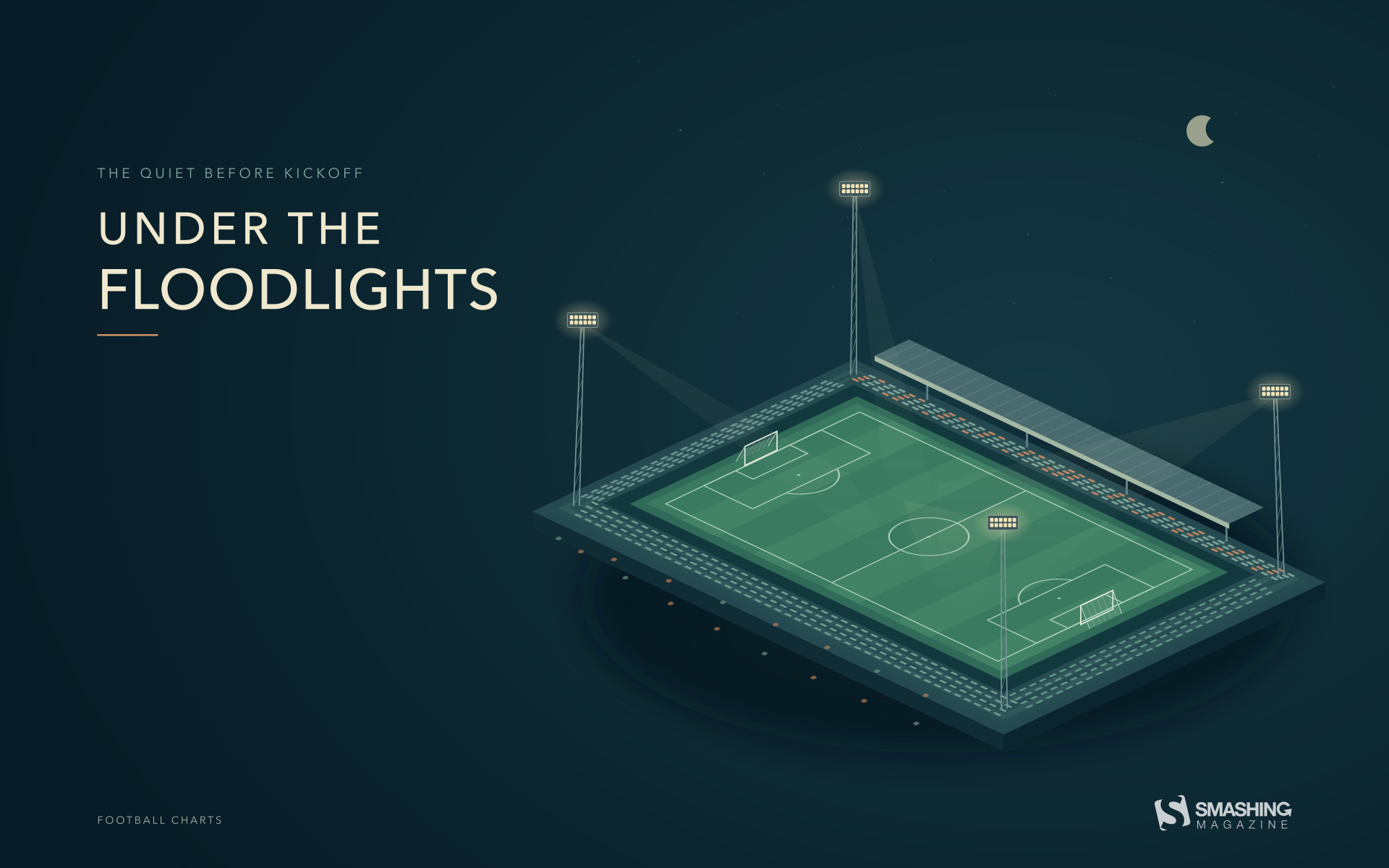
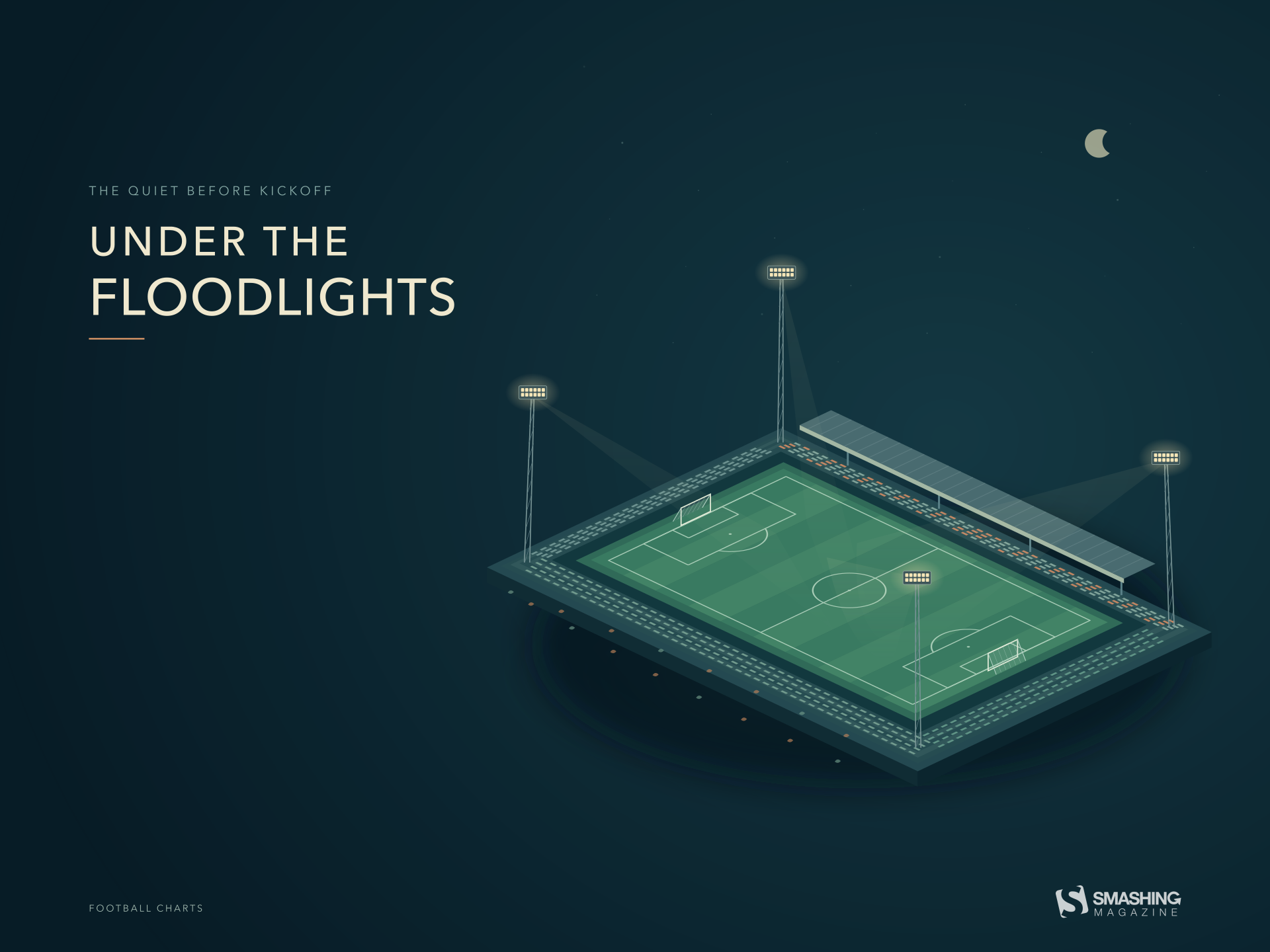
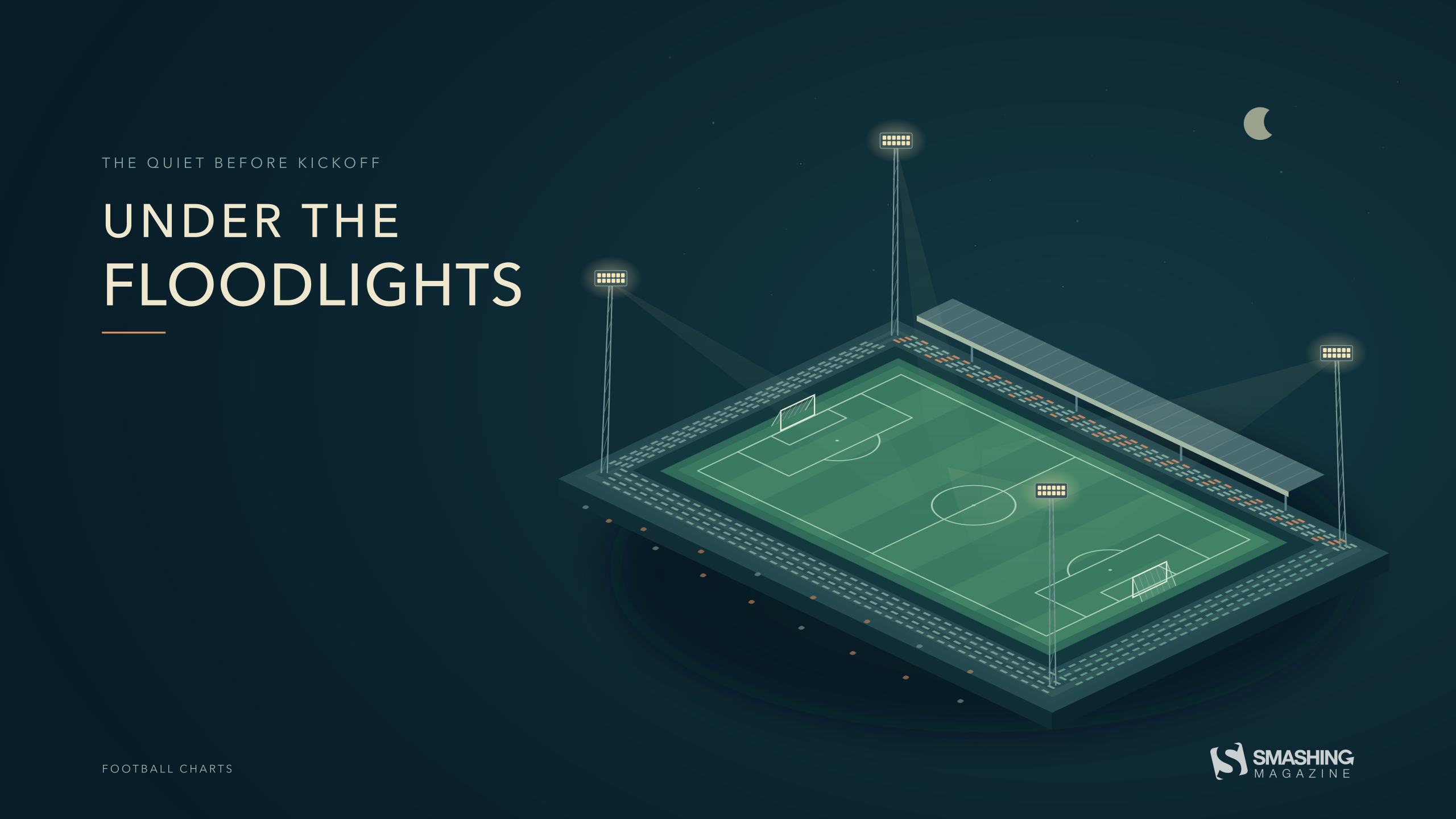
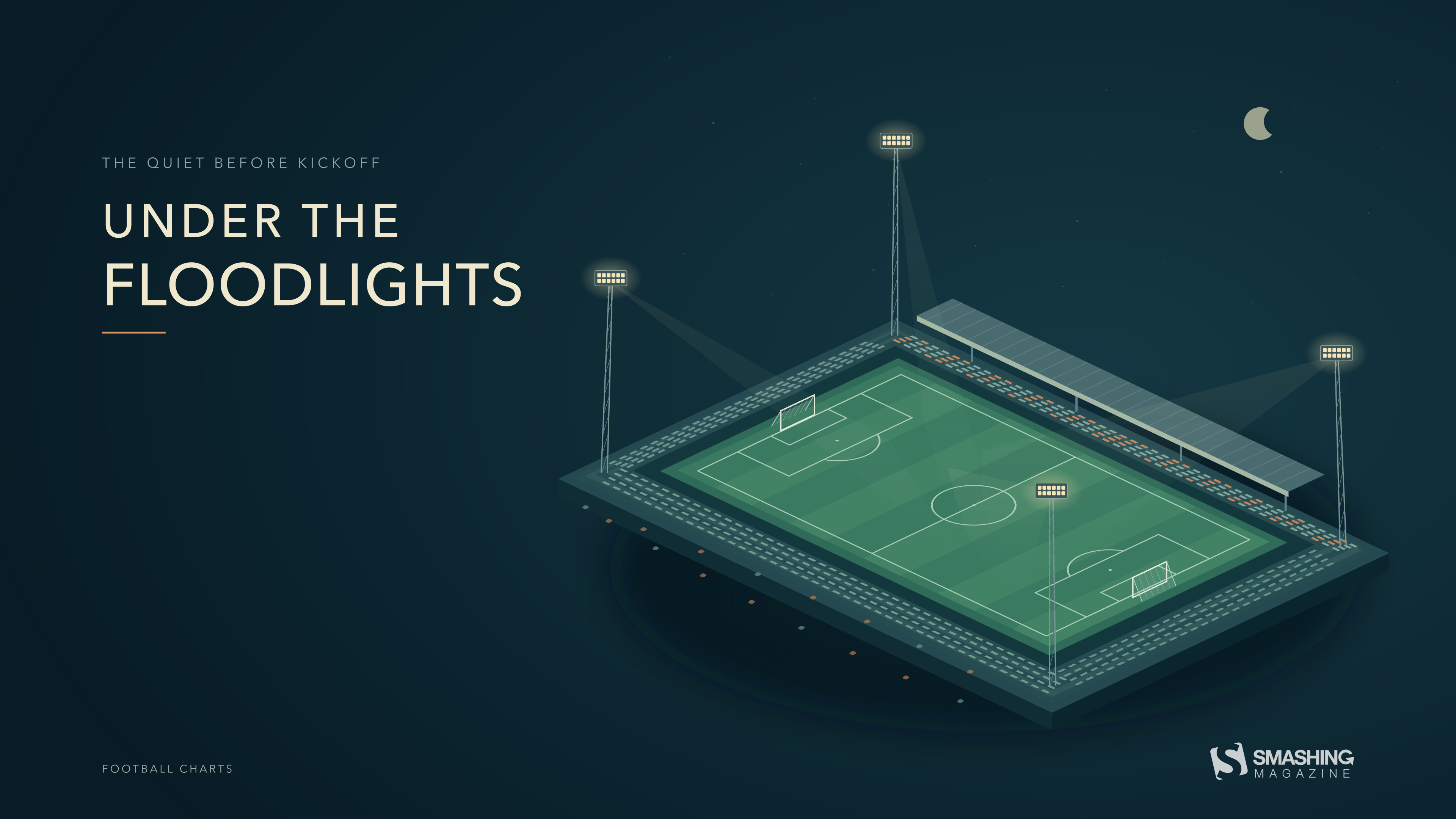
“October football begins under the lights. This geometric illustration captures the quiet moment before kickoff: an empty pitch, warm floodlights, and a dark autumn sky. A few fallen leaves hint at the season, while the open composition leaves room for the everyday things on your desktop.” — Designed by Football Charts from Serbia.
- preview
- with calendar: 320x480, 640x480, 800x480, 800x600, 1024x768, 1024x1024, 1152x864, 1280x720, 1280x800, 1280x960, 1280x1024, 1366x768, 1400x1050, 1440x900, 1600x1200, 1680x1050, 1680x1200, 1920x1080, 1920x1200, 1920x1440, 2560x1440, 3840x2160
- without calendar: 320x480, 640x480, 800x480, 800x600, 1024x768, 1024x1024, 1152x864, 1280x720, 1280x800, 1280x960, 1280x1024, 1366x768, 1400x1050, 1440x900, 1600x1200, 1680x1050, 1680x1200, 1920x1080, 1920x1200, 1920x1440, 2560x1440, 3840x2160
“October is here, which means colder mornings, warmer clothes, and coffee that somehow tastes better outside. A small autumn scene for one of the coziest months of the year.” — Designed by Ginger IT Solutions from Serbia.

- preview
- with calendar: 320x480, 640x480, 800x480, 800x600, 1024x768, 1024x1024, 1152x864, 1280x720, 1280x800, 1280x960, 1280x1024, 1400x1050, 1440x900, 1600x1200, 1680x1050, 1680x1200, 1920x1080, 1920x1200, 1920x1440, 2560x1440
- without calendar: 320x480, 640x480, 800x480, 800x600, 1024x768, 1024x1024, 1152x864, 1280x720, 1280x800, 1280x960, 1280x1024, 1400x1050, 1440x900, 1600x1200, 1680x1050, 1680x1200, 1920x1080, 1920x1200, 1920x1440, 2560x1440

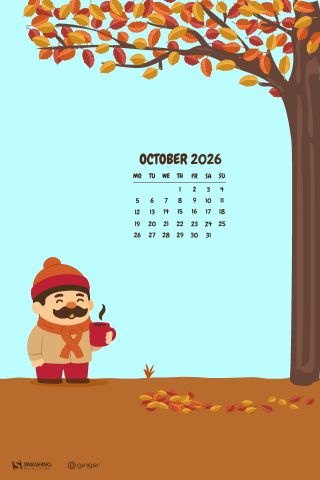
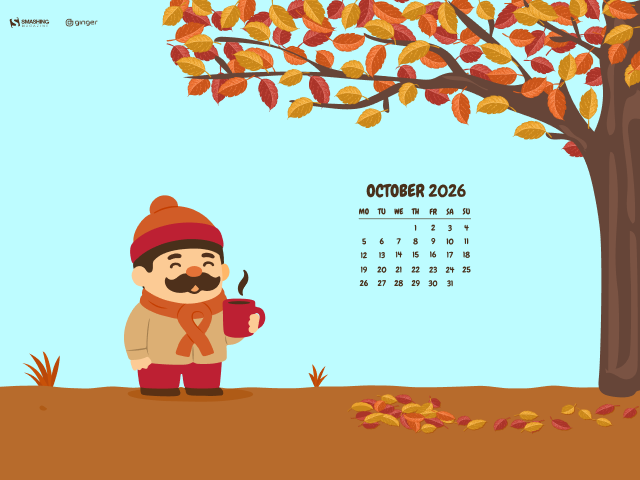

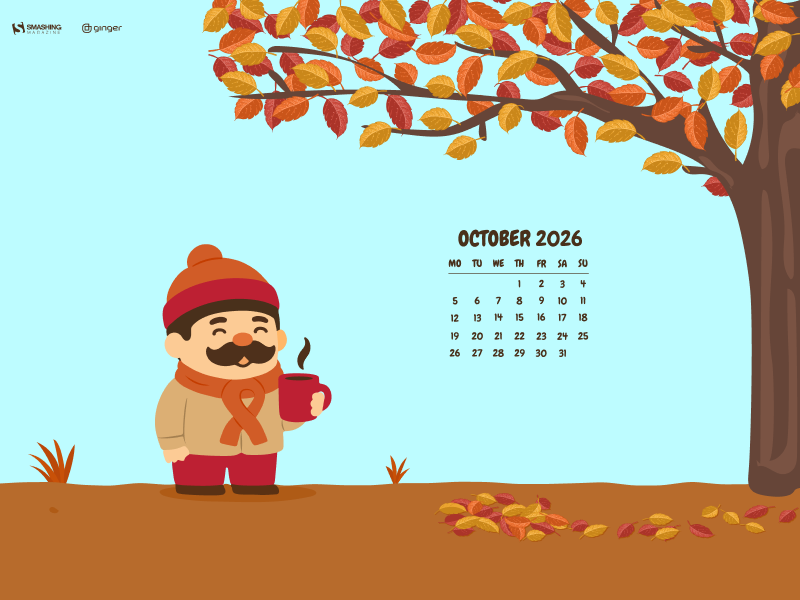
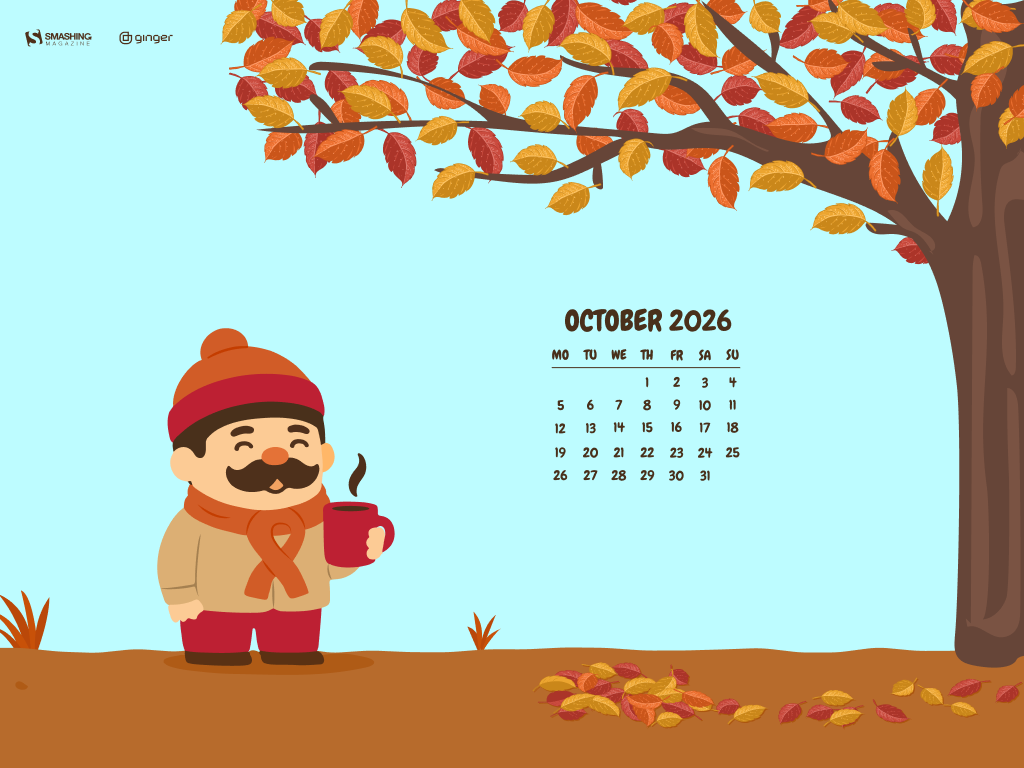
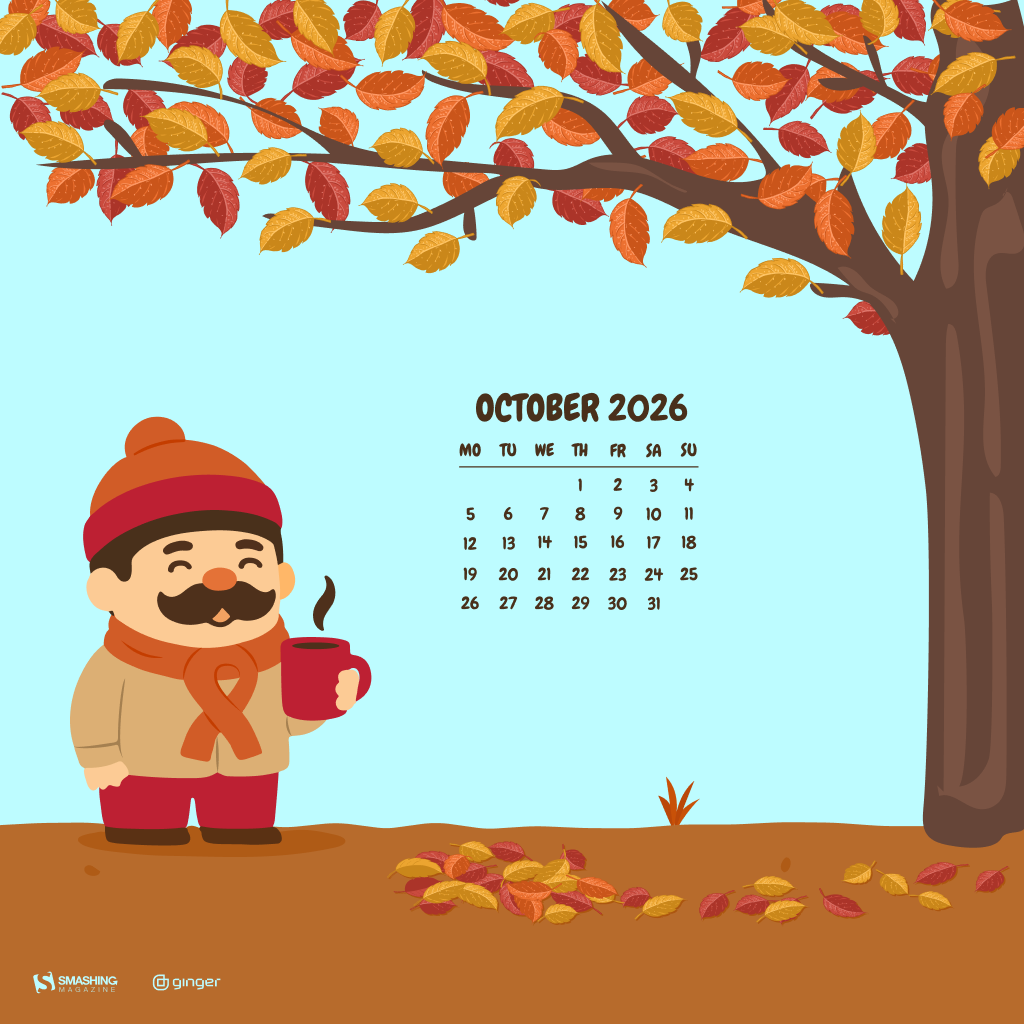

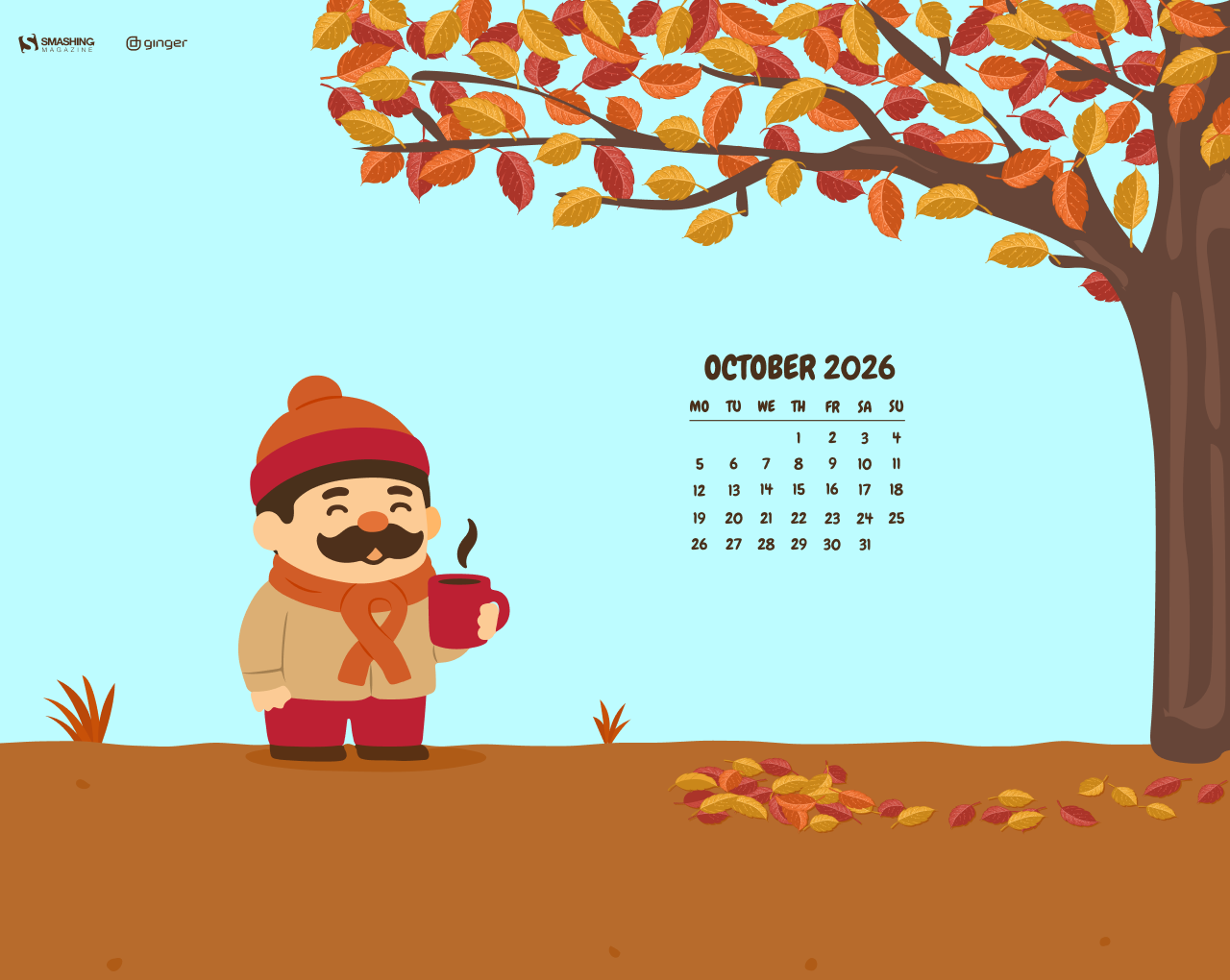



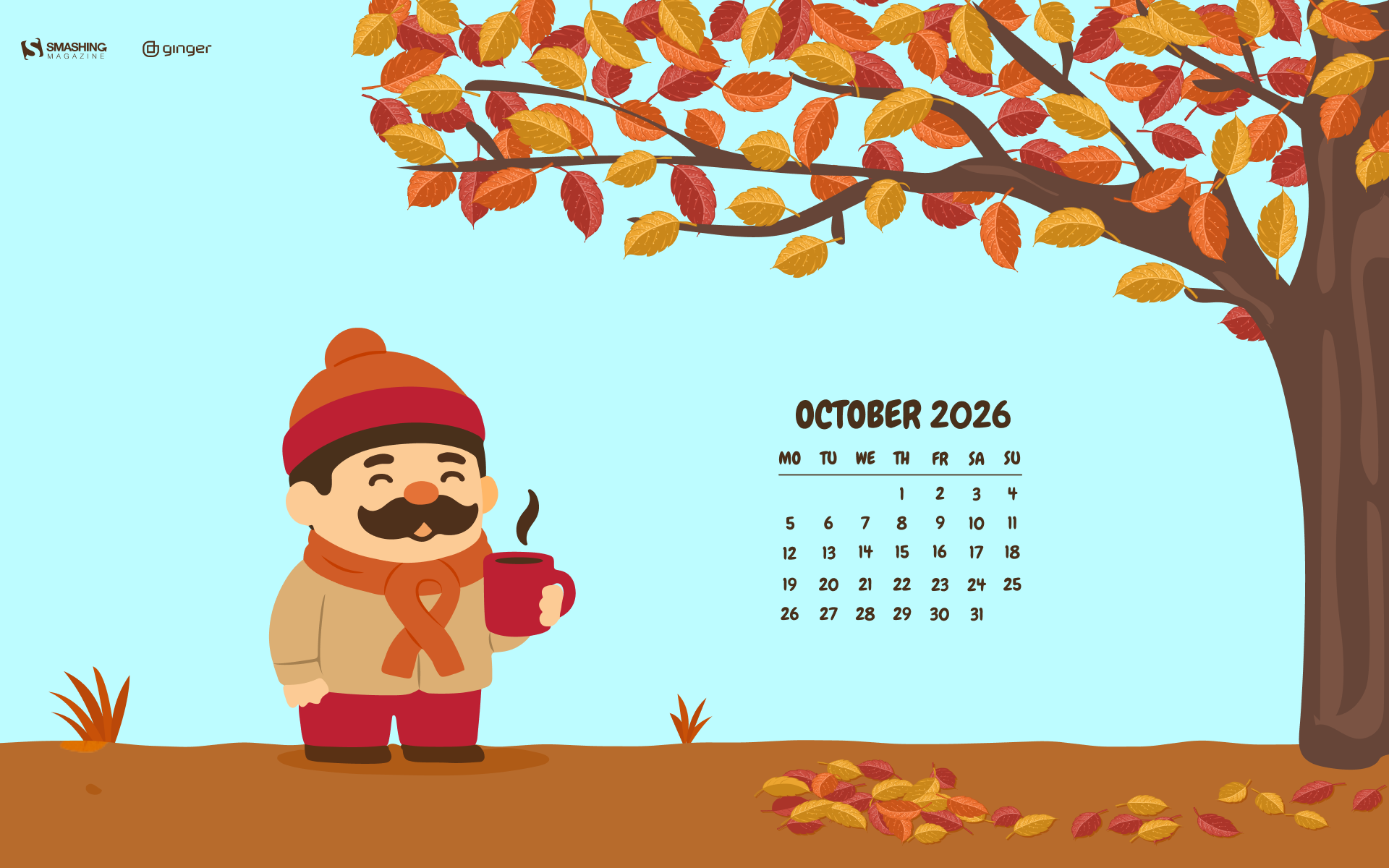
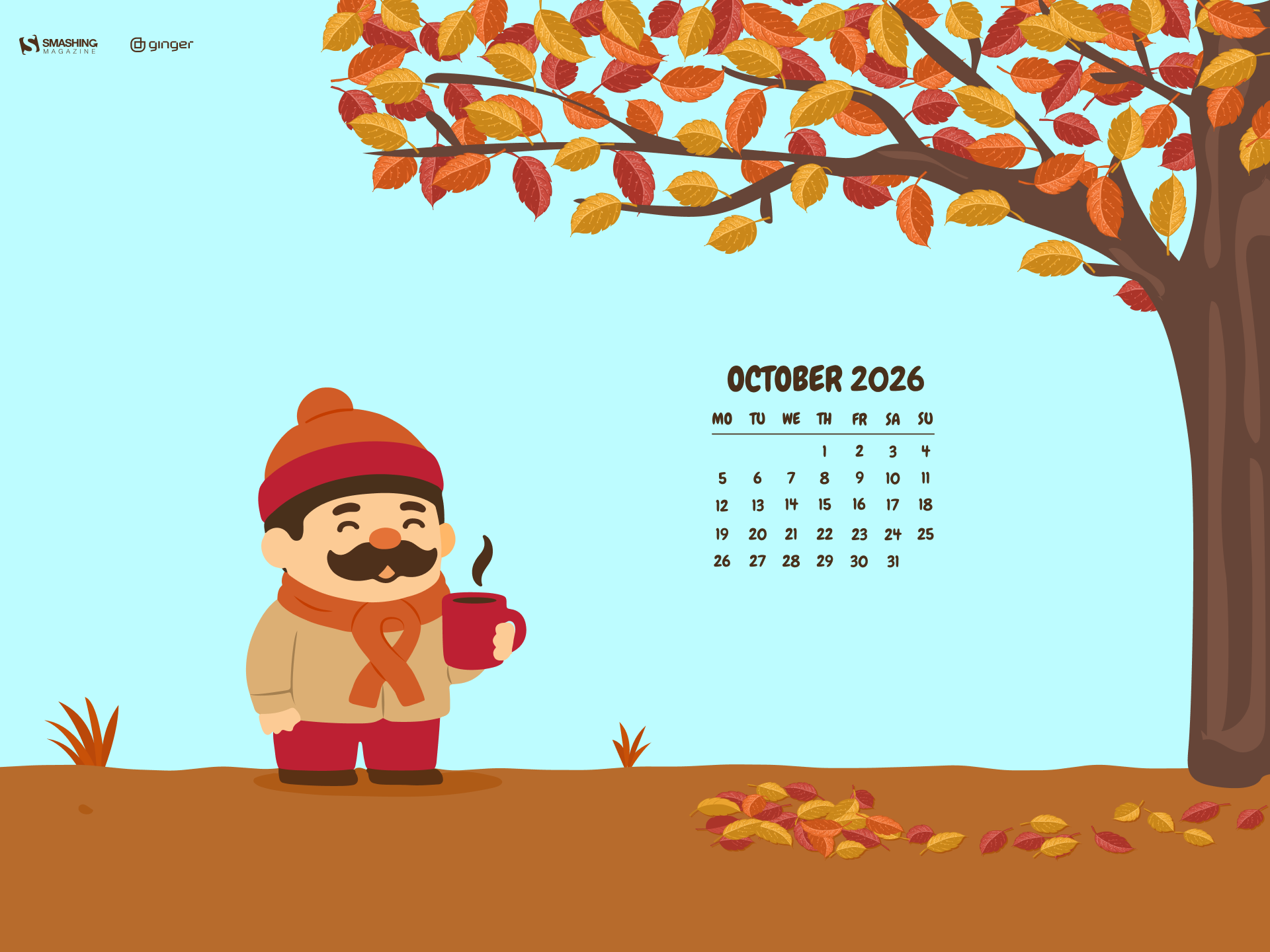





















Designed by Libra Fire from Serbia.

- preview
- without calendar: 320x480, 640x480, 800x480, 800x600, 1024x768, 1024x1024, 1152x864, 1280x720, 1280x800, 1280x960, 1280x1024, 1400x1050, 1440x900, 1600x1200, 1680x1050, 1680x1200, 1920x1080, 1920x1200, 1920x1440, 2560x1440





















“‘I’m so glad I live in a world where there are Octobers.’ (L.M. Montgomery, Anne of Green Gables)” — Designed by Lívi Lénárt from Hungary.

- preview
- without calendar: 320x480, 640x480, 1024x768, 1024x1024, 1280x1024, 1400x1050, 1680x1200, 1920x1080, 1920x1200, 2560x1440



Designed by Vlad Gerasimov from Georgia.

- preview
- without calendar: 800x480, 800x600, 1024x600, 1024x768, 1152x864, 1280x720, 1280x800, 1280x960, 1280x1024, 1366x768, 1440x900, 1440x960, 1400x1050, 1600x900, 1600x1200, 1680x1050, 1680x1200, 1920x1080, 1920x1200, 1920x1440, 2560x1440, 2560x1600, 2880x1800, 3072x1920, 3840x2160, 5120x2880



“When I was young, I had a bird’s nest not so far from my room window. I watched the birds almost every day, because those swallows always left their nests in October. As a child, I dreamt that they all flew together to a nicer place, where they were not so cold.” — Designed by Eline Claeys from Belgium.

- preview
- without calendar: 1280x1024, 1440x900, 1600x1200, 1680x1050, 1680x1200, 1920x1080, 1920x1200, 1920x1440, 2560x1440



“If my heart were a season, it would be autumn.” — Designed by Lívia Lénárt from Hungary.

- preview
- without calendar: 320x480, 1024x1024, 1280x1024, 1600x1200, 1680x1200, 1920x1080, 1920x1200, 1920x1440, 2560x1440, 3840x2160











Designed by Xenia Latii from Germany.
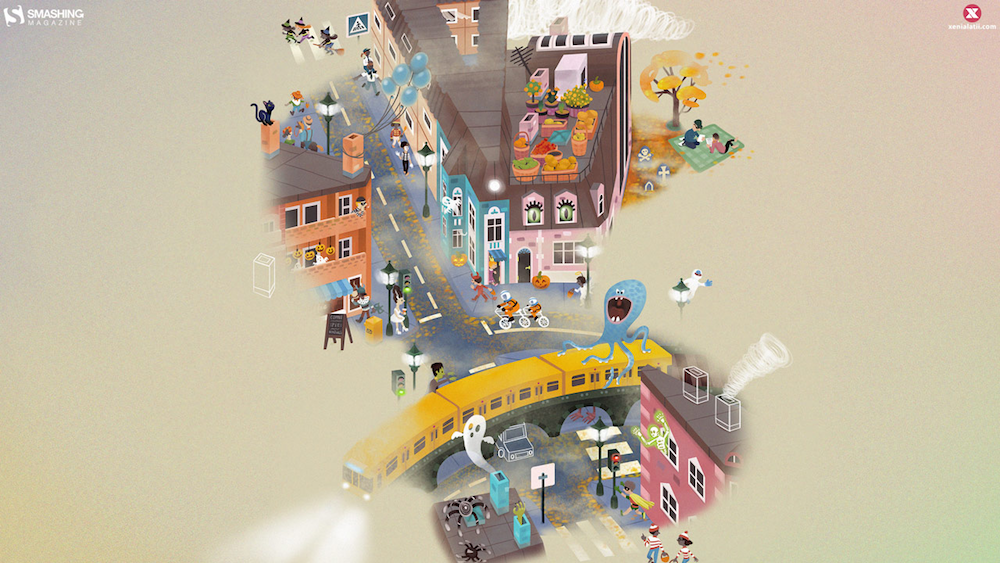
- preview
- without calendar: 320x480, 640x480, 800x480, 800x600, 1024x768, 1152x864, 1280x720, 1280x800, 1280x960, 1280x1024, 1366x768, 1400x1050, 1440x900, 1600x1200, 1680x1050, 1680x1200, 1920x1080, 1920x1200, 1920x1440, 2560x1440


“The term ‘Hanlu’ literally translates as ‘Cold Dew.’ The cold dew brings brisk mornings and evenings. Eventually the briskness will turn cold, as winter is coming soon. And chrysanthemum is the iconic flower of Cold Dew.” — Designed by Hong, ZI-Qing from Taiwan.

- preview
- without calendar: 640x480, 800x600, 1024x768, 1080x1920, 1152x864, 1280x720, 1280x960, 1366x768, 1400x1050, 1600x1200, 1920x1080, 1920x1440, 2560x1440



Designed by Ricardo Gimenes from Spain.

- preview
- without calendar: 320x480, 640x480, 800x480, 800x600, 1024x768, 1024x1024, 1152x864, 1280x720, 1280x800, 1280x960, 1280x1024, 1366x768, 1400x1050, 1440x900, 1600x1200, 1680x1050, 1680x1200, 1920x1080, 1920x1200, 1920x1440, 2560x1440



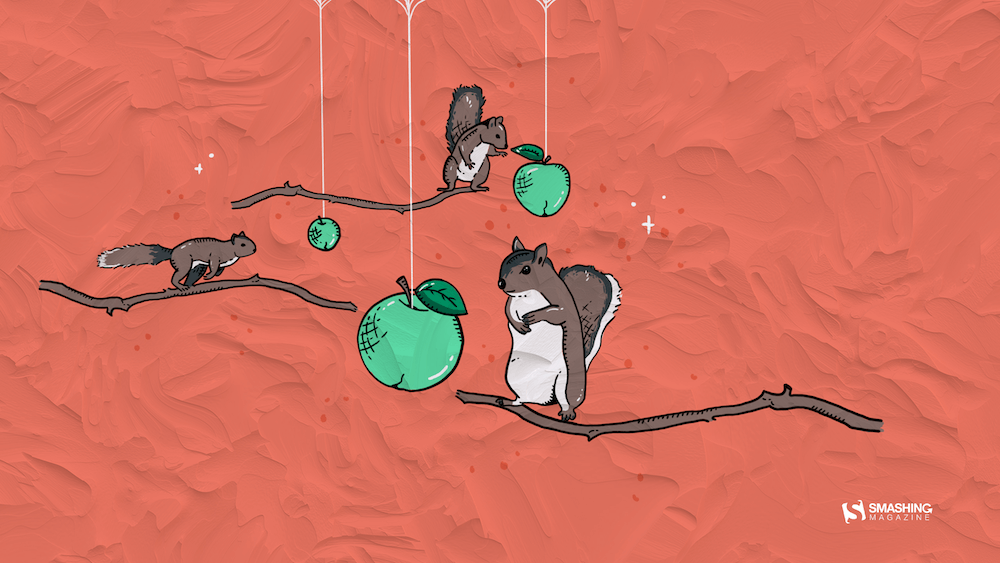
“Did you know that squirrels don’t just eat nuts? They really like to eat fruit, too. Since apples are the seasonal fruit of October, I decided to combine both things into a beautiful image.” — Designed by Erin Troch from Belgium.
- preview
- without calendar: 320x480, 800x480, 1024x1024, 1280x800, 1366x768, 1600x1200, 1680x1050, 1680x1200, 1920x1440, 2560x1440


“To me, October is a transitional month. We gradually slide from summer to autumn. That’s why I chose to use a lot of gradients. I also wanted to work with simple shapes, because I think of October as the ‘back to nature/back to basics month’.” — Designed by Jelle Denturck from Belgium.

- preview
- without calendar: 1600x1200, 1680x1050, 1680x1200, 1920x1080, 1920x1200, 1920x1440, 2560x1440, 2880x1800



Designed by Ricardo Gimenes from Spain.

- preview
- without calendar: 640x480, 800x480, 800x600, 1024x768, 1024x1024, 1152x864, 1280x720, 1280x800, 1280x960, 1280x1024, 1366x768, 1400x1050, 1440x900, 1600x1200, 1680x1050, 1680x1200, 1920x1080, 1920x1200, 1920x1440, 2560x1440, 3840x2160






















“When I was little, my parents always took me and my sister for a walk at the beach in Nieuwpoort. We didn't really do those beach walks in the summer but always when the sky started to turn gray and the days became colder. My sister and I always took out our warmest scarfs and played in the sand while my parents walked behind us. I really loved those Saturday or Sunday mornings where we were all together. I think October (when it’s not raining) is the perfect month to go to the beach for ‘uitwaaien’ (to blow out), to walk in the wind and take a break and clear your head, relieve the stress or forget one’s problems.” — Designed by Gwen Bogaert from Belgium.
Shades Of Gold



“We are about to experience the magical imagery of nature, with all the yellows, ochers, oranges, and reds coming our way this fall. With all the subtle sunrises and the burning sunsets before us, we feel so joyful that we are going to shout it out to the world from the top of the mountains.” — Designed by PopArt Studio from Serbia.

- preview
- without calendar: 320x480, 640x480, 800x480, 800x600, 1024x768, 1024x1024, 1152x864, 1280x720, 1280x800, 1280x960, 1280x1024, 1366x768, 1400x1050, 1440x900, 1600x1200, 1680x1050, 1680x1200, 1920x1080, 1920x1200, 1920x1440, 2560x1440



“As it gets colder outside, all I want to do is stay inside with a big pot of tea, eat cookies, and read or watch a movie, wrapped in a blanket. Is it just me?” — Designed by Miruna Sfia from Romania.

- preview
- without calendar: 320x480, 640x480, 800x480, 800x600, 1024x768, 1024x1024, 1152x864, 1280x720, 1280x800, 1280x960, 1280x1024, 1440x900, 1440x1050, 1600x1200, 1680x1050, 1680x1200, 1920x1080, 1920x1200, 1920x1440, 2560x1440



Designed by Amy Hamilton from Canada.

- preview
- without calendar: 1024x768, 1280x720, 1280x800, 1280x960, 1280x1024, 1400x1050, 1440x900, 1600x1200, 1680x1050, 1920x1080, 1920x1200, 2048x1536, 2560x1440, 2880x1800



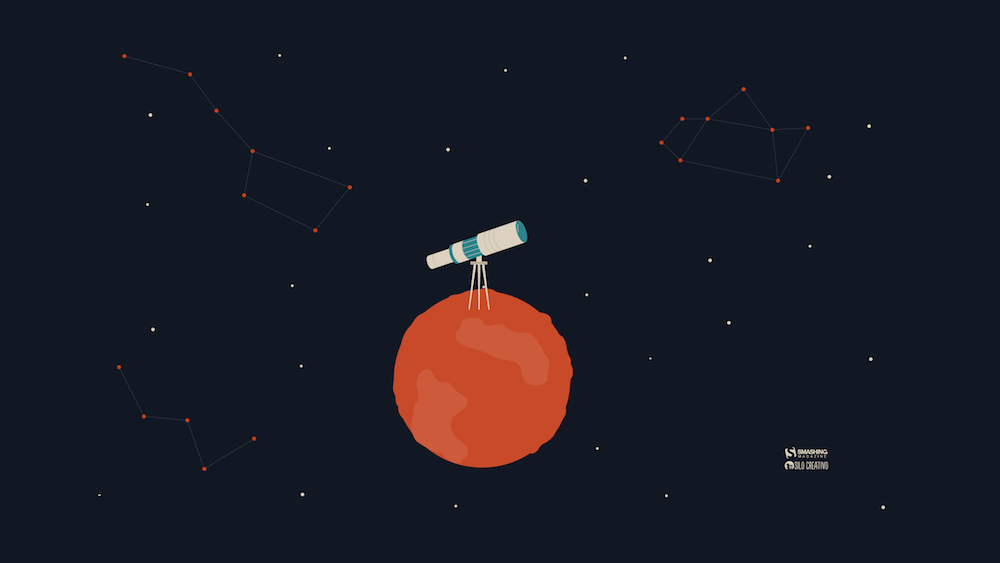
“Autumn is the best moment for discovering the universe. I am looking for a new galaxy or maybe… a UFO!” — Designed by Verónica Valenzuela from Spain.
- preview
- without calendar: 800x480, 1024x768, 1152x864, 1280x800, 1280x960, 1440x900, 1680x1200, 1920x1080, 2560x1440


Designed by Ricardo Gimenes from Spain.

- preview
- without calendar: 640x480, 800x480, 800x600, 1024x768, 1024x1024, 1152x864, 1280x720, 1280x960, 1280x1024, 1366x768, 1400x1050, 1440x900, 1600x1200, 1680x1050, 1920x1080, 1920x1200, 1920x1440, 2560x1440, 3840x2160




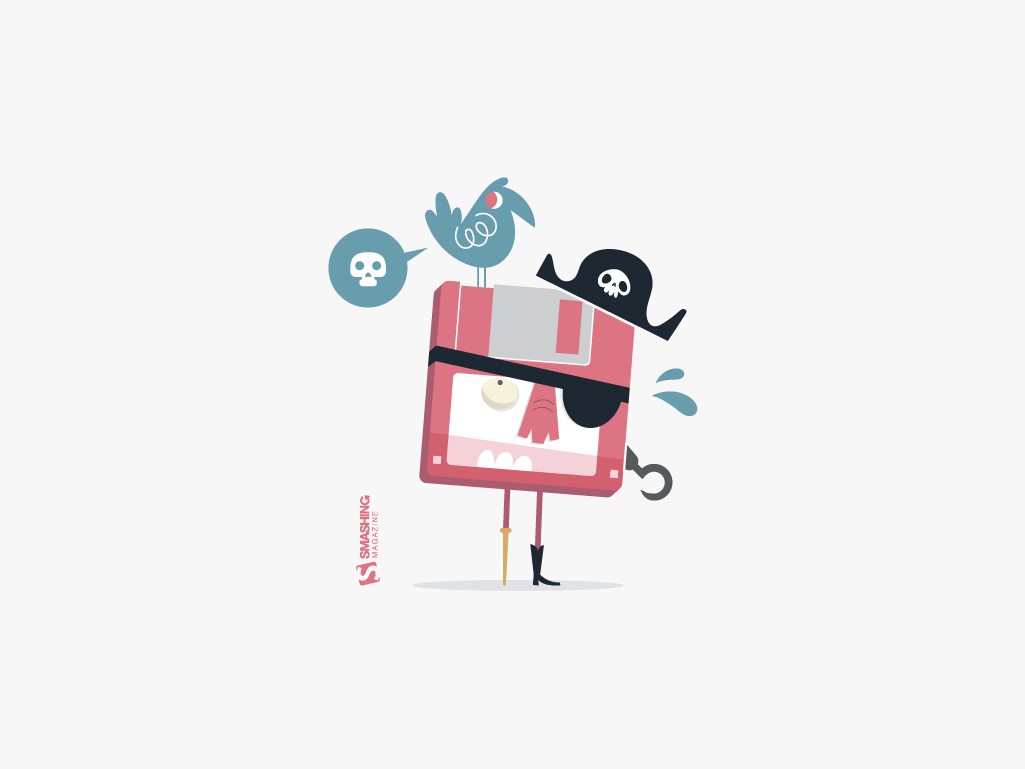

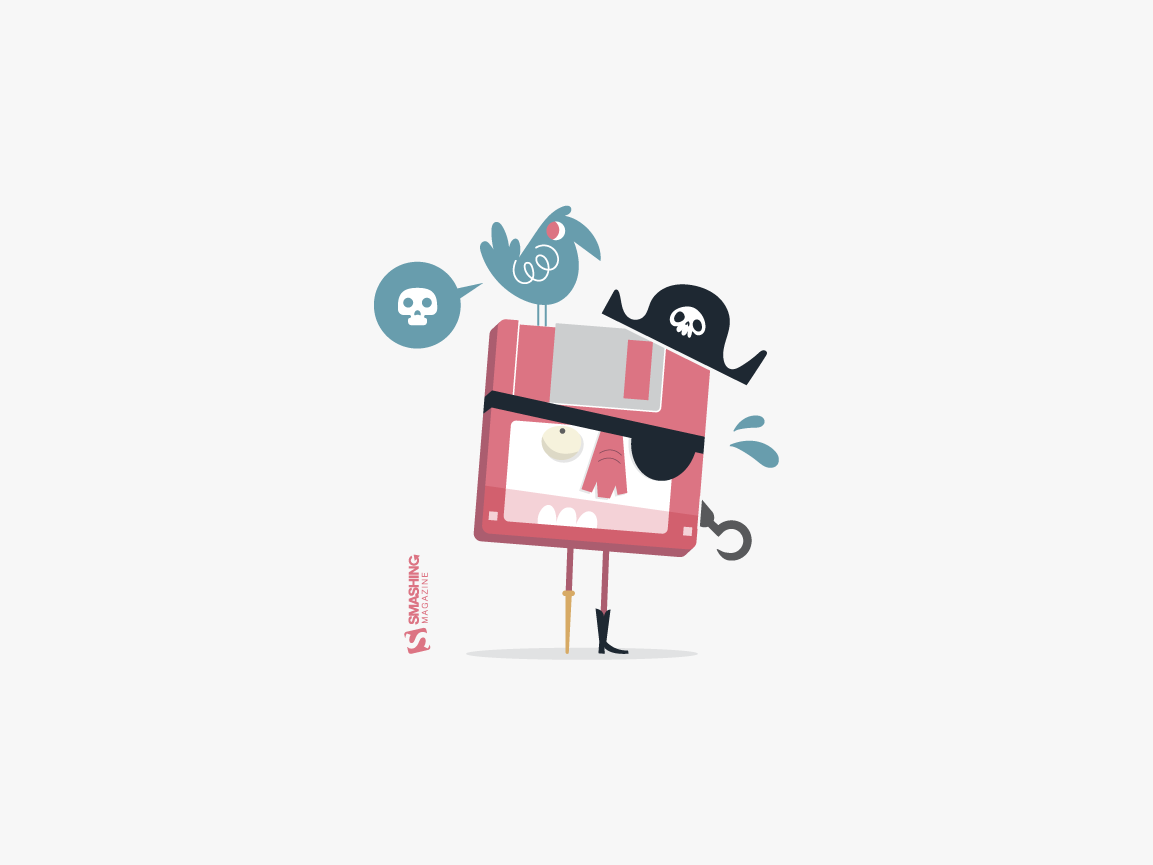

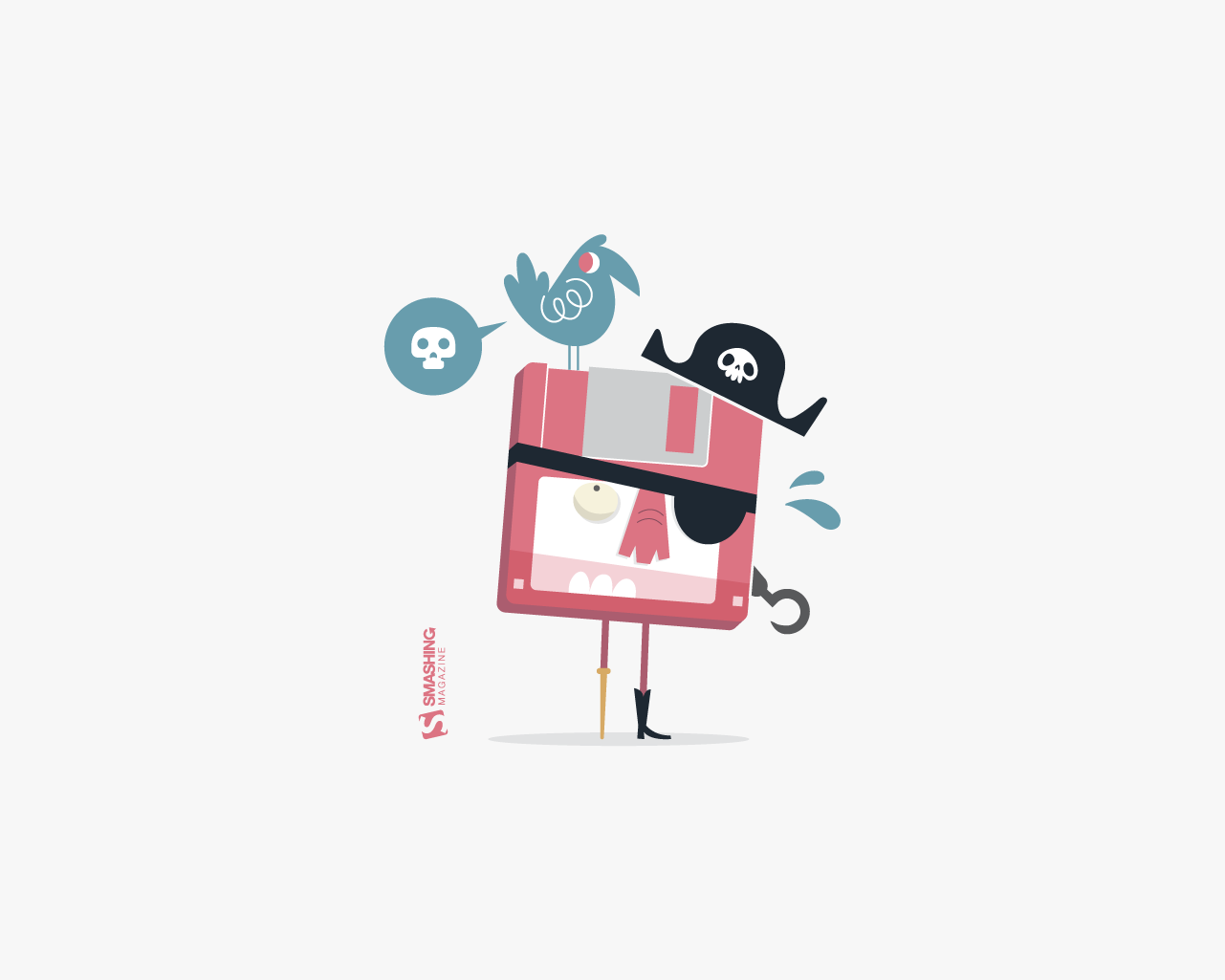

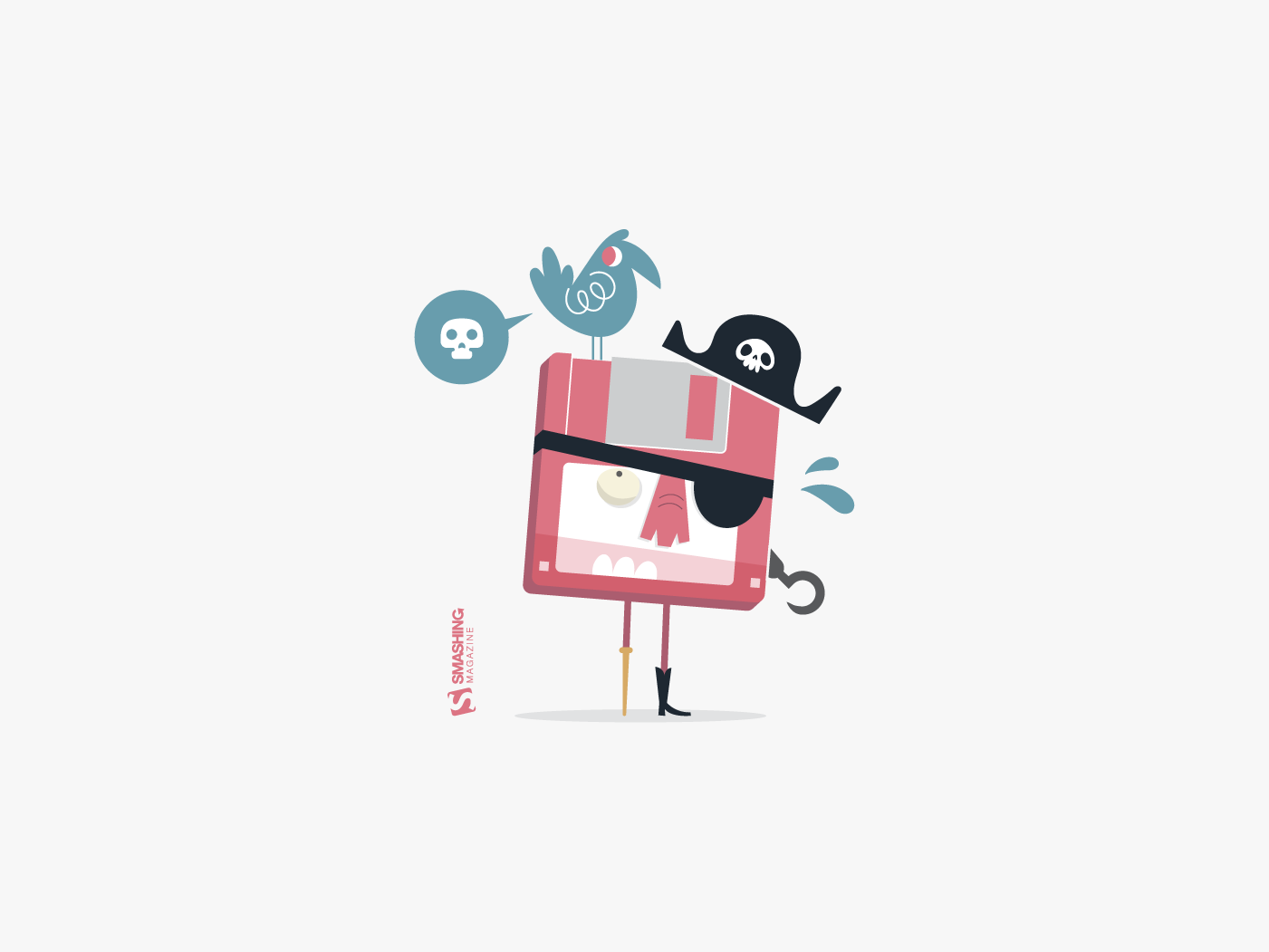
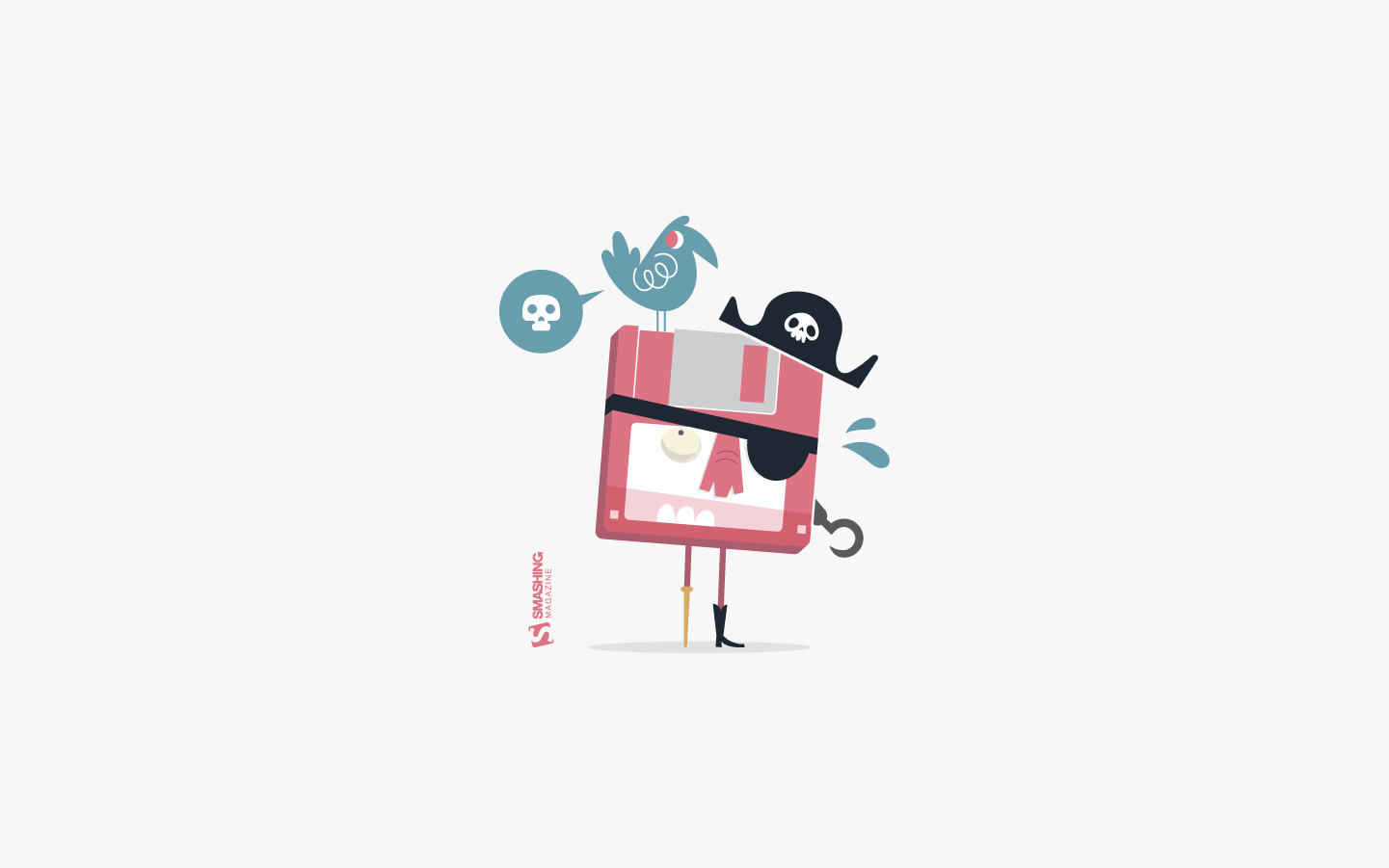
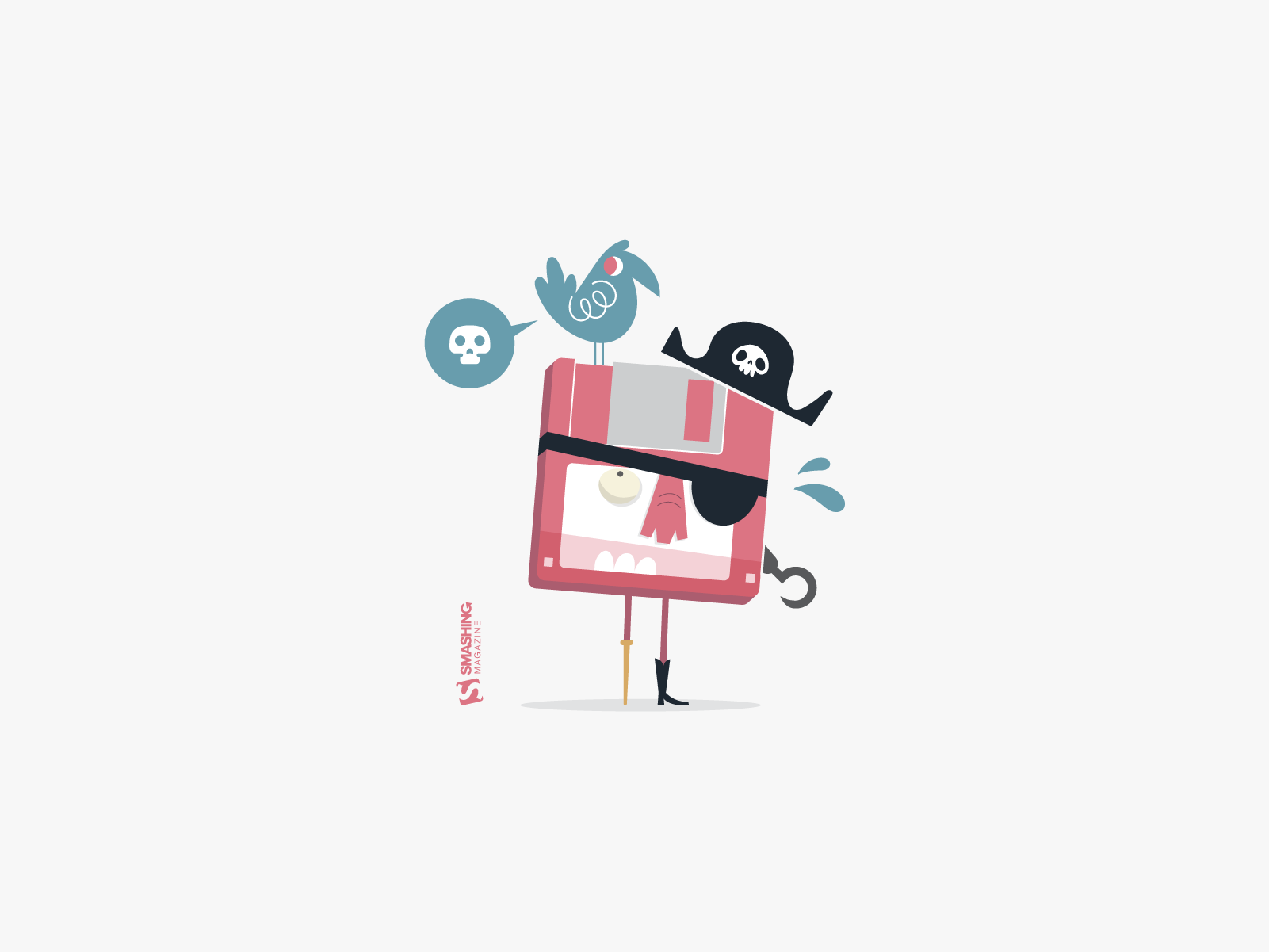
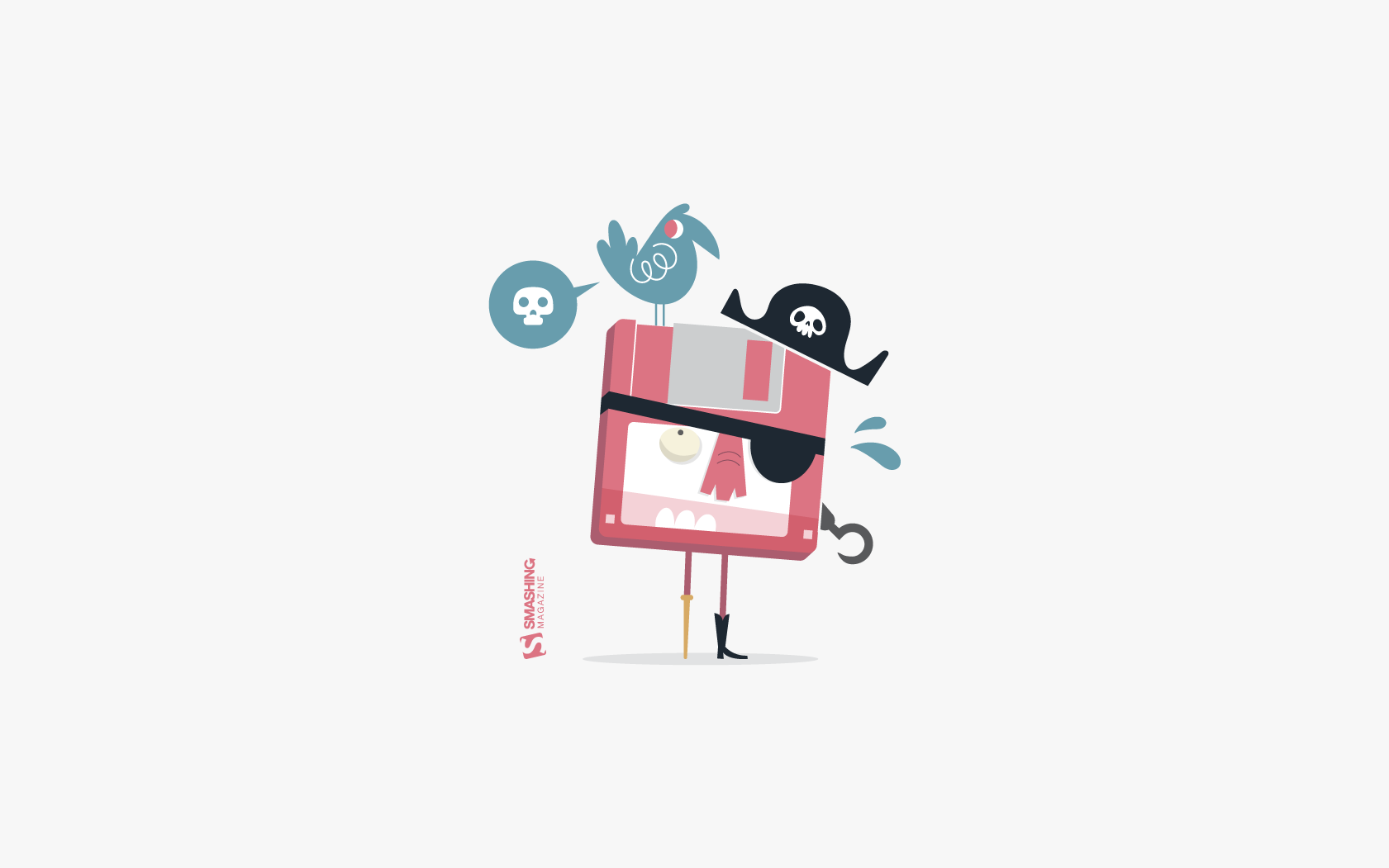


“Autumn is a wonderful time to go for walks in the forest!” — Designed by Hilda Rytteke from Sweden.
Autumn Gate



“The days are colder, but the colors are warmer, and with every step we go further, new earthly architecture reveals itself, making the best of winters’ dawn.” — Designed by Ana Masnikosa from Belgrade, Serbia.

- preview
- without calendar: 320x480, 640x480, 800x480, 800x600, 1024x768, 1024x1024, 1152x864, 1280x720, 1280x800, 1280x960, 1280x1024, 1400x1050, 1440x900, 1600x1200, 1680x1050, 1680x1200, 1920x1080, 1920x1200, 1920x1440, 2560x1440



“To me, October is all about cozy evenings with hot chocolate, freshly baked cookies, and a game night with friends or family.” — Designed by Lieselot Geirnaert from Belgium.
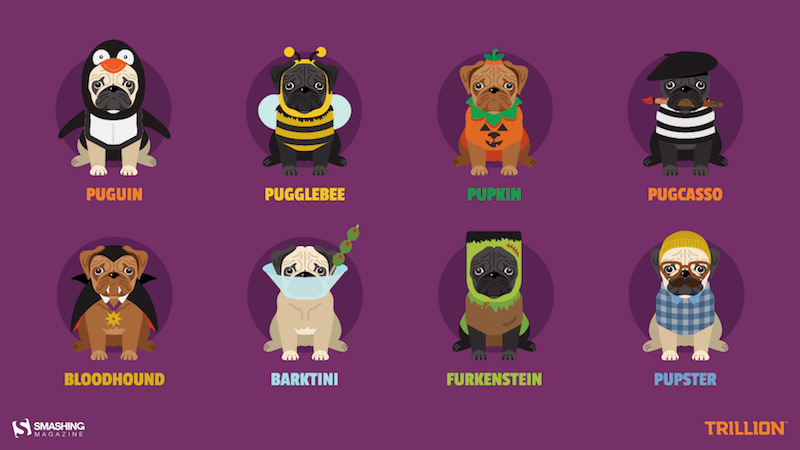
A Very Pug-o-ween



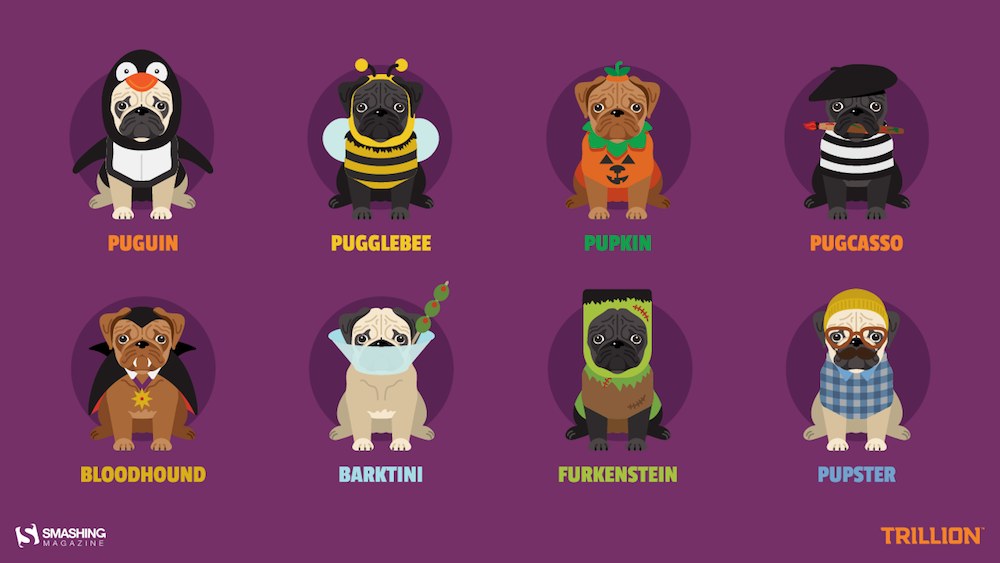
“The best part of October is undoubtedly Halloween. And the best part of Halloween is dog owners who never pass up an o-paw-tunity to dress up their pups as something a-dog-able. Why design pugs specifically in costumes? Because no matter how you look at it, pugs are cute in whatever costume you put them in for trick or treating. There’s something about their wrinkly snorting snoots that makes us giggle, and we hope our backgrounds make you smile all month.” — Designed by Trillion from Summit, NJ.
- preview
- without calendar: 1024x768, 1280x720, 1280x800, 1280x1024, 1366x768, 1440x900, 1680x1050, 1920x1080, 1920x1200, 2560x1440


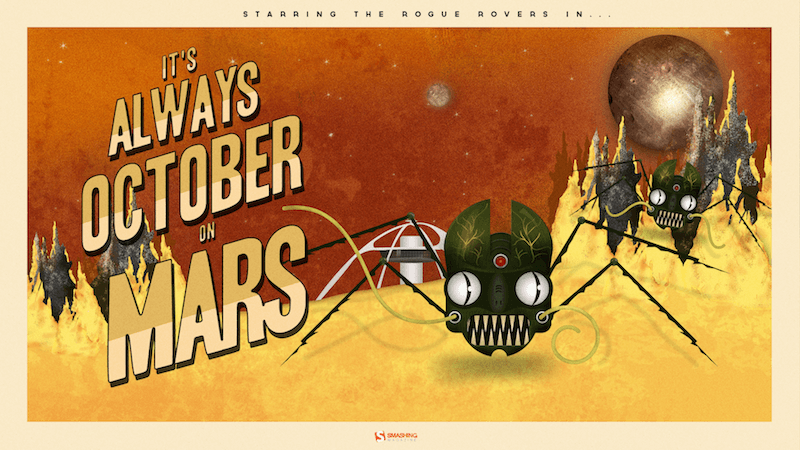
“The story is a mash-up of retro science fiction and zombie infection. What would happen if a Mars rover came into contact with an unknown Martian material and got infected with a virus? What if it reversed its intended purpose of research and exploration? Instead choosing a life of chaos and evil. What if they all ran rogue on Mars? Would humans ever dare to voyage to the red planet?” Designed by Frank Candamil from the United States.
Halloween 2040


Designed by Ricardo Gimenes from Spain.

- preview
- without calendar: 640x480, 800x600, 1024x768, 1024x1024, 1152x864, 1280x720, 1280x800, 1280x960, 1280x1024, 1366x768, 1400x1050, 1440x900, 1600x1200, 1680x1050, 1680x1200, 1920x1080, 1920x1200, 1920x1440, 2560x1440, 3840x2160





















“October is the month when the weather in Poland starts to get colder, and it gets very rainy, too. You can’t always spend your free time outside, so it’s the perfect opportunity to get some hot coffee and work on your next cool web project!” — Designed by Robert Brodziak from Poland.

- preview
- without calendar: 1024x768, 1024x1024, 1152x864, 1280x720, 1280x800, 1280x960, 1280x1024, 1400x1050, 1440x900, 1600x1200, 1680x1050, 1680x1200, 1920x1080, 1920x1200, 1920x1440, 2560x1440
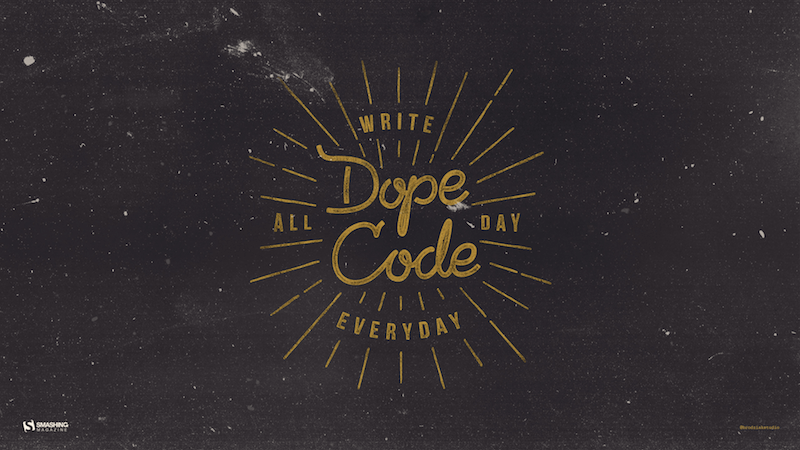


“Fall is my favorite season!” — Designed by Thuy Truong from the United States.

- preview
- without calendar: 320x480, 640x480, 800x600, 1024x768, 1152x864, 1280x720, 1280x800, 1366x768, 1440x900, 1680x1050, 1680x1200, 1920x1080, 1920x1200, 1920x1440, 2560x1440



Feeling inspired? We’ll publish the November wallpapers on October 31, so if you’d like to be part of the collection, please don’t hesitate to submit your design. We are already looking forward to it!
Stop Treating CSS Container Queries Like Traditional Media Queries
To be completely honest with you, I missed the news when CSS Container Queries first shipped. And when I finally heard about it, my very first thought was, “Why exactly do I need this when media queries already exist?”
I’m not proud of that reaction, knowing what I know now, but it was comforting to know that I wasn’t alone. In fact, there are legions of us out there.
What baffles me is that container queries aren’t a new feature, as it currently sits at around 94% browser support. And yet, very few people are actually using it. According to the State of CSS survey, 86% of developers are aware of container queries, but only 41.4% actually use them. Surveys can be biased and not completely representative of our entire field, but this one is certainly the best indicator we’ve got.
Kevin Powell also talked about this at SmashingConf Amsterdam 2026: Container Queries adoption has been terrible. And that is so strange to me, knowing that the ability for components to adapt to the size of their outer container has been at the top of so many CSS wishlists over the years.
I’m not particularly interested in how many people are using container queries as much as in how they are using them. I can’t account for everyone, but from what I’ve seen — including in my own early attempts — many of us are using them wrong.
The bottom line is that incorrect use comes down to the same impression I had when learning about them: they absolutely look just like media queries at first glance. And since they look similar, it’s easy to assume they serve similar purposes and work the same way.
They don’t.
Note: I should state up front that what I’m focusing on in this article is using container size queries, i.e., a responsive design technique for responding to the size of a particular container. There are also container style queries that respond to a container’s computed styles (and are experimental at the time of this writing). You can catch up on those in Juan Diego’s piece here on Smashing Magazine where he examines their possible use cases.
Media Queries Look OutwardThe viewport is a proxy. It always has been. Media queries are what gave us the illusion that screen width alone is responsible for how responsive apps adapt to their environment.
Ask yourself this: When you write @media, what are you asking the browser?
@media (min-width: 1024px) { .card { display: flex; }I, like most developers, am asking the browser: How wide is the screen right now? That’s it.
Media queries answer that beautifully, but what happens when this .card component is placed in a grid cell that’s 300px wide on a 1920px desktop screen?
The media query doesn’t care; it does its job. The viewport is still 1920px, so min-width: 1024px fires and the matched query styles are applied, even though the card only has 300px of space to work with. Eventually, everything in the card deforms, overflows, or cramps up.
“Media queries are dumb. Not dumb in terms of the concept, but dumb in that they don’t know very much. In fact, most people assume that they know more than they do.”— Kevin Powell
It’s common to think of responsive design purely as a system for updating complete page layouts, like going from two columns on a large screen to a single column on a small screen.
Container Queries Look InwardContainer queries are smarter than that. They make responsive layouts more reliant on what’s happening inside a component rather than on the outer context that has no insight into a component’s contents. It is more like: “How much space is available for me in this specific spot, right now?”
Here is the same card code example we looked at in the last section, but with a container query:
.card-wrapper { container-name: card; container-type: inline-size; } @container card (min-width: 450px) { .card { display: flex; flex-direction: row; } }This changes everything. The card isn’t influenced by the viewport; its only concern is whether the .card component’s parent wrapper has at least 450px of inline (i.e., horizontal in a left-to-right writing mode) space. If that condition is true, the component goes horizontal; if not, it goes to its default block display.
The logic works like this:
- When there’s enough room, both items (.flex-item) sit side-by-side, each exactly half the parent container’s width.
- When there is limited space, the second item wraps to the next line.
- Because flex-grow is active on each item, the wrapped items stretch to fill most of the parent’s width.
- If the item is a container itself, it detects the sudden width expansion and fires.
This works. As the parent size shrinks and the cards wrap to two lines, the card item expands, the container query fires, and applies the necessary styles.
ConclusionAt the end of the day, the core reason why container queries look incredibly similar to media queries is simply familiarity. They’re not exactly “new”, but they are way less understood and adopted than media queries. But media queries have plenty of their own limitations; otherwise, we wouldn’t need container queries to fill those gaps.
What we have is a more effective feature for detecting when a specific component’s context changes and a means for adjusting styles based on its content, as it should be when that component can exist in multiple contexts.
Building A UX ROI Case That Survives The Boardroom
Sooner or later, a CFO looks at your wireframes and asks what any of it actually does for the bottom line. Storyboards don’t answer that question, and the era when a 5-minute pitch could answer it ended, unfortunately, a while ago.
These days, if you want to win budget, buy-in, and backing for UX, the design has to be provably good for the business, not only for the people using it.
And proving that takes more than taping a dollar sign to a redesign. You have to understand how your organization defines value in the first place, how it measures that value, and how a credible line gets drawn between a design initiative and an outcome leadership already cares about.
Rather than scatter tips, this article follows one worked example the whole way through. Meridian is a mid-size B2B SaaS company, and it is entirely made up — that label matters, so it gets repeated where it counts. Its onboarding redesign carries the same figures from goal-setting through cost accounting, causal testing, and the final ROI number, because a framework only becomes tangible when the numbers connect. Every step is one you can rerun inside your own organization.
Why ROI Matters More Than Ever in UX ConversationsCompanies now want clarity on what every dollar buys, and “delightful user experiences” stopped clearing that bar some time ago. I still remember a former colleague celebrating a $1 million redesign he’d gotten greenlit mostly on the strength of a couple of three.js tricks. Try that pitch in front of a finance team today and see how far the particles get you.
Executives don’t hate UX, they just hate vagueness. A pitch built on “users will find it easier” loses, every time, to the department promising 12% more sales in Q3. The difference is the one between a streamlined checkout flow that reduced cart abandonment with completed purchases up 22%, and the same work rewarded with “the QA testers like it.” One of those goes on your resume. The rest of this article is about earning the first version, with Meridian’s numbers doing the work.
When Business Goals And KPIs Don’t Exist YetMost writing about UX ROI makes a convenient assumption: that the organization already owns clean business goals and KPIs for you to hook your work onto. Real companies are messier than that. Plenty run on ambitions like “grow faster” or “improve the customer journey” that nobody ever broke into anything measurable, and an ROI case built on that ambiguity sounds impressive right up until somebody scrutinizes it.
So the first job is often to help the organization define what success even looks like. Interview stakeholders across departments — what does product consider a good quarter, where does customer success watch users struggle, where do sales deals stall — and listen for the themes that keep resurfacing across conversations, because those recurring themes are the company’s latent business objectives. A useful forcing function is the OKR model (Objectives and Key Results), which doesn’t tolerate vagueness.
At Meridian, the stated ambition was “improve the rate of new users’ adoption of the platform,” which you can neither design toward nor measure against. Interviews turned up the real shape of the problem. Trial users needed a median of 14 days to reach first value, most churned before getting there, and onboarding questions were burying the support queue. Out of that came an OKR with actual edges: reduce median time-to-first-value from 14 days to 7 with the use of a guided setup flow, and lift trial-to-paid conversion from 8% to 9.5%.
One warning about formalizing KPIs: Impose them from inside the UX team and leadership will suspect you’ve rigged the field in your own favor, so co-create them with whoever owns the outcome — though never at the price of accepting targets that set your team up for an uncomfortable situation. Meridian’s head of product agreed that setup-completion rate was a fair proxy for onboarding usability, and customer success signed off on time-to-first-value, a number already sitting on their own dashboard.
A KPI ladder that ends at a metric somebody already watches buys you credibility before any design work starts. Quantifying The Full Cost Of The InvestmentROI has a denominator, and the denominator is where most UX teams go wrong. You can’t calculate a return without strategic financial planning, yet cost usually gets counted as designer salaries or consulting hours and nothing else. A finance team will find the rest whether or not you counted it, so count it first.
Direct costs are the visible ones. Meridian’s redesign ran $45,000 in design and research labor plus another $8,000 in tooling and participant incentives. Licenses for Figma, UserTesting, Hotjar, analytics platforms, research incentive spend — all of it belongs in the total, and that’s before the inevitable instances of vendor lock-in every UX team eventually faces. Engineering sits in the same column, because a UX redesign doesn’t stop at the mockup. Building the guided setup took two frontend sprints plus a QA pass, $38,000 worth, and the project generated about $4,000 of coordination overhead along the way in new syncs and shared dashboards.
The line item nearly everyone misses, and the one worth stealing from this article if you steal nothing else, is stakeholder time. Workshops, design reviews, and feedback sessions all pull senior people away from their primary work. A VP of Product spending four hours a week in UX reviews is a VP not spending those hours on roadmap planning or partner negotiations. Log the attendance — who came, for how long, at what seniority — and price it at fully loaded cost, meaning salary plus benefits divided by productive hours. A quarter’s worth of workshops, reviews, and interviews at Meridian priced out at $22,000.
Add it all up: $45,000 in design labor, $8,000 in tooling, $38,000 in engineering, $22,000 in stakeholder time, $4,000 in coordination. The investment is $117,000. Saying that number out loud beats saying “we spent $45K on design,” precisely because it already includes everything a finance team would have dug up on its own.
Proving Causation, Not Just CorrelationMost UX ROI pitches die right here. Conversions rose after the redesign, sure — and the CFO wants to know how you ruled out the new pricing, the seasonal traffic bump, and the marketing campaign that shipped the same week. Without a convincing answer, your entire ROI story crumbles.
After all these years, the gold standard for proving causation is still A/B testing: run the old experience against the new one on an even traffic split until the sample means something.
Onboarding happens to suit a phased rollout, which is why Meridian could do this cleanly. For eight weeks, half of new trial signups received the redesigned guided setup while half stayed on the legacy flow. Control converted to paid at 8.0%. The variant came in at 9.4%. With roughly 6,100 trials inside the window, the difference was statistically significant, but a 1.4-point gap on a single test is still the kind of result that deserves a second look before anyone builds a budget on it, which is one reason the team held back on attribution below. Where a split isn’t feasible — a change too structural, a user base too small — fall back to a time series instead. Measure steadily for weeks before the change, implement, then keep measuring against the baseline you established.
Documenting whatever else happens around the same time as your UX change is the unglamorous half of causation.
A pricing-page test from Meridian’s marketing team overlapped weeks five through eight of the rollout. The UX team noted it, confirmed it hit both cohorts evenly, and still chose to attribute only 70% of the observed lift to the redesign in the final math. There is no formula that produces that number; treat it as an illustrative assumption for this example.
The team asked how much of the lift could plausibly belong to the pricing test if it had helped one cohort slightly more than the other, settled on a ceiling of about a third, and rounded the redesign’s share down to 70%. Your figure will differ. What matters is that it is written down and argued for before the results arrive, not fitted to them afterwards. That restraint is worth money in a skeptical room. “We attribute roughly 70% of the lift to the onboarding change, with the remainder likely influenced by concurrent pricing work” survives cross-examination; claiming everything does not. Cohort analysis then backed the number up, since the lift held across acquisition channels and tenure bands, and at that point the skeptics had very little left to work with.
Leading and lagging indicators belong on the same slide, because each covers the other’s weakness. Meridian’s leading indicators moved first — setup completion climbed from 62% to 89%, median time-to-first-value dropped from 14 days to 6.5 — and the lagging trial-to-paid number followed. Mechanism first, business outcome second. Presented together, they form a causal chain that’s harder to poke holes in than either one alone.
The ROI Calculation, End to EndSo what did Meridian actually earn? The company sees about 40,000 trial signups a year. Lifting conversion from 8.0% to 9.4% adds roughly 560 paying customers annually, and at an average of $1,800 in annual recurring revenue per account, those customers represent about $1,008,000 in new ARR. Applying the conservative 70% attribution from the causal work trims the defensible figure to roughly $706,000.
Set that against the full $117,000 investment and the first-year ROI lands near 5:1, with payback arriving in roughly two months. There’s a second line, too. Onboarding-related support tickets dropped about 30%, some 3,600 fewer tickets a year, worth another $54,000 annually at $15 per resolved ticket. Keep it as its own line rather than folding it into one swollen headline number. The case reads as more honest that way and loses none of its force.
Three assumptions carry that result, and each belongs on the slide next to it. The 40,000 signups and the $1,800 average ARR are the prior year’s actuals held flat, so a growth or pricing change moves the outcome in either direction. The 70% attribution is the illustrative assumption from the causal work, not a measured quantity. And the two-month payback counts new ARR as it lands rather than revenue recognized net of churn, which flatters the timeline; on a net basis the payback stretches to roughly a quarter. State those three plainly and a finance team can adapt the example to its own numbers. Hide them and the whole thing starts to look like marketing math, however careful the experiment was.
What persuades in the final presentation is not sophistication. Open with the baseline: what stalled trials and support volume were already costing. Show the delta in terms leadership reads fluently, metrics like conversion rate uplift chief among them. A chart of setup completion climbing from 62% to 89% will beat a paragraph of UX jargon, and a translation like “each abandoned setup costs us 0.3 support tickets” beats the chart. Above all, keep every figure identical from the first slide to the last. A room full of finance people forgives many things, but never numbers that wobble between slides.
Tailoring The Case To Whoever Holds The Purse StringsBudget decisions come out of coalitions. A CFO may hold the final say when adding AI to the checkout process, but marketing, product, and customer success all lean on that decision, and each means something different by “value.”
A CFO hears cost, revenue, and risk. A CMO hears conversion and acquisition cost, since UX is a lever for increasing marketing ROI. Product counts support tickets; customer success thinks in retention. The underlying numbers never change; only the framing rotates, and a CFO wants a projection, not a moodboard. Meridian’s CFO slide read “the onboarding redesign protects roughly $706,000 in new ARR a year against a $117,000 investment,” while the CMO version led with what a 9.4% trial conversion does to blended acquisition cost.
Beyond the Dollar Sign: Qualitative and Non-Financial MetricsSome UX outcomes never translate cleanly into revenue, and pretending they do weakens the parts of your case that are solid.
The trick with qualitative evidence is collecting it rigorously enough that nobody can wave it off as anecdote.Scores like Net Promoter Score (NPS), CSAT, and Customer Effort Score already sit inside most reporting cadences, which makes them cheap to borrow. Tie your work to their movement, and segment wherever the data allows.
Meridian could say that NPS among trial users on the redesigned onboarding was 51 against 34 for the legacy flow, which lands far harder than any blended average. Verbatim feedback from surveys, support transcripts, and app store reviews adds the emotional weight the scores lack. Internal tools deserve the same discipline, since employee experience is increasingly recognized as a business driver — a dashboard redesign that hands account managers 45 minutes a day back is a productivity gain, a satisfaction gain, and a retention lever all in one.
Brand perception resists direct measurement but leaves tracks in repeat visits, organic referrals, and social sentiment. It carries extra weight in trust-sensitive industries like finance or healthcare, and it forms fast, given that UX design influences the first impressions of a whopping 94% of customers.
Whatever you collect, systematize the collecting. Run pre- and post-surveys with consistent question sets, use structured usability testing with task-based scoring, and put the qualitative right next to the quantitative when you present.
“Setup completion rose from 62% to 89%, and in post-test interviews 8 of 10 participants called the new flow intuitive, against 3 of 10 for the old one” — a pairing like that is much harder to dismiss than either half on its own. Making the Case StickUX loses the budget battle unless it’s mapped to company-wide objectives, so phrase the proposal in the words of this year’s board presentation.
Nobody at Meridian pitched “simplify the onboarding UI”; the pitch was a redesigned trial experience worth 1.4 points of upgrade rate, roughly $1M in annual recurring revenue before attribution. Bring evidence in both registers, since that is what social proof is for: the case, clearly labeled, plus screenshots, impact graphs, and user quotes. Find internal allies who can repeat the ROI narrative in rooms you’ll never enter, and write the playbook down, because repeatable ROI is what earns recurring investment.
Resources for Going DeeperThis topic has been explored extensively by researchers, practitioners, and consultancies. Here’s a curated set of resources worth studying if you want to build a stronger ROI practice around UX.
- “Measuring the User Experience” by Tom Tullis and Bill Albert is the definitive guide to UX metrics. It covers everything from task-based measurements to survey design to statistical analysis, and it’s written for practitioners, not academics.
- Jared Spool’s “The $300 Million Button” case study is a classic example of how a single UX change (removing a mandatory registration step) generated massive revenue uplift. It’s a story every UX professional should have in their back pocket.
- Forrester’s research on UX ROI provides enterprise-focused frameworks for building business cases around experience design, including their widely cited finding that every dollar invested in UX returns $100.
- “UX Strategy” by Jaime Levy bridges the gap between design thinking and business strategy, offering practical tools for aligning UX initiatives with organizational goals and market positioning.
- The Design Value Index by the Design Management Institute tracks publicly traded companies that invest heavily in design against the S&P 500. The data consistently shows that design-led companies outperform the index by significant margins, and it’s a powerful data point for executive presentations.
- Google’s HEART framework provides a structured approach to selecting UX metrics at scale. HEART stands for Happiness, Engagement, Adoption, Retention, and Task success, and it’s particularly useful for teams that struggle to decide which metrics to track.
A seat at the table never comes from beauty or novelty. It comes from measurable, defensible impact, which means UX leaders have to trade the artist’s posture for the strategist’s. Speak in outcomes rather than outputs. Connect pixels to profit.
When someone challenges the numbers, don’t flinch. Show the controlled experiment, the cohort analysis, and the before-and-after metrics, every figure holding steady from the first slide to the last, the way Meridian’s did, with the customer quotes and the employee-satisfaction data sitting right beside the revenue impact. Prove the work does more than delight users, and be ready to defend the ratio line by line. That’s when the CFO leans in, and that’s when design stops being optional.
The Death Of The Button: Why The Best Interface Is No Interface
Ever since the commercialisation of the Graphical User Interface pioneered by systems like the Xerox Star and popularised by the original Apple Macintosh, software has relied heavily on point-and-click interactions. If you wanted to book a trip, buy a pair of shoes, or research a health symptom, you were expected to navigate a labyrinth of user interfaces. You click menus, adjust range sliders, fill out multi-step forms, deal with cookie pop-ups, and open dozens of browser tabs just to cross-reference basic information. We have become accustomed to spending more time managing the software rather than actually achieving our goals.
That contract is officially changing. Driven by advances in artificial intelligence and large language models, a new generation of web tools is pioneering a radical philosophy: Intent-Driven Design. Rather than expecting our users to learn complex menus and click through elaborate sales funnels, these platforms operate by capturing high-level human goals and silently executing the grunt work in the background.
This vision builds on long-standing HCI concepts like Golden Krishna’s “The Best Interface Is No Interface” and Don Norman’s principles of human-centered design.
The ultimate goal of modern web design is no longer to build prettier buttons or flashy animations; it is to eliminate the interface entirely.
Well, at least what we understand based on our current experience.
It is essential for UX designers to understand the changes we’re witnessing and even re-evaluate our role, shifting our focus from designing visible interfaces to guiding transparent, intent-driven AI experiences.
The Death Of The “10-click” ProcessTo understand where web design is going, we first have to look at the friction we have accepted as “normal” for decades.
Consider the traditional workflow of buying a flight online. The user experience is intentionally hyper-interactive:
- Navigate to a travel aggregator or airline website.
- Select “Round Trip” from a dropdown menu.
- Type the origin city and wait for auto-complete.
- Type the destination city and wait for auto-complete.
- Click a calendar modal, toggle through months, and select departure and return dates.
- Choose the number of passengers and cabin class.
- Click “Search” and wait for the results page to load.
- Filter by price, layover duration, departure time, and airline.
- Sort the results and scan through dozens of individual options.
- Click through a three-page checkout funnel dodging upsells for rental cars and travel insurance.
This is a classic point-and-click UI paradigm. The computer acts as a passive container of data, and the human acts as the orchestrator, manually inputting parameters, interpreting raw outputs, and executing each micro-step along the way.
Intent-driven design flips this dynamic entirely. Instead of forcing you to navigate the mechanical steps of how to find a flight, the interface asks a simple question: What are you trying to accomplish?
When you express a goal, such as “Find me a non-stop flight to Chicago next weekend under $300 that arrives before 5 PM”, the software reads your intent, executes the multi-step search query behind the scenes, compares the options, and presents a single actionable resolution. The ten clicks dissolve into one clear intent outcome.
Three Web Platform Examples Replacing Buttons With IntentThis shift isn’t a theoretical vision of the distant future. Some of the world’s most accessible websites allow you to experience intent-capturing systems already.
1. Perplexity AI: Search Without The Open TabsTraditional search engines like Google were built as directories. You typed a keyword, and the interface rewarded you with ten blue links. The actual work of opening five tabs, skimming long articles, dodging ads, and manually assembling an answer was left to you. Although this is now changing, with AI content appearing first when you search on Google.
Perplexity AI allows anyone to perform instant intent-based searches. Instead of forcing you to click into multiple tabs, the interface synthesises the perfect result for your context.
- The interaction: You ask a complex question in plain English: “Compare the top three budget laptops for a computer science student, focusing on battery life and keyboard quality.”
- The invisible work: In under two seconds, the platform searches the web, reads dozens of articles, evaluates hardware specifications, and cross-references user reviews.
- The result: (See screen above) Instead of throwing web pages at you, Perplexity dynamically generates a single custom answer complete with formatted comparison tables, pros and cons lists, and concise inline citations. You get the outcome of thirty clicks in just one.
For years, creating a website meant using visual builders like Figma or drag-and-drop web editors. As designers, we spent hours manually drawing rectangles, picking hexadecimal colour codes, adjusting padding values, and sometimes writing CSS code.
Vercel v0 lets anyone test its generative interface builder right from the home page without signing in.
- The Interaction: A user types a descriptive goal into the input prompt: “Create a modern dark-mode dashboard for a subscription SaaS app showing monthly revenue, active users, and a customer churn chart.”
- The invisible work: The underlying AI understands layout principles, accessibility guidelines, UI component libraries, and responsiveness. It writes clean HTML, Tailwind CSS, and React code in real time.
- The result: Rather than spending an afternoon manipulating elements, the user receives a fully functional, pixel-perfect user interface in seconds! The traditional visual design tool disappears, replaced by raw human intent.
Many traditional productivity tools require you to manually construct task lists, drag items across Kanban boards, and assign micro-deadlines. Goblin.tools is a free, single-page suite of single-task AI tools designed specifically for neurodivergent users or anyone feeling overwhelmed, requiring zero sign-ups or configuration.
- The interaction: You enter a vague, intimidating goal into the Magic Todo tool, such as “Prepare for a job interview”.
- The invisible work: Instead of forcing you to plan every step, the system analyses the cognitive load of the goal and automatically breaks it down into small, actionable sub-tasks adjusted to your preferred level of detail.
- The result: The interface eliminates the stressful task-planning phase and presents a clean checklist tailored to your exact goal.
When you remove traditional menus, sidebars, and forms, how do you keep a website usable? Designers pioneering this space rely on three core pillars:
Pillar Traditional UX approach Intent-driven UX approach User input Micro-actions (Clicks, dropdowns, toggles) 1. High-level goals (Natural language, context, habits) Interface state Static layouts (Everyone sees the same page) 2. Generative UI (Layouts created dynamically on the fly) Task execution Manual execution by the user 3. Autonomous execution by background AI agents 1. High-level GoalsAn invisible interface doesn’t always wait for you to type a command — it leverages context to anticipate user needs. Guided by industry standards like Apple’s Human Interface Guidelines on Contextual & Ambient Design, modern systems read environmental metadata, such as device state, location, and past interaction patterns, to trigger proactive actions.
For example:
- Time and location: A food delivery web app prioritising your saved home address and dinner items automatically at 6:30 PM on a weekday.
- Cross-app history: A calendar application noticing an email about an upcoming appointment and surfacing a one-click “Add to Schedule” card without forcing you to copy and paste event details manually.
In traditional web design, every user sees the exact same layout. An e-commerce store shows the same navigation bar whether you are a first-time visitor looking for customer support or a returning customer tracking a package.
As highlighted in the Nielsen Norman Group’s analysis on AI as a new UX paradigm, computing is shifting from command-based interaction to outcome-specification. This enables Generative UI, where interfaces are rendered dynamically on the fly based on what you are trying to do in that exact moment. For example, platforms like Vercel v0 demonstrate how raw intent can instantly render functional code components without manual layout building. If you express a desire to compute complex financial data, the interface generates a dynamic calculator widget on demand, receding once your goal is completed.
3. Execution by AI AgentsTraditional interfaces are obsessed with prevention, constantly peppering users with confirmation pop-ups (“Are you sure you want to delete this file?”).
Intent-driven interfaces adapt Jakob Nielsen’s 10 Usability Heuristics on User Control and Error Recovery by shifting the safety net from prevention to easy reversibility. Because autonomous agents take actions on your behalf, products prioritise frictionless rollback mechanisms. A prominent “Undo” button, simple revision prompts (“Make this summary shorter”), and transparent audit logs replace intrusive warning modals.
The Hidden RisksWhile removing interface friction is liberating, stripping away visual controls introduces significant product design challenges. When software acts on inferred intent rather than direct point-and-click commands, designers must navigate critical ethical and technical pitfalls.
The Illusion Of ControlWhen a website makes decisions for you, it can quickly feel patronising or invasive. As explored by the Stanford Human-Computer Interaction (HCI) Group, automation must maintain clear boundaries to prevent user frustration. Furthermore, ethical frameworks from the Center for Humane Technology emphasise that product designers must guard against manipulative defaults.
Designers must strike a delicate balance: automate routine execution, but explicitly prompt the user for high-stakes confirmations (such as financial transactions, publishing public content, or altering privacy settings).
The Black Box ProblemIn a traditional UI, if you get an unexpected result, you can usually diagnose the issue — perhaps you checked the wrong filter box or selected an incorrect date.
With an intent-driven interface, troubleshooting becomes harder. To address this “black box” challenge, the Google PAIR (People + AI Research) Guidebook advocates for transparent feedback loops. The system must explicitly state its interpretation (“Searching for non-stop flights to Chicago under $300...”) so users can calibrate trust and correct misinterpretations instantly.
From A UX PerspectiveAs a UX designer, always being curious to understand how our design approach is changing in the world of AI, I find it essential that we re-evaluate the foundational elements of our craft.
Rather than designing static buttons and rigid forms, we need to learn to map and present dynamic, generative UI components that adapt on the fly to user intent.
By mastering these evolving patterns, like ambient feedback, inline prompts, and transparent AI status indicators, we can ensure that screenless, agent-driven tools remain intuitive, ethical, and deeply human-centered.
Conclusion The ultimate goal: The best design is no design.For decades, the digital industry has evaluated software success through engagement metrics like time spent in app, click-through rates, and page views per session. Websites were deliberately engineered to maximise visual engagement and interaction volume.
The philosophy behind Golden Krishna’s seminal book The Best Interface Is No Interface, aligned with the broader Center for Humane Technology’s Time Well Spent movement, turns these metrics on their head. The ultimate test of a modern digital product is no longer how visually captivating its buttons are, but rather: How effectively did this software solve the problem and get out of the user’s way?,
We are entering an era where web applications will no longer be measured by the beauty of their interfaces, but by their ability to render those complex interfaces completely obsolete. The future of the web isn’t more interaction — it is seamless, invisible completion.
The Many Faces Of September (2026 Wallpapers Edition)
For more than 15 years already, our monthly wallpapers series has been the perfect opportunity for creatives of all backgrounds to put their skills to the test. You don’t have to meet stakeholder or client requirements; for a change, it’s just you, exploring your ideas and bringing them to life in your own, unique style. Since we first embarked on this wallpapers journey, so many talented folks from all across the globe have accepted the challenge, and this September is no exception.
Created with love by the community for the community, all the wallpapers in this collection come in a variety of screen resolutions and can be downloaded for free. A huge thank-you to everyone who tickled their creativity and shared their designs with us — this post wouldn’t be possible without your kind support!
If you’d also like to be featured in one of our upcoming wallpapers posts, please don’t hesitate to join in. We can’t wait to see your story come to life! Happy September!
- You can click on every image to see a larger preview.
- We respect and carefully consider the ideas and motivation behind each and every artist’s work. This is why we give all artists the full freedom to explore their creativity and express emotions and experience through their works. This is also why the themes of the wallpapers weren’t anyhow influenced by us but rather designed from scratch by the artists themselves.
“That crisp, golden shift in the air when the first fallen leaves begin to blanket the streets of Novi Sad always brings a quiet transition into a slower rhythm. The goal was to capture that cozy, enveloping feeling of the changing seasons through a simple illustration, the way a woodland canopy naturally forms an archway, framing the workspace in rich amber, rust, and deep burgundy.” — Designed by Popart Studio from Serbia.

- preview
- with calendar: 320x480, 640x480, 800x480, 800x600, 1024x768, 1024x1024, 1152x864, 1280x720, 1280x800, 1280x960, 1280x1024, 1400x1050, 1440x900, 1600x1200, 1680x1050, 1680x1200, 1920x1080, 1920x1200, 1920x1440, 2560x1440
- without calendar: 320x480, 640x480, 800x480, 800x600, 1024x768, 1024x1024, 1152x864, 1280x720, 1280x800, 1280x960, 1280x1024, 1400x1050, 1440x900, 1600x1200, 1680x1050, 1680x1200, 1920x1080, 1920x1200, 1920x1440, 2560x1440









































Designed by Ricardo Gimenes from Spain.

- preview
- with calendar: 640x480, 800x480, 800x600, 1024x768, 1024x1024, 1152x864, 1280x720, 1280x800, 1280x960, 1280x1024, 1366x768, 1400x1050, 1440x900, 1600x1200, 1680x1050, 1680x1200, 1920x1080, 1920x1200, 1920x1440, 2560x1440
- without calendar: 640x480, 800x480, 800x600, 1024x768, 1024x1024, 1152x864, 1280x720, 1280x800, 1280x960, 1280x1024, 1366x768, 1400x1050, 1440x900, 1600x1200, 1680x1050, 1680x1200, 1920x1080, 1920x1200, 1920x1440, 2560x1440









































Designed by Ricardo Gimenes from Spain.
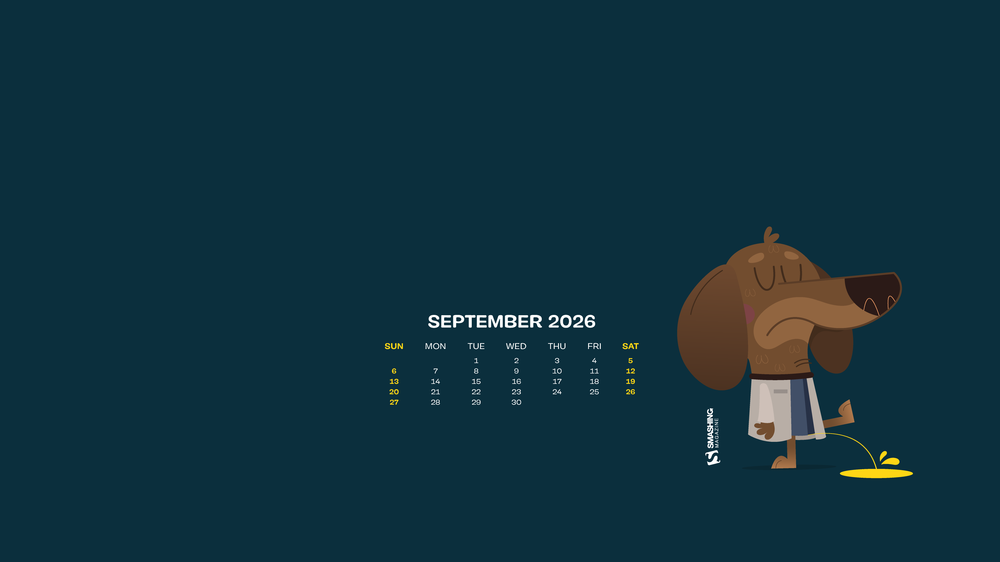
- preview
- with calendar: 640x480, 800x480, 800x600, 1024x768, 1024x1024, 1152x864, 1280x720, 1280x800, 1280x960, 1280x1024, 1366x768, 1400x1050, 1440x900, 1600x1200, 1680x1050, 1680x1200, 1920x1080, 1920x1200, 1920x1440, 2560x1440, 3840x2160
- without calendar: 640x480, 800x480, 800x600, 1024x768, 1024x1024, 1152x864, 1280x720, 1280x800, 1280x960, 1280x1024, 1366x768, 1400x1050, 1440x900, 1600x1200, 1680x1050, 1680x1200, 1920x1080, 1920x1200, 1920x1440, 2560x1440, 3840x2160
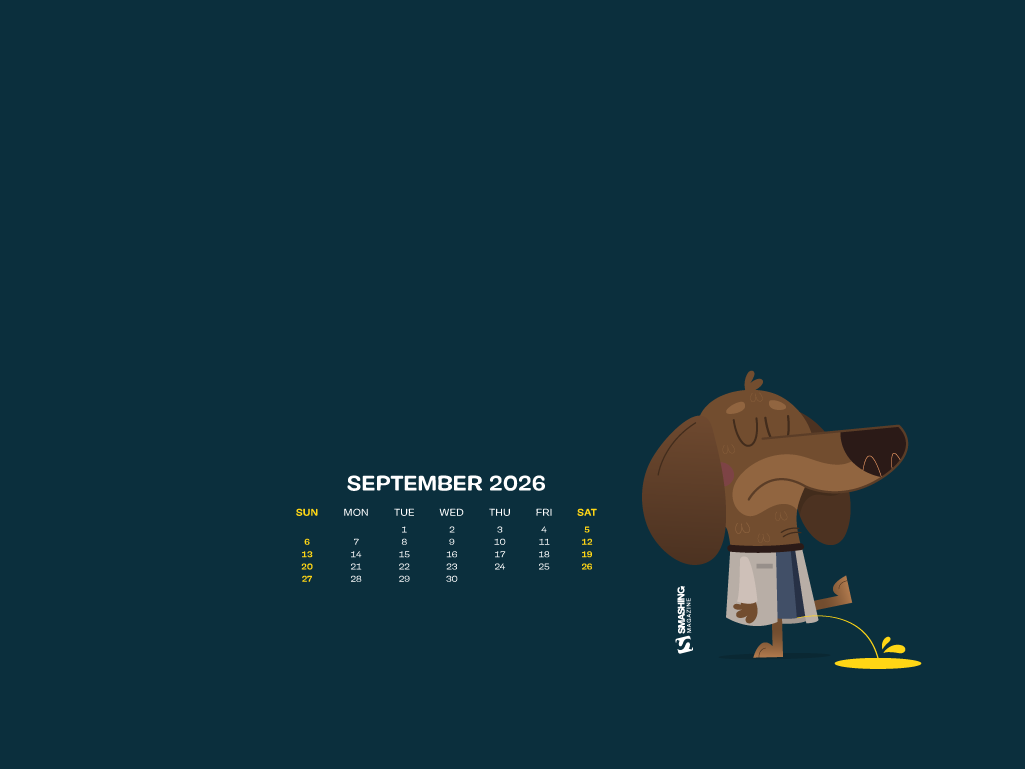

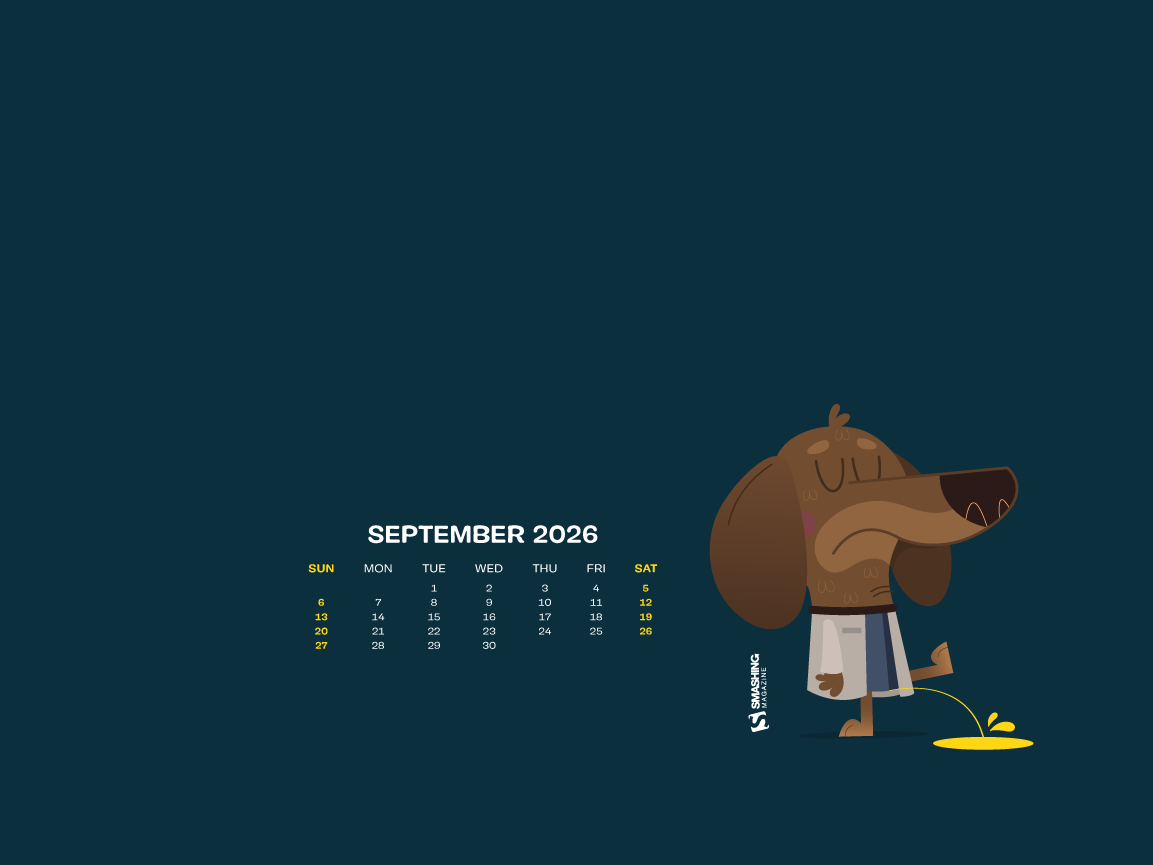
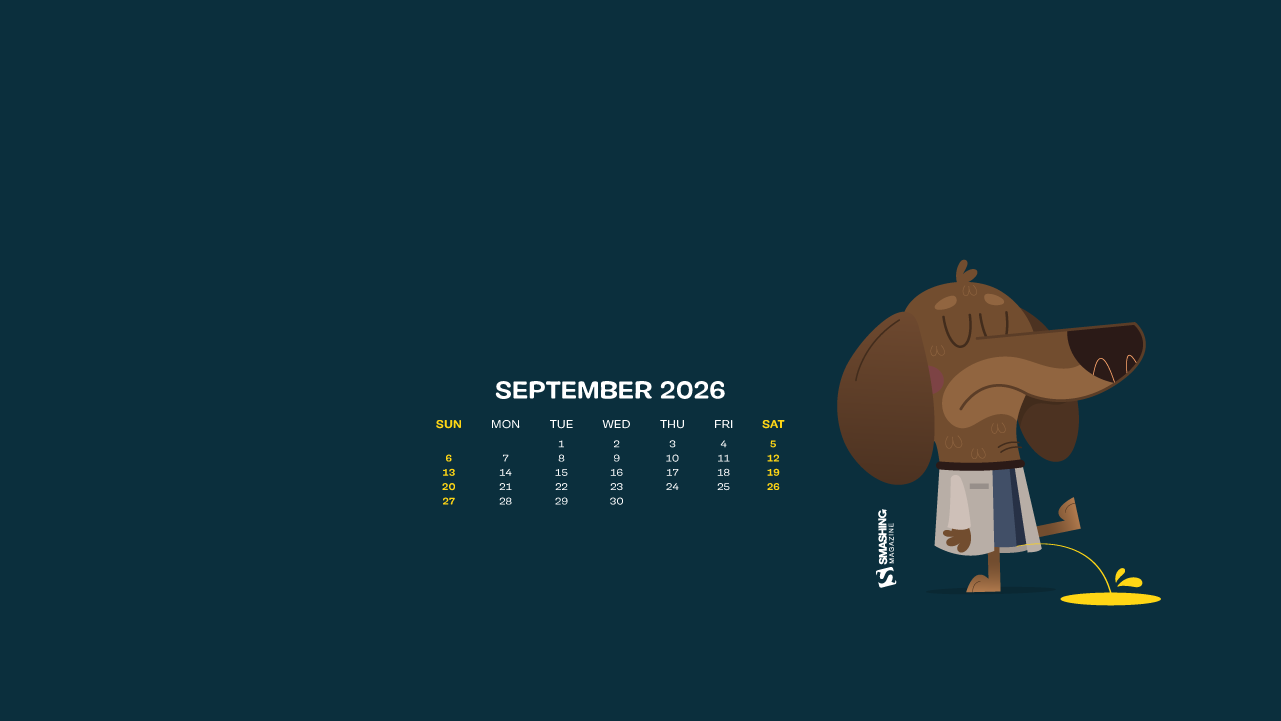
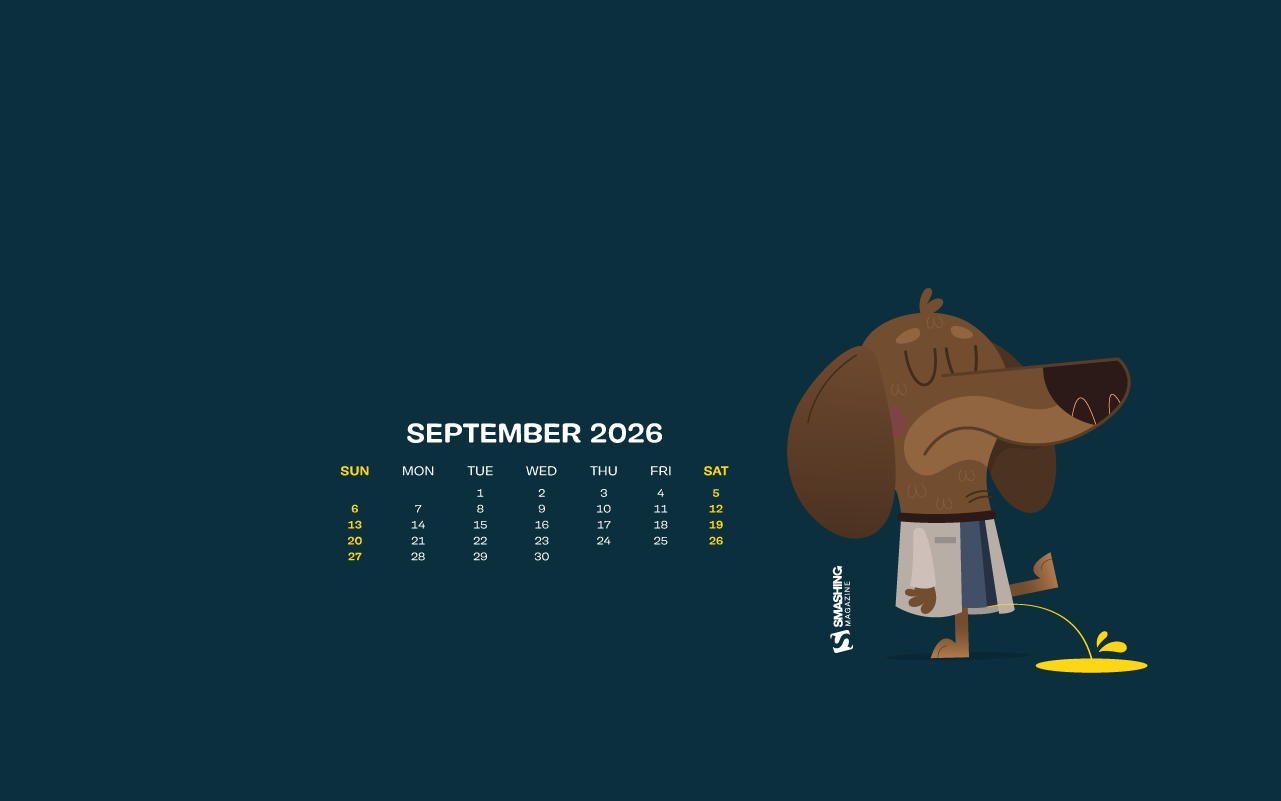
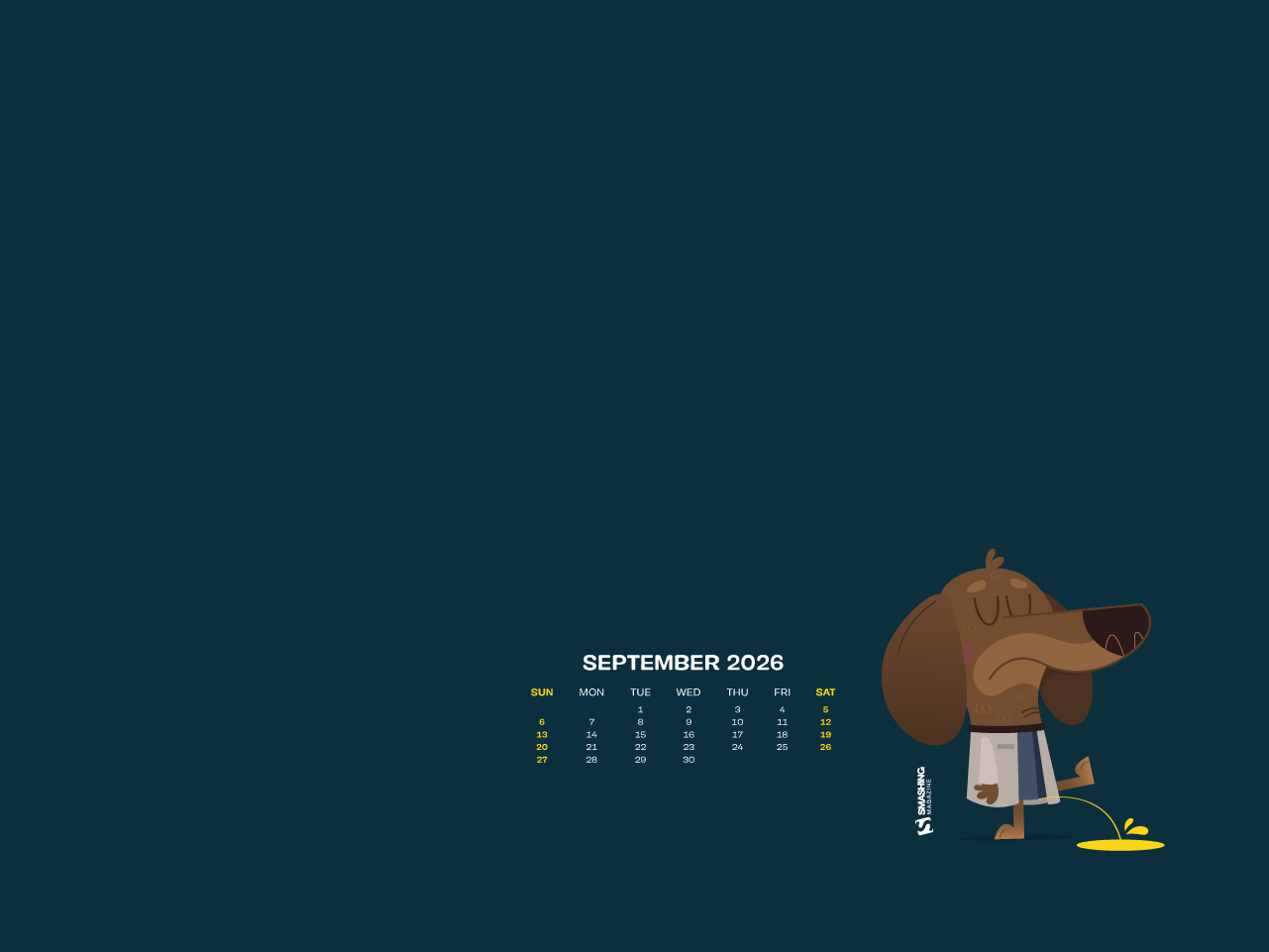
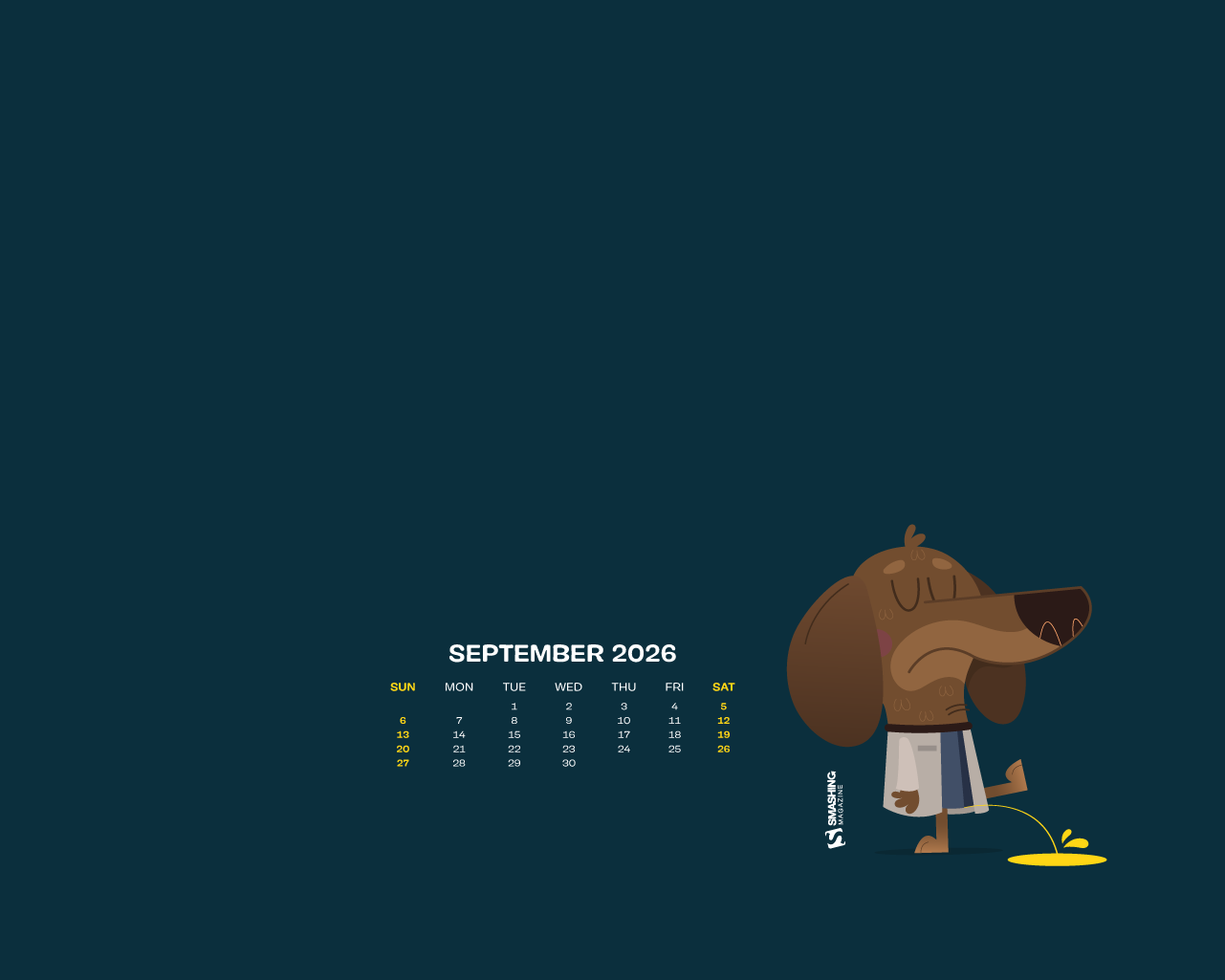
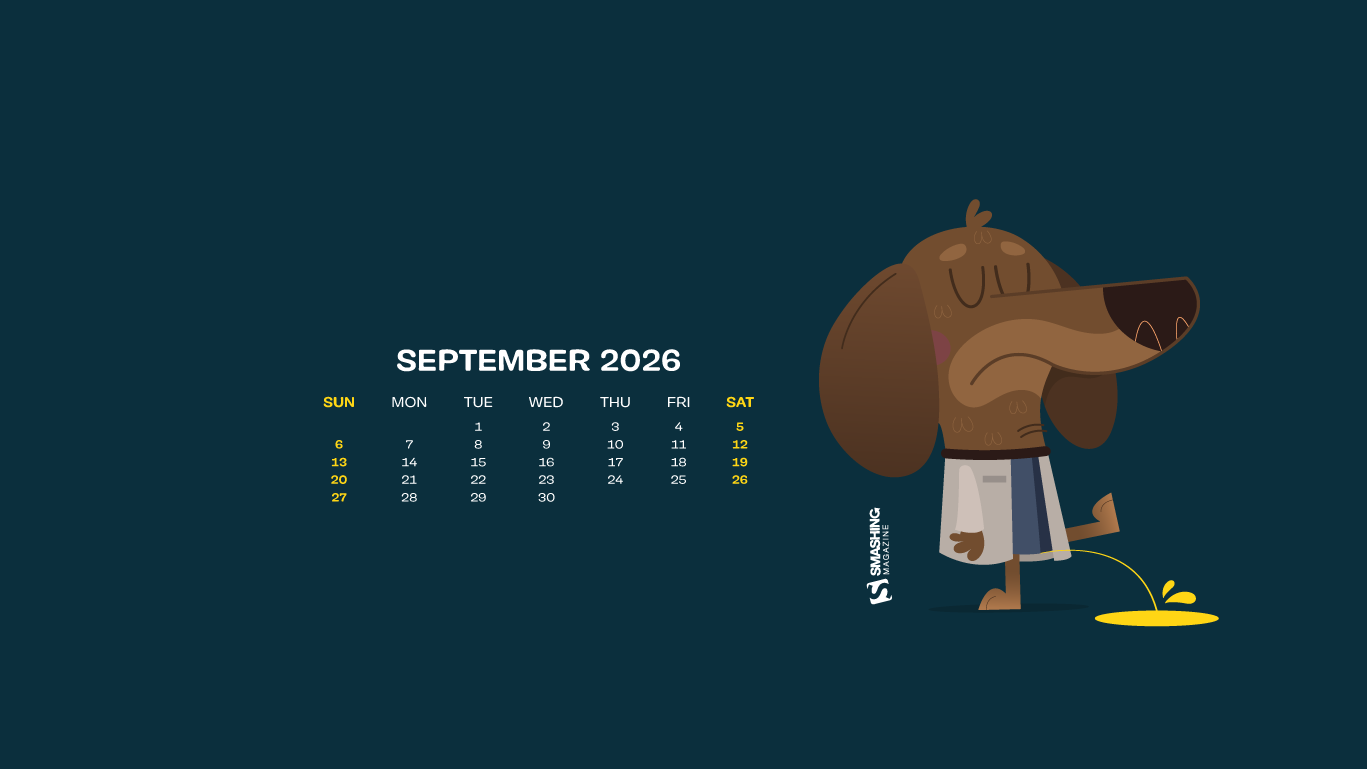

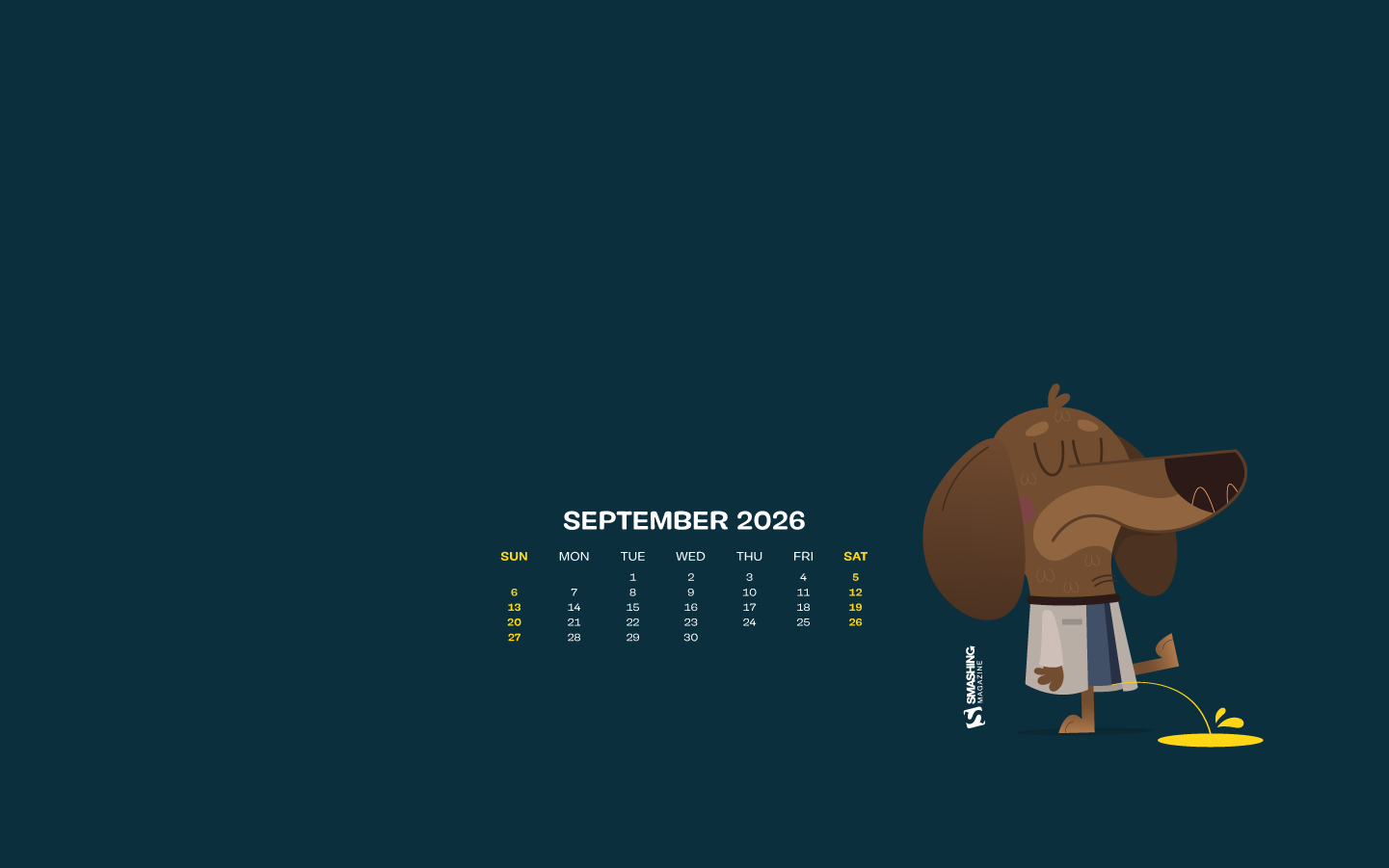

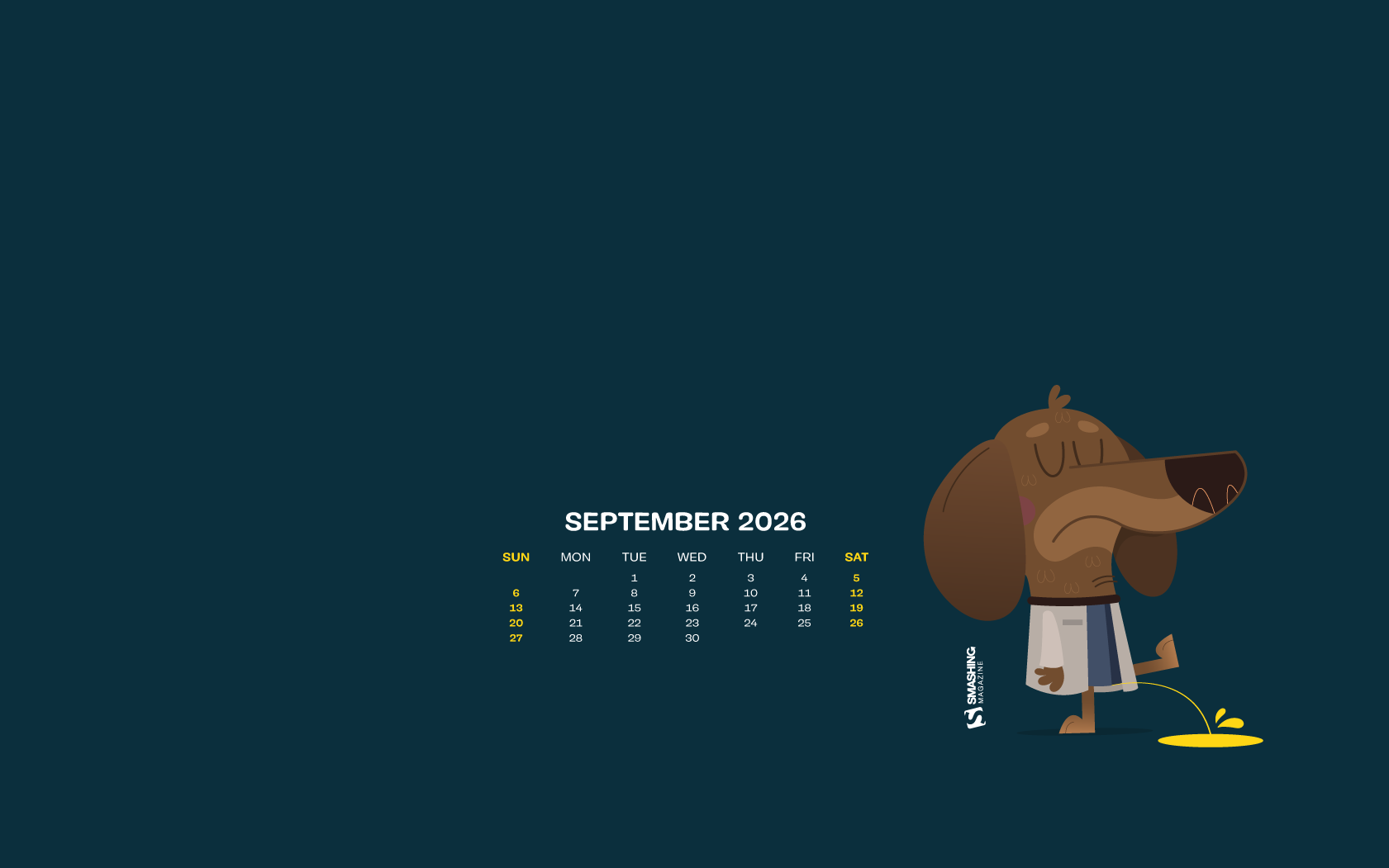
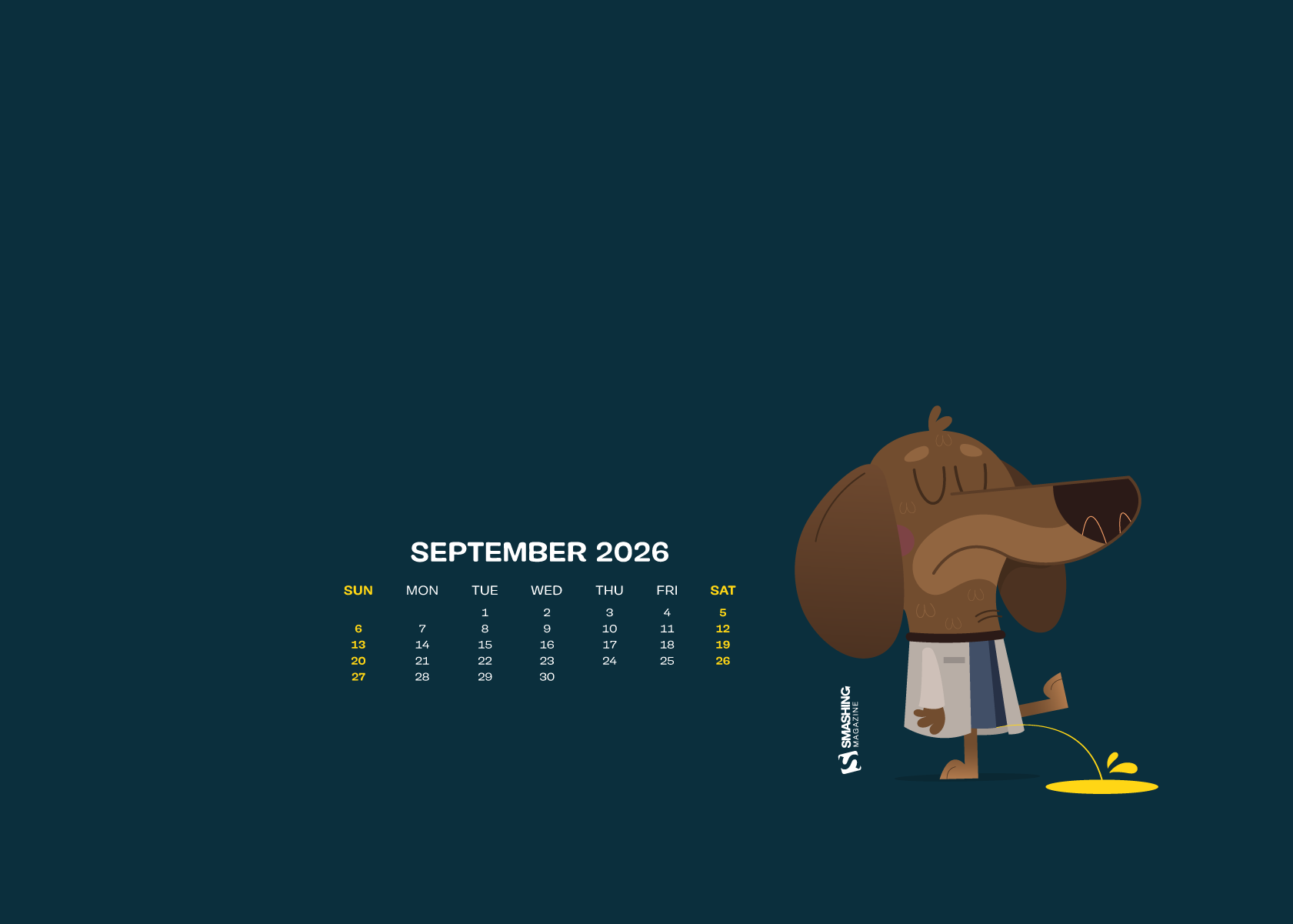
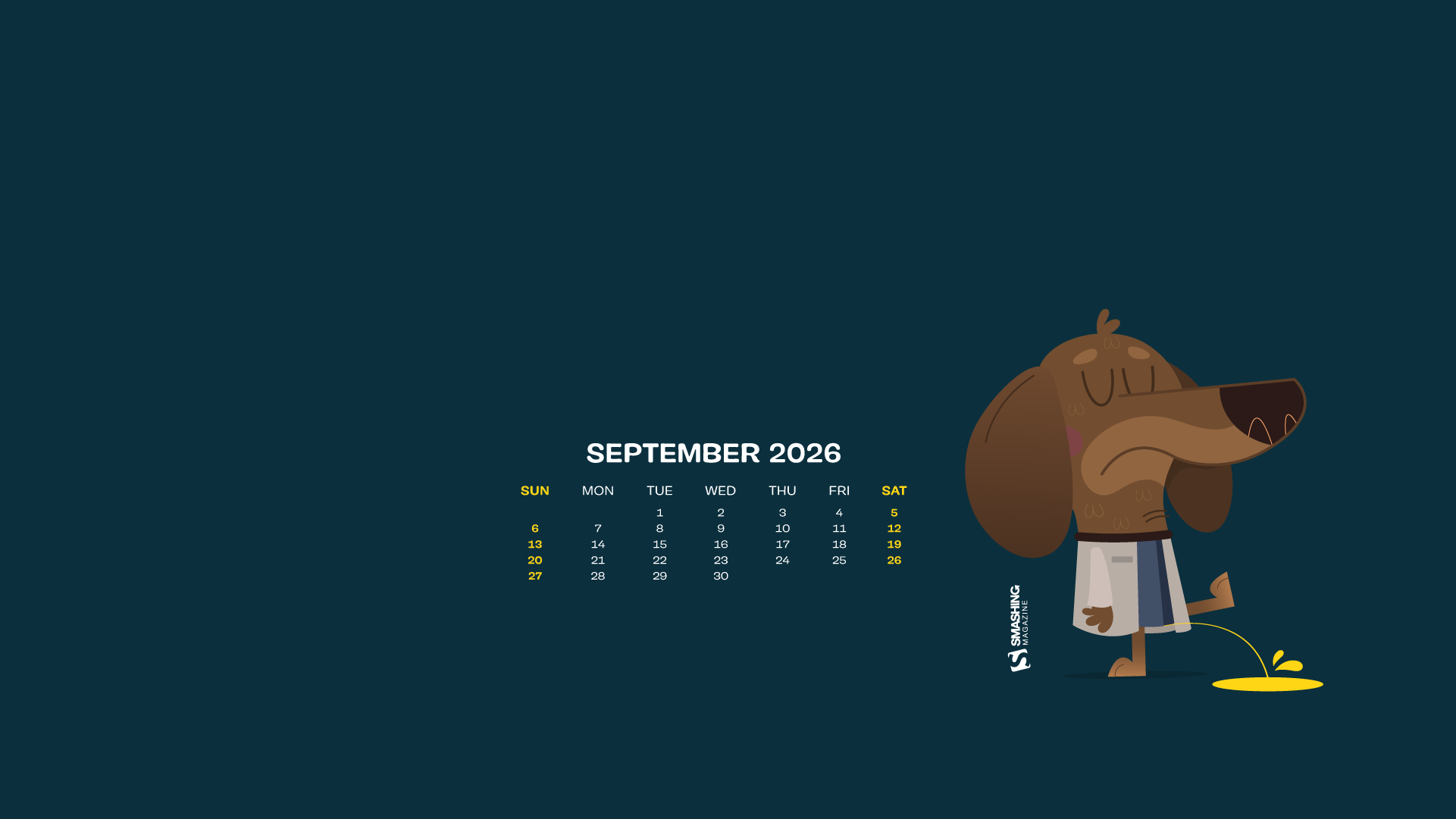
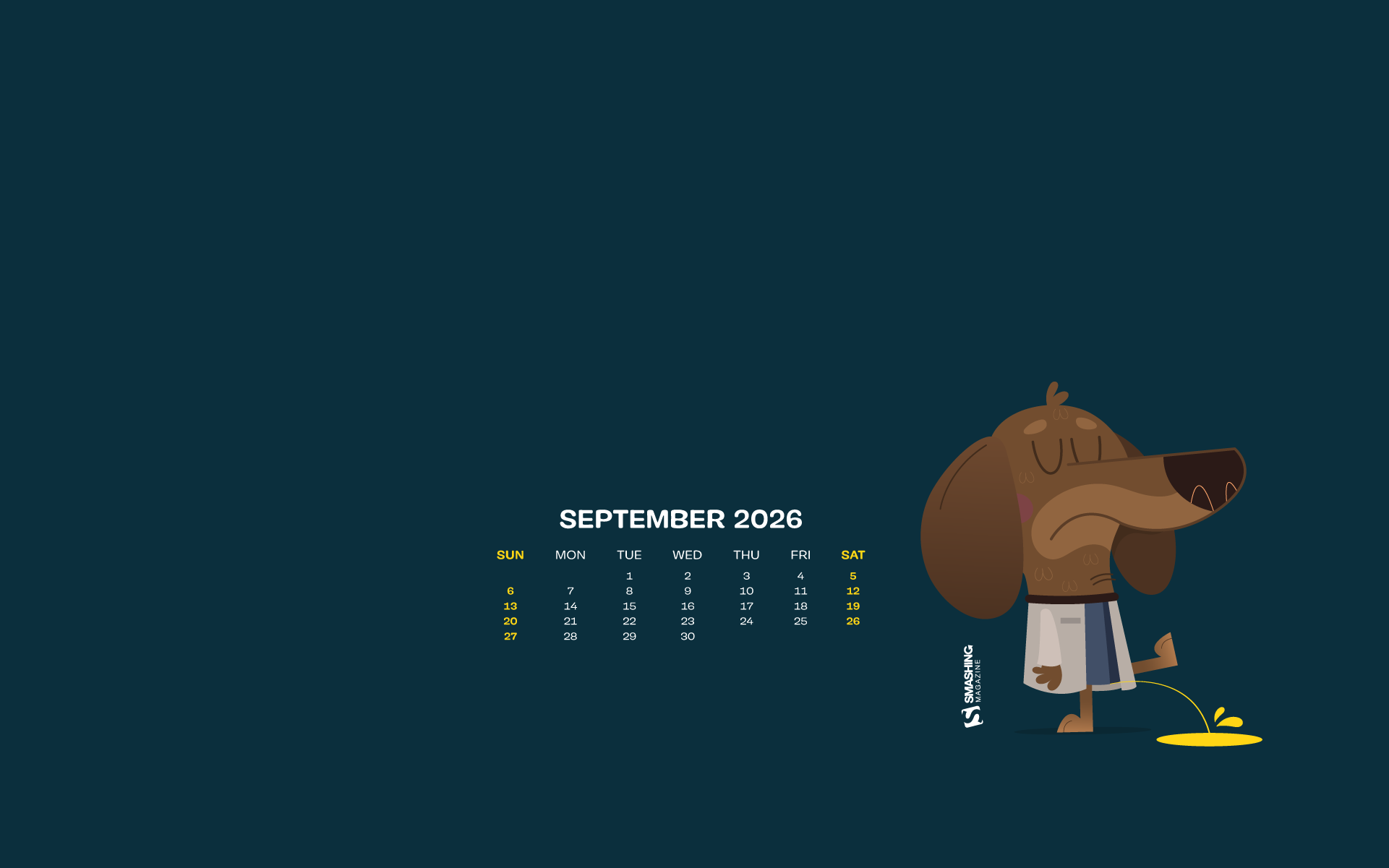





















“This autumn, we expect to see a lot of rainy days and blues, so we wanted to change the paradigm and wish a warm welcome to the new season. After all, if you come to think of it: rain is not so bad if you have an umbrella and a raincoat. Come autumn, we welcome you!” — Designed by PopArt Studio from Serbia.

- preview
- without calendar: 320x480, 640x480, 800x480, 800x600, 1024x768, 1024x1024, 1152x864, 1280x720, 1280x800, 1280x960, 1280x1024, 1366x768, 1400x1050, 1440x900, 1600x1200, 1680x1050, 1680x1200, 1920x1080, 1920x1200, 1920x1440, 2560x1440



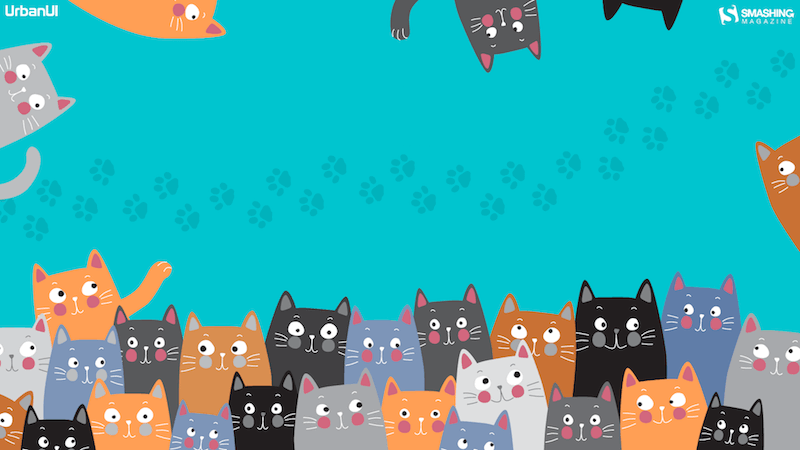
“Cats are beautiful animals. They’re quiet, clean, and warm. They’re funny and can become an endless source of love and entertainment. Here for the cats!” — Designed by UrbanUI from India.

- preview
- without calendar: 360x640, 1024x768, 1280x720, 1280x800, 1280x960, 1280x1024, 1366x768, 1400x1050, 1440x900, 1680x1200, 1920x1080


“With the end of summer and fall coming soon, I created this terrazzo pattern wallpaper to brighten up your desktop. Enjoy the month!” — Designed by Melissa Bogemans from Belgium.

- preview
- without calendar: 320x480, 640x480, 800x480, 800x600, 1024x768, 1024x1024, 1152x864, 1280x720, 1280x800, 1280x960, 1280x1024, 1400x1050, 1440x900, 1600x1200, 1680x1050, 1680x1200, 1920x1080, 1920x1200, 1920x1440, 2560x1440



“As summer comes to an end, all the creatures pull back to their hiding places, searching for warmth within themselves and dreaming of neverending adventures under the tinted sky of closing dog days.” — Designed by Ana Masnikosa from Belgrade, Serbia.
- preview
- without calendar: 320x480, 640x480, 800x480, 800x600, 1024x768, 1024x1024, 1152x864, 1280x720, 1280x800, 1280x960, 1280x1024, 1400x1050, 1440x900, 1600x1200, 1680x1050, 1680x1200, 1920x1080, 1920x1200, 1920x1440, 2560x1440


“Seasons come and go, but our brave cactuses still stand. Summer is almost over and autumn is coming, but the beloved plants don’t care.” — Designed by Lívia Lénárt from Hungary.

- preview
- without calendar: 320x480, 800x480, 1024x768, 1024x1024, 1280x1024, 1400x1050, 1920x1080, 1920x1200, 1920x1440, 2560x1440



“The earth has music for those who listen. Take a break and relax and while you drive out the stress, catch a glimpse of the beautiful nature around you. Can you hear the rhythm of the breeze blowing, the flowers singing, and the butterflies fluttering to cheer you up? We dedicate flowers which symbolize happiness and love to one and all.” — Designed by Krishnankutty from India.

- preview
- without calendar: 320x480, 640x480, 800x480, 800x600, 1024x768, 1024x1024, 1152x864, 1280x720, 1280x960, 1280x1024, 1366x768, 1400x1050, 1440x900, 1600x1200, 1680x1050, 1680x1200, 1920x1080, 1920x1200, 1920x1440, 2560x1440



Designed by Ricardo Gimenes from Spain.

- preview
- without calendar: 320x480, 640x480, 800x480, 800x600, 1024x768, 1024x1024, 1152x864, 1280x720, 1280x800, 1280x960, 1280x1024, 1366x768, 1400x1050, 1440x900, 1600x1200, 1680x1050, 1680x1200, 1920x1080, 1920x1200, 1920x1440, 2560x1440



“It’s this time of the year when children go to school and grown-ups go to collect mushrooms.” — Designed by Igor Izhik from Canada.

- preview
- without calendar: 640x480, 800x480, 800x600, 1024x768, 1024x1024, 1152x864, 1280x720, 1280x800, 1280x960, 1280x1024, 1400x1050, 1440x900, 1600x1200, 1680x1050, 1680x1200, 1920x1080, 1920x1200, 1920x1440, 2560x1440, 2560x1600



Designed by Ricardo Gimenes from Spain.

- preview
- without calendar: 640x480, 800x480, 800x600, 1024x768, 1024x1024, 1152x864, 1280x720, 1280x800, 1280x960, 1280x1024, 1366x768, 1400x1050, 1440x900, 1600x1200, 1680x1050, 1680x1200, 1920x1080, 1920x1200, 1920x1440, 2560x1440, 3840x2160






















Designed by Elise Vanoorbeek from Belgium.

- preview
- without calendar: 640x480, 800x480, 800x600, 1024x768, 1024x1024, 1152x864, 1280x720, 1280x800, 1280x960, 1280x1024, 1366x768, 1440x1050, 1440x900, 1600x1200, 1680x1050, 1680x1200, 1920x1080, 1920x1200, 1920x1440, 2560x1440



“As summer comes to a close, so does the end of blue crab season in Maryland. Blue crabs have been a regional delicacy since the 1700s and have become Maryland’s most valuable fishing industry, adding millions of dollars to the Maryland economy each year. The blue crab has contributed so much to the state’s regional culture and economy, in 1989 it was named the State Crustacean, cementing its importance in Maryland history.” — Designed by The Hannon Group from Washington DC.

- preview
- without calendar: 320x480, 640x480, 800x600, 1024x768, 1280x960, 1440x900, 1600x1200, 1680x1050, 1680x1200, 1920x1080, 1920x1440, 2560x1440



“This month is Mexico’s independence day and I decided to illustrate one of the things Mexico’s best known for: the Lucha Libre.” — Designed by Maria Keller from Mexico.

- preview
- without calendar: 320x480, 640x480, 640x1136, 750x1334, 800x480, 800x600, 1024x768, 1024x1024, 1152x864, 1242x2208, 1280x720, 1280x800, 1280x960, 1280x1024, 1366x768, 1400x1050, 1440x900, 1600x1200, 1680x1050, 1680x1200, 1920x1080, 1920x1200, 1920x1440, 2560x1440, 2880x1800



“The leaves are changing their colors now, but the nights are still warm. There’s something different tonight… do you feel it? It’s like the air tastes like a soft marshmallow and you’re sitting by a warm fire in the middle of the forest, while the nature that surrounds you is transforming. It’s ok, small changes are normal and all you can do is sit back, look at the stars, and embrace the world that evolves around you.” — Designed by Creative Pinky from the Netherlands.

- preview
- without calendar: 640x480, 800x480, 800x600, 1024x768, 1152x864, 1280x720, 1280x800, 1280x960, 1280x1024, 1400x1050, 1440x900, 1600x1200, 1680x1050, 1680x1200, 1920x1080, 1920x1200, 1920x1440, 2560x1440



















Designed by Ricardo Gimenes from Spain.

- preview
- without calendar: 640x480, 800x480, 800x600, 1024x768, 1024x1024, 1152x864, 1280x720, 1280x800, 1280x960, 1280x1024, 1366x768, 1400x1050, 1440x900, 1600x1200, 1680x1050, 1680x1200, 1920x1080, 1920x1200, 1920x1440, 2560x1440, 3840x2160



“It is inevitable. Summer is leaving silently. Let us think of ways to make the most of what is left of the beloved season.” — Designed by Bootstrap Dashboards from India.

- preview
- without calendar: 360x640, 1024x768, 1280x720, 1280x800, 1280x960, 1280x1024, 1366x768, 1400x1050, 1440x900, 1600x900, 1680x1200, 1920x1080



“It’s officially the end of summer and I’m still in vacation mood, dreaming about all the amazing places I’ve seen. This illustration is inspired by a small town in France, on the Atlantic coast, right by the beach.” — Designed by Miruna Sfia from Romania.

- preview
- without calendar: 320x480, 640x480, 800x480, 800x600, 1024x768, 1024x1024, 1152x864, 1280x720, 1280x800, 1280x960, 1280x1024, 1440x900, 1440x1050, 1600x1200, 1680x1050, 1680x1200, 1920x1080, 1920x1200, 1920x1440, 2560x1440



Designed by Teodora Vasileva from Bulgaria.

- preview
- without calendar: 640x480, 800x480, 800x600, 1024x768, 1280x720, 1280x960, 1280x1024, 1400x1050, 1680x1050, 1680x1200, 1920x1080, 1920x1200, 1920x1440, 2560x1440















“I love September. Its colors and smells.” — Designed by Juliagav from Ukraine.
- preview
- without calendar: 320x480, 1024x768, 1024x1024, 1280x800, 1280x1024, 1440x900, 1680x1050, 1920x1080, 2560x1440


“Nature and our planet have given us life, enabled us to enjoy the most wonderful place known to us in the universe. People have given themselves the right to master something they do not fully understand. We dedicate this September calendar to a true nature lover, Vedran Badjun from Dalmatia, Croatia, who inspires us to love our planet, live in harmony with it and appreciate all that it has to offer. Amazon, Siberia, and every tree or animal on the planet are treasures we lose every day. Let’s change that!” — Designed by PopArt Studio from Serbia.

- preview
- without calendar: 640x480, 800x480, 800x600, 1024x768, 1024x1024, 1152x864, 1280x720, 1280x800, 1280x960, 1280x1024, 1366x768, 1400x1050, 1440x900, 1600x1200, 1680x1050, 1680x1200, 1920x1080, 1920x1200, 1920x1440, 2560x1440



“September is usually considered as early autumn, so I decided to draw some trees and leaves. However, nobody likes that summer is coming to an end, that’s why I kept summerish colors and style.” — Designed by Kat Gluszek from Germany.

- preview
- without calendar: 800x480, 1024x768, 1152x864, 1280x800, 1280x960, 1440x900, 1680x1200, 1920x1080, 2560x1440



Designed by Bojana Stojanovic from Serbia.

- preview
- without calendar: 320x480, 640x480, 800x480, 800x600, 1024x768, 1024x1024, 1152x864, 1280x720, 1280x800, 1280x960, 1280x1080, 1366x768, 1400x1050, 1440x990, 1600x1200, 1680x1050, 1680x1200, 1920x1080, 1920x1200, 1920x1440, 2560x1440



“September 12th brings us National Video Games Day. US-based video game players love this day and celebrate with huge gaming tournaments. What was once a 2D experience in the home is now a global phenomenon with players playing against each other across statelines and national borders via the internet. National Video Games Day gives gamers the perfect chance to celebrate and socialize! So grab your controller, join online, and let the games begin!” — Designed by Ever Increasing Circles from the United Kingdom.

- preview
- without calendar: 320x480, 640x480, 800x480, 800x600, 1024x768, 1024x1024, 1152x864, 1280x720, 1280x800, 1280x960, 1280x1024, 1366x768, 1400x1050, 1440x900, 1600x1200, 1680x1050, 1680x1200, 1920x1080, 1920x1200, 1920x1440, 2560x1440



“On September 1st, the first day of school in our country, schoolchildren across Serbia would write about what autumn feels like in their neighborhood. Usually, it’s the imagery of fallen leaves rustling under the feet, foggy and chilly mornings with the sun breaking between the murky clouds, a muffled sound of a chainsaw cutting firewood somewhere in the distance, the smells of fruits and vegetables being prepared for home canning. Autumn is the season of serenity, quietness, and reflection.” - Designed by PopArt Studio from Serbia.

- preview
- without calendar: 320x480, 640x480, 800x480, 800x600, 1024x768, 1024x1024, 1152x864, 1280x720, 1280x800, 1280x960, 1280x1024, 1366x768, 1400x1050, 1440x900, 1600x1200, 1680x1050, 1680x1200, 1920x1080, 1920x1200, 1920x1440, 2560x1440



“I designed this wallpaper to remind everyone that autumn is here.” — Designed by Advanced Web Ranking from Romania.

- preview
- without calendar: 800x600, 1024x768, 1280x800, 1280x1024, 1440x900, 1440x1050, 1600x1200, 1680x1200, 1920x1200, 1920x1440, 2560x1440



“While September’s Autumnal Equinox technically signifies the end of the summer season, this wallpaper is for all those summer lovers, like me, who don’t want the sunshine, warm weather, and lazy days to end.” — Designed by Vicki Grunewald from Washington.

- preview
- without calendar: 320x480, 640x480, 800x480, 800x600, 1024x768, 1024x1024, 1152x864, 1280x720, 1280x800, 1280x960, 1280x1024, 1366x768, 1400x1050, 1440x900, 1600x1200, 1680x1050, 1680x1200, 1920x1080, 1920x1200, 1920x1440, 2560x1440



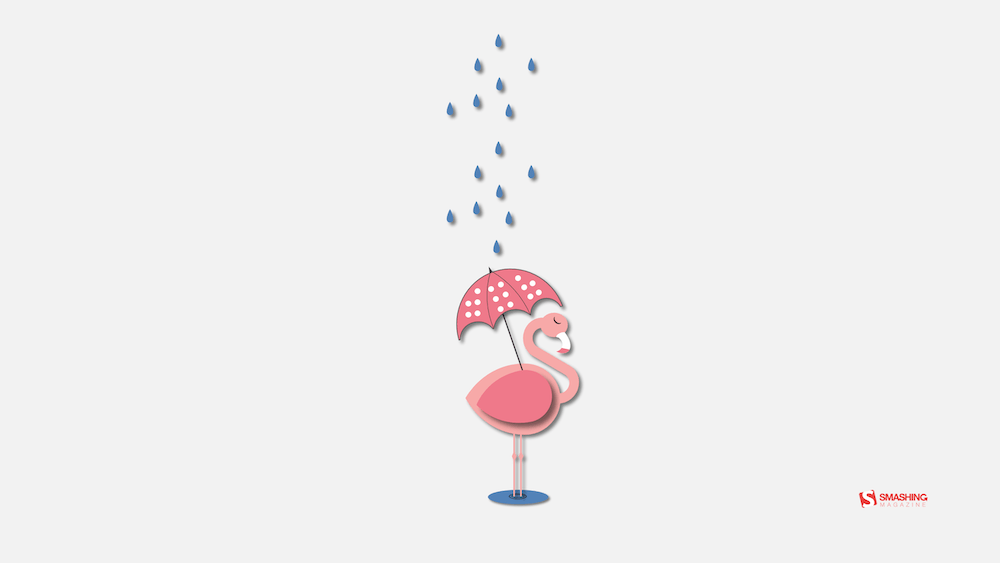
“Summer is officially over and we will no longer need our inflatable flamingos. Now, we’ll need umbrellas. And some flamingos will need an umbrella too!" - Designed by Marina Bošnjak from Croatia.
- preview
- without calendar: 320x480, 640x480, 800x480, 800x600, 1024x768, 1024x1024, 1152x864, 1280x720, 1280x800, 1280x960, 1280x1024, 1366x768, 1400x1050, 1440x900, 1600x1200, 1680x1050, 1680x1200, 1920x1080, 1920x1200, 1920x1440, 2560x1440


Designed by Ricardo Gimenes from Spain.

- preview
- without calendar: 640x480, 800x480, 800x600, 1024x768, 1024x1024, 1152x864, 1280x720, 1280x800, 1280x960, 1280x1024, 1366x768, 1400x1050, 1440x900, 1600x1200, 1680x1050, 1680x1200, 1920x1080, 1920x1200, 1920x1440, 2560x1440, 3840x2160



Feeling inspired? We’ll publish the October wallpapers on September 30, so if you’d like to be part of the collection, please don’t hesitate to submit your design. We are already looking forward to it!
Rethinking Data Visualisation: A UX Approach To Dashboards That Actually Drives Decisions
In organisations today, data has never been more available. Dashboards and performance decks exist for almost every function — sales, product, marketing, operations — and the tools to build them have never been more accessible. And yet, in weekly standups and quarterly reviews, the same thing happens constantly: someone shares the numbers, the room nods, and the meeting ends without a decision or clear direction.
When that happens, the data usually takes the blame. The numbers weren’t granular enough, the dataset wasn’t complete, we need more information before we can act. But the data is almost never the problem. The reality is that nobody designed it to deliver insights. The chart was built from what was available, not from the question that needed answering. The audience was assumed rather than understood, and what should actually change as a result of seeing this data — that question — was never asked at all.
Data visualisation and UX are solving the same underlying problem: both are trying to move the right information to the right person in a way that changes something. The vocabulary is different, but the underlying challenge is identical, and the moment you start treating them as complementary disciplines is the moment dashboards stop being a passive collection of charts and start doing something functional.
For designers who work with data, analysts who present to non-technical audiences, and marketers who need their numbers to do more than sit in a slide, this read is for you.
The Chart Was Never The Whole StoryIn 1973, the statistician Francis Anscombe (PDF) published a paper that made a quiet but clarifying point. He constructed four datasets that are statistically identical: same mean, same variance, same correlation coefficient, and same regression line. Run the numbers on any of them, and they are identical. Plot them, and they could not be more different.
Anscombe’s lesson to statisticians was about diagnosis: visualisation reveals the operational truth that raw numbers conceal.
But visualisation isn’t just diagnostic; it is also communicative. The form you choose is where understanding either emerges or gets lost in the noise. Does your audience walk away with numbers, or with a story they’ll quote and talk about?
One of the most striking examples is Visual Capitalist’s History of Pandemics. Instead of burying the reader in a massive data table of casualty counts, it maps the death toll of major historical pandemics using a proportional bubble layout on a single timeline.
Before your brain reads a single number, your visual system grasps the sheer scale of the Black Death relative to everything else on the page. The right visualisation does not just plot the data but makes the story impossible to miss.
Edward Tufte codified a foundational principle for the craft with his data-ink ratio: every mark on a chart should serve the data, not decorate it. It remains a widely used framework in data visualisation, anchored in the assumption that clarity and visual hygiene are the goal.
For a chart in isolation, that holds. But a chart is never read in isolation: it’s read by a person, in a specific context, under specific pressure. Strip a chart down to its cleanest form, and you might be removing the exact layer of context a decision-maker needs. Simplicity isn’t the goal in itself; appropriate complexity is.
Data is a message, and the right amount of signal depends entirely on who’s receiving it.
Which leads to the core principle of data UX: roughly 80% of the work that determines whether a dashboard succeeds happens before you ever draw a chart.
That dependency is the thread the rest of this piece pulls on.
The 80% That Happens Before The ChartThe high-leverage 80% almost never happens on screen. It happens upstream: before a tool is opened, before a dataset is pulled, before a single design choice is made. It comes down to three questions, and once they become habitual, they change what you notice, what you ask, and what you push back on at the outset of every project.
- Context: What are we trying to show with this data?
This is where you define what the visualisations actually need to serve before you touch any raw data. Writing down the precise operational questions, specifically enough to determine what gets pulled and what gets filtered, is what produces a dashboard that helps with decision-making. - Audience: Who is this for, and how do they think?
This is the empathy step. Knowing who’s in the room, what they’re accountable for, and how they engage with data determines how much complexity the visualisation can carry, and how it should be presented. - Insight: What should change once this data lands?
A decision, a new direction, a shift in understanding. If the intended strategic outcome isn’t clear during the design phase, it will remain invisible once the dashboard goes live.
Most data-heavy projects start backward: teams pull whatever metrics their internal analytics tools already track and build visualisations around them, while the question the data was supposed to answer either gets assumed or never gets asked. This happens simply because we anchor on the data in front of us as the boundary of what’s possible.
Defining a goal first sounds obvious, but in practice, it rarely happens with the necessary clarity. “Show me how the product is performing” is not a goal; “Identify which features drive retention among users who signed up in Q1” is, as it includes three things the first doesn’t: a metric, a population, and an implied action. That specificity is what converts an open-ended exploration into a constrained, answerable design problem. Which one you start from determines everything that follows: what you include, what comparisons matter, and what you leave out entirely.
Starting with available data produces a dashboard that answers no particular question, because it was never built for one — every number is present, none of them pointed anywhere. Starting with the operational question does the reverse: every element on the screen earns its place, because each one is there to help answer it.
For example, consider a UX team trying to fix a leaky checkout flow for an e-commerce website. A data-first approach pulls everything available, from clicks to scroll depth and device types, yielding a massive dashboard that leaves everyone asking, “Okay, but what do we actually change?” A context-first approach starts with a constraint: “At which step of the checkout do users drop off?” By filtering out 90% of the noise, the team builds a simple funnel chart, instantly spots a bottleneck on the payment screen, and knows exactly what to redesign.
Audience: Who Is This For, And How Do They Think?Designing for an audience comes down to two things: accountability and familiarity.
Familiarity is about data literacy. Do they read charts instinctively, or does a complex visualisation create friction? Handing a dense, multi-layered dashboard to a Head of Sales and a senior analyst is like giving the same map to someone who navigates by landmarks and someone who reads grid coordinates. The data is accurate, but it is only functional for one of them.
Accountability dictates how that complexity must be presented. A chart showing a 12% decline carries vastly different weight for the executive responsible for that number versus the analyst simply reporting it. Understanding your audience means grasping this relationship; data is never processed neutrally when your performance is on the line.
Together, familiarity and accountability decide one practical thing: how much you can put in front of someone.
In data visualisation, simplicity is not a fixed virtue — the right level of it is contingent on who is reading, and what they need to do.
An analyst relies on a high-density environment to conduct diagnostic discovery. By isolating individual behaviour nodes and mapping out raw user flows, they interrogate the data at its atomic level to uncover the hidden insights and underperforming spend that will shape future campaigns.
An executive, by contrast, requires a highly synthesised translation of that data to immediately identify what is driving commercial growth. Tailoring a dashboard to your audience means adjusting the density dial, delivering maximum signal with appropriate complexity for the specific brain in the room.
Insight: What Should Change Once This Data Lands?Most data projects operate on the comfortable assumption that if a chart is accurate and clear, the insight will take care of itself. In reality, information and insight are entirely different states. Information is what the data shows, whereas insight is the specific decision, shift in understanding, or course correction someone makes as a result of seeing it. If the intended business change isn’t defined before the design begins, a dashboard will default to passive reporting rather than driving action.
Marketing and engineering teams experience the danger of this gap whenever a core business metric suddenly plummets.
A dashboard built for information simply sounds the alarm, showing a chart that tracks a sharp 15% drop in booking rates. Because the data lacks depth, leadership defaults to panic: they immediately call the UX design team, assuming the app is broken or the checkout flow is flawed. Because the data doesn’t pinpoint the core of the problem, it triggers a costly, misplaced fire drill.
A dashboard built for insight isolates the variables required to make an informed decision. Instead of a single, flat booking metric, the visualisation maps the drop against traffic sources and campaign launches — instantly revealing that while app performance and core user conversion are perfectly stable, the sitewide rate was artificially diluted by a massive influx of low-intent click traffic from a newly scaled campaign. The team doesn’t waste time redesigning a functioning app; they get the exact insight needed to pause the underperforming marketing campaign and adjust their acquisition strategy.
Every visualisation implies a next step, even if that step is “nothing needs to change right now.” The question is whether the design makes that implication clear enough for the viewer to recognise it.
From Questions To Dashboard: A Project Walk-throughMy aha moment in data visualisation happened during a project for a client-facing B2B SaaS platform focused on enterprise talent management and competency tracking in Pegasystems skills. The platform captured a massive footprint of daily telemetry, and the brief arrived open-ended: “We have an immense archive of user activity, now we need to present it to enterprise teams.”
We could very easily have charted everything that was captured, but we wouldn’t be doing end users any favours if they just ended up looking at a data graveyard. My responsibility immediately moved beyond pure interface craftsmanship; it became about architecting a highly practical tool for real people who would open this dashboard routinely and need it to tell them an honest, immediate story about their workflows.
Here is how the project actually went.
ContextThe client believed this massive pool of data could help their users perform better, and wanted an interface that finally enabled that growth. Translating that broad ambition into tangible visualisations required defining the practical mechanics of performance. What variables indicate advancement vs passive usage? What does “perform better” actually mean? How do you measure it?
An obvious candidate was time spent by product. Every platform tracks it. It is easy to show, and it feels meaningful. But time spent is a proxy; it tells you someone was there, not whether they got anything out of it.
The more meaningful signals were competency scores by area, certification completion rates, and historical performance trajectories. Integrating time-spent data alongside these performance metrics added a useful layer of interpretation, helping us surface which modules users were underutilising and whether that directly correlated with lagging scores. Time spent became a supporting signal in the larger story.
The second question was about the appropriate level of granularity. An identical metric carries completely different weight depending on who is looking at it. An individual contributor tracking their own completion rate needs to know if they are pacing correctly, whereas a manager reviewing a team aggregate needs to know precisely who requires immediate support. This distinction shaped every subsequent data-exposure and filtering decision. Defining that structural story early determined exactly what to show, and to whom.
AudienceThe most straightforward approach to this design would have been predictable: use the same charts, but offer an individual view and an aggregated team view. Far too many dashboards rely on this shortcut, subtly tweaking the scale of identical data visualisations and labelling it “personalisation.”
An authentic analysis of the audience reveals a much deeper rift. Frontline team leads and individual contributors required distinct narrative structures and design principles.
Having used e-learning platforms myself, I remember the frustration of opening a tool without a clear sense of my current standing, core strengths, or slipping metrics. That personal experience directly guided the individual contributor workspace; it needed to act as a highly tailored, self-directed mirror that was granular, honest, and personal.
Conversely, the manager’s interface had to bypass individual milestones initially to provide a macro pulse check on team vulnerabilities. It was designed around a different operational reality: how is the group progressing, and where are the consistent gaps? The view prioritised the aggregate picture first, while retaining an intuitive path to drill down into tactical day-to-day coordination when needed.
InsightOur insight strategy was locked in during the early conceptual phase, long before wireframing a single chart. We intentionally abandoned the idea of building a dense, passive data log and focused on pacing the narrative arc.
For individual contributors, the core value was self-direction, ensuring they could glance at the interface on a Monday morning and immediately derive a clear priority list for the week ahead.
For managers, the goal was to fundamentally shift the timing of operational conversations, providing them with the necessary baseline to intervene before a skill gap evolved into a critical project failure. The visualisations needed to surface the exact moments when a human check-in would be useful, shifting their workflow from reactive post-mortems to proactive guidance.
The comparison tool was the highlight nobody had asked for. A manager dashboard and an individual dashboard are easy to anticipate. What is harder to land is: what if a manager wants to compare two specific team members against the same metrics, side by side? That view came from a design assumption, and it turned out to be the feature that resonated most.
The decisions that mattered most in this project weren’t in the initial brief — capturing data they hadn’t thought to request, and structuring it to answer questions they had not previously known how to articulate, which is the core differentiator of a user-centric data strategy.
Designing The Mental Model EarlyThe choice of visualisation layout must follow the geometric nature of the data itself. For this project, the core design problem was enabling an individual user to answer a specific question at a single glance: across eight distinct competency areas, where are my relative strengths and gaps?
To solve this, we mapped the data using a radar chart. By organising multiple variables across axes radiating from a central point using polar coordinates, the interface connects the data points to form a single, unified shape. An even, balanced polygon instantly signals well-rounded proficiency, while a sharply skewed shape draws the eye immediately to an outlier area.
While a traditional linear bar chart would have forced the viewer to scan eight individual bars and mentally calculate the variance, a concentric, radial layout segments the data layers to make progress tracking and skill gaps immediately readable. When all dimensions share an identical scale and scoring method, the radar chart is not an unconventional aesthetic choice — it is the most functional tool for multi-dimensional analysis.
The colour system was the other decision made early, and I mean early. During the branding exercise, each of the three products was assigned a colour. That colour did not stay in the brand guidelines. It was built into the data model from the beginning, running consistently across every chart, every filter, every breakdown. By the time a user landed on the dashboard for the first time, the mental model was already in place. They had not been taught the language. They already knew it.
What ChangedThe shift from passive information to active insight showed up first in how the dashboard was actually used. Following the deployment of the personalised dashboards and side-by-side team comparison tools, weekly active engagement on the platform’s analytics features rose noticeably, per internally reported figures. Managers were no longer opening the tool once a month to pull static reports. They were using it every Monday morning to actively plan their week.
Revenue and user growth also moved in the right direction over the following two quarters, though — as with most single-project outcomes — it’s hard to isolate the dashboard’s exact contribution from everything else that changed at the same time. The client reported churn across the platform falling to one of its lowest points on record. The clearest evidence of impact came from qualitative feedback. Managers reported that instead of using data to dissect a ‘bad’ month after the fact, the visualisations allowed them to instantly spot slipping performance and schedule a quick supportive catch-up before it turned into a real gap.
ClosingData design reaches its full potential when visual presentation is treated as an upstream architectural choice rather than a downstream formatting step. Bringing structured UX thinking to data turns visualisations into active decision-making engines, ensuring every chart, report, and metric directly serves a human purpose:
- Upstream framing: Grounding every visual choice in a specific operational question rather than defaulting to available metrics.
- Calibrated density: Tuning the level of complexity directly to the literacy and accountability of the specific reader.
- Decision-driven insight: Structuring data to reveal strategic outcomes rather than isolated stats, turning visual signals into immediate operational momentum.
The next time you are tasked with creating a data visualisation — whether it is an enterprise dashboard, an executive report, or a public-facing infographic — step away from the design canvas and BI tools. Focus your initial effort on the human decisions behind the screen. Only then will your data stop being a passive log of the past and start driving the direction of the future.
Why Your Website Should Never Stop Changing
This article is a sponsored by Fimo
Every website is at its best the day it ships. The final branch merges, the site goes live exactly as designed, and it is briefly perfect. It will never be this good again.
Not because anything breaks. The site keeps working. But the market moves, the messaging shifts, a competitor launches something, and the careful thing you built slowly stops matching the company it represents. A year later, it is a period piece. Not broken, just behind. Every team knows this decay, and almost everyone treats it as a law of nature.
It doesn’t have to be that way. A website could keep improving after launch instead of drifting away from its best day, quietly optimizing itself while the team that built it works on something else.
Picture it working: while you sleep, an agent catches that last week’s design-system change never propagated to the pricing page, and fixes it. Another finds a set of images shipped uncompressed in a rushed release and optimizes them. A third flags an accessibility regression a new component introduced, and either fixes it or leaves it for you to check. You wake up to a site that is measurably better than the one you left, and a short list of the few decisions the agents wanted your eyes on. That is the version worth wanting.
And the moment you take that promise seriously, you run into a problem that has nothing to do with the technology:
Almost nobody actually wants a website that changes entirely on its own. Why “Just Make It Autonomous” Is The Wrong GoalThe obvious move, once you have capable agents, is to hand them the whole site. Let them write, edit, optimize, and publish, and get out of the way. It sounds like the natural endpoint, and it is the first thing most people picture when they hear “autonomous website.”
It is also the thing almost nobody wants once it is real in front of them.
We learned this the way you learn most things worth knowing: by building the opposite first. Building Fimo, an autonomous website platform, we set out to make websites fully autonomous, assumed that was the goal, and then watched what people actually did with it. What they did was hesitate. Not because they distrusted the agents, but because a website has no single owner. Different parts belong to different people, and each one wants a different amount of autonomy. So the question was never whether to trust the agents. It was where to draw the line, and for whom.
Once you ask it that way, the work splits cleanly into three kinds.
And they don’t stay fixed. They learn from their tasks and from what you teach them, so the boundary you set last month isn't the one you’re stuck with. What you had to approve then, you can delegate now, not because you lowered your guard but because the agent earned it. The line is not a setting you configure once. It moves as trust is earned, in the direction of less work for you.
Start Narrow, and Widen As You Trust ItNone of this means flipping a site to autonomous on day one. In practice it goes the other way. You delegate a little, watch how it does, and loosen.
And you can actually watch. Every agent’s runs, its history, its logs, and a before-and-after of what it changed are there to inspect. Trust doesn’t grow because you got used to the idea; it grows because you can see what happened and compare. The first time an agent quietly fixes something you would have missed, and you can see exactly what it did, the next delegation gets easier.
Deadlines keep you from becoming the bottleneck on what you have already handed over. If you don’t weigh in, the agent proceeds. You set the terms once, and you stop being the thing the whole site waits on.
The Frozen Site Is The Real RiskThe worry people voice first is that an agent will change something on their site without them. Turn it around: the real risk is a site that never changes at all. A frozen site doesn’t stay safe. It just falls behind, slowly, in a way nobody notices until it represents a company that no longer exists.
The point of autonomy was never to remove you from your website. It was to remove the decay.
The point of autonomy is to keep the launch-day version from being the best version, and to let you spend your judgment on the handful of things that actually deserve it, while the rest takes care of itself. Draw the line where your value is. Let the agents hold everything on the other side of it. And let the line move as they prove they can.
Timing Charts: A Blueprint For SMIL Animations
We know that everything on the web is a box by default, but you’ll find many animated <div>s pretending to be circles. But if you’ve ever met a real <circle>, you’ll know that they’ve got a lot more going for them. Dressed in SVG, they fit into a wider range of crowds than a humble <div> wearing HTML/CSS can. <img> has a strict no .html policy.
The <img> tag is not as static as its name suggests. Any embedded JavaScript unfortunately won’t run if you load an SVG file with an <img> tag, but CSS animations work perfectly fine. Many of the SVG attributes do have CSS property counterparts, and the geometry properties have been supported across the major browsers since 2024. Some attributes that you might want to animate, like viewBox, don’t have equivalents yet.
Besides JavaScript and CSS, there’s another way to animate SVGs: Synchronized Multimedia Integration Language (SMIL). Despite its quirks, it’s still worth learning. Like CSS animations, SMIL animations also work in <img> tags and can fully animate everything in an SVG, without JavaScript.
If you’ve never heard of SMIL or need a refresher, check out Andy Clarke’s well-named article. Then we’ll look at a way to plan an animation and make SMIL markup more manageable.
The Break UpSMIL has a problem: it gets bloated quickly. Unlike CSS and JavaScript, where you can list multiple properties in each keyframe and easily reuse animations, each SMIL tag can only target one element and only one property of that element at a time. A property can be animated through a list of values. But it is still one tag, one element, one property. The shortest way you can write a color and opacity change that will run is the following:
<animate attributeName="fill" to="someOtherColor" dur="someDuration" /> <animate attributeName="opacity" to="someOtherValue" dur="someDuration" />That’s not bad, but consider that it needs to be repeated for every element included in the animation. A SMIL animation can quickly get longer than its CSS equivalent.
To make things easier when starting a new animation, let’s plan all of the elements and properties we want to animate, and create a list of descriptive IDs for each tag.
Charting Animation Time And SpaceI like to plan my animations using what's called a timing chart. A timing chart is effectively a line segment; some choose horizontal lines, others prefer vertical, which is a great analogy for animation as a whole because line segments can run parallel, overlap, and follow each other with or without a gap. Just like animations.
For now, we’re only interested in when animations start and stop. When drawing our charts, we’ll forget about the in-between lines and instead draw a line for each component animation, marking the beginning and end. I like to annotate timing with a circle and a bar. You can draw your chart using whatever, and it doesn’t have to be exactly to scale, as long as the relative timing between all the little animations that make up the whole is clear. Besides, adding labels for the durations is an easy cheat to get around drawing to scale.
Here is a demo of how I typically set up a timing chart with more than one animation:
See the Pen colorAndOpacityChange [forked] by Johan Grobler.
The important thing to note is that the timing chart lines are arranged according to how the animations are arranged in time. One piece of the animation follows the next piece, which is followed by a subsequent piece, and so forth. It visualizes how the animation’s parts run together and cascade over time.
S(yncbase)MILA big part of SMIL is synchronization. It’s even in the name, after all. And there are multiple ways to specify when an animation should start (here’s a test case to check what your browser supports). One of the most useful ways is with a syncbase value, which is a SMIL tag’s ID followed by either .begin or .end, with an optional positive or negative offset.
Let’s piggyback off the previous animation example that includes changes in color and opacity. If we want the opacity animation to start 300 milliseconds before the color animation finishes, we could do arithmetic. Alternatively, the second animation can use the syncbase value colorChange.end - 300ms. This way, the relative timing between the two animations becomes explicit.
<!-- Starts at an absolute time --> <animate id="colorChange" begin="1s" ... /> <!-- Starts relative to when #first ends --> <animate id="opacityChange" begin="colorChange.end - 300ms" ... />Using syncbase values, the beginning of an animation is positioned in time relative to the .begin or .end of some other animation. A positive offset moves the start to the right (forwards in time), and a negative offset to the left (backwards in time).
See the Pen syncbase.end [forked] by Johan Grobler.
Something with negative offsets is that they can specify a time before the document has loaded or when a click happens. Computers can’t predict the future (at least not yet). The best they can do is jump the animation to where it would have been had the computer peeked into the future to preemptively start the animation. The second animation only runs from start to finish if there is enough room, so to speak.
See the Pen syncbase.begin [forked] by Johan Grobler.
Syncbase values don’t only allow you to connect animations from .end to .begin. Elect a primary animation; the animation that first comes to mind is usually the best representation of the group. All secondary animations can be set with begin="primary.begin". I’ve only used the ID #primary for emphasis. That way, all the other animations begin relative to that starting point. Stacking animations like this reduces maintenance if, say, we later want the whole group to start at a different time.
Let’s put the idea to work and build a loading indicator (or spinner). Then we’re going to explore how changing the relative timing between the parts changes the effect of the whole animation:
Step 1: Choose An Image ApproachBrowsers have wide support for the prefers-reduced-motion media feature and Val Head explains this in depth in another article. We definitely want to respect this user preference as we consider moving things around. In fact, consider it non-negotiable.
There are various approaches to adhering to a user’s prefers-reduced-motion setting when it comes to SMIL. Each with its pros and cons. Evaluating early on what’s going to work best for your use case could save you a partial rewrite down the line.
For example, we could consider using a <picture> element instead of a plain <img> because <picture> supports multiple <source> elements that can be used as fallbacks in a media attribute for reduced motion preferences.
Or one SVG file with an inline CSS @media query that uses display: none to swap between versions. That said, it’s an approach that might cause trouble in various environments. But browsers are continuously changing, and this might not be an issue in the future.
You might also consider a CSS background-image instead because we can wrap that style in a media query — @media (prefers-reduced-motion) — that sets a static image as the fallback for reduced motion preferences.
There are even more options we can turn to! For example, SVG’s <view> element can also be used to swap things out for motion preferences.
Or, if we prefer everything bundled together, we can use JavaScript .matchMedia() and the handy SMIL DOM interface to control which animations start instead of completely switching out files.
For this, I’m avoiding any motion and sticking to opacity animations, which tend to cause less trouble. For a non-interactive animation like this, we can load it in an <img> tag. When we add motion, we can go the <picture> route to show the most appropriate version of our animation.
Step 2: Draw The GraphicsWe’re going to do our own version of the classic three-dot spinner:
See the Pen StaticDots [forked] by Johan Grobler.
SVG wizards might be able to do everything directly in a text editor. I recommend using a graphic editor like Inkscape if you’re having trouble visualizing how the markup will be rendered. Once again, Andy Clarke has a great article about his process for optimizing and structuring his own drawings.
Note: There’s a gotcha with Inkscape. Setting what you would expect to be an element’s ID via the Layers window actually sets the value of a metadata attribute used internally by Inkscape. Use Inkscape’s object properties or XML editor window to set the true element’s ID. Your mileage may vary with a different editor. Also, in Inkscape, remember to save the file as optimized SVG when the drawing is done to strip away unneeded metadata.
Step 3: Outline The AnimationOK, so we’re sticking with the opacity animation idea. The dots are going to fade in and out. We’ll use separate <animate> tags for those. Six tags in total.
Our naming scheme is going to be straightforward: we’ll call them #fadeIn and #fadeOut, and to differentiate between each pair of tags, we’ll postfix the tag’s ID with either Left, Middle or Right. Try to follow a convention that makes sense to you when coming up with your own IDs.
The fade-in <animate> tag for the dot on the left:
<animate id="fadeInLeft" href="#leftDot" attributeName="opacity" from="0" to="1" ... />And the fade-out <animate> for the middle dot:
<animate id="fadeOutMiddle" href="#middleDot" attributeName="opacity" from="1" to="0" ... /> Step 4: Time The AnimationsWe have an infinite number of ways in which we could space these six animations in time. Let’s look at a couple of choice examples alongside their timing charts to see how changing the arrangement of the parts impacts the visual effect of the whole animation.
To narrow our choices a bit, all of the <animate> tags will use the same dur value, and none of the syncbase values will have offsets.
For someone coming from a culture that reads from left to right, the dots appearing on screen along the same pattern would feel natural. Let’s also start with all the dots fading out together at the end:
See the Pen dotsVersion1 [forked] by Johan Grobler.
Syncbase values stagger the fade-ins and restart the loop when the dots have disappeared:
<animate id="fadeInLeft" ... begin="0s; fadeOutLeft.end" /> <animate id="fadeInMiddle" ... begin="fadeInLeft.end" /> <animate id="fadeInRight" ... begin="fadeInMiddle.end" />Since all the fade-outs end at the same time, it is an arbitrary choice which one we use to restart the loop. We’ll consider #fadeOutLeft as the primary animation here and also synchronize the other fade-outs to it with the syncbase value fadeOutLeft.begin. Later, if we want to move the fade-outs in time, all we do is change when #fadeOutLeft starts.
<animate id="fadeOutLeft" ... begin="fadeInRight.end" /> <animate id="fadeOutMiddle" ... begin="fadeOutLeft.begin" /> <animate id="fadeOutRight" ... begin="fadeOutLeft.begin" /> Some Alternate TimingsInstead of a group fade-out, we could stagger them just like the fade-ins:
<animate id="fadeOutMiddle" ... begin="fadeOutLeft.end" /> <animate id="fadeOutRight" ... begin="fadeOutMiddle.end" />Without adding an offset, there are a couple of points in time we could start #fadeOutLeft at. If it starts on fadeInRight.end:
See the Pen dotsVersion2 [forked] by Johan Grobler.
The visual effect is subtly changed by moving up a spot and starting #fadeOutLeft on fadeInMiddle.end instead:
See the Pen dotsVersion3 [forked] by Johan Grobler.
We can see from the charts that we could try moving up a spot further to fadeInLeft.end:
See the Pen dotsVersion4 [forked] by Johan Grobler.
How about starting the sequence with a fade-out:
See the Pen dotsVersion5 [forked] by Johan Grobler.
You might prefer to start with the dot in the middle:
See the Pen centerFirstDots [forked] by Johan Grobler.
As you iterate on your animation, timing charts are a great way to keep track of your work, and they make visual comparison between versions possible. And by drawing a timing chart, you might even see a pattern in the timing between the parts of the animations that you might otherwise have missed.
Step 5: Adding More AnimationsAs you animate more elements and properties, it gets harder to keep track of what starts when. To see how timing charts can help you make sense of things, let’s build on the basic spinner:
See the Pen staticDotsWithClipPaths [forked] by Johan Grobler.
I’ve added a <rect> for each dot to the drawing. We’ll move those into to a <cilpPath> tag and remove the fill="white". As the animation runs, the rectangles are going to move over the dots for a different approach to animating the stroke than by animating stroke-dashoffset.
We only need a single <clipPath> for all three dots, but it adds structure to the document, and it’s good practice to wrap it, and similar tags, in a <defs> tag:
<defs> <clipPath id="dotsClipPath"> <!-- The geometry of the rectangles and coordinates used here, and later, depends on the viewBox used for their parent <svg> element. --> <rect id="clipPathLeftRect" width="2" height="2" x="1" y="6" /> <rect id="clipPathMiddleRect" width="2" height="2" x="4" y="2" /> <rect id="clipPathRightRect" width="2" height="2" x="7" y="6"> </clipPath> </defs>Remember to set the clip path for the <circle>s. Either with CSS or using the clip-path attribute:
<circle id="leftDot" ... clip-path="url(#dotsClipPath)" /> <circle id="middleDot" ... clip-path="url(#dotsClipPath)" /> <circle id="rightDot" ... clip-path="url(#dotsClipPath)" />Because the dots now have a stroke added, to leave their size unchanged, we need to compensate by subtracting half the value of stroke-width from r:
<circle ... r="0.9" stroke-width="0.2" ... />That's all the changes the graphics need. Have a look at the animated version with its timing chart, then we'll look in more detail at the changes that have been made to the animation:
See the Pen clipPathDots [forked] by Johan Grobler.
There's a new animation, #moveClipPathLeft, that starts the whole sequence, and to tweak the animation's rhythm a bit, there's a 1s delay between when the fade-outs end and the loop restarts:
<animate id="moveClipPathLeft" href="#clipPathLeftRect" attributeName="y" from="6" to="4" begin="0s; fadeOutLeft.end + 1s" fill="freeze" />You could use <animateTransform>s to move the rectangles instead, but we need to move them back to their starting positions at the end for a smooth restart of the animation. You’ll need to take into account which tags can animate and set which data types if you do decide to animate the transform attribute instead of translating the rectangles with the y attribute.
To change things up, the <rect> for the middle dot moves down:
<animate id="moveClipPathMiddle" href="#clipPathMiddleRect" attributeName="y" from="2" to="4" begin="moveClipPathLeft.end" fill="freeze" />We’re also using the fill-opacity property instead of the opacity property for the fade-ins, and they’ve been synchronized to start once a dot’s clipping <rect> has finished moving:
<animate id="fadeInLeft" href="#leftDot" attributeName="fill-opacity" to="1" dur="1s" begin="moveClipPathLeft.end" fill="freeze" /> <animate id="fadeInMiddle" href="#middleDot" ... begin="moveClipPathMiddle.end" ... /> <animate id="fadeInRight" href="#rightDot" ... begin="moveClipPathRight.end" ... />The fade-outs still use the normal opacity property, so both the fill and stroke fade out together. Because this arrangement is set up to use a group fade-out at the end, there are a few places the markup could be optimized. One of them is dropping the fill="freeze" to automatically reset the dot’s opacity back to its starting value once the tag finishes running:
<animate id="fadeOutLeft" href="#leftDot" attributeName="opacity" to="0" dur="1s" begin="fadeInRight.end" /> <!-- We'll still consider #fadeOutLeft as the primary animation here and sync the start of the others to it. --> <animate id="fadeOutMiddle" href="#middleDot" ... begin="fadeOutLeft.begin" /> <animate id="fadeOutRight" href="#rightDot" ... begin="fadeOutLeft.begin" />For the <animate> tags that did use fill="freeze", we’ll use <set> tags to reset those properties back to their starting values. I’ve simplified the chart a little by lumping those tags together. Because these <set> tags don’t have a duration over which they act, on the chart I’ve drawn the start and end markers over each other.
To reset the fill-opacity on the left dot:
<set href="#leftDot" attributeName="fill-opacity" to="0" begin="fadeOutLeft.end" fill="freeze" />If you use fill="freeze" with the fade-outs, you’ll need an extra <set> for each dot to reset the middle dot’s opacity:
<set href="#middleDot" attributeName="opacity" to="1" begin="fadeOutLeft.end" fill="freeze" />The last thing we need to do is move the clipping rectangles back to their starting positions. For the right <rect>:
<set href="#clipPathRightRect" attributeName="y" to="6" begin="fadeOutLeft.end" fill="freeze" />That’s just one of the possible timing variations, and most of what you’ll need to try some of the others, as we did with the basic spinner, is already in place. You might want to have a try at coming up with a couple of your own alternate timings.
That’s The Benefit Of Timing ChartsTo sum things up, we know that balancing the different stages of an animation can be difficult at best, and untenable at worst. Any time we get into multi-step animations that exceed one or two steps, it’s a form of orchestration. You’re almost building a Rube Goldberg machine of markup. And using a timing chart is a strategy I use that I hope will help you in your projects as well. They are outlines of what to expect and when, allowing you to map things out in a way that not only helps plan your code, but also makes future updates and maintenance a lot more bearable than going into it without a plan.
While a timing chart can’t reduce the complexity of the markup, it can give a good overview of what should happen when. Timing charts are definitely not limited to SMIL animations. Unfortunately, syncbase values are, and they can still help even if you’re going to use a different approach to implementing your animation.
Further ReadingI highly recommend checking out Andy’s other articles on Smashing Magazine. There’s even more stuff on combining CSS and SVG.
Yosra Emad wrote a great article on creating animations with multiple steps in CSS, and you might want to try drawing a few timing charts as you read through it.
When you’re ready to start adding those in-between lines to your timing chart, Nash Vail’s article on easing dives deep into the details of easing curves.
You might also be interested in tests for your browser’s SVG implementation to see what is supported.
New EU Guidelines For AI Labelling
There’s been a lot of confusion and panic this week about “huge fines”, “drastic measures” and “sweeping new AI rules” in the EU. In reality, it’s a lot more narrow — and a lot more sensible. And mostly it’s about making AI more obvious when it actually needs to be obvious — especially for AI-generated content.
Starting from Aug 2, 2026, AI labelling is a legal requirement for any company that serves EU citizens. And similar to European Accessibility Act, it’s not limited to EU companies. It affects any company worldwide with EU operations as long as their AI output is used by people in the EU. Let’s see what exactly it means for us.
What Actually Needs LabellingThe goal of AI labelling is to help everyone exposed to AI content to recognize, in a clear and distinguishable way, that the content has been artificially generated or manipulated.
According to Article 50(4) of the AI Act, AI labelling applies to:
- Deepfakes. Any image, audio, or video that resembles a real person, object, place, or event and would falsely appear authentic or truthful. Content that is not deceptively realistic generally doesn’t apply.
- Chatbots and AI agents. Users must be informed if they’re not talking to a human.
- Fully AI-written text. Specifically on matters of public interest, where there has been no human review or editorial work.
- Emotion recognition and biometric categorization tools.
Both providers (who build or supply the AI system) and deployers (who use it) carry legal obligations. Similar to GDPR and EAA, a company doesn’t escape Article 50 just because it licensed an external AI tool from a third party.
However, it doesn’t mean that all AI-generated content must be explicitly labelled.
Not All AI-Generated Content Must Be LabelledBeyond the use cases above, pretty much everything else — the vast majority of AI-assisted work — simply isn’t covered by new transparency rules. Most notably, the disclosure obligation does not apply where the AI-generated text has been reviewed and edited by a human, with a named person or entity taking editorial responsibility for it.
Some confusion circles around what exactly “public interest” means, where it starts and where it ends. On its own, it refers to health, safety, environment, economy, finances, politics, science, or culture. If AI-generated product claims touch upon them, the disclosure rule applies.
Some law firms recommend labelling realistic AI-generated illustrations or photos as a precaution for advertising, marketing and other commercial content. AI-generated product illustrations, photos, or posters do need a disclosure, as long as they resemble a real person, place, object, or event.
The Fine Line Between “Edited” And “AI-Generated”But at which point does edited AI content stop being AI content? When a form is pre-filled with AI, but then a user edits it, is it still AI? EU Commission’s guidance is a little fuzzy. Small assistive edits — spellcheck, grammar, formatting, cropping, colour correction, and AI-generated translation — don’t count as AI generation.
AI-generated summaries, composite imagery, substantive rewrites, or adding and removing elements from a photo are considered AI generation. In practice, fine-tuning a sentence a person wrote is fine, but generating the sentence on its own requires a disclosure.
“A human skimmed it before publishing” doesn’t qualify as editorial review. The Commission is explicit that it needs to be substantive, with a named person responsible for the editorial control.
In other words, the fine line lies between intentional manual intervention and automated generation. The latter always has to be disclosed (exception: closed B2B environments).
AI Sparkles Probably Not EnoughAs part of the Code of Practice, the European Commission has published an EU AI icon set. It’s a specific “AI” mark (similar to the AI label in Carbon Design System) — not the generic ✨ sparkle that many products use to signal AI. The signal must be “clear and distinguishable”.
The sparkle might be too ambiguous to signal AI clearly. Mostly because it’s often used to mean “AI-powered feature”, rather than “this specific content was generated by AI”. That’s the kind of signal EU guidelines are trying to rule out.
The Commission is explicit: using an icon “does not establish legal compliance by itself.” A barely visible icon, a note buried in the footer, or a label that flashes for a second are all not compliant.
The icon should be clearly visible, with a plain language label and accessible to assistive technologies. A safe bet is to pair any icon with plain text (“AI-generated”) — and it needs to persist when being reshared or downloaded.
In fact, the EU Commission also published Code of Practice on marking and labelling of AI content.
It Isn’t Just EUIt might feel like a yet another regulation coming from the EU, but in reality there are plenty of other similar regulations that emerged recently worldwide:
- China has mandatory AI labelling since 1 September 2025. With visible tags and watermarked metadata.
- California has SB 942, as amended by AB 853, which became mandatory on the exact same day as the EU rules (2 August 2026), deliberately timed to align.
- South Korea has the AI Basic Act that took effect on 22 January 2026, widely cited as the first comprehensive national-level AI law to mandate deepfake labels. Fines are modest by EU standards (roughly $20K per violation), with a one-year grace period before enforcement bites.
- India has an IT Rules amendment, in force since 20 February 2026. Platforms must label “synthetically generated information”, and takedown timing for most harmful deepfakes was cut to 3 hours.
All of these are signs of upcoming AI regulation that looks more like a pattern, rather than a coincidence. So if you’re shipping anything AI this year, it’s probably a good idea to have a conversation about what exactly is going to be AI-labelled, and what not.
Wrapping UpOne final note is that new EU AI transparency rules are much broader than US laws on AI disclosure, where certain state laws require disclosures for synthetic human performers, political advertising or specific AI applications.
None of this really deserves panic or confusion. It’s about a fairly simple idea that has been emerging worldwide at almost the same time:
When AI content could easily be mistaken for human content, creators must say so — in a way that is clear, obvious, and unambiguous. And parts of the UI that are AI-generated must be disclosed as such.If anything, it will help people distinguish between AI slop and not AI — and everybody can only benefit from that.
Meet “Design Patterns For AI Interfaces”Meet Design Patterns For AI Interfaces, Vitaly's new video course with practical examples from real-life products — with a live UX training happening soon. Jump to a free preview.
Meet Design Patterns For AI Interfaces, Vitaly’s video course on interface design & UX. Video + UX Training$ 450.00 $ 799.00 Get Video + UX Training30 video lessons (10h) + Live UX Training.
100 days money-back-guarantee.
30 video lessons (10h). Updated yearly.
Also available as a UX Bundle with 3 video courses.
- Safer and more transparent AI, European Commission’s official announcement
- EU Icons for labelling AI-generated content, the actual icon set and placement rules
- Guidelines on transparency obligations (Article 50), the detailed compliance guidance
- Code of Practice on marking and labelling of AI-generated content
- FAQ: Transparency obligations under Article 50, plain-language Q&A
- The Problem With AI Sparkle Icons, why ✨ is too ambiguous as a disclosure signal (Nielsen Norman Group)
- Carbon Design System: AI Label, a production-ready pattern for clear, accessible AI disclosure
Building Tactile UX: Honoring Intentional Design With Lottie
This article is a sponsored by Isadora Agency
When front-end developers and UX engineers are tasked with building a web interface that feels tactile, bouncy, or destructive, the industry instinct is almost always the same: reach for a physics engine. Frameworks like Matter.js, Cannon.js, or custom WebGL solutions have become the gold standard for creating immersive, gamified websites.
When our team at Isadora Agency set out to build Stress Release, a digital stress-relief squeeze toy designed to let burnt-out creatives smash, stretch, and distort animated UI characters, we initially explored that route. The goal was to build a highly tactile experience where every click yielded a satisfying, squishy reaction.
But as we began prototyping, we realized something crucial: Physics engines produce plausible motion, but in our case, the animators produced intentional motion.
We didn’t need our characters to act like realistic rubber balls bouncing uncontrollably around a canvas. We needed them to react in very specific, highly designed ways. So, we scrapped the physics engine entirely.
In this article, we’ll break down how we built a real-time stress-relief squeeze toy without a single line of WebGL or Matter.js, relying entirely on programmatic Lottie state controls, DOM manipulation, and distance-based math.
The Design Requirements: Intentional MotionOur core requirement for Stress Release was absolute deterministic control. Our animators had crafted bespoke .json Lottie files that required exact, frame-by-frame sequencing.
For instance, our ‘mega squeeze’ reaction required a precise 181-frame build-up followed by a specific release sequence. To honor this design, we needed an architecture that wouldn’t overwrite the animators’ crafted keyframes with algorithmic approximations.
The tighter the click-feedback loop (click → squish → score), the more you need deterministic frame control. By choosing programmatic state control using Lottie’s native API, we ensured that the interaction layer acted as a flawless trigger for the animation layer.
Creating Tactile Feedback: Mapping DOM Elements To Lottie StatesBecause our architecture relied on Lottie and the standard DOM, rendering is handled directly by the Lottie runtime, which plays the JSON-based vector animations as SVGs internally. We selected elements directly by ID and CSS class, driving their behavior using a combination of Lottie animation segments, CSS transforms, and click-event math.
To achieve a deeply satisfying “tactile feel” upon hitting a character, we used radial input mapping. The first step was converting the click from page coordinates into the character’s local coordinate space.
Every click was measured against the character’s center point, then translated into score, feedback intensity, and explosion placement:
// Character's center point in its own coordinate space var x_center = parseFloat($("#playChar").width() / 2); var y_center = parseFloat($("#playChar").height() / 2); // Click position relative to the character's top-left corner var offset = $("#playChar").offset(); // document-relative position var X = parseFloat(e.pageX - offset.left); var Y = parseFloat(e.pageY - offset.top); // Vector from center to click point var a = parseFloat(X - x_center); var b = parseFloat(Y - y_center);Then we calculate the straight-line distance from the center of the click using the Pythagorean theorem:
var distance = Math.hypot(a, b);That single number drives everything: the score, the feedback intensity, and where the explosion animation appears:
// Distance zones map to point rewards if (distance < 10) givePts = 100; // bullseye else if (distance < 40) givePts = getRndInteger(70, 90); else if (distance < 70) givePts = getRndInteger(40, 70); else if (distance < 100) givePts = getRndInteger(20, 40); else if (distance < 120) givePts = getRndInteger(10, 20); else if (distance < 145) givePts = getRndInteger(1, 10); else givePts = 0; // miss // Explosion Lottie repositioned to the exact click point var shiftPosition = window.innerWidth < 1023 ? -20 : 200; $("#explosionChar").css({ "margin-left": a + shiftPosition + "px", "margin-top": b + shiftPosition + "px", }); // Fire the squish animation instantly explosion.goToAndPlay(0);The result is a concentric zone system — a perfect circle of scoring rings around the character’s center, similar to a dartboard. The visual complexity of the Lottie SVG is completely irrelevant to hit detection; the hitbox is always a clean circle. Critically, the explosion Lottie animation is repositioned to (a, b) — the same vector used for scoring, so it always appears exactly where the player clicked. This spatial accuracy creates the tactile “I hit that” sensation entirely through math and DOM positioning.
Interaction Handling: Controlling The NarrativeBecause the experience used DOM-managed SVG elements, desktop clicks and mobile taps could be handled directly through native event listeners. This avoided extra raycasting or coordinate remapping layers, while keeping the interaction model aligned with how the animations were rendered.
Since the game requires a visual reaction at a specific point, Lottie handles all the squish and bounce feelings internally through its animation curves. Each character has a defined set of animation sections (idle loops, reaction frames, and end states) stored as frame ranges. When a click lands, we jump directly to the exact segment that matches the current game state:
// Animation sections defined as frame ranges per character const play_segments = [{ charId: 0, sections: { idle: [0, 40], // looping idle state squeeze1: [41, 80], // light reaction squeeze2: [81, 120], // medium reaction squeeze3: [121, 160], // heavy reaction }, playOrder: ["squeeze1", "squeeze2", "squeeze3"], endAnimation: [161, 200] }];On every click, we advance through the play order and fire the next segment:
function stepAnim() { let p = play_segments[0]; let i = p["playOrder"][curr_order_play]; let playNow = p["sections"][i]; playChar.stop(); // halt current segment immediately playChar.loop = false; // no looping - play once and stop playChar.playSegments(playNow, true); // jump to exact frames, force immediately curr_order_play++; canPlayAnim = 0; // lock out further clicks mid-animation if (curr_order_play > p["playOrder"].length - 1) { curr_order_play = 0; // cycle back to start of sequence } }When the segment completes, control returns to the idle loop:
playChar.onComplete = function() { canPlayAnim = 1; // unlock clicks again if (!playEnd) playIdleState(); }; function playIdleState() { playChar.playSegments([0, 40], true); // return to idle loop playChar.loop = true; }And for the mega squeeze build-up, the bar loops on a specific frame range until triggered:
// Loop the "ready to release" frames until player activates indikL.loop = true; indikL.playSegments([181, 302], true); // On activation - play the release sequence once indikL.loop = false; indikL.playSegments([96, 396], true); indikL.goToAndStop(0, true); // hard reset after completion The Responsive Benefit Of DOM ElementsAnother major factor in our architectural decision was responsive behavior. Because we built Stress Release in the DOM, we bypassed the complexities of scaling bounding boxes and collision vectors across different devices.
We handled responsive resizing entirely through CSS variables. By recalculating CSS custom properties on every resize, the layout simply reacts to the updated variables, and the Lottie SVGs scale naturally inside their containers without losing their state:
const appHeight = () => { const doc = document.documentElement; doc.style.setProperty("--doc-height", `${window.innerHeight}px`); doc.style.setProperty("--doc-width", `${doc.clientWidth}px`); }; window.addEventListener("resize", appHeight); appHeight(); // run immediately on init Mobile Performance Optimization: The Cost Of LottieWhile this architecture gave us total control over the art direction, it introduced a different challenge: file size.
Lottie JSON files can be heavy. We had 21 different character animations, plus multiple explosion variants that all needed to load. To ensure the experience remained fluid — especially on mobile devices — we implemented a few aggressive optimization strategies:
- Connection monitoring
We tracked initial asset load time using performance.now() to detect slow connections and flag when load times exceeded 5 seconds. - Sequential asset loading
Rather than initialising all 21 character animations simultaneously, we load them in pairs using await, advancing only when each pair completes. This prevents a burst of simultaneous network requests and render work from blocking the browser on low-end devices. - Aggressive memory management
Instead of keeping our heavy explosion animations in memory, we destroy and recreate them on the fly. This trades a tiny instantiation cost for a much lower idle memory footprint. - Dynamic quality reduction
Quality reduction is a single API call applied immediately after each shelf character loads. The key is applying different quality levels depending on the character’s role in the scene:
When determining the stack for a gamified web experience, it is critical to let the design requirements dictate the technology.
Because our interactions required bespoke, highly controlled visual reactions, we opted for programmatic state control over emergent simulation. This decision empowered the animators to dictate the exact feel of the experience, leaving the code to do what it does best: listen, calculate, and trigger.
By mapping Lottie’s native timeline capabilities to the DOM, you can deliver incredibly rich, tactile user experiences while maintaining absolute control over the art direction.
Further ResourcesWant to try implementing this yourself, or see exactly how it feels in the browser? Check out these resources:
- Play with the code.
We have prepared a simplified demo example on CodePen demonstrating a character reacting to a click using playSegments(). - See the final product.
Check out the live Stress Release site to see all 21 characters and the optimization strategies in action. - Read the docs.
Explore the official Lottie Web documentation to learn more about the player controls we utilized. Specifically, explore loadAnimation(), playSegments(), setSpeed(), and setQuality() — the four methods that power the entire interaction layer described in this article.
How Baseline Can Help You Ship Less JavaScript
Most of us install a dependency once and never look at it again. It does its job, the tests pass, and we move on. But the web platform keeps moving too, and a surprising number of the libraries sitting in your package.json today are now built into the browser.
In a typical mid-sized JavaScript app, you can often find somewhere between 60KB and 90KB (minified and gzipped) of dependencies that the platform can now handle on its own. Date and number formatting, HTTP requests, modals, tooltips, deep cloning, grouping arrays: these were all real gaps a few years ago. A lot of them aren’t gaps anymore.
The reason those libraries stick around isn’t laziness. It’s that most teams don’t re-audit their dependencies on a Baseline cadence, or are simply not aware of how fast browsers are shipping these days. You check npm audit for security, but is this library still doing something the browser can’t? is a question that rarely gets asked. So the libraries stay.
In this article, we’ll run that audit together. Instead of going through dependencies one by one, we’ll work in clusters, because the wins tend to come in groups. We’ll do the bundle math, build a small decision framework you can reuse, and stay honest about the cases where the platform still falls short. By the end, you’ll have a repeatable process you can run on your own package.json.
What “Baseline” Actually MeansBefore we start deleting things, let’s quickly recap what Baseline is. Feel free to skip this section if you’re already familiar.
Baseline is a project from the WebDX Community Group that tells you, in plain terms, how safe a web feature is to use across the major browsers (Chrome, Edge, Firefox, and Safari). A feature can be in one of three states:
- Limited availability
The feature hasn’t shipped in all the major engines yet. Not safe to rely on without a fallback. - Baseline Newly available
The feature has just landed in all the major engines. It works for users on up-to-date browsers, but older devices in the wild may not have it yet. - Baseline Widely available
The feature has been in all the major engines for 30 months. At this point, you can reach for it without much thought.
That 30-month gap between “Newly” and “Widely” matters a lot for this audit. A feature that’s Widely available is something you can usually drop a library for today. A feature that’s only Newly available is something you can drop a library for if you check your audience first, or if you’re comfortable with a small feature check. We’ll treat those two cases differently throughout.
You can look any feature up on webstatus.dev, on MDN (every reference page shows a Baseline badge near the top), or programmatically with the web-features npm package. We’ll use all three later when we run the audit on a real project.
A Decision Framework Before You Delete AnythingIt’s tempting to read “the browser does this now” and start ripping libraries out. Let’s not do that. A swap that looks free on paper can quietly break things for a chunk of your users, or cost you a feature you were relying on without realizing it.
So before dropping any library, ask three questions. We’ll reuse these in every cluster below.
1. Is the replacement Baseline-safe for my audience?
Not “is it Baseline” in the abstract, but “is it safe for the people who actually use my app.” If the native feature is Widely available, this is usually a yes. If it’s only Newly available, check your analytics or your browserslist config and see what share of your users would miss out. A B2B dashboard where everyone’s on the latest browser is a very different situation from a public-facing site with a long tail of old Android devices.
2. What does the swap actually cost?
Dropping a library isn’t always free. Sometimes the native feature isn’t supported widely enough yet, so you’d reach for a polyfill. If that polyfill is heavier than the library you’re removing, you’ve made your bundle bigger, unless you load it conditionally. We’ll see exactly this with Temporal later.
3. Does the platform feature cover my real use case?
Libraries often do more than the platform feature they resemble. axios isn’t just fetch with automatic JSON parsing; it has interceptors, request cancellation, and retries. If you’re using those, a straight swap to fetch will leave you reimplementing them. Check what you actually use before assuming it’s a drop-in replacement.
Keep these three in mind. Every cluster below is really just these questions applied to a different corner of your dependencies.
Cluster 1: Internationalization (The Biggest Drop Today Win)This is the cluster where you’ll usually find the most KBs sitting on top of features that are already Widely available. The browser ships a whole family of formatting tools under the Intl namespace, and a lot of small, popular libraries became unnecessary.
Here are the usual suspects and what replaces them:
- timeago.js (1 KB gz) → Intl.RelativeTimeFormat
- pluralize (2.3 KB gz) → Intl.PluralRules
- numeral (3.9 KB gz) → Intl.NumberFormat
- humanize-duration (6.6 KB gz) → Intl.DurationFormat
- list-joining helpers → Intl.ListFormat
Let’s walk through some of them.
Relative Timetimeago.js exists to turn a timestamp into “3 hours ago”. Intl.RelativeTimeFormat does the same thing, and it’s Baseline Widely available.
const rtf = new Intl.RelativeTimeFormat("en", { numeric: "auto" }); rtf.format(-1, "day"); // "yesterday" rtf.format(3, "hour"); // "in 3 hours" rtf.format(-2, "week"); // "2 weeks ago"The numeric: "auto" option is the nice touch here: it gives you “yesterday” instead of “1 day ago” where the language has a word for it. You pass a number and a unit, and you get a localized string back.
You may be wondering about the one thing timeago.js does that this snippet doesn’t: it picks the unit for you. Given a date, timeago.js decides whether to say “seconds” or “days.” Intl.RelativeTimeFormat expects you to do that part. It’s a few lines of arithmetic (work out the difference, find the largest unit that fits), and once you’ve written that helper, you don’t need the library anymore.
Numbers, Currency, And ListsIntl.NumberFormat covers most of what number-formatting libraries do: thousands separators, currency, percentages, and compact notation.
new Intl.NumberFormat("en-US").format(1234567.89); // "1,234,567.89" new Intl.NumberFormat("en-US", { style: "currency", currency: "USD" }).format( 1234.5, ); // "$1,234.50" new Intl.NumberFormat("en", { notation: "compact" }).format(1200000); // "1.2M"And Intl.ListFormat, Widely available, handles the “join an array into a sentence” problem, including the Oxford comma, which is the kind of thing people write fiddly helper functions for:
const lf = new Intl.ListFormat("en", { style: "long", type: "conjunction" }); lf.format(["Alice", "Bob", "Carol"]); // "Alice, Bob, and Carol" The One Caveat: Durationshumanize-duration turns a number of milliseconds into “1 hour, 30 minutes”. The platform equivalent is Intl.DurationFormat:
const df = new Intl.DurationFormat("en", { style: "long" }); df.format({ hours: 1, minutes: 30 }); // "1 hour, 30 minutes"One thing to keep in mind is that Intl.DurationFormat is Baseline Newly available at the time of writing, not Widely available. It landed in all the major engines in March 2025, and it’s on track to become Widely available in 2027. So this one fails question 1 for broad-audience apps unless you check your traffic first or add a fallback. For an internal tool on modern browsers, it’s fine today. For a public site with old devices, give it another year or guard it with a feature check.
The Math On This ClusterIf your app uses the full set (humanize-duration, timeago.js, pluralize, numeral), that’s roughly 14 KB gzipped of dependencies, most of it replaceable right now with Widely available APIs. The internationalization cluster is usually the easiest win in the whole audit.
Cluster 2: HTTP ClientsThis cluster is more nuanced, so it’s a good one to slow down on.
The browser HTTP libraries people reach for are axios (17 KB gz) and superagent (19 KB gz). For most requests, fetch plus AbortController covers what you need, and both are Widely available.
A basic GET looks like this:
// axios const { data } = await axios.get("/api/users"); // fetch const res = await fetch("/api/users"); const data = await res.json();The one extra line (res.json()) is fetch being explicit where axios was implicit. That’s the pattern across this whole cluster: fetch does less for you by default, and you decide whether you want the things it leaves out.
Timeoutsaxios has a timeout option. fetch has AbortSignal.timeout():
const res = await fetch("/api/users", { signal: AbortSignal.timeout(5000), // abort after 5 seconds }); Where fetch Doesn’t Replace axiosThis is where question 3 does most of the work, so let’s be specific about the gaps:
- fetch doesn’t reject on HTTP errors.
A 404 or 500 is a resolved promise, not a rejection. You have to check res.ok yourself. axios rejects on any non-2xx status. - No interceptors.
If you rely on axios interceptors to attach auth tokens or handle 401s in one place, fetch has no equivalent. You’d wrap fetch in your own function or class to get the same behavior. - No automatic retries.
axios (with a plugin) can retry failed requests. With fetch, that’s your code to write. - No upload progress.
fetch still can’t report upload progress in a first-class way. If you have a file uploader with a progress bar, that’s a real reason to keep a library.
I personally heavily rely on interceptors in my interactive online courses, such as Learn JavaScript, and I have solved that for years using a custom class on top of fetch. I’ve shipped this to millions of users and have seen lots of success with it.
None of these are hard to rebuild, and most apps only use one or two of them. But this is exactly the kind of cluster where you shouldn’t do a blind find-and-replace. Look at how you actually use your HTTP client first. If it’s plain GETs and POSTs, dropping axios for a thin fetch wrapper saves you about 17 KB gzipped.
Cluster 3: UI PrimitivesThis cluster has some of the most satisfying swaps, because the platform features don’t just match the libraries, they’re often more accessible than what teams ship by hand.
The libraries here are modal dialogs (something like a11y-dialog, 1.8 KB gz), tooltip and popover libraries (tippy.js, 14 KB gz, which bundles Popper for positioning), focus-trap (6.6 KB gz), and body-scroll-lock (1.3 KB gz). They get replaced by three platform features: the <dialog> element, the Popover API, and CSS anchor positioning.
The <dialog> ElementA huge amount of modal-related code exists to solve accessibility problems: trapping focus inside the modal, closing on Escape, restoring focus to the previous element when the dialog is closed, and rendering above everything else. The <dialog> element, Widely available, does all of that for you.
<dialog id="confirm"> <form method="dialog"> <p>Delete this file?</p> <button value="cancel">Cancel</button> <button value="delete">Delete</button> </form> </dialog> const dialog = document.querySelector("#confirm"); dialog.showModal(); // focus moves in, background goes inert, Escape closes it dialog.addEventListener("close", () => { console.log(dialog.returnValue); // "cancel" or "delete" });Calling showModal() does the work that focus-trap was installed for: focus moves into the dialog, the rest of the page becomes inert so you can’t tab out of it, Escape closes it, and focus returns to the element that opened it. The dialog renders in the browser’s Top layer, so you don’t fight z-index. You also get a ::backdrop pseudo-element to style the overlay.
That single element can replace your modal library and focus-trap. The one piece it doesn’t handle on its own is locking the background from scrolling, which is what body-scroll-lock was for. That’s now one line of CSS:
body:has(dialog:modal) { overflow: hidden; }If you’re wondering why we’re using dialog:modal instead of dialog[open], it’s because the open attribute is set as soon as you call show(), but the dialog isn’t actually modal so you don’t want to lock scrolling yet. The :modal pseudo-class is only true when the dialog is actually modal, which is the case when you call showModal().
So three libraries collapse into one element and one CSS rule.
Popover API And Anchor PositioningFor things that aren’t full modals (dropdown menus, tooltips, the small floating panels that tippy.js handles), the Popover API gives you light-dismiss behavior, top-layer rendering, and Escape-to-close with no JavaScript at all:
<button popovertarget="menu" id="options">Options</button> <div id="menu" popover> <!-- menu content --> </div>Clicking the button toggles the popover. Clicking outside it closes it. It’s Baseline Newly available (since January 2025).
The other half of what a tooltip library does is positioning: keeping the floating element pinned to its trigger and flipping it when it would overflow the viewport. That’s what Popper (bundled inside tippy.js) handles, and it’s now a CSS feature called anchor positioning. Here it pins the same #menu popover directly under its trigger button:
#options { anchor-name: --trigger; } .tooltip { position-anchor: --trigger; position-area: top; margin: 0; }Anchor positioning is the newest feature in this article. It became Baseline Newly available in January 2026, when Firefox 147 shipped it (Chrome had it since version 125, and Safari since version 26). Because it’s this fresh, it’s squarely a question-1 feature: great for modern audiences, but check your traffic, and note that some of the more advanced parts (like position-try fallbacks) have uneven support across versions. Keep a sensible fallback for older browsers.
Between <dialog>, the Popover API, and anchor positioning, the UI primitives cluster (tooltip library, modal library, focus-trap, body-scroll-lock) adds up to roughly 24 KB gzipped, and you come out the other side with better accessibility defaults than most hand-rolled solutions.
Cluster 4: Lodash UtilitiesLodash is rarely imported whole anymore, but its individual functions show up everywhere, either as the full lodash package (25 KB gz) or as standalone installs like lodash.clonedeep and lodash.groupby. Several of the most common ones now have direct platform equivalents.
Groupinglodash.groupby reorganizes an array into an object keyed by some property. Object.groupBy does exactly that:
const products = [ { name: "Apple", category: "fruit" }, { name: "Carrot", category: "vegetable" }, { name: "Banana", category: "fruit" }, ]; const grouped = Object.groupBy(products, (product) => product.category); // { // fruit: [{ name: "Apple", ... }, { name: "Banana", ... }], // vegetable: [{ name: "Carrot", ... }], // }There’s also Map.groupBy for when you want a Map instead of a plain object (handy if your keys aren’t strings). Both are Baseline Newly available, since March 2024, and on track to become Widely available in late 2026.
Deep Cloninglodash.clonedeep makes a deep copy of an object. structuredClone is the platform version, and it’s Widely available:
const original = { user: { name: "Sam", roles: ["admin"] } }; const copy = structuredClone(original); copy.user.roles.push("editor"); original.user.roles; // ["admin"] (unchanged)structuredClone handles the tricky cases that trip up JSON.parse(JSON.stringify(...)): it clones Date, Map, Set, ArrayBuffer, and circular references correctly. The limit to know about (question 3 again) is that it can’t clone functions, DOM nodes, or class instances; it throws on functions and drops the prototype on class instances. For plain data, which is what most people deep-clone, it’s a clean replacement.
Set OperationsIf you’ve ever pulled in a Lodash helper for union, intersection, or difference, the Set object now has these built in. They’re Baseline Newly available, since June 2024:
const admins = new Set(["sam", "alex", "jo"]); const editors = new Set(["alex", "kim"]); admins.intersection(editors); // Set { "alex" } admins.union(editors); // Set { "sam", "alex", "jo", "kim" } admins.difference(editors); // Set { "sam", "jo" }The full set of methods is union, intersection, difference, symmetricDifference, isSubsetOf, isSupersetOf, and isDisjointFrom.
What’s Worth KeepingNot all of Lodash has moved into the platform. debounce and throttle still have no native equivalent, and they’re genuinely useful, so cherry-picking lodash.debounce is reasonable. The point of this cluster isn’t “delete Lodash,” it’s “stop shipping the parts the browser already has.” Dropping lodash.clonedeep and lodash.groupby alone is about 8 KB gzipped, and if you were importing the full lodash for a handful of functions, replacing the platform-covered ones can let you drop it entirely.
Cluster 5: Temporal, A Case Study In Not Dropping A Library YetEvery cluster so far has ended in “go ahead, drop it.” This one is the opposite, and that's why it's worth including: it shows the framework telling you to wait.
Temporal is the long-awaited replacement for JavaScript's Date, and it's a genuinely better API: immutable objects, sane time zone handling, and no more month indexes starting at zero. It reached TC39 Stage 4 in March 2026 and is part of the ES2026 specification. Firefox shipped it in version 139 (in 2025), and Chrome shipped it in version 144 (January 2026). Safari hasn't shipped it in a stable release yet; it's in Safari Technology Preview, with stable support expected later in 2026.
If Temporal is news to you, check out the Temporal Cheatsheet for a quick overview of the API and a comparison to Date.
However, Temporal is not Baseline. It's still in limited availability, because Safari users don't have it. To use it across all browsers today, you need a polyfill, and this is where the math turns against you.
The official @js-temporal/polyfill is about 44 KB gzipped. There's a smaller polyfill that internally does not depend on BigInt and it weighs 19 KB gzipped. A lightweight date library like dayjs is about 3 KB gzipped. So if you swap dayjs for Temporal plus its polyfill right now, you're not saving 3 KB, you're adding roughly 41 KB to your bundle, unless you are able to load the polyfill conditionally.
Run it through the framework:
- Question 1 (audience): Temporal isn't Baseline. For a broad audience, that's a lot of people.
- Question 2 (cost): the polyfill is more than ten times the size of the library you'd remove. The swap makes your bundle bigger.
- Question 3 (feature gap): Temporal actually wins here; it does more than dayjs. But that doesn't matter while questions 1 and 2 are failing.
The verdict is generally clear: keep dayjs (or date-fns) for now. The moment to revisit is when Safari ships Temporal in a stable release and it reaches Baseline. At that point you can use Temporal natively and conditionally load the polyfill for users on older browsers. This is a feature to write down and check again in a few months, not one to act on today.
How To Run This Audit On Your Own package.jsonThe clusters above are a starting map, but your dependencies are your own. Here's a repeatable process you can run this quarter.
Step 1: List Your Production DependenciesStart by listing what actually ships to users:
npm ls --omit=dev --depth=0 Step 2: Measure What Each One CostsFor a quick per-package number, Bundlephobia gives you the minified and gzipped size of any npm package. For the real picture (what each dependency costs in your actual bundle, after tree-shaking and deduplication), run a bundle analyzer against your build. npx source-map-explorer works on most bundles, and npx vite-bundle-visualizer works for Vite projects.
Step 3: Check The Baseline Status Of Each ReplacementFor each candidate, find the platform feature that would replace it and check its Baseline status. The quickest way is webstatus.dev or the Baseline badge on the feature's MDN page.
Step 4: Run The Three QuestionsFor each library with a platform replacement, go back to the framework: Is it Baseline-safe for your audience? What does the swap cost? Does the feature cover how you actually use the library? Most of your decisions will fall out of question 1 (check the feature's status against your browserslist) and question 3 (check your own usage).
Step 5: Swap Behind Progressive Enhancement Where NeededFor Widely available features, swap and move on. For Newly available ones, either confirm your audience is on modern browsers or guard the new code with a quick feature check and keep a fallback:
if (typeof Intl.DurationFormat === "function") { // use the platform feature } else { // fall back to the library, or a simpler format }That way you ship less code to the users who can run it, without breaking the ones who can't.
Wrapping UpAdd the clusters up, and the picture is concrete. The internationalization cluster is around 14 KB gzipped, HTTP is around 17 KB, the UI primitives are around 24 KB, and the Lodash utilities are 8 KB or more depending on how much of the library you were shipping. For a typical mid-sized app, that's somewhere between 60 KB and 90 KB gzipped of dependencies you can hand back to the platform, and more if you were shipping the full lodash or several of these libraries at once. (The uncompressed numbers are two to three times larger, which is what you'll see in a bundle analyzer before gzip.)
I've chosen relatively lean packages for most of these features, but some individual packages could still be heavy. Your dialog package, for instance, could alone weigh as much as 50KB gzipped depending on what you're using.
A few features are worth keeping an eye on over the next year, because they'll open up further swaps:
- Temporal going native.
Once Safari ships it in a stable release and it reaches Baseline, you can drop both your date library and the polyfill, turning today's regression into a real win. - CSS anchor positioning maturing.
It became Baseline Newly available in January 2026. As it ages toward Widely available, dropping tooltip and popover positioning libraries gets safer for broad audiences. - Object.groupBy and friends crossing into Widely available.
The 2024 batch (array grouping, Set methods) is on track to become Widely available in late 2026, which moves them from "check your audience" to "just use it."
None of this is a one-time cleanup. The platform ships new features constantly, and the gap between "you need a library for this" and "the browser does this" keeps closing. The habit worth building is small: once a quarter, run the audit. List your dependencies, check what's now Baseline, and hand back what you can.
Pick one cluster from this article, open your package.json, and see how much of it the browser already does for you.
Small Joys And Big Adventures (August 2026 Wallpapers Edition)
Everybody loves a beautiful wallpaper to freshen up their desktops and home screens, right? To provide you with inspiring designs on a regular basis, we started our monthly wallpapers series more than 15 years ago, and from the very beginning to today, artists and designers from across the globe have tickled their creativity and contributed their artworks to it.
This August is no exception, of course, so following our monthly tradition, we have a new collection of wallpapers waiting for you below. Created with love by the community for the community, all of them come in a variety of screen resolutions and can be downloaded for free.
A huge thank-you to everyone who shared their wallpapers with us this time around — this post wouldn’t be possible without your kind support! If you would also like to be featured in one of our upcoming wallpapers posts, please don’t hesitate to submit your design. We can’t wait to see what you come up with! Happy August!
- You can click on every image to see a larger preview.
- We respect and carefully consider the ideas and motivation behind each and every artist’s work. This is why we give all artists the full freedom to explore their creativity and express emotions and experience through their works. This is also why the themes of the wallpapers weren’t anyhow influenced by us but rather designed from scratch by the artists themselves.
Designed by Ricardo Gimenes from Spain.

- preview
- with calendar: 640x480, 800x480, 800x600, 1024x768, 1024x1024, 1152x864, 1280x720, 1280x800, 1280x960, 1280x1024, 1366x768, 1400x1050, 1440x900, 1600x1200, 1680x1050, 1680x1200, 1920x1080, 1920x1200, 1920x1440, 2560x1440, 3840x2160
- without calendar: 640x480, 800x480, 800x600, 1024x768, 1024x1024, 1152x864, 1280x720, 1280x800, 1280x960, 1280x1024, 1366x768, 1400x1050, 1440x900, 1600x1200, 1680x1050, 1680x1200, 1920x1080, 1920x1200, 1920x1440, 2560x1440, 3840x2160


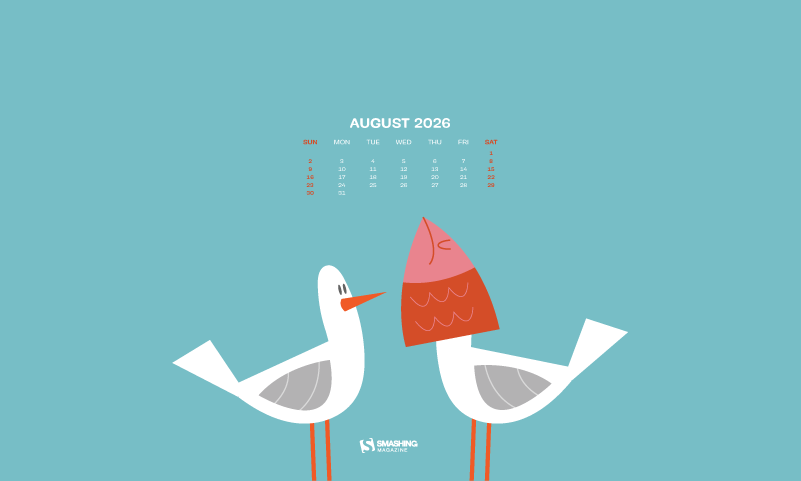
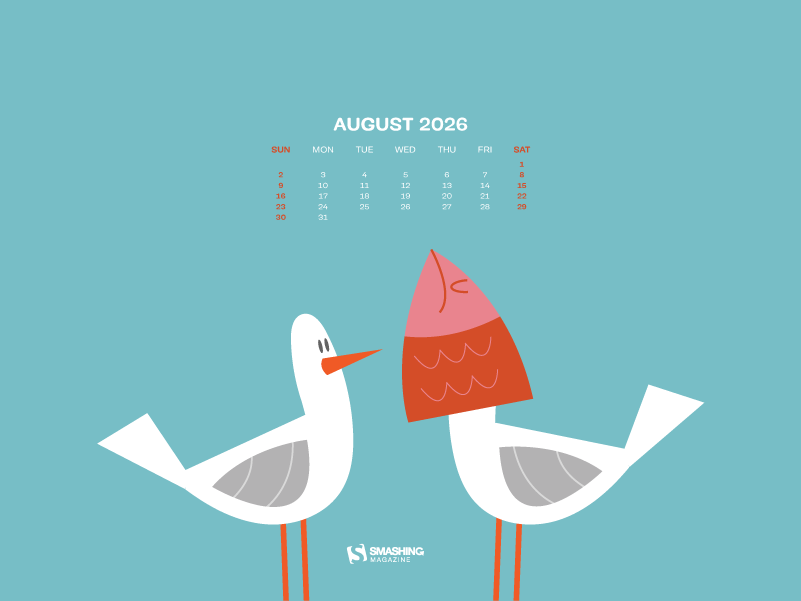


























“Before complex treaties and endless debates, humanity forged a simpler pact. A timeless triangle of absolute balance. The Immutable Stone, unyielding in its silence. The Gentle Parchment, quiet yet capable of boundlessness. The Sharp Blade, precise and forever restless. None holds absolute power; each surrenders to another in an eternal, perfect loop. On World Rock Paper Scissors Day, we honor the swift wisdom of three simple gestures that can break any deadlock and remind us that every force has its match. Fist, palm, or shears — what is your first move?” — Designed by PopArt Studio from Novi Sad, Serbia.

- preview
- with calendar: 320x480, 640x480, 800x480, 800x600, 1024x768, 1024x1024, 1152x864, 1280x720, 1280x800, 1280x960, 1280x1024, 1400x1050, 1440x900, 1600x1200, 1680x1050, 1680x1200, 1920x1080, 1920x1200, 1920x1440, 2560x1440
- without calendar: 320x480, 640x480, 800x480, 800x600, 1024x768, 1024x1024, 1152x864, 1280x720, 1280x800, 1280x960, 1280x1024, 1400x1050, 1440x900, 1600x1200, 1680x1050, 1680x1200, 1920x1080, 1920x1200, 1920x1440, 2560x1440


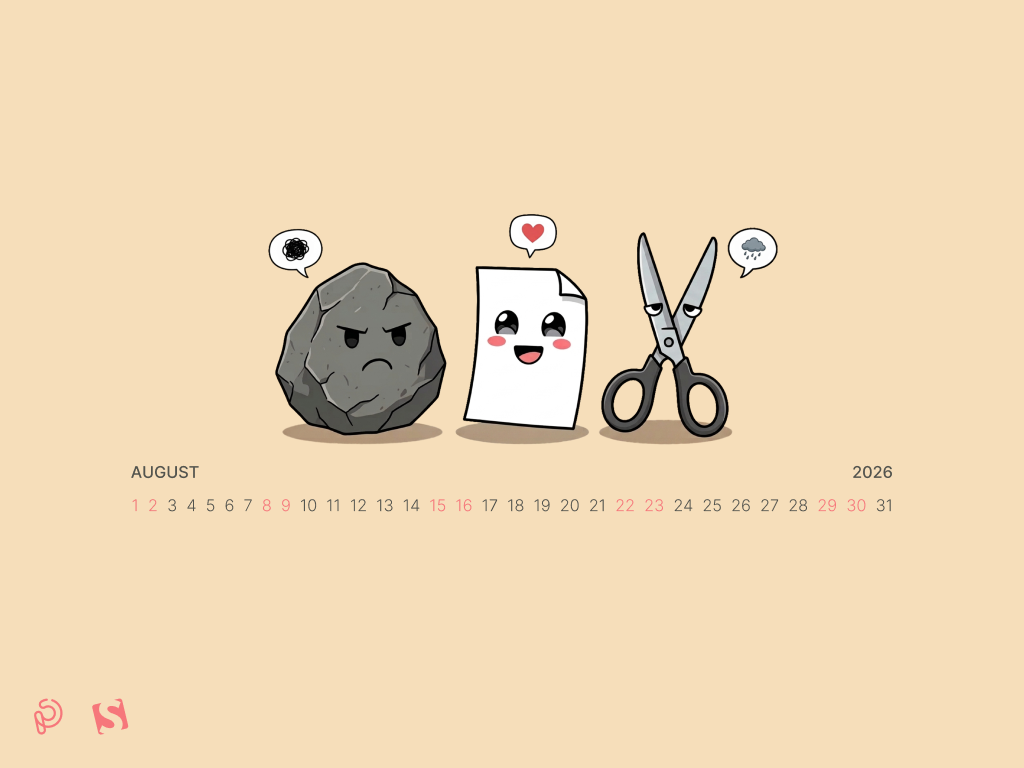





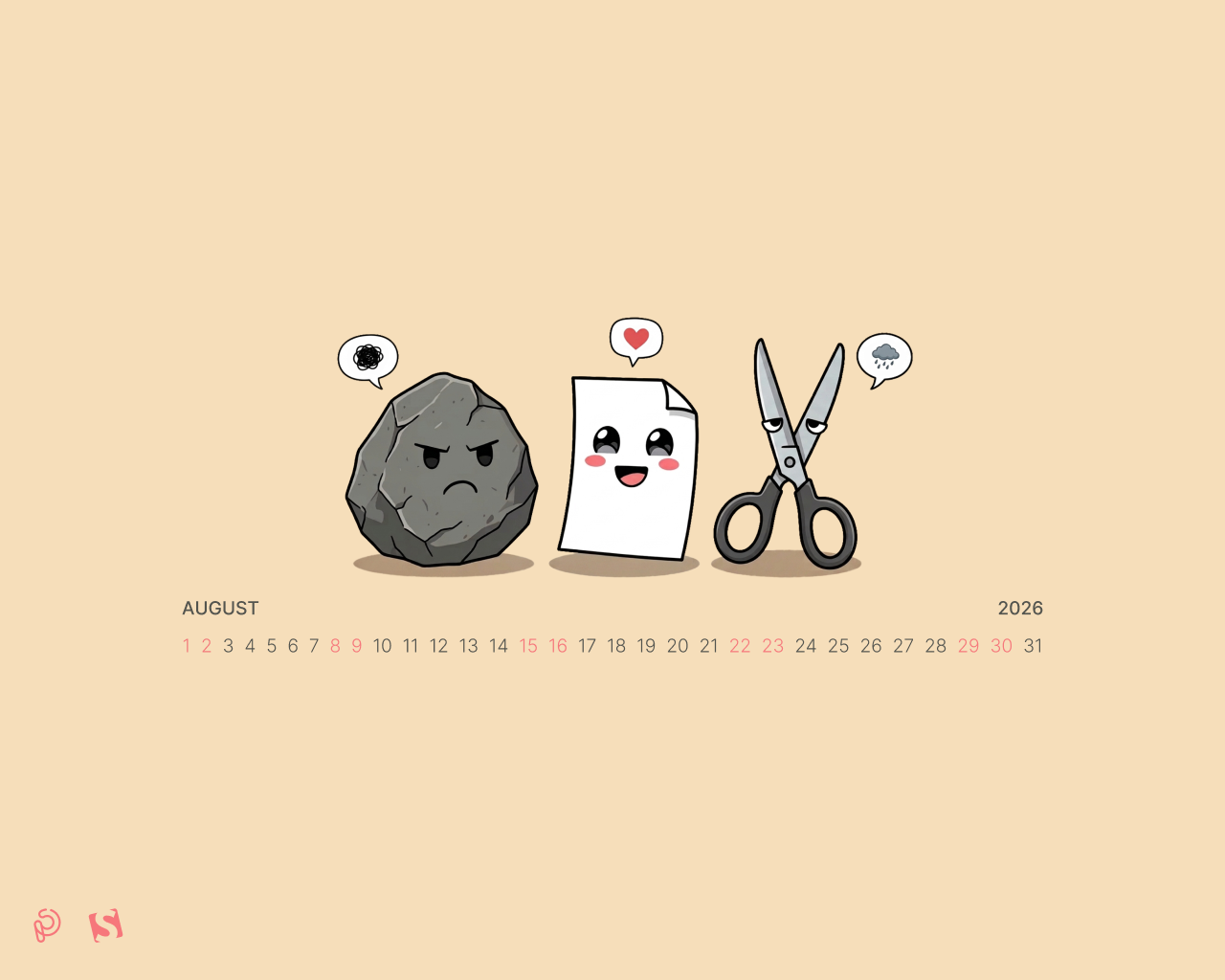
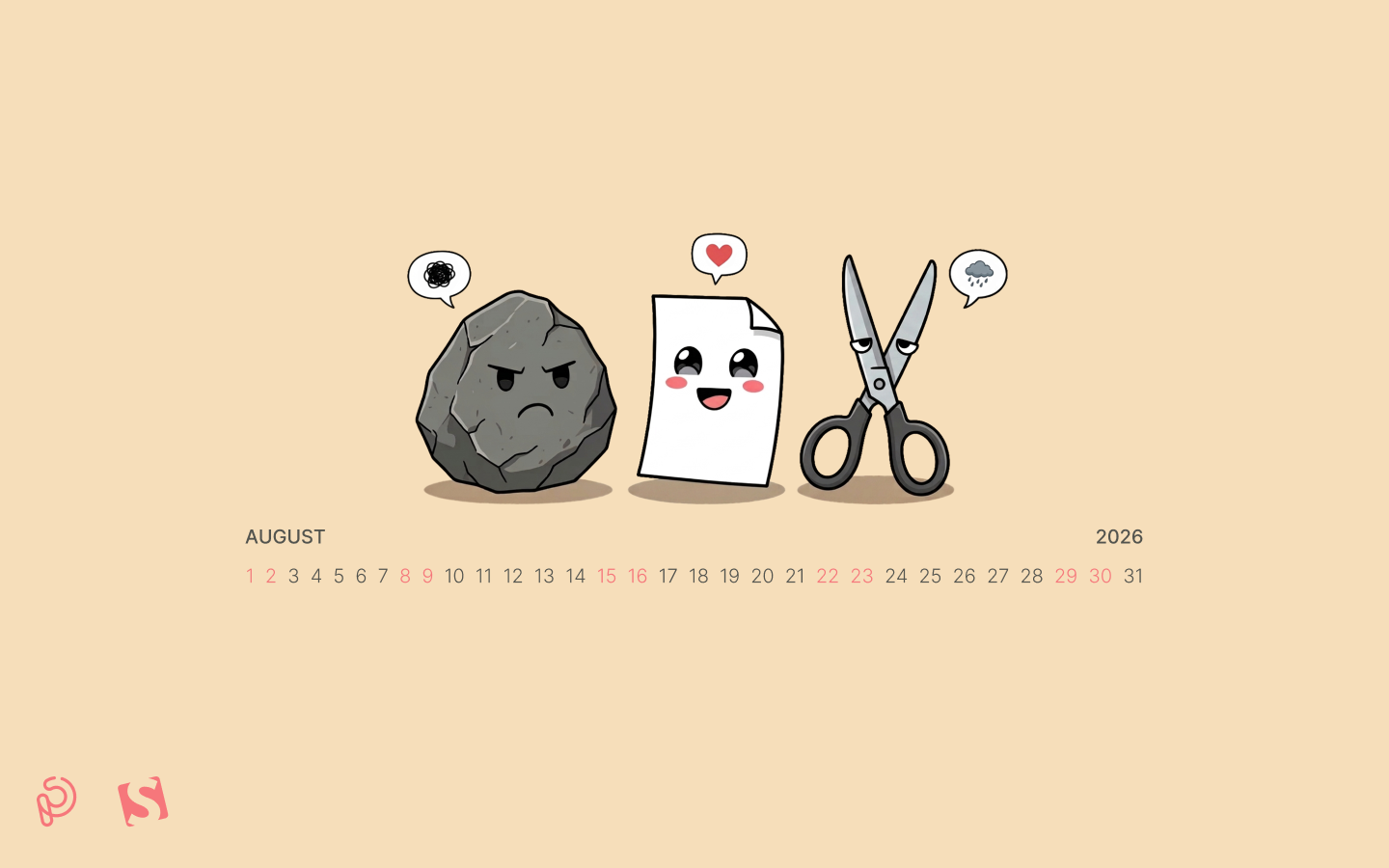





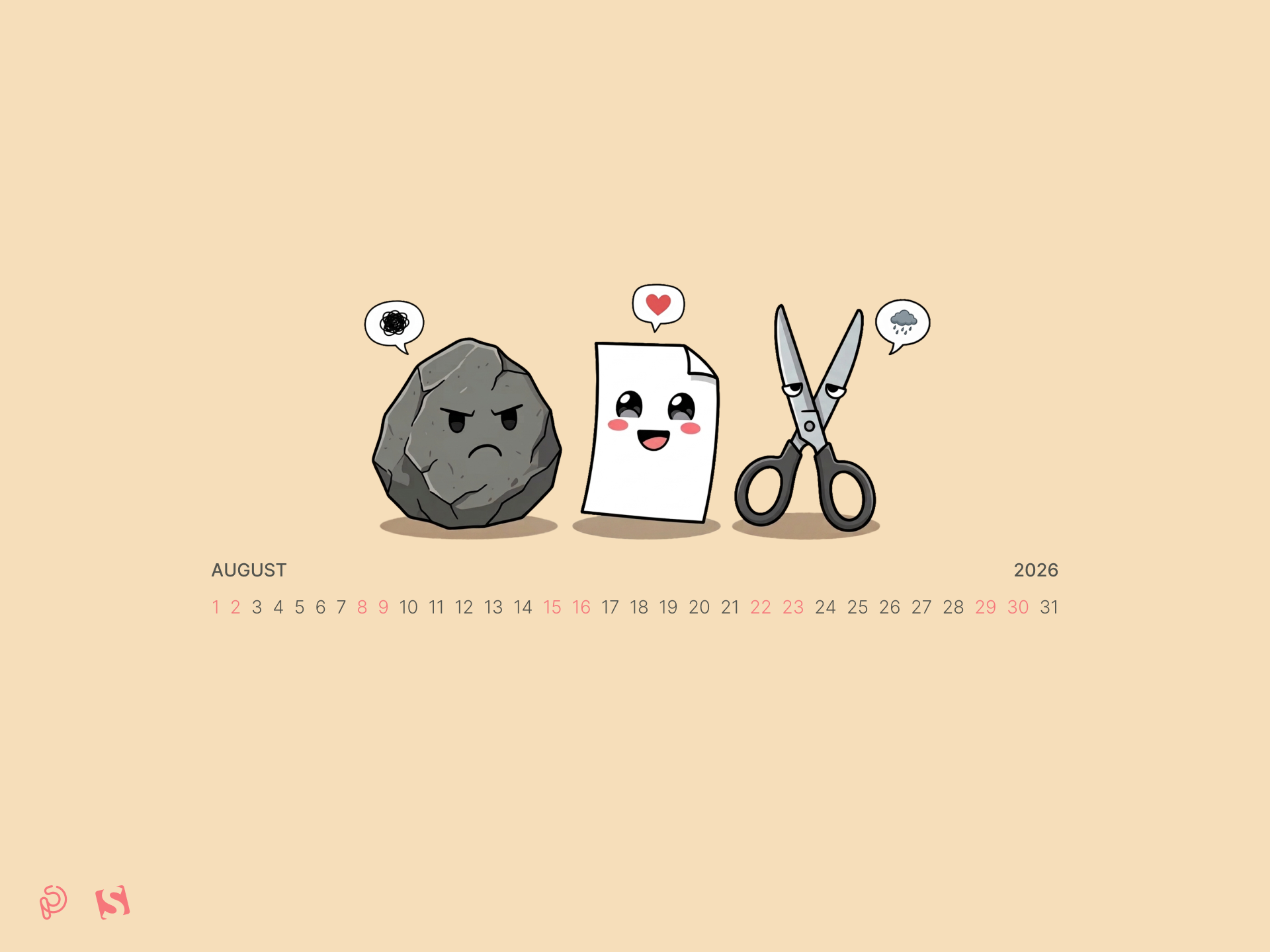














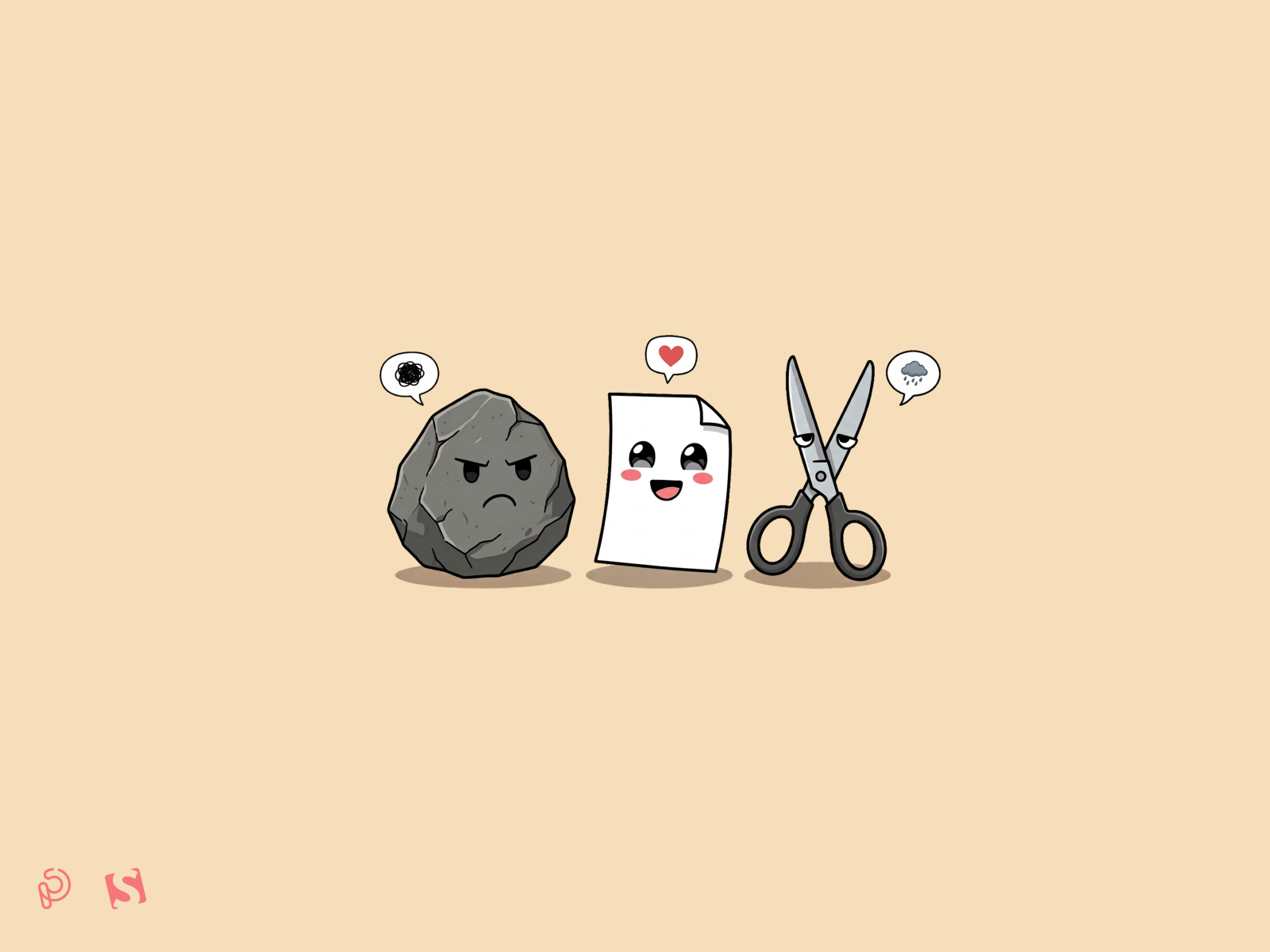






Designed by Ricardo Gimenes from Spain.

- preview
- with calendar: 640x480, 800x480, 800x600, 1024x768, 1024x1024, 1152x864, 1280x720, 1280x800, 1280x960, 1280x1024, 1366x768, 1400x1050, 1440x900, 1600x1200, 1680x1050, 1680x1200, 1920x1080, 1920x1200, 1920x1440, 2560x1440, 3840x2160
- without calendar: 640x480, 800x480, 800x600, 1024x768, 1024x1024, 1152x864, 1280x720, 1280x800, 1280x960, 1280x1024, 1366x768, 1400x1050, 1440x900, 1600x1200, 1680x1050, 1680x1200, 1920x1080, 1920x1200, 1920x1440, 2560x1440, 3840x2160











































“August is one of the best months for stargazing, with clear nights and plenty of meteor activity. Some nights bring shooting stars, while others reveal constellations that are easy to miss during the rest of the year.” — Designed by Ginger IT Solutions from Serbia.

- preview
- with calendar: 320x480, 640x480, 800x480, 800x600, 1024x768, 1024x1024, 1152x864, 1280x720, 1280x800, 1280x960, 1400x1050, 1440x900, 1600x1200, 1680x1050, 1680x1200, 1920x1080, 1920x1200, 1920x1440, 2560x1440
- without calendar: 320x480, 640x480, 800x480, 800x600, 1024x768, 1024x1024, 1152x864, 1280x720, 1280x800, 1280x960, 1400x1050, 1440x900, 1600x1200, 1680x1050, 1680x1200, 1920x1080, 1920x1200, 1920x1440, 2560x1440












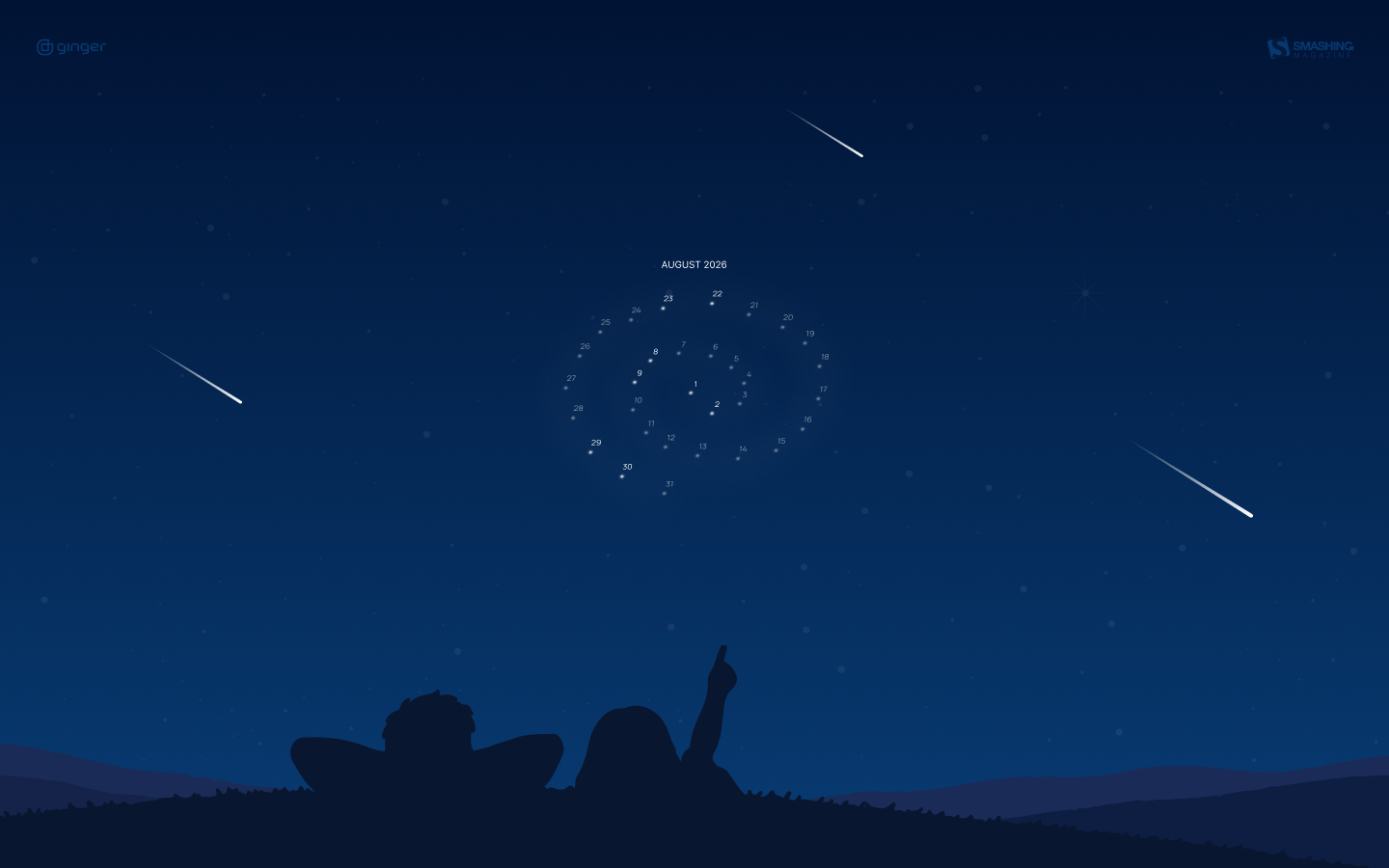


























“Many people find August one of the happiest months of the year because of holidays. You can spend days sunbathing, swimming, birdwatching, listening to their joyful chirping, and indulging in sheer summer bliss. August 8th is also known as the Happiness Happens Day, so make it worthwhile.” — Designed by PopArt Studio from Serbia.

- preview
- without calendar: 320x480, 640x480, 800x480, 800x600, 1024x768, 1024x1024, 1152x864, 1280x720, 1280x800, 1280x960, 1280x1024, 1366x768, 1400x1050, 1440x900, 1600x1200, 1680x1050, 1680x1200, 1920x1080, 1920x1200, 1920x1440, 2560x1440



Designed by Kasturi Palmal from India.

- preview
- without calendar: 800x600, 1280x1024, 1600x1200, 1680x1200, 1920x1080, 1920x1200, 1920x1440, 2560x1440









“August means that fall is just around the corner, so I designed this wallpaper to remind everyone to ‘bee happy’ even though summer is almost over. Sweeter things are ahead!” — Designed by Emily Haines from the United States.

- preview
- without calendar: 640x480, 800x600, 1280x720, 1280x800, 1280x960, 1366x768, 1400x1050, 1440x900, 1600x1200, 1680x1050, 1680x1200, 1920x1080, 1920x1200, 1920x1440, 2560x1440



“As the sun dips below the horizon, casting a warm glow upon the open road, the retro van finds a resting place for the night. A campsite bathed in moonlight or a cozy motel straight from a postcard become havens where weary travelers can rest, rejuvenate, and prepare for the adventures that await with the dawn of a new day.” — Designed by PopArt Studio from Serbia.

- preview
- without calendar: 320x480, 640x480, 800x480, 800x600, 1024x768, 1024x1024, 1152x864, 1280x720, 1280x800, 1280x960, 1280x1024, 1400x1050, 1440x900, 1600x1200, 1680x1050, 1680x1200, 1920x1080, 1920x1200, 1920x1440, 2560x1440





















Designed by Ricardo Gimenes from Spain.

- preview
- without calendar: 640x480, 800x480, 800x600, 1024x768, 1024x1024, 1152x864, 1280x720, 1280x800, 1280x960, 1280x1024, 1366x768, 1400x1050, 1440x900, 1600x1200, 1680x1050, 1680x1200, 1920x1080, 1920x1200, 1920x1440, 2560x1440, 3840x2160






















“I like the Paris night! All is very bright!” — Designed by Verónica Valenzuela from Spain.

- preview
- without calendar: 800x480, 1024x768, 1152x864, 1280x800, 1280x960, 1440x900, 1680x1200, 1920x1080, 2560x1440



“As we have taken a liking to diving through the coral reefs, we’ll also spend August diving and took the leap to Bora Bora. There we enjoy the sea and nature and above all, we rest to gain strength for the new course that is to come.” — Designed by Veronica Valenzuela from Spain.

- preview
- without calendar: 640x480, 800x480, 1024x768, 1280x720, 1280x800, 1440x900, 1600x1200, 1920x1080, 1920x1440, 2560x1440











Designed by Ricardo Gimenes from Spain.
- preview
- without calendar: 640x480, 800x480, 800x600, 1024x768, 1024x1024, 1152x864, 1280x720, 1280x800, 1280x960, 1280x1024, 1366x768, 1400x1050, 1440x900, 1600x1200, 1680x1050, 1680x1200, 1920x1080, 1920x1200, 1920x1440, 2560x1440, 3840x2160


Designed by Dorvan Davoudi from Canada.

- preview
- without calendar: 800x480, 800x600, 1152x864, 1280x720, 1280x800, 1280x960, 1280x1024, 1366x768, 1400x1050, 1440x900, 1600x1200, 1680x1050, 1680x1200, 1920x1080, 1920x1200, 1920x1440, 2560x1440



Designed by Ricardo Gimenes from Spain.
- preview
- without calendar: 320x480, 640x480, 800x480, 800x600, 1024x768, 1024x1024, 1152x864, 1280x720, 1280x800, 1280x960, 1280x1024, 1366x768, 1400x1050, 1440x900, 1600x1200, 1680x1050, 1680x1200, 1920x1080, 1920x1200, 1920x1440, 2560x1440


“August is one of my favorite months, when the nights are long and deep and crackling fire makes you think of many things at once and nothing at all at the same time. It’s about heat and cold which allow you to touch the eternity for a few moments.” — Designed by Igor Izhik from Canada.

- preview
- without calendar: 1024x768, 1024x1024, 1280x720, 1280x800, 1280x960, 1280x1024, 1400x1050, 1440x900, 1600x1200, 1680x1050, 1680x1200, 1920x1080, 1920x1200, 1920x1440, 2560x1440



“It seems the feeling of summer breaks we had back in school never leaves us. The mere thought of alarm clocks feels wrong in the summer, especially if you’ve recently come back from a trip to the seaside. So, we try to do our best during working hours and then compensate with fun activities and plenty of rest. Cheers!” — Designed by ActiveCollab from the United States.

- preview
- without calendar: 1080x1920, 1400x1050, 1440x900, 1600x1200, 1680x1050, 1920x1080, 1920x1200, 1920x1440, 2560x1440, 3840x2160


Designed by Vlad Gerasimov from Georgia.
- preview
- without calendar: 800x600, 960x600, 1024x768, 1152x864, 1229x768, 1280x800, 1280x960, 1280x1024, 1400x1050, 1440x900, 1440x900, 1440x960, 1600x1200, 1600x1200, 1680x1050, 1728x1080, 1920x1200, 1920x1440, 2304x1440, 2560x1600
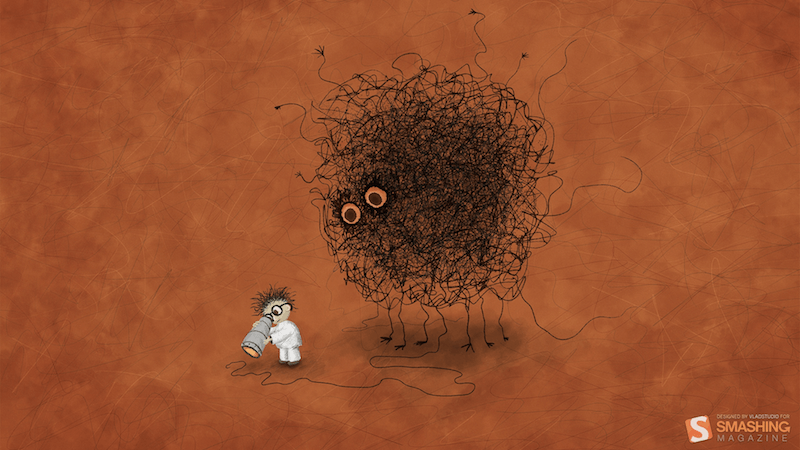


“Our designers wanted to create something summery, but not very colorful, something more subtle. The first thing that came to mind was chamomile because there are a lot of them in Ukraine and their smell is associated with a summer field.” — Designed by MasterBundles from Ukraine.

- preview
- without calendar: 320x480, 640x480, 800x480, 800x600, 1024x768, 1024x1024, 1152x864, 1280x720, 1280x800, 1280x960, 1280x1024, 1366x768, 1400x1050, 1440x900, 1600x1200, 1680x1050, 1680x1200, 1920x1080, 1920x1200, 1920x1440, 2560x1440














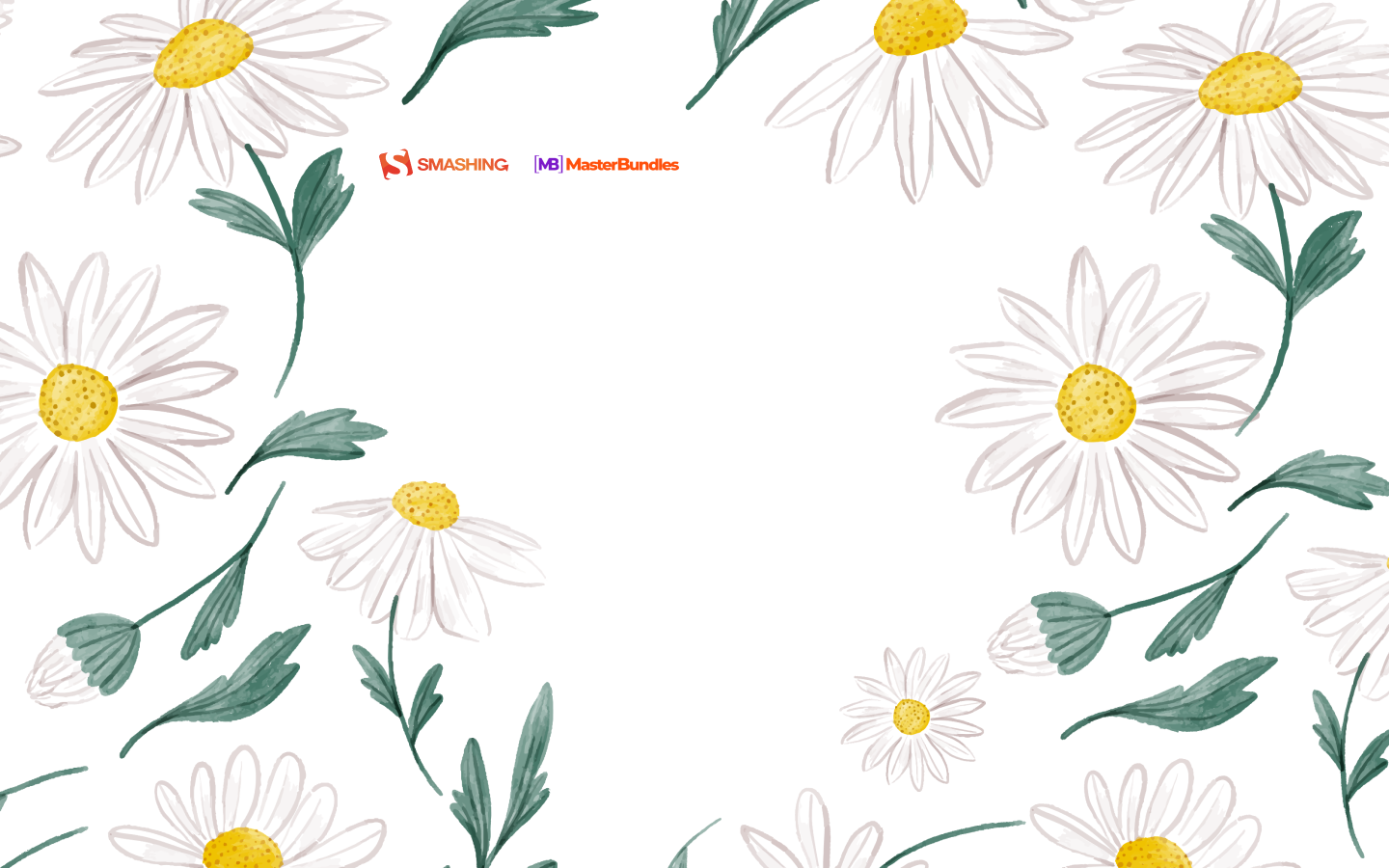




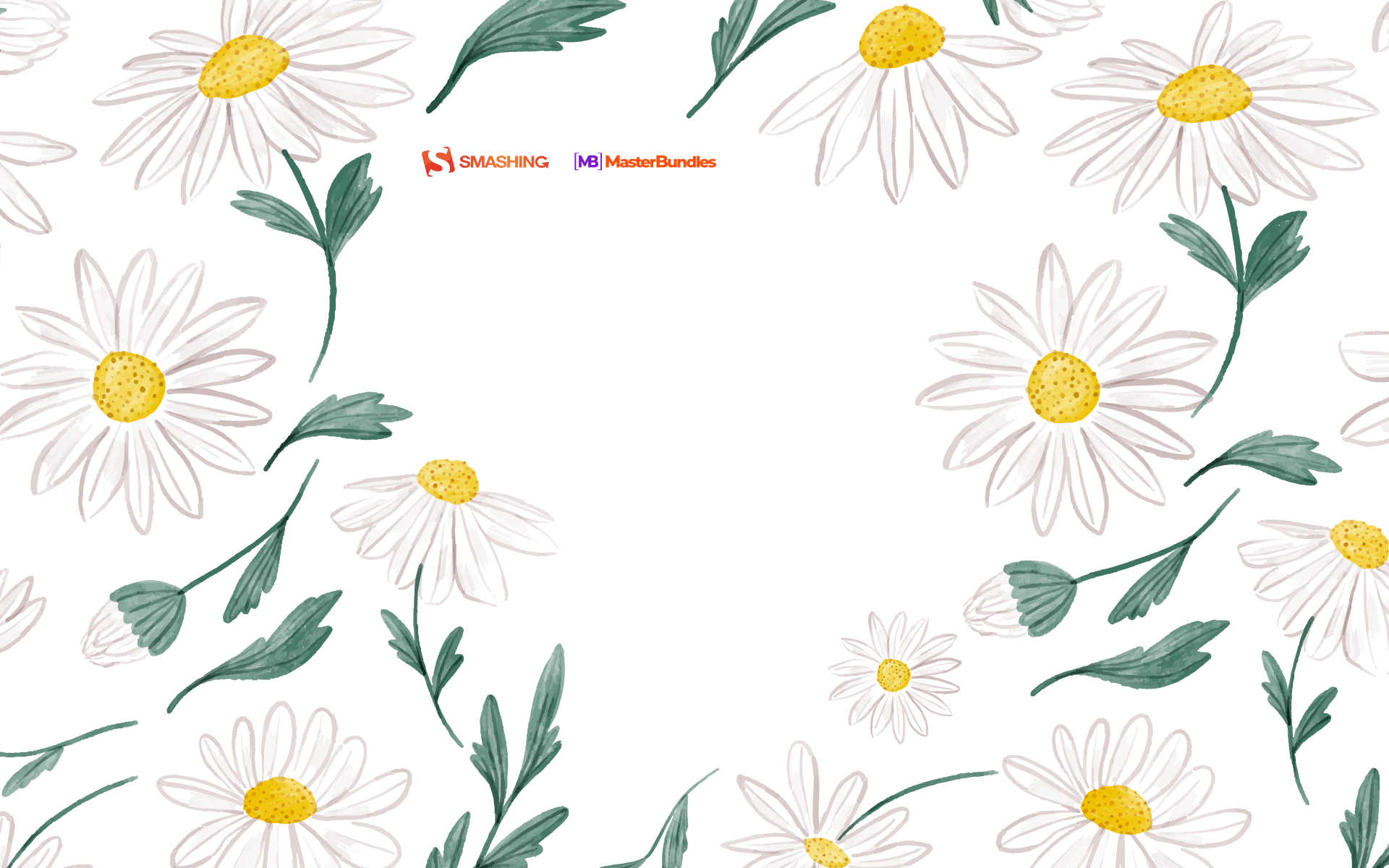


“A nice summer shrimp party!” — Designed by Pedro Rolo from Portugal.
Handwritten August



“I love typography handwritten style.” — Designed by Chalermkiat Oncharoen from Thailand.

- preview
- without calendar: 320x480, 640x480, 800x480, 800x600, 1024x768, 1024x1024, 1152x864, 1280x720, 1280x800, 1280x960, 1280x1024, 1400x1050, 1440x900, 1600x1200, 1680x1050, 1680x1200, 1920x1080, 1920x1200, 1920x1440, 2560x1440



Designed by Francesco Paratici from Australia.

- preview
- without calendar: 320x480, 1024x768, 1024x1024, 1280x800, 1280x1024, 1366x768, 1440x900, 1680x1050, 1920x1080, 1920x1200, 2560x1440



“I know what you’ll do this August. Because August is about holiday. It’s about exploring, hiking, biking, swimming, partying, feeling, and laughing. August is about making awesome memories and enjoying the summer. August is about everything. An amazing August to all of you!” — Designed by Ioana Bitin from Bucharest, Romania.
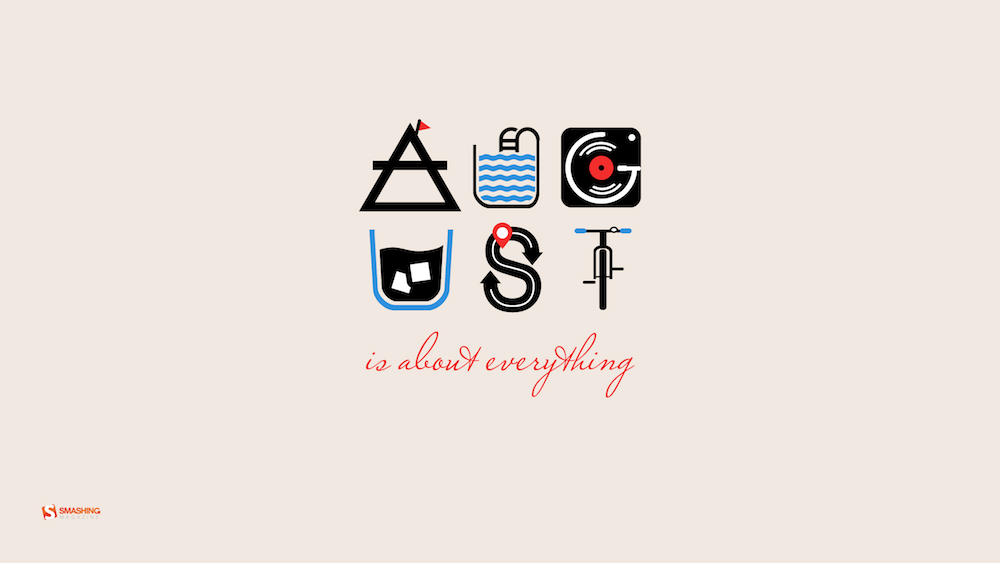
- preview
- without calendar: 320x480, 800x480, 800x600, 1024x768, 1280x960, 1280x1024, 1440x900, 1600x1200, 1680x1050, 1920x1080, 1920x1200, 1920x1440, 2560x1440


“The warm, clear summer nights make me notice the stars more — that’s what inspired this space-themed design!” — Designed by James Mitchell from the United Kingdom.

- preview
- without calendar: 1280x720, 1280x800, 1366x768, 1440x900, 1680x1050, 1920x1080, 1920x1200, 2560x1440, 2880x1800


“‘Always keep mint on your windowsill in August, to ensure that the buzzing flies will stay outside where they belong. Don’t think summer is over, even when roses droop and turn brown and the stars shift position in the sky. Never presume August is a safe or reliable time of the year.’ (Alice Hoffman)” — Designed by Lívi from Hungary.

- preview
- without calendar: 800x480, 1024x768, 1280x720, 1280x1024, 1400x1050, 1680x1050, 1680x1200, 1920x1200, 2560x1440, 3475x4633



“Headed towards Smoky Mountain Bigfoot Conference this summer? Oh, they say it’s gonna be a big one! Get yourself out there well-prepared, armed with patience and ready to have loads of fun with fellow Bigfoot researchers. Looking forward to those campsite nights under the starry sky, with electrifying energy of expectations filling up the air? Lucky you!” — Designed by Pop Art Studio from Serbia.

- preview
- without calendar: 320x480, 640x480, 800x480, 800x600, 1024x768, 1024x1024, 1152x864, 1280x720, 1280x800, 1280x960, 1280x1024, 1366x768, 1400x1050, 1440x900, 1600x1200, 1680x1050, 1680x1200, 1920x1080, 1920x1200, 1920x1440, 2560x1440



“Summer is in full swing and Chicago is feeling the heat! Take some time to chill out!” — Designed by Denise Johnson from Chicago.
The Ocean Is Waiting



“In August, make sure you swim a lot. Be cautious though.” — Designed by Igor Izhik from Canada.
- preview
- without calendar: 640x480, 800x480, 800x600, 1024x768, 1024x1024, 1152x864, 1280x720, 1280x800, 1280x960, 1280x1024, 1400x1050, 1440x900, 1600x1200, 1680x1050, 1680x1200, 1920x1080, 1920x1200, 1920x1440, 2560x1440


“Liqiu signifies the beginning of autumn in East Asian cultures. After entering the Liqiu, the mountains in Eastern Taiwan’s East Rift Valley are covered in a sea of golden flowers, very beautiful. The production season for high-mountain daylilies is in August. Chihke Mountain, in Yuli Township, and Sixty-Stone Mountain, in Fuli Township, which are both located in Hualien County, are two of the country’s three high-mountain daylily production areas.” — Designed by Hong, Zi-Qing from Taiwan.

- preview
- without calendar: 1024x768, 1080x1920, 1280x720, 1280x960, 1280x1024, 1366x768, 1920x1080, 2560x1440



“This summer I have a telescope. Every night I look to the sky and I look into the stars. Fortunately, I can see Saturn.” — Designed by Verónica Valenzuela from Spain.

- preview
- without calendar: 800x480, 1024x768, 1152x864, 1280x800, 1280x960, 1440x900, 1680x1200, 1920x1080, 2560x1440


“This is a moment from Southern Estonia that shows amazing summer nights.” — Designed by Erkki Pung from Estonia.
A Midsummer Night’s Dream



“Inspired by William Shakespeare.” — Designed by Sofie Lee from South Korea.
- preview
- without calendar: 800x480, 1024x768, 1280x720, 1280x800, 1600x1200, 1680x1050, 1680x1200, 1920x1080, 2560x1440


Designed by Ricardo Gimenes from Spain.

- preview
- without calendar: 640x480, 800x480, 800x600, 1024x768, 1024x1024, 1152x864, 1280x720, 1280x800, 1280x960, 1280x1024, 1366x768, 1400x1050, 1440x900, 1600x1200, 1680x1050, 1680x1200, 1920x1080, 1920x1200, 1920x1440, 2560x1440, 3840x2160






















Feeling inspired? We’ll publish the September wallpapers on August 31, so if you’d like to be part of the collection, please don’t hesitate to submit your design. We are already looking forward to it!
The Bull And Bear Case For Digital Design In The Age Of AI
Designers have spent years saying they would do better work if the organisation got out of the way. Not always in those exact words, obviously. It usually comes out as something more reasonable: we didn’t get enough engineering time, product had already decided the solution, the roadmap was too packed, leadership only cared about this quarter’s numbers, research got cut, the experiment was never run properly, the design debt was known about, but nobody wanted to spend a sprint fixing it.
Much of this is true. Most designers have worked inside that awkward middle space between product and engineering. Product frames the problem, or at least thinks it does. Engineering decides what is feasible, or at least what is affordable. Design is expected to make the thing clearer, simpler, more coherent, more usable, and occasionally more desirable, while also being careful not to disrupt the plan too much.
That position has always been uncomfortable.
Designers are told to think strategically, but often lack the power to act strategically.They can spot the broken onboarding flow, the confusing upgrade path, the empty state that makes users feel stupid, the feature that looks reasonable in a product review but makes no sense in real use. Seeing the problem is one thing. Getting it fixed is another.
So design often becomes an argument. You make the case. You annotate the flow. You bring the research clip. You point to the support tickets. You show the Figma prototype. You explain why the “small edge case” is actually the first-run experience for half your new users. Then everyone nods, agrees it matters, and moves on to whatever had already made it onto the roadmap.
This is one reason AI is more interesting for design than the usual “will it replace designers?” debate suggests. The real change is not that designers can make more screens. Nobody needs more screens. The interesting change is that designers may need less permission.
The Bull Case: Designers Need Less PermissionA good designer can now move from “we should fix this” to “I fixed this, and pushed it live.” They can prototype the alternative onboarding flow, write and test clearer product copy, build a rough working version of the interaction, clean up small pieces of design debt without waiting three months for a roadmap slot, and make the better thing visible enough that it becomes harder to ignore.
That changes the politics of the work. Design has often relied on persuasion because designers lacked direct means of production. AI weakens that dependency. Not everywhere, and not for everything. Complex products still have architecture, infrastructure, data models, permissions, security, compliance, legacy systems, and all the other unglamorous reasons software is hard. But the boundary is moving.
More of the gap between having the idea and making the idea real can now be crossed by a motivated designer with the right tools.In this version of the future, designers become less permission-dependent: less reliant on product to bless the problem, less reliant on engineering to make every small improvement real, less trapped in the role of internal critic, taste-provider, or Figma operator. More able to make, test, repair, and ship.
The best designers start to look less like traditional product designers and more like hybrid product leaders. They still care about interaction, hierarchy, language, flow, brand and craft, but they also understand the commercial shape of the problem. They can make trade-offs. They can prototype in code, or close enough to code. They can use AI to explore options quickly, then use judgment to throw most of them away. They can sit with a founder or PM and move from a vague product concern to something tangible by the end of the day.
There may be fewer of these people, but they will be harder to ignore. The current design-org model was partly built around scarcity: scarce engineering time, slow production, expensive prototypes, handoffs between specialists, heavy coordination across teams. If AI reduces some of that scarcity, it probably reduces the need for some of the roles that grew around it. The optimistic case is not that every designer keeps their job and gets a productivity boost. That feels like wishful thinking. The more believable version is that the total number of designers goes down, but the designers who remain have more direct influence over the product.
That is not a bad outcome for the strongest designers. It may even be the thing many of them have wanted for years.
The Bear Case: Autonomy Exposes The GapsAutonomy has teeth. If AI gives designers more room to act, it also removes some of the cover. The same constraints that held good designers back have also protected weaker ones from being tested too directly.
For years, it has been easy to say: I had a better idea, but we never got the engineering time. Sometimes that was exactly what happened. Sometimes the better idea was never really more than a critique. It had not been made concrete. It had not been tested. It had not dealt with the awkward trade-offs. It sounded strong because it lived safely in opposition to the shipped thing.
A lot of designers are good at noticing what is wrong. Fewer are good at deciding what should happen instead. Fewer still can make that alternative real enough for other people to judge. AI will expose this gap.If you can prototype the recommendation, the recommendation has to get better. If you can make the alternative flow, the flow has to survive contact with details. If you can test the product copy, you have to care what happens when users read it. If you can fix the small piece of design debt, you have to decide whether it was really worth fixing.
Some designers are not as strategic as they think they are. They have learned the language of strategy without the discomfort of owning outcomes. They can talk about user needs, business goals, systems thinking, and product quality, but struggle when asked to make a call. They want influence, but not the exposure that comes with it.
The profession has spent a long time arguing that design deserves more power. Fine. But more power means fewer excuses. It means the work is judged less by the elegance of the argument and more by the quality of the thing you made, tested, or changed. That is a better standard, but it will not be kind to everyone.
There is a second bear case, and it is probably the one large design teams should worry about most. Product and engineering already have more institutional power than design in most companies. They own the roadmap, the technical architecture, the sprint machinery, the metrics, and usually the language leadership understands. Design often has to translate its concerns into someone else’s terms before they count.
AI may not rebalance that power. It may hand product and engineering enough design capability to make design easier to bypass. A PM who can generate a decent flow, decent copy, and a decent prototype may not feel the same need to involve design early. An engineer who can use AI to produce a reasonable interface may decide the design system covers enough of the decision-making. A founder who can get to a polished demo in an afternoon may confuse polish with product thinking.
The problem is not that these people will suddenly become great designers. The problem is that many companies do not know the difference between great design and plausible design. Plausible design is dangerous. It looks coherent in a product review. It uses the right components. The spacing is fine. The copy is not embarrassing. The flow mostly works. Nobody in the meeting feels strongly enough to object. So it ships.
A lot of bad product decisions already survive because they look plausible. AI will produce more of them. This is where design could lose ground quickly: not because taste, judgment, research, and interaction thinking stop mattering, but because the visible outputs of design become easier for other functions to imitate.If a company already thinks design is mostly screens, prototypes, and polish, AI gives it a cheaper way to get those things.
In that world, design does not gain more agency. It gets narrowed. The remaining designers manage the design system, police component usage, review flows that have already been decided, tidy the interface, maintain brand consistency, and get pulled into high-stakes launches, executive demos, and the occasional messy cross-platform problem. Useful work, but a smaller surface area. Less shaping the product, more maintaining the furniture.
This is why the “AI will automate the boring 20%” argument feels too comforting. In some companies, perhaps that is what happens. But in large tech organisations, where design teams grew around coordination, production and process, the cut could be much deeper. Not 20%. Maybe 50%. Maybe more. Especially in places where leadership never really understood why the design team had grown so large in the first place.
Where I Think We Might End UpThe painful part is that both futures can be true at the same time. AI can make the best designers more capable and many average designers less necessary. It can give design more agency while reducing design headcount. It can help a small number of designers move closer to product leadership while pushing others into governance and clean-up work. It can free designers from waiting for permission, then reveal that some were more comfortable waiting than acting.
The designers who do well will not be the ones who merely use AI to produce more options. Options are cheap now. They will be the ones who know which option is worth pursuing, why it matters, how to test it, what to cut, where the product is lying to itself, and when “good enough” is quietly damaging the business.
They will have taste, but taste will not be enough. They will need product judgment, technical curiosity, commercial awareness and the nerve to make decisions before every variable is settled. They will need to be comfortable moving between a customer conversation, a prototype, a pricing concern, a brand question, and a messy implementation detail without insisting that all of those belong to someone else.
I’m not completely sure where we end up. I hope it is closer to the bull case: fewer permission structures, more making, more agency, better designers finally able to show what they can do without being held back by the machinery around them.
I fear it may be closer to the bear case: product and engineering absorb much of the work, companies decide plausible design is good enough, and design loses status, headcount, and strategic ground.
In reality, it will probably be some uncomfortable mix of the two. Some designers will use AI to gain more agency. Some companies will use it to need fewer designers. Some teams will produce better work because the distance between judgment and execution gets shorter. Others will ship more plausible mediocrity because nobody in the room can tell the difference.
For years, designers have said they could create more value if they were less constrained by the organisation around them. AI is about to test that claim. Some will finally get to prove it. Some will find out the constraints were doing them a favour.
Further Resources- “Good from Afar, But Far from Good: AI Prototyping in Real Design Contexts,” Huei-Hsin Wang and Megan Brown (NN/Group)
The UX design field has been flooded with AI-powered prototyping tools that generate interfaces from natural-language prompts. Despite the huge marketing hype, an evaluation with real design scenarios revealed that while these tools can follow instructions to achieve a general goal, they often lack the sophistication to weigh design tradeoffs and to produce thoughtful, high-quality designs without extensive guidance from humans. - “AI Design Tools Are Marginally Better: Status Update,” Megan Brown, Caleb Sponheim and Taylor Dykes (NN/Group)
AI-powered design tools have improved, yet we’re still nowhere near the usefulness we’ve been promised. This article reviews several AI tools and features, including: Figma’s Rename Layers, Rewrite This, Find More Like; Khroma Color; and Midjourney. The authors also take a look at the wireframe and prototype generation capabilities of some AI tools. - “Using AI for UX Work: Study Guide,” Tanner Kohler (NN/Group)
Unsure where to start? This curated collection of links to articles and videos about the best ways to introduce artificial intelligence for UX design work should help you. - “I used AI for every task for two weeks,” Joanna Otmianowska (DEV Community)
The author (who is a front-end developer) tried to use Claude Code for every task at work. This turned into a full-on experiment. In the article, Joanna shares all the details about the experience. - “How AI will Affect the Design Industry,” Andy Budd
It is likely that AI is not going to "kill design" in the next few years, as some are claiming. However, these are definitely times of change, and change means that there will be big opportunities for those who embrace new technologies early. - “Design has been too settled for too long,” Andy Budd
For a discipline that talks so much about change, design has been running on a surprisingly settled operating model. AI is starting to break that model. In this article, Andy reviews in detail the current trends regarding adopting AI in the daily workflows of design teams. - “What Designers Should Take From Benedict Evans’ Latest AI Deck,” Andy Budd
Benedict Evans has a useful habit of standing slightly away from the noise. For years, his big strategy decks have acted as a kind of weather map for the technology industry: mobile, media, ecommerce, platforms, regulation, capital flows, and now AI. They are not predictions in the cheap sense — they are attempts to show the shape of the system: where the money is going, what assumptions people are making, which comparisons are lazy, and where the industry may be fooling itself. - design + AI conference
Thinking Outside The Box: Digital Design In The AI Era
This article is a sponsored by MacPaw
The phrase “artificial intelligence” has many excited, especially those in tech. But for those of us in creative fields like digital art and design, AI can be more concerning than it is exciting.
AI-generated art, videos, and images have flooded the internet, raising questions about whether more companies will turn to tools like OpenAI’s Dall-E, Midjourney, Leonardo.ai, and more, rather than employing human artists. What’s more, the fact that these AI models are trained on real artists’ work without their consent leaves many feeling as if they have no choice but to accept AI into their work and lives.
In a digital world increasingly dominated by faceless AI chatbots, agents, and features, it can be easy to get overwhelmed by all the technology. AI will certainly play a huge role in reshaping many industries, including design. We can’t deny this. But at the same time, humanization, empathy, and having a person at the wheel have never been more important.
Rather than viewing AI as something that replaces human creativity, we at MacPaw saw an opportunity to explore how we could make AI feel more personal and accessible — all the while keeping humans at the center of the experience. That led us to rethink how AI assistants are created.
The Concept Of A New AI AssistantTraditional AI assistants like Claude and ChatGPT typically take the form of a conversational textbox or webpage on screen, as this is how users have interacted with their devices. It’s comfortable and familiar. While extremely useful for a variety of tasks, interacting with these AI assistants can feel transactional and technical.
Using the same textbox format across all AI assistants does provide consistency. But we wanted to create a new, more personal and differentiated experience for users. But what format would be best? Even if we change how an AI tool looks, it still needs to be useful and intuitive to use.
As humans, it’s easier to understand and connect with things that resemble us. This is why we often find ourselves drawn to things like animals and characters: they have traits that we recognize within ourselves. Understanding this, we saw an opportunity to combine these values: utility and personality.
The Importance Of Character In DesignEnter Eney: a new proactive AI assistant. MacPaw didn’t want Eney to simply be another AI tool for users, but rather one that proactively assists within a user’s workflow. The vision was to help users connect with Eney more easily than with other AI tools, so we decided to create a character users could interact with. We wanted Eney to be expressive, friendly, and to emote as humans do. But we needed to strike an important balance: making Eney cheerful without it being overly goofy or childish.
This is where human animation and intervention played a critical role. While challenging, it was crucial because an overloaded character UI could turn users off and make navigating Eney difficult. To avoid this, the design team chose to create a select set of emotions and gestures for Eney to express, ensuring that its expressions conveyed useful information. For example, when working on a task, Eney’s figure resembles a loading icon. To do this, we worked to reduce Eney’s on-screen movement to make sure it wasn’t distracting or excessive.
After exploring a few different shapes and styles for Eney, we settled on a circular figure, as it felt the most approachable. It was simple and helped create the feeling of a calm, floating digital companion, rather than another rigid interface element on a user’s desktop. Eney’s minimal face design also plays an important role in connecting with the user. Its eyes are the main emotional connector — a key feature in showing emotions without being cartoonish.
The color choice for Eney was also important. Many AI assistants and companies use blue in their products, as it’s typically associated with intelligence. Blue is a great color, but we wanted Eney to stand out. We still wanted the color to be warm and inviting while slightly more visually stimulating, which led us to choose the color pink. Among dozens of other AI products that choose a more blue aesthetic, Eney was designed to catch a user’s eye and stand out in their mind (and on their screen).
All in all, we wanted to create a character that was present but not attention-seeking; a warm and supportive digital helper that enhances a user’s workflow rather than distracts from it. Eney’s character gives personality to otherwise invisible processes.
Artists In The AI EraWhile those who aren’t design professionals may assume there wasn’t much significance behind Eney’s character creation, this couldn’t be further from the truth. Like many other products, all these elements — style, design, emotion, size, name, and more — were intentionally chosen, not by machines but by humans.
Even though AI has streamlined many design processes, namely enabling faster design, there are still many things it can’t do well. Even when designing Eney, while technology supported the process, human designers controlled every step and decision.
As designers, it’s more important than ever to have good judgment, artistic direction, integrity, and emotional sensitivity when working in the field. Technology like AI can help us work faster, but it can’t replace the values that inspire and shape our work.
What’s more, while anyone can easily generate something by typing a prompt into an AI image tool, there’s a true beauty and talent when intentionally crafting something through manual design.
As designers, we shouldn’t stray away from the latest tools. Rather, we should learn them and see how they could potentially help us within our creative workflows. Personally, I like to use AI tools such as Perplexity and ChatGPT for research purposes in the early stages. However, we need to remember that they’re just that: tools. At the end of the day, technology like AI cannot, and should not, replace human artistry. It should help us express our visions, not replace us entirely.
If there’s one thing to take away from this piece, it’s that curiosity helps build taste over time, and taste becomes more valuable, not less, in the AI era.
Weaponizing And Defending The React Flight Protocol: Deserialization Sinks In RSCs
React Server Components don’t send HTML to your browser. They don’t send JSON either. When a server component renders, what actually travels over the wire is a custom streaming protocol called Flight. It’s a line-delimited format with its own type system, its own reference resolution, and its own rules for reconstructing executable behavior on the client.
Most React developers have never opened the Network tab and actually looked at a Flight payload. It looks like a mix of JSON fragments, dollar-sign-prefixed references, and module pointers that the React runtime silently reassembles into a live component tree. The framework handles it, so nobody questions it.
I’m not sure most teams have thought carefully about what that trust actually implies.
I started pulling apart the Flight protocol after CVE-2025-55182 dropped in December 2025. The security community called it React2Shell, and for good reason. It was a CVSS 10.0, unauthenticated remote code execution vulnerability sitting in the Flight deserialization layer. One crafted HTTP request to a Server Function endpoint, and an attacker had shell access. No credentials needed.
The federal Cybersecurity & Infrastructure Agency (CISA) added it to the Known Exploited Vulnerabilities catalog. Sysdig tied in-the-wild exploitation to North Korean state-sponsored actors deploying file-less implants through the Ethereum blockchain. That’s the kind of CVE that gets your attention.
After spending time in the source (mostly getOutlinedModel and getChunk, which is where the resolution logic that matters actually lives), I realized React2Shell wasn’t a one-off parsing bug. It was a symptom. Flight reconstructs executable references, lazy-loaded components, server RPC endpoints, and async state from a stream of text. That’s a deserialization system.
The attack surface extends well beyond a single missing hasOwnProperty check. This article covers how Flight works on the wire, where the deserialization sinks are, what attackers have already weaponized, and what’s still exposed.
This leads to a ranked, practical set of defenses for your own Server Components: schema validation on every Server Action, the server-only package, cross-site request forgery (CSRF) hardening beyond framework defaults, and an assessment of what the Taint API and Web Application Firewalls (WAFs) provide.
Table of Contents- Flight On The Wire
- Why Flight Is A Deserialization Sink
- The Mechanics Of React2Shell
- The Fix
- Defenses, Ranked By Impact
- What Came After React2Shell
- What’s Still Exposed
- This Has Happened Before
- Where This Goes Next
Open your browser’s Network tab on any Next.js App Router page and look for requests returning Content-Type: text/x-component. That’s Flight. It’s not a single JSON blob. It’s a streaming, line-delimited format where each line is a self-contained “row” that the client-side React runtime processes as it arrives over the connection.
Here’s what a simple Flight payload looks like in practice:
1:I["./src/components/ClientComponent.js",["chunks/main.js"],"default"] 2:J["$","article",null,{"children":"$1"}] 0:D{"name":"RootLayout","env":"Server"}Row 1 is an import directive. It tells the client to load ClientComponent.js from the bundler’s chunk map. Row 2 is a JSON tree that constructs an <article> HTML element, and the "$1" inside children is a reference back to chunk 1 (the imported component). Row 0 defines the server execution context, marking this as a RootLayout running in the Server environment. Even in this tiny example, you can see the mix of structural data, module references, and cross-chunk pointers that makes Flight different from plain JSON.
The Row FormatEvery row follows the same syntax: <ROW_ID>:<ROW_TAG><PAYLOAD>\n. The row ID is a numeric identifier that other rows can reference. The tag is a single character (or short string) that tells the parser what kind of data follows. The payload is the actual content.
Here are the row tags I found while reading through the source:
Tag Name What it does J JSON Tree Serialized virtual DOM nodes, component props, and HTML elements. M Module Metadata for a specific Client Component module or chunk. I Import Tells the client to load a module from the bundler’s chunk map. HL Hint/Preload Instructs the browser to preload resources such as stylesheets or fonts. D Data Server-rendered element context and environment info. E Error Serialized server-side exceptions and error boundaries.So far, this might look like a benign structured data format with some custom tags, but the real complexity and attack surface live in the prefix system.
The $ Prefix SystemThis is where I started paying closer attention.
When the client-side parser encounters a string value starting with $, it doesn’t treat it as literal text. It intercepts the string, checks the prefix, and routes it through a type-specific resolution path. The parseModelString function in ReactFlightClient.js is where this happens. It’s essentially a big switch statement on the character after $.
Prefix Type What the parser does with it $ Model Reference Resolves to another chunk in the stream (e.g., $2 points to row 2). $: Property Access Traverses into a resolved chunk’s properties (e.g., $1:user:name). $S Symbol Creates a native JavaScript Symbol. $F Server Reference Represents a callable Server Action (an RPC endpoint on the server). $L Lazy Component Defers component loading until it’s needed in the render tree $@ Promise/Raw Chunk Returns the internal Chunk wrapper object itself (often acting as a Thenable/Promise), not its resolved value. $B Blob/Binary Triggers the blob deserialization handler for binary data.Every other prefix resolves a chunk and gives you the parsed result. $@ hands you the raw internal Chunk object instead, the wrapper React uses to track resolution state, pending callbacks, and internal metadata (which is why it’s used for Promises and why exploits use it to get a mutable handle). Exposing framework plumbing through the protocol looks like a design mistake to me, though I’d be interested to hear the rationale if there is one.
And $: (property access) is the other critical prefix. It lets the protocol specify a path like $1:user:name, which tells the parser to resolve chunk 1, then access .user, then access .name on the result. That’s arbitrary property traversal driven by data in the stream. If you’ve spent any time auditing JavaScript for prototype pollution, that pattern should feel familiar.
This Is Not Just A Data FormatFlight is not JSON with extra steps. JSON gives you data. Flight gives you behavior. It reconstructs module references that trigger client-side code loading, creates server action endpoints the client can invoke as RPC calls, sets up Promise chains that the React runtime will await, and builds lazy-loaded component boundaries that execute on demand.
Whether React developers think of it that way or not, the mechanics look very similar to deserialization systems that have historically caused problems. The stream doesn’t just describe what the UI looks like. It instructs the client runtime on what code to load, what functions to call, and what to trust.
If you want to read the implementation yourself, fair warning: the chunk resolution path is miserable to follow. State transitions bounce between helper functions, and the naming obscures what the code is actually doing. I gave up on static reading and just set breakpoints. The key files are react-client/src/ReactFlightClient.js for the client-side parser (look for parseModelString, getChunk, reviveModel, and getOutlinedModel) and react-server/src/ReactFlightServer.js for the serialization side. The reply handler for Server Actions lives in react-server/src/ReactFlightReplyServer.js.
Why Flight Is A Deserialization SinkThe deserialization pattern is familiar: Java’s ObjectInputStream gave us ysoserial, Python’s pickle executes code on load(), PHP’s unserialize chains __wakeup and __destruct methods, and .NET’s BinaryFormatter was deprecated entirely.
The pattern: deserialize attacker-controlled input → invoke behavior during reconstruction → lose control of execution.So JavaScript should be immune to this, right? JSON.parse() only produces plain data objects. No constructors fire. No magic methods run. You get back exactly what the JSON string describes, nothing more.
That’s true for raw JSON.parse(). But it stops being true the moment a framework wraps custom deserialization logic around it. And that’s exactly what Flight does.
Prototype PollutionJavaScript uses prototype-based inheritance. Every object has a __proto__ link to its prototype, and property lookups walk up this chain. If an attacker injects __proto__ or constructor.prototype as a key during reconstruction, they modify the shared base prototypes that all objects inherit from. Downstream code reads attacker-controlled values without knowing.
Flight’s $: prefix performs property traversal on deserialized objects. The getOutlinedModel function walks colon-separated paths like $1:user:name by iterating through each segment and accessing it on the parent object. If those path segments include __proto__ or constructor, the traversal walks straight up the prototype chain. That’s not a theoretical risk. It’s exactly how React2Shell worked.
Duck Typing and ThenablesThe V8 engine (and the JavaScript spec) treats any object with a .then property as a Thenable. When you await something, the runtime checks for .then and calls it if it exists. No class check. No internal slot verification. If .then is callable, it gets invoked.
Flight resolves chunks asynchronously. If an attacker constructs an object with a manipulated .then property and gets it into the chunk resolution pipeline, the runtime calls the attacker’s function during normal await behavior. The language semantics do the work.
I initially focused on $F because forging Server Action references seemed like the obvious attack surface. After tracing the resolution path, $: property traversal looked much more interesting. I also spent a few hours examining chunk status transitions (pending, blocked, resolved, errored) to see if you could force a chunk into an unexpected state, though that approach didn’t yield any results.
The Core ProblemThese two risks converge in Flight because the protocol doesn’t just deserialize data. It deserializes behavior. The $ prefix system dictates which execution path the parser takes: $F creates a callable server endpoint, $L sets up lazy code loading, $B triggers a blob handler, $@ exposes internal framework state. The parser’s control flow is driven entirely by what’s in the stream.
If an attacker can influence the stream’s content, they control which functions the parser calls, which objects it constructs, and which internal state it exposes.
The Mechanics Of React2ShellThis is the CVE that proved the theory. CVE-2025-55182, nicknamed React2Shell, is a CVSS 10.0 unauthenticated remote code execution vulnerability in the Flight deserialization layer. One HTTP request, no login required, full shell access.
I want to walk through the entire gadget chain because understanding it reveals how much power the Flight protocol hands to an attacker who can control the stream.
The Root CauseThe vulnerability sits in getOutlinedModel, a function responsible for resolving deep property paths from the $: reference system. The instance used in the exploit chain lives in the server-side reply handling code (ReactFlightReplyServer.js). When the parser encounters a reference like $1:user:name, it splits on the colons and walks the path segment by segment. Here’s the vulnerable loop:
for (key = 1; key < reference.length; key++) parentObject = parentObject[reference[key]];Two lines. No hasOwnProperty check. No validation that the property exists on the object itself rather than somewhere up the prototype chain. Just parentObject[reference[key]] and move on.
So an attacker supplies $1:__proto__:constructor:constructor, and the loop traverses from a plain JSON object up through Object.prototype to the Object constructor to the Function constructor. Function in JavaScript behaves like eval(). Function("arbitrary code")() executes.
No allowlist on property names. No check for __proto__. I searched reviveModel and the chunk initialization path for any filtering. Nothing.
The Gadget ChainGetting from “I can reach the Function constructor” to “I have RCE” requires chaining several Flight protocol features together. The Resecurity write-up covers the full chain in detail; here’s the high-level sequence:
- Step 1: Prototype walk to Function.
The $: path __proto__:constructor:constructor walks from any plain object to Object.prototype, then to the Object constructor, then to Function — JavaScript’s built-in eval() equivalent. - Step 2: Raw chunk self-reference.
$@0 returns the raw internal Chunk wrapper instead of its resolved value, giving the attacker a mutable handle on React’s internal state machine. - Step 3: Thenable hijack.
The attacker sets the chunk’s .then to Chunk.prototype.then, so React’s resolution pipeline treats the manipulated chunk as a legitimate Promise-like object and awaits it. - Step 4: Context confusion.
During the second deserialization pass, the payload overwrites _response._formData.get to point to the hijacked Function constructor and places the attacker’s shell command into _response._prefix. - Step 5: Trigger via blob handler.
$B0 invokes the blob handler, which internally calls response._formData.get(response._prefix + blobId) — now equivalent to Function("attacker_shell_command")(). That’s arbitrary code execution with whatever privileges the Node.js process has.
Each step uses a legitimate Flight protocol feature in a way the designers didn’t anticipate. There’s no single “broken” feature. The vulnerability emerges from how these features compose when an attacker controls the input.
ImpactThe numbers on this one are stark:
- CVSS 10.0. The maximum possible score.
- Unauthenticated and pre-auth. No credentials needed — and the deserialization happens before any application-level auth checks run, so even endpoints behind login walls are exposed.
- Single HTTP request. One POST to a Server Function endpoint.
- Affected React 19.0.0, 19.1.0, 19.1.1, and 19.2.0, across react-server-dom-webpack, react-server-dom-parcel, and react-server-dom-turbopack.
- CISA added it to the Known Exploited Vulnerabilities catalog within days.
Exploitation was immediate. Sysdig published research linking EtherRAT deployments to North Korean state-sponsored actors who weaponized the vulnerability within hours of disclosure. EtherRAT is a file-less implant that uses the Ethereum blockchain for command-and-control communication — a technique researchers call “EtherHiding” — making takedown nearly impossible because you can’t seize a blockchain.
Separately, Palo Alto’s Unit 42 documented a backdoor called KSwapDoor that masquerades as [kswapd1] on infected Linux systems, blending into process lists alongside the legitimate kswapd0 kernel swap daemon; their analysis confirms KSwapDoor uses RC4 encryption to protect its internal strings and configuration data, while C2 communications run over AES-256-CFB with Diffie-Hellman key exchange across a P2P mesh network. The speed and sophistication of these campaigns — state-sponsored actors deploying novel implants through a single unauthenticated HTTP request — underscores why a CVSS 10.0 in a deserialization layer demands immediate patching, not triage.
The FixThe React team’s patch is clean and targeted. The core change caches the genuine hasOwnProperty method at module load time:
var hasOwnProperty = Object.prototype.hasOwnProperty;Then every property check in the deserialization path uses .call() to invoke the cached reference:
hasOwnProperty.call(value, i);Even if an attacker shadows hasOwnProperty on a malicious object, the check uses the original prototype method. The prototype chain traversal that powered the gadget chain is blocked. This fix shipped in React 19.0.1, 19.1.2, and 19.2.1.
The fix is correct. But reading through the patches, I noticed the React team hardened ownership checks while leaving the property traversal model intact. The $: prefix still walks colon-separated paths; it just validates each step now. I think exposing arbitrary property traversal through a network protocol was a design mistake, and the patch treats the symptom. If future bugs emerge, they'll likely come from this same area.
The framework patch closes the known gadget chain, but it doesn’t change the fundamental dynamic: the Flight protocol still reconstructs behavior — executable references, module imports, RPC endpoints, async state — from a stream of text. That reconstruction happens before your application code runs, before your validation logic fires, before your auth middleware even sees the request. Relying solely on the framework to protect your Server Components means trusting that every edge case in a complex deserialization parser has been found and fixed. The defenses that follow are the practical steps you can take to limit the blast radius on your own.
Defenses, Ranked By ImpactSome of these close real attack paths. Others mostly make you feel safer than you are. I’ve ranked these from most-to-least impactful based on what I’ve seen in the vulnerability research. If you only have time for one change, start at the top.
1. Input Validation On Server Actions (Zod, Valibot)This is the single most impactful thing you can do at the application level. The Flight deserializer processes raw, unvalidated network input before your code takes control. Strict schema validation is your primary defense against whatever the protocol reconstructs.
Put a schema validation call at the very top of every Server Action, before any business logic runs — and I mean before anything, including logging. If you log an argument before validating it, and that argument triggers the stringification bug from CVE-2025-55183, you’ve leaked source code before your validation even had a chance to run.
Zod and Valibot both work well for this. Validate types, shapes, string lengths, numeric bounds, and enumerated values. Reject anything that doesn’t match. Use .safeParse(), not .parse() — the throwing variant can surface internal error details in the response if you’re not careful with your error boundaries.
"use server" import { z } from "zod" const UpdateProfileSchema = z.object({ name: z.string().min(1).max(100), email: z.string().email(), role: z.enum(["user", "editor"]), }) export async function updateProfile(formData: FormData) { const parsed = UpdateProfileSchema.safeParse({ name: formData.get("name"), email: formData.get("email"), role: formData.get("role"), }) if (!parsed.success) return { error: "Invalid input" } // proceed with parsed.data, this is now the only shape // your business logic ever sees }One important nuance: If your Server Action accepts a plain object argument (not FormData), validate the whole argument — don’t destructure first and validate fields individually. Destructuring before validation means you’re already accessing properties on the unvalidated input, which is exactly the kind of operation the Flight deserializer can exploit.
"use server" import { z } from "zod" const CommentSchema = z.object({ postId: z.string().uuid(), body: z.string().min(1).max(5000), }) // Good: validate the raw argument first export async function addComment(data: unknown) { const parsed = CommentSchema.safeParse(data) if (!parsed.success) return { error: "Invalid input" } await db.comments.create(parsed.data) } // Bad: destructuring before validation export async function addCommentUnsafe( { postId, body }: { postId: string; body: string } ) { // by the time this runs, you've already accessed properties // on the deserialized input const parsed = CommentSchema.safeParse({ postId, body }) // ... }If your Server Action doesn’t start with a schema parse, it’s a vulnerability waiting to happen. I’d argue this should be a lint rule — and if you’re running eslint-plugin-react, consider writing a custom rule that flags any "use server" export without a validation call in its first statement.
2. The server-only PackageThe server-only package is straightforward and effective.
Import server-only at the top of any file that contains database credentials, raw API calls, internal business logic, or anything else that should never cross the server-client boundary. If a Client Component tries to import that file (directly or transitively), the build fails with a clear error.
import "server-only" import { db } from "./database" export async function getUser(id: string) { return db.query("SELECT * FROM users WHERE id = $1", [id]) }The failure mode to watch for is barrel files. If you re-export a server-only function through an index.ts that also exports client-safe utilities, any Client Component importing from that barrel will pull in the server-only module transitively and break the build — or worse, if the barrel doesn’t include the server-only import itself, it may silently let server code through. Keep server-only modules in separate files with their own import paths.
// Don't do this: barrel re-export mixes boundaries // src/utils/index.ts export { getUser } from "./users" // has "server-only" export { formatDate } from "./dates" // client-safe // Do this: separate import paths // Client Component imports from "src/utils/dates" directly // Server Component imports from "src/utils/users" directlyIt also won’t protect you from data leaking through return values. If a Server Component calls getUser() and passes the full user object (including passwordHash or internalRole) as props to a Client Component, that data rides the Flight stream to the browser. The server-only guard prevents the code from crossing the boundary, not the data the code returns. You must explicitly filter your return shapes.
3. CSRF ProtectionsAfter CVE-2026-27978, relying solely on Next.js’s built-in Origin vs. Host header check isn’t enough. The Origin: null bypass showed that framework-level CSRF protection has edge cases.
For state-changing Server Actions (anything that writes data, deletes records, or modifies permissions), layer your own protections on top of the framework’s defaults.
Cookie configuration.
Set SameSite=Strict or SameSite=Lax on session cookies. If you’re using next-auth or a custom session library, verify this is set explicitly — don’t rely on browser defaults, which vary.
Explicit CSRF tokens.
For high-value operations (password changes, role assignments, payment actions), generate a per-session CSRF token on the server, embed it in a hidden form field or custom header, and validate it in the Server Action before proceeding.
The allowedOrigins gotcha.
Never, under any circumstances, add 'null' to experimental.serverActions.allowedOrigins in your Next.js config (even if the officially advisory is more nuanced, saying “unless intentionally required and additionally protected”). That string literal matches Origin: null — the exact header that sandboxed iframes send — and it reopens the CVE-2026-27978 bypass. If you’re seeing CSRF failures from legitimate requests, the fix is to configure your reverse proxy to set the correct Origin and Host headers, not to weaken the validation.
I covered this in detail in the React2Shell section. The fix is correct, and it completely neutralizes the known gadget chain. It shipped fast, which I respect.
The action item here is to verify you’re actually running a patched version. The RCE fix landed in React 19.0.1, 19.1.2, and 19.2.1. Check your lockfile:
# npm npm ls react react-dom react-server-dom-webpack # pnpm pnpm ls react react-dom react-server-dom-webpack # yarn yarn why react-server-dom-webpackIf you see 19.0.0, 19.1.0–19.1.1, or 19.2.0, you’re vulnerable to the RCE. Update immediately. And don’t stop there: the DoS fixes (CVE-2025-55184, CVE-2025-67779, CVE-2026-23864) require 19.0.4+, 19.1.5+, or 19.2.4+. If you updated after React2Shell and then stopped paying attention, you may still be running a version vulnerable to the DoS variants.
It’s a reactive patch, not a structural redesign.
Note: More on that in Where This Goes Next.
5. The Taint APIReact’s taintObjectReference and taintUniqueValue functions register objects or strings with the runtime. If tainted data tries to pass through the Flight serializer, it throws an error. The idea is to prevent sensitive data — user records, API keys, tokens — from accidentally leaking into the client.
Here’s how it looks in practice:
import { experimental_taintObjectReference as taintObjectReference } from "react" import "server-only" export async function getUserRecord(id: string) { const user = await db.users.findUnique({ where: { id } }) taintObjectReference( "Do not pass the full user object to Client Components. " + "Select only the fields you need.", user ) return user }If a Server Component passes the tainted user object as props to a Client Component, React throws it at serialization time with your custom error message. That’s genuinely useful as a development-time guardrail.
The catch — and it’s a significant one — is that taint tracks object references, not data content. Any derivation breaks the tracking:
const user = await getUserRecord(id) // taint is lost. Spread creates a new object. <ClientProfile user={{ ...user }} /> // taint is lost. Individual properties aren't tracked. <ClientProfile token={user.apiToken} /> // taint is lost. Serialization round-trip creates new refs. <ClientProfile user={JSON.parse(JSON.stringify(user))} /> // taint fires. Same object reference. <ClientProfile user={user} />taintUniqueValue works on specific strings (like API keys), but it’s also reference-based. If the same key value appears in a different variable, the taint doesn’t follow.
Think of taint as a development guardrail, not a security boundary. It catches honest mistakes: a developer accidentally passing a full user object to the client. It won’t stop an attacker who can influence what gets serialized, and it won’t survive routine data transformations that your own code performs. It’s a useful defense-in-depth layer, but shouldn’t be your primary boundary.
6. WAFsWeb Application Firewalls can add a detection layer for known attack patterns. They can inspect POST requests carrying the Next-Action header, block payloads containing constructor:constructor or __proto__ chains, and flag error responses containing E{"digest" patterns that indicate the server is leaking internal error details.
If you’re running a WAF, here are specific patterns worth adding:
# Block prototype pollution attempts in request bodies Rule: body contains "__proto__" OR "constructor:constructor" Action: BLOCK Scope: POST requests with header "Next-Action" # Flag potential Flight error leakage in responses Rule: response body matches /E\{"digest":"[^"]+"/ Action: LOG + ALERT Scope: responses with Content-Type "text/x-component" # Block excessively large Server Action payloads Rule: Content-Length > 1MB for POST with "Next-Action" header Action: BLOCK (mitigates CVE-2026-23864 zipbomb vector)But attackers know about WAF inspection buffers, and they’re usually around 128KB. Prepend 130KB of padding before the malicious payload, and the WAF inspects the padding, finds nothing, and lets the request through. Chunked Transfer-Encoding tricks accomplish the same thing.
The failure mode is treating WAF coverage as a security boundary rather than a noise-reduction layer. WAFs catch automated scanners and low-effort attacks, and that has real value. But a motivated attacker will bypass them with padding or encoding tricks. The defenses that actually stop sophisticated attacks are the ones earlier in this list: validating input before it reaches your business logic, keeping sensitive code off the wire, and staying on patched versions.
What Came After React2ShellReact2Shell wasn’t the end of it. The security audits that followed the December 2025 disclosure shook out a series of related vulnerabilities in the same deserialization surface. None of them are as severe as the original RCE, but they’re worth tracking because some of them required multiple rounds of patching.
CVE CVSS Type Description Fixed In CVE-2025-55184 7.5 DoS Infinite recursion of nested Promises in Server Function deserialization. Hangs the Node.js event loop. 19.0.2, 19.1.3, 19.2.2 CVE-2025-67779 7.5 DoS Incomplete fix for CVE-2025-55184. Same loop via edge cases the first patch missed. 19.0.4, 19.1.5, 19.2.4 CVE-2026-23864 7.5 DoS/OOM Unbounded request body buffering and zipbomb-style decompression. Memory exhaustion. Disclosed Jan 2026. 19.0.4+, 19.1.5+, 19.2.4+ CVE-2025-55183 5.3 Info Disclosure Crafted requests reflect Server Function source code when the function stringifies an argument. 19.0.1, 19.1.2, 19.2.1 CVE-2026-27978 5.3 CSRF Bypass Next.js treated Origin: null (sandboxed iframes) as “missing” instead of “cross-origin.” Next.js 16.1.7The DoS pair (CVE-2025-55184 and CVE-2025-67779) is a textbook example of why deserialization parsers are hard to patch correctly. The first fix shipped, researchers found edge cases it missed, and a second round was needed. CVE-2026-23864 added a third DoS vector through unbounded memory allocation rather than CPU exhaustion. (See the defenses section above for specific version checks.)
CVE-2025-55183 is the sneaky one. It’s a source code exposure bug that triggers when a Server Function calls JSON.stringify (or any implicit stringification) on one of its arguments. Developers do this constantly for logging, debugging, or error reporting.
The attacker sends a crafted argument that, when stringified, causes the deserialization parser to reflect the function’s own source code back in the response. Business logic, database queries, and any hardcoded secrets sitting in Server Action files become readable by anyone who can send an HTTP request.
CVE-2026-27978 is a different class of bug entirely. It’s a CSRF bypass in Next.js’s Server Action handling. Next.js validates that the Origin header matches the Host header to prevent cross-site request forgery. But when a request comes from a sandboxed <iframe>, the browser sends Origin: null.
The Next.js parser in action-handler.ts treated the string 'null' as a missing origin rather than an explicit cross-origin indicator. So an attacker could embed a form inside a sandboxed iframe, submit it, and invoke Server Actions using the victim’s authenticated session cookies. Fixed in Next.js 16.1.7.
What’s Still ExposedThe CVEs above have patches. But some of the risk is structural, baked into how Flight is designed to work.
Man-In-The-Middle (MITM) On The Flight StreamIf an attacker can sit between server and client (CDN compromise, cache poisoning, rogue proxy), modifying the Flight stream in transit looks feasible. The format is plain text with a predictable structure.
Assuming stream control, an attacker could alter $I (Import) rows to redirect component loading to a different module in the webpack chunk map. They could inject $F (Server Reference) tags to embed hidden RPC triggers in the rendered UI. They could modify D (Data) rows to change component props, and if the target component uses dangerouslySetInnerHTML, that’s a direct XSS vector.
Flight escapes $ prefixes in user-supplied strings to prevent data from being interpreted as protocol instructions. But that only applies to data flowing through the serializer. A MITM attacker writes raw protocol directly into the stream. The escaping doesn’t help.
Server Action EnumerationServer Action IDs are obfuscated hashes generated at build time. They look random. But server-reference-manifest.json maps every action ID to its source implementation. A public manifest hands an attacker a complete API map. This exposure usually stems from misconfigured hosting, an exposed .next directory, or path traversal.
Known action IDs expose Server Actions to standard IDOR and parameter tampering attacks. An attacker can forge direct requests with manipulated arguments. Developers often trust these inputs blindly because they originate from React’s internal machinery. The architectural consequences of that misplaced trust will be the focus of my next piece.
Encrypted Closure TamperingWhen a Server Action captures variables from its surrounding scope (closures), Next.js encrypts them before sending to the client. The key is in NEXT_SERVER_ACTIONS_ENCRYPTION_KEY, AES with a base64-encoded key (16, 24, or 32 bytes). decryptActionBoundArgs handles decryption on each invocation.
By default, this key regenerates every build. But multi-server setups often use a static key. If an attacker gets file read access (path traversal, SSRF), they extract the key, decrypt the closure state, modify it (changing a userId, a role, a query parameter), and re-encrypt. The server accepts the forged closure as legitimate.
Supply Chain Activation via Module IDsI haven’t demonstrated this end-to-end, but the theory is straightforward.
Flight references client components by module ID, something like ["360","static/chunks/app/page-7f3480.js"]. The bundler assigns these IDs at build time based on the module graph. A compromised npm package sitting in node_modules as a transitive dependency gets bundled into a chunk but never loaded because no component references it. Inert.
But if an attacker injects $I import references into the Flight stream (via MITM, cache poisoning, or server-side injection), the parser should load that dormant module. There may be chunk-level validation I’m not seeing. But if the module ID is valid and present in the manifest, I don’t see what stops it. The attack doesn’t require the package to be imported anywhere in your code. It just needs to exist in the bundle output.
This Has Happened BeforeReact Flight isn’t the first framework to invent a custom serialization format for server-client communication and then discover it’s an attack surface. And it won’t be the last.
Google Web Toolkit (GWT) used a custom RPC protocol to sync Java objects between browser and server. BishopFox demonstrated that attackers could manipulate the wire format to achieve arbitrary deserialization; GWT eventually disabled binary serialization entirely. It took years.
Java Server Faces (JSF) and ASP.NET both serialized ViewState to the client as a hidden form field. When cryptographic signing was weak or missing, attackers tampered with the serialized state and achieved remote code execution. Microsoft and Oracle patched it repeatedly. The underlying pattern kept resurfacing.
The pattern is always the same: a framework invents a custom wire format to move rich, stateful, sometimes executable data between server and client. The designers assume the server is the sole producer of that data and the client is a trusted consumer. Then someone demonstrates that the wire format can be manipulated in transit, or that the server can be tricked into deserializing attacker-controlled input. React Flight is the latest entry in this pattern. It is not an anomaly.
Where This Goes NextThe React Flight protocol solves a genuinely hard problem: streaming interactive component trees from server to client in a way that enables progressive hydration, async data loading, and server-driven code splitting. It works. I don’t want to lose sight of that.
But it works by serializing executable references, async state, module pointers, and RPC endpoints over a streaming text protocol, and then trusting the structure of that stream on both ends. The React team has patched the known gadgets. The hasOwnProperty fix is correct. The DoS fixes are in place. The source code exposure bug is closed.
I think exposing arbitrary property traversal and executable Thenable reconstruction through a network-facing protocol was a design mistake. $:, $@, and $B are powerful internal primitives that were reachable through a parser that didn’t validate ownership of the properties it traversed. One check was missing, and the result was CVSS 10.0.
As more frameworks adopt server-driven UI patterns, the industry is going to need stronger primitives than “the server is trusted”: cryptographic validation of serialized payloads, signed component trees, and content integrity checks on the Flight stream itself.
Hoping the parser handles every edge case hasn’t worked historically, and I don’t see why it would start working now.
The code is in react-client/src/ReactFlightClient.js. If you ship Server Components, read it. Know what your framework is trusting on your behalf.
When It Makes Sense To “Block” The Main Thread
We’ve all heard of the sacred rule in modern web development, the rule never to be broken. The rule of “Never block the main thread.”
You almost can’t miss it as a web developer; it’s in almost every performance guide, and to be fair, it is good advice. We all know the browser’s main thread is single-threaded, meaning it can only do one thing at a time.
Plus, as we know, the main thread isn’t ours alone; we share it with the browser’s rendering engine, input handlers, and other critical tasks. As a result, the less time we hold onto the main thread, the more responsive an app feels. That leads us to share tasks with background workers as we’ve convinced ourselves there should be a hard line between the UI and any computation, and that line shouldn’t be crossed.
And that is what a “recommended” architecture looks like.
But I dare say that sometimes**, moving the data to a worker is slower than just letting the main thread do the work.
I found this out a few months ago while building a Chrome extension with screenshotting features called Fastary. I kept finding a latency of about 2 to 3 seconds in all my testing, even after using an Offscreen Document (a background process in Chrome extensions) to handle the canvas operations. A screenshot task should feel instant without lag, after all.
It is quite ironic that by reflex, we move work away from the main thread to avoid freezing the UI, but sometimes the act of moving that work (e.g., serializing, copying, and deserializing) can also freeze the UI. And sometimes the recommended approach of letting the background do the work can be slower than just doing the work on the main thread.
Let’s talk about that.
The Architecture Of Browser Context IsolationTo put things in perspective, let’s understand why we isolate browser contexts and how they communicate with each other, with emphasis on the communication part.
A browser is more than a single environment. Different environments are running at the same time, each having its own memory space, what it can access, and rules:
- The main thread is what we are most familiar with; this is where JavaScript logic runs, where the DOM lives, where styles get rendered, and where users interact.
- The Web Workers are separate threads that can also execute JavaScript without DOM access. We mostly use this for heavy data tasks.
- The Service Workers are network-related proxies in charge of intercepting network requests and can even run when the page is closed.
- And then there are Chrome extension contexts, where we have background service workers, content scripts, and Offscreen Documents (the relevant ones for this article).
Each one of these is isolated from the others. A web worker or background script lives in a different memory space from the main thread. They cannot just reach and read each other’s variables or logic, and this is known as the “shared-nothing” architecture.
How do these isolated environments communicate? They explicitly message each other back and forth using APIs, like postMessage().
The Structured Clone AlgorithmpostMessage() tells the browser to take a piece of data and deliver it to the context that requested it. But to do this, the browser relies on the Structured Clone Algorithm (SCA).
You’re probably familiar with JSON.stringify(). SCA is similar, but much stronger and smarter. In its simplest form, SCA is a deep, recursive copy operation, i.e., cloning. It walks through the entire data structure it is given, clones every single value, serializes it into a transportable format, ships those bytes to the target contexts, and then reconstructs the original object on the receiving side.
SCA is fast, or maybe fast-ish... For a small regular config object like {theme: "dark"}, it is imperceptible; you don’t even notice it. The story changes, however, when dealing with heavy data because the SCA is a synchronous blocking O(n) operation, i.e., the cost increases linearly with the size of your data.
Let’s put that into perspective. A user clicks a button, and internally, an 8MB image payload is sent to a background worker for processing. When you call postMessage(), the main thread must immediately stop what it is doing to run this serialization and copying process.
So, if the time it takes to pack, ship, unpack the data, and go back to the start is longer than the time to just process the data on the main thread, why not do that instead? What About Transferable Objects?I’m sure some of you are already thinking, “Why not just use Transferable objects?” And that is a valid point. Let’s talk about that.
Developers who really pursue ultra-high-performance web apps usually use Transferable objects (e.g., ArrayBuffer, ImageBitmap, or MessagePort) to bypass the Structured Clone Algorithm. This is because when you transfer an object, you’re not making a copy (like SCM). Instead, the browser switches ownership of the data from one context to another.
The browser performs a hand-off whereby the sending context loses access to the data instantly, and the receiving context takes full control. It is actually insanely fast. According to Chrome Developers’ benchmark, transferring a massive 32MB ArrayBuffer can take under 7ms, compared to about 300ms when cloning with SCM. That’s a 43x speed boost.
But like all good things, there are downsides. To name a few:
- You lose it once you send it.
If the UI still needs that data (like to show an image preview), you can’t access it anymore. - Not all data is transferable.
A plain JS object is not. A Blob is not. Even a Base64 string is not. - API limitations.
In the context of browser extensions, Chrome’s internal messaging (chrome.runtime.sendMessage) traditionally forces everything through JSON serialization.
So, as far as my screenshot extension went, Transferable objects were not an option.
Why We Isolate Contexts AnywayWhy do we even bother isolating contexts at all? Why not just leave it all to the main thread?
Offloading long-running CPU tasks to a background thread is absolutely the right thing to do. The browser needs to paint a new frame every 16.6ms to keep things fluid; that means any task that takes >50ms is generally considered “long”. Offloading to the background is absolutely the right thing to do.
The issue, however, is that we’ve turned this “never block the main thread” into an absolute rule, without asking is this task expensive to process or expensive to move?
I have come to realize now that the rule is less “never block the main thread” than “never block the main thread for too long.”
When The Right Architecture Is The Wrong ArchitectureMy goal with the Fastary extension was to make it feel like a native app, running as smoothly and instantly as you would expect a native app to.
As you already know, I took the recommended approach to use the Offscreen Document to handle DOM work in the background. But to my surprise, that took a different turn.
The Offscreen Document API is a clear winner. You create a hidden, undisplayed document that runs entirely in the background. It has a DOM and supports Canvas. For example, if I want to crop a screenshot, stitch multiple screenshots together, perform heavy image manipulation, or add a watermark, Offscreen Document was made for that.
Turns out that was not the best approach. This was my architecture:
- The background Service Worker captures a screenshot with chrome.tabs.captureVisibleTab(), which returns a Base64-encoded data URL string.
- The background Service Worker uses chrome.runtime.sendMessage() to ship this image payload to the Offscreen Document.
- The Offscreen Document receives the image, loads it into an <img> element, then draws it onto a canvas before it applies the user’s crop coordinates, encodes the result, and sends the processed image back to the background worker.
But when I tested it, the screenshot didn’t feel instant. As I said earlier, there was a consistent 2–3 second lag.
I figured out that when captureVisibleTab() takes a screenshot, it returns a Base64 URL string, and on a standard 1080p screen, that string could be approximately 1MB or more, depending on how detailed the image is. It gets even more interesting on modern Retina displays (e.g., MacBooks) as they tend to automatically double the image’s size by default.
Keep in mind that since the image payload could be doubled and extension messaging relies on JSON serialization (as of this writing), we potentially deal with massive synchronous communication that costs an entire round trip.
The image string data is JSON-serialized at least twice: once when going into the Offscreen Document and once coming back out with the processed results to the background worker. The actual image processing (cropping) done inside the Offscreen Document was fast, no doubt, but I can’t say the same about the transfer overhead.
The Retina High-DPI ProblemAs if the latency itself wasn’t enough, I noticed a rather subtle bug — which, now that I think of it, was more of my ignorance. After a screenshot was taken, the crop result was completely off in a way that either weirdly scaled the image or resulted in incorrect coordinates.
It turns out that when a user selects a region to crop, the content script gets the box coordinates using getBoundingClientRect(), which is measured in CSS pixels; this is what the DOM uses. But when the screenshot is captured natively in Chrome, the browser doesn’t crop it automatically; it instead uses the physical hardware pixels to get the full screen capture. And the browser uses devicePixelRatio (DPR) to know how many physical pixels should represent one CSS pixel. Basically, if a user on a Retinal display (DPR = 2) highlights an area of 400x300 CSS pixels, the actual captured image area is 800x600 physical pixels.
Note: One CSS pixel is equal to 1 physical pixel (DPR of 1) on a standard monitor. On a Mac Retina display or a modern 4K monitor, however, the DPR is usually 2 or 3.For an accurate crop, I needed to apply these two different measurement systems with the right DPR, i.e., scale the crop coordinates by the DPR. But remember, Offscreen Documents have no physical display. Processing any image would have a default DPR equal to 1. To fix this, I would have to capture the exact devicePixelRatio from the active tab, serialize it, pass it alongside the image payload, and manually do the scaling math inside the Offscreen Document. The complexity starts to compound.
What if I broke the golden rule and did the work on the main thread instead?
Working On The Main ThreadSome developers will argue that UI tasks are the only things that should run on the main thread, but I don’t fully agree with that. Personally, I believe that user explicitly-invoked actions that need immediate results can sometimes get a solid pass to run on the main thread, provided the work is incredibly fast (e.g., 1s).
That’s what I did: scrap out the Offscreen Document and reengineer the logic. Instead of:
Background → [serialize] → Offscreen Document → [serialize] → Background → Content Script…I decided to run the whole image processing in the active tab:
- The background Service Worker captures the screen and gets the Base64 string (same as before).
- The background sends the payload directly to the content script in the active tab using chrome.scripting.executeScript().
- The content script (running on the main thread) receives the payload, draws it to a canvas, performs the crop using the correct DPR value, and copies the result to the clipboard.
This approach completely clears out multiple context hops and round trips that JSON serialization requires. The only cross-context transfer involves sending the data URL from the background to the content script.
The Retina DPI issue essentially solved itself, as the content script runs directly inside the real, active browser tab because it knows the monitor’s real devicePixelRatio.
But there’s an elephant in the room that you may have noticed.
Sure, the image is now processed on the main thread, and the background manipulates the canvas in the active tab. I could technically be blocking the main thread. That’s where I amended the “no blocking the main thread” rule to “no blocking the main thread for too long.” In this specific case, at least, blocking the main thread for a task the user requests for approximately one second is justifiable. It works conversely as well: maybe don’t isolate processes if the data transfer cost is greater than the processing cost.
Conclusion: When To Isolate And When Not ToI’ve boiled it down to a mental model that depends on whether the task is:
1. Compute-Heavy Tasks (CPU-Bound)These are tasks where the primary cost is computation and not the size of the data itself. These are tasks where most of the time is spent on doing calculations or heavy transformations, e.g., image compression, audio profiling, physics simulation, etc.
The transfer cost for these tasks is minuscule compared to the actual work.
2. Data-Heavy Tasks (Data-Bound)These tasks are the exact opposite. These tasks are only expensive because of the size. The processing time is almost insignificant, but the data is expensive to transport, e.g., image cropping, filtering an array, shallow copy, etc.
In my specific case, offloading the task to the background falls mostly into negative-sum efficiency. If we are talking about moving megabytes of data to perform a 50ms operation, there is no benefit to offloading it to the background.
Perhaps we can think of it like this:
Total Time = Serialization Cost + Transit + Background Processing Time + Deserialization CostLooking at this, if the “background processing time” is the most dominant task in your operation, then isolation is the clear winner. But if serialization, plus deserialization, plus transit exceeds that cost, then there’s no need to isolate things.
And if you can’t figure out if the task is CPU-heavy or data-heavy, it certainly doesn’t hurt to measure it, for example, using performance.mark() and performance.measure() around postMessage calls to profile the transfer cost.
No, People Don’t Want More AI In Their Life
Many companies silently assume that everybody wants more AI in their lives. That people are craving new AI features, new AI products, new AI workflows — that would all magically replace all existing outdated practices and broken ways of working.
But in reality, it seems like people don’t want more AI at all — at least not in the way most AI leaders envision it. Unsurprisingly, many AI features have low adoption and retention — at a very high cost of delivery, and a high risk of reputation damage.
The AI People Don’t NeedIt’s remarkably difficult to make a strong argument with senior leadership, but AI is not a value proposition. New AI features don’t magically make for happy or excited customers. Because AI features are often bolt-ons and separate tools for employees to use, they typically take people out of their regular way of working.
AI is pretty good at amplifying shortcuts and shortcomings in organizations — from data quality to decision making. It can’t magically fix years of accumulated quick patches, technical debt, broken culture and internal politics. If anything, they become more visible with AI as inconsistencies or conflicting priorities and get handed directly to users, who are then left to make sense of the mess themselves.
Because in most organizations, work typically requires hopping on and off between plenty of disconnected and fragmented systems, with a new AI tool, they now have yet another system that they also need to hop on and off. Often it produces more work, and typically it’s not particularly rewarding work either.
On top of that, people are very much aware of the cost of finding and fixing AI hallucinations. Asking AI to generate a response might feel easier than writing from scratch, but it has a cost:
- Skim through the entire AI output,
- Spot key points to focus attention on,
- Review/verify key points, one-by-one,
- Check rationale for what follows next,
- Articulate corrections + regenerate,
- Review the response (a number of times).
For many people, AI isn’t something they can proactively choose and explore on their own — it arrives uninvited, at someone else’s pace. On top of that, plenty of messages amplify fears and worries about AI replacing work — so it’s hardly surprising that the perception of AI isn’t excitement. It’s resistance to change and deep anxiety about one’s place in a world that seems to be changing without them.
At best, AI features might be silently accepted or nodded away. At worst, AI raises concerns, doubts, caution — and calls for a healthy dose of skepticism. And sometimes it’s perceived as a threat or liability — because unlike other features, AI is neither predictable nor reliable.
People don’t dream of AI art museums or AI fridges or AI hotel reception or AI-narrated children’s books. They don’t want their children to have romantic AI partners. Most people don’t want to actively manage (and clean up after) a swarm of AI agents roaming in their bank accounts and acting on their behalf in the real world. And most notably, people don’t really want a magical box to speak to or type into all the time.
The AI People Actually NeedI’m always puzzled by the comparison of AI features with how unreliable humans are. But people don’t compare software with other people. They compare features with features — and if one feature in one product is unreliable, while a similar feature works flawlessly in another, they choose the latter. It’s not about AI or not AI, but rather what works consistently and reliably, and what doesn’t.
Many conversations about AI are conversations about the speed of delivery. But to many people, there is little value in increasing the speed of delivery. They want to do things well, with enough time to think and make good decisions. They also want to enjoy the time they spend working on things, rather than just ship faster. There is an enormous feeling of reward and achievement that slowly disappears, one vibe-coded change at a time.
People don’t change much. And after all these years, they (still) want features that are fast, accessible, reliable, predictable and useful — every single time. And ideally not the ones that replace their entire workflow, but that augment their way of working — and that take over the most mundane, annoying, and boring tasks that they find no pleasure in.
Many jobs are exposed to AI automation, but in many of them there is a rewarding, unique, creative part that requires taste, point of view, and perhaps even human intuition. And if AI automates boring parts of it, that’s an advantage for everyone. That’s also what enhances productivity and brings more joy in daily life.
When AI automates tedious and mentally exhausting tasks, its value is much easier to grasp. But for that, AI shouldn’t feel like a bolt-on. It should be deeply integrated into people’s existing workflows. It must also match existing mental models that they have developed and fine-tuned for years or decades. AI should adapt to how people think and make decisions, not the other way around.
And it doesn’t really matter if these features are branded as “AI”, “smart” or “automation”. However, they must work well for people using them. And that means that people must be aware of use cases where it actually helps them, and be inspired to find more use cases on their own.
Ironically, tools that work well there aren’t “AI-first” — they are “AI-second”. Subtle, humble, calm, ambient, taking a supportive role in the background for work that otherwise is remarkably dull and unnecessary.
I don’t want to read books written by AI. I don’t want to gaze upon paintings by AI. I don’t want AI to teach my children. I don’t want to have an AI therapist. I don’t want AI making my medical decisions. I want AI to do all the physical and mental labor that taxes me so I can read books written by humans and go to art galleries to engage with art made by humans. I want AI that makes my life easier rather than forces me to change myself.— Bo Young Lee Wrapping Up
Perhaps I’m missing a bigger picture, and perhaps I’m just old school — but I really do like people. Their stories, their thinking, their emotions, their enthusiasm, their laughing. AI can be remarkably helpful in many situations, but so are people. And between the two, I would favor spending time with a human — however imperfect they are — every single time.
No, people don’t need more AI in their lives — they need AI to automate all the boring stuff they have to deal with every day, so they have more time and headspace to do things that they actually love and enjoy doing. That doesn’t mean spending more time with AI — but spending more time with people they love.
Meet “Design Patterns For AI Interfaces”Meet Design Patterns For AI Interfaces, Vitaly's new video course with practical examples from real-life products — with a live UX training happening soon. Jump to a free preview.
Meet Design Patterns For AI Interfaces, Vitaly’s video course on interface design & UX. Video + UX Training$ 450.00 $ 799.00 Get Video + UX Training30 video lessons (10h) + Live UX Training.
100 days money-back-guarantee.
30 video lessons (10h). Updated yearly.
Also available as a UX Bundle with 3 video courses.
- AI Adoption Gap: IBM 2026 Study, by MindStudio
- Powered by AI Is Not a Value Proposition, by Nielsen Norman Group
- AI Chatbots Discourage Error Checking, by Nielsen Norman Group
- The Jobs Most Exposed to AI Automation, by The Washington Post
- On AI and What We Actually Want From It, by Bo Young Lee
From Kickoff To First Concept: How To Turn Brand Strategy Into Visual Direction
When a branding project fails, it usually happens long before the logo stage: in the strategy phase, when words like “modern,” “trustworthy,” “premium,” “friendly,” and “disruptive” are left undefined. The result is a gap between what the brand is supposed to communicate and what the designer is expected to create. This is the space I like to call the “pre-concept” phase.
At the beginning of a project, designers usually receive many inputs: a brief, a few stakeholder conversations, competitor references, maybe a moodboard or a list of adjectives. From there, they are expected to create visual concepts that feel right. But “right” is difficult to judge when the team has not agreed on what the brand is supposed to communicate in the first place.
As an example, a health tech company we worked with said they wanted to look modern, trustworthy, and disruptive. At first, “disruptive” sounded like a push toward something bold and unconventional. But as we talked, it became clear that disruption, for them, still had to feel credible inside a conservative healthcare environment. Their clients were large government medical institutions. A brand that felt too rebellious, experimental, or visually loud would not create the right kind of trust.
In other words, their version of “disruptive” looked more traditional than the word suggested.
The problem was not that the client used the wrong language. The problem was that the language was too broad to guide design decisions. Before a designer can turn strategy into a visual concept, those words need to become more specific. What kind of modern? Trustworthy in what way? Disruptive compared to whom? And how far can the brand move away from category expectations before it starts to feel wrong for its audience?
This article is about that pre-concept phase: the work that happens after the kickoff but before the first visual direction. While the broader brand identity process for digital products includes strategy, concepts, implementation, and the assets a product team needs to build consistently, this article focuses on the earlier work that makes the first concept possible: researching the brand context, uncovering hidden assumptions with stakeholders, and turning shared direction into a visual foundation. Rather, a practical bridge between what the brand needs to mean and how it might begin to look.
The first place to build that bridge is the brand workshop, where broad discovery needs to become a clearer understanding of the brand context.
Stage 1: Research The Brand ContextA brand workshop will naturally cover the standard discovery topics: the business, its goals, the product or service, the competitive landscape, and the target audience. This article will not try to list every question a designer should ask in that workshop. For readers who want a broader starting point, we prepared a Brand Workshop Toolkit: Questions and Exercises, a FigJam framework we use in our studio to structure discovery conversations.
Here, I want to focus on a smaller set of questions that are easy to skip but extremely useful before visual work begins. These questions are less about collecting facts and more about clarifying perception. They help the team understand what the brand needs to make people believe, where it needs to feel credible, and which category assumptions it should follow or challenge.
Perception sits at the center of brand discovery because the brand is shaped in someone else’s mind.
“A brand is a person’s gut feeling about a product, service, or company.”— Marty Neumeier, The Brand Gap
If the brand ultimately lives in someone else's perception, the workshop has to clarify what perception the team is trying to create.
The perception questions I focus on are:
- What should people believe about the company after seeing the brand for the first time?
- What would make the brand feel credible in this category?
- If the brand were a person in the room, how would they speak?
- What do customers currently misunderstand about the company, product, or category?
- Where does the brand need to fit the category, and where does it need to break from it?
These questions help reveal the assumptions behind people’s opinions, instead of simply adding more opinions to the room. The questions matter because brand attributes often sound aligned before they are actually understood. A stakeholder may say the brand should feel “premium,” and everyone may nod. But one person may mean refined and editorial. Another may mean expensive and exclusive. Another may mean clean, quiet, and minimal. The word sounds shared, but it can lead to three completely different visual systems.
For instance, in the health tech project mentioned earlier, the client described the desired brand as “disruptive.” In many categories, that might suggest something bold, loud, or unconventional. But their audience was large government medical institutions, so disruption had to be expressed through clarity, efficiency, and confidence rather than rebellion. If we had taken the word at face value, the visual direction could easily have moved too far from what their audience would trust.
In another project, a fintech team wanted the brand to feel “bold” without losing credibility. That word created useful tension. The word bold could mean bright colors, oversized typography, and a highly expressive system. But in a financial category, it also had to carry signals of security, control, and competence. The question was not whether the brand should be bold, but what kind of boldness would still feel trustworthy.
When the team can define what these attributes mean in context, the designer is no longer working from broad adjectives. They are working from a clearer design problem.
Stage 2: Reveal Hidden Assumptions With StakeholdersStrategically selected questions can uncover part of the verbal layer, but words alone are rarely enough. To move from language into visual direction, it helps to incorporate exercises that make stakeholders think through images, associations, and relative perception.
Jake Knapp makes a similar point in GV’s Three-Hour Brand Sprint:
“The point of these exercises is to make the abstract idea of “our brand” into something concrete.”— Jake Knapp
The following two exercises help translate what stakeholders say about the brand into material that can later inform look and feel, design principles, and concept development.
This is also where stakeholder participation becomes important. When clients only receive a strategy presentation, they can stay passive. They may agree in the meeting without noticing the assumptions they are bringing into the process. But when they have to place a competitor on a map, choose an image, or explain why a certain reference feels credible, they become active participants. Their attitudes, beliefs, and disagreements become visible before they have a chance to derail the first concept review.
I usually start by looking outward at the category, then inward at the brand itself.
Exercise 1: Competitor Perception MappingBefore the workshop, collect screenshots of competitor brands, websites, product interfaces, social visuals, or other visible brand touchpoints. During the workshop, ask the client team to place those competitors on a simple two-axis map.
This exercise is not about deciding which competitors have “good” or “bad” design. It is about understanding how the client reads the category: what feels credible, what feels generic, what feels too conservative, what feels too experimental, and where there may be an open visual territory for the brand.
The axes should be chosen based on the tension the brand needs to solve. For example:
- Traditional to progressive.
- Corporate to human.
- Understated to bold.
- Accessible to exclusive.
For a health tech company that wants to feel innovative but works with conservative medical institutions, the map might use traditional to progressive and corporate to human. For a fintech brand that wants to stand out without losing trust, it might use understated to bold and accessible to exclusive.
The most useful part of this exercise is often not the final map, but the disagreement it creates. One stakeholder may read a competitor as progressive, while another sees it as generic. One may see a brand as premium, while another reads it as cold. These disagreements reveal how different people define trust, innovation, credibility, and differentiation. That is exactly the kind of ambiguity that needs to be resolved before design begins.
Exercise 2: Visual Brand DriverAfter the team has discussed the category, I like to turn the conversation inward. One exercise we use for this is called Visual Brand Driver. Each stakeholder is asked to choose images for a set of unrelated categories: transport, typeface, activity, furniture, mood, object, animal, architecture, and drink.
The instruction is important: the images should not represent the person’s personal taste. They should represent the company.
For example, if the company were a type of transport, what would it be? A quiet electric car, a high-speed train, a private jet, a bicycle, a delivery van? If it were a piece of furniture, would it be a soft lounge chair, a precise modular desk, or a heavy boardroom table?
After choosing the images, each person adds four or five adjectives to explain why they selected them. This part matters more than the image itself. The same object can mean different things to different people. A train might suggest speed, structure, reliability, mass accessibility, or a fixed route. A lounge chair might suggest comfort, calm, informality, or lack of urgency.
The exercise helps create a deeper layer of brand perception. Instead of asking people to describe the company directly, it asks them to think through metaphor and association. Patterns and contradictions become visible. One stakeholder may see the brand as refined and calm, another as energetic and experimental. One may describe the company as precise and structured, another as warm and flexible.
Those differences are not a problem. They are useful materials. They show what needs to be clarified before the visual concept phase begins.
This exercise is also helpful because it separates brand perception from aesthetic preference. A stakeholder may personally like a certain image, but if it does not describe the company, it should not be part of the exercise. That distinction is important throughout the branding process. The question is not “Do we like this?” but “Does this express the right thing about the brand?”
Stage 3: Turn Shared Direction Into A Visual FoundationOnce the workshop has revealed the main assumptions, the next client meeting can turn that shared understanding into a visual foundation. This is still not the first identity concept. It is a working layer between strategy and design, where the client can react to perception, visual principles, and early asset directions before the designer invests time in full concepts.
We usually structure this meeting around three connected layers:
- Look and feel
What should the brand feel like? - Design code
How can key brand ideas become visual principles? - Branding assets
What early choices should guide typography, color, logo direction, imagery, and illustration?
Together, these layers move the conversation from perception to practical design boundaries.
Look And FeelLook and feel boards are not collections of visuals the team likes. They are perception boards. The designer collects references based on the workshop: desired perception, category tension, competitor codes, stakeholder disagreements, and brand character.
If the brand needs to feel trustworthy, modern, and human, the board should help the team discuss what kind of trust, modernity, and humanity are appropriate. Is the brand calm and institutional, or warm and accessible? Is it progressive through precision, or through a more expressive editorial tone?
The point is to let the client respond to perception before reacting to a logo, color palette, or finished visual system.
Design CodeDesign code makes the direction more specific by translating key brand ideas into visual principles.
For a parenting app in Germany, personalized support for your unique journey might become organic shapes, handwritten lines, and softer compositions. Parenting is messy and magical might become soft gradients, layered imagery, and playful irregularity. Research-backed support for real life might introduce doctor calls, data snapshots, infographics, and editorial layouts that make the brand feel credible.
For a PR agency working with prop tech companies, momentum in motion might become lines, arrows, ripple effects, or motion blur. Springboard might become a lift-off moment and elastic visual energy. Building blocks might become modular shapes or stacked compositions.
The team is not choosing the final graphic expression here. It is testing whether the visual metaphors make sense before concept design begins.
Brand AssetsThe final layer brings the conversation down to the building blocks of identity: typography, color, logo style, photography, illustration, and graphic language.
At this stage, the team can discuss questions such as:
- Should the typography feel editorial, technical, warm, precise, expressive, or restrained?
- Should the color palette follow category codes or create contrast?
- Should the logo be a quiet typographic mark, a flexible symbol, or a more expressive character?
- Should photography feel documentary, polished, intimate, product-led, everyday, or aspirational?
- Should illustration explain complex ideas, add warmth, or become a distinctive brand language?
This gives the designer boundaries without making the final identity predictable. The next step is still concept design, but the team is no longer starting from vague adjectives or private expectations.
Pre-Concept ChecklistBefore moving into the first concept, it helps to pause and check whether the team has enough shared direction. The checklist is not meant to make every decision in advance. It is meant to make sure the designer is not starting from vague words, hidden assumptions, or unresolved disagreements.
Before creating the first concept, check whether the team has:
- A clear understanding of what the brand needs to communicate.
- A defined brand character.
- A shared sense of what that character means and what it does not mean.
- Visual references tied to perception, not taste.
- Key brand ideas translated into visual principles.
- Early direction for typography, color, imagery, and graphic language.
- Documented areas of agreement and disagreement.
- A clear sense of which concept directions would be wrong before designing them.
This last point is especially useful. A strong pre-concept phase not only tells the designer what to explore. It also clarifies what to avoid: directions that would be too expected, too cold, too playful, too conservative, too loud, too generic, or too far from what the audience can trust.
When the team can name those boundaries, the first concept becomes easier to evaluate. The conversation shifts from “I like it” or “I do not like it” to “Does this express the brand we agreed on?”
The First Concept Should Not Be A GuessThe first concept should not feel like a guess or a surprise reveal. It should feel like the next step in a direction the team already understands.
That does not mean removing intuition, experimentation, or creative risk from the branding process. It means giving those things a sharper problem to solve. When the team has clarified the brand character, tested visual perception, translated ideas into design principles, and discussed the early building blocks of the identity, the designer can explore with more confidence.
Pre-concept work does not need to make the final identity predictable. It needs to make the conversation around it more meaningful. Instead of asking whether the work matches someone's private expectation, the team can ask a better question: Does this visual direction express what the brand needs to become?
Designing For Distressed Users: Why Mental Health Apps Shouldn’t Follow Every UI Fashion
Mental health applications keep facing a continuing, measurable crisis: many people stop using them quickly. The data is stark: almost 95% of users who open the app on day 1 abandon the app by day 30, with a median 30-day retention of only 3.3%. Even the recognised mental health giants lose around 50% of their users within the first ten days. This severe engagement loss and retention collapse are why effective interface design must be a clinical and operational priority. Good design is not merely aesthetic; it is a fundamental tool for user retention.
While many factors drive this abandonment, research suggests that mental health apps have tended to prioritise visual appeal at the expense of what actually sustains users. In a space defined by vulnerability and cognitive strain, chasing visual fashion risks adding effort when users have the least to spare — quietly trading away the utility and trust the app depends on. Users don’t open mental health apps out of curiosity, but from need — often while stressed, anxious, overwhelmed, or exhausted. In these states, an unconventional icon, a confusing gesture, or a flashy animation instead of a delightful surprise becomes an extra cognitive overload. Moreover, it becomes a reason to disengage.
In those moments, visual experimentation from a mild distraction can turn into a friction that undermines the very help the app is meant to deliver. A solution must be a visual interface that is simple in usage and understanding from the first moment.
Crucially, improving engagement depends less on which UI trends you follow than on a single test applied to each one of them: does a trend lower the cost of using the app when the user can least afford it?
The High Cost Of Trend-driven Design In Mental HealthBefore we look into the specific problems, we must recognise a core tension: many UI trends are optimised for goals that mental health apps don’t share.
Trend design is often about capturing attention and signaling innovation. Mental health design, in contrast, must be about offering refuge, reducing strain, and building trust.Pursuing the former directly overrides the latter. It’s not a surface-level error of colour or font; it’s a foundational conflict of purpose. This tension surfaces across five fronts, each a place where adopting a trend on novelty alone can cost more engagement than it seeks to create.
The proposed principles are not based on a single A/B test or one isolated study. They are built from published research on mental health app engagement, cognitive load, accessibility, and emotional response in mHealth, set against competitive product audits and app-store evidence, and pressure-tested against my own quantitative and qualitative product work. That last source I treat as an illustration, understanding the limits of personal experience. In this context, validation is less about proving that one interface pattern universally works and more about asking whether a design reduces effort, preserves agency, avoids emotional mismatch, and remains usable when the user is already under strain.
A note on the examples: This isn’t a ranking of apps. Every app has its own positioning, target audience, constraints, and business pressures that may not be visible from outside, and a pattern that strains a user in distress may be exactly right for that product’s actual goal. I’m reading individual, visible design decisions for one question only: how they might affect someone arriving in a low-capacity state.
1. Cognitive Friction: When Design Becomes A Barrier To HealingThe primary goal of any mental health tool is to reduce, not increase, cognitive load. Yet, many trendy interfaces achieve the opposite. Neo-brutalist layouts with stark contrasts demand visual parsing. Hidden navigation menus that rely on non-standard swipes turn simple tasks into puzzles. Abstract, unlabeled icons force users to guess rather than recognise. Each of these patterns adds friction — seconds of hesitation, a moment of confusion — and for a user whose mental energy is already low, those costs start to accumulate.
This friction is most damaging during acute need. Research suggests that when a user is in a state of high anxiety or depression, even typing or making simple choices can feel overwhelming. When an interface demands high cognitive effort at the moment support is needed, it doesn’t just make that session harder — it gives an overwhelmed user a reason to close the app, and a reason not to reopen it. Each point of confusion can become a place where a user may quit for good.
Other findings show that apps with simple interfaces reduce the time and effort required to engage, directly improving retention. Conversely, a complex, trend-driven UI increases that time, creating an obstacle course that undermines the very healthy habit formation the app is meant to support.
This does not mean that every mental health product must be visually plain or minimal. The issue is whether the interface meets the user’s current capacity.
A panic-support tool, for example, works best when it offers a small number of obvious actions, rather than asking the user to browse. However, if a calming action meant for a moment of panic instead surfaces an upgrade screen, the product fails the user at precisely the point where failing matters most. Monetization is not the issue by itself; the issue is whether it appears at a point where the user expects immediate support.
Nonori shows the same principle in a more reflective context. The app does not present the user with a large content library or a complex dashboard at the start. Instead, it leads them through a simple, linear sequence of small actions. The value of this pattern is that it reduces the effort needed to begin. When a user is tired, anxious, or mentally overloaded, knowing exactly what to do next can lower the barrier to returning.
At the other end of the spectrum, comprehensive tracking apps show a different trade-off. Bearable, for example, is genuinely powerful: it consolidates almost everything a person tracks — mood, symptoms, sleep, medication, habits, reports, correlations — into one place. For users managing chronic conditions or preparing for medical appointments, this can be genuinely useful. But the same comprehensiveness can become a burden for an exhausted user. Dense dashboards and multi-step check-ins require executive capacity — the very resource that anxiety, depression, burnout, or brain fog often reduce.
A similar tension appears in anxiety apps with strong support content but busy entry points. A product may contain useful features yet still make the first screen feel noisy with too many cards, locked items, playful characters, or upgrade prompts. This is not evidence that the product is bad. It shows how the same interface can feel very different depending on the user’s state: clear enough during exploration, but too demanding during distress.
This insight shaped a guiding principle for our work: every interaction point must meet users at their current level of capacity, removing mechanical and cognitive barriers rather than adding to them. This principle guided our integration of low-friction, state-aware interactions in apps like Bear Room, a stress and anxiety reduction app, and Teeni, an emotional-wellbeing app for parents of teens.
In Bear Room, we already had a fast mood-based flow built around four emotion cards. At the same time, our product research supported a second need: users also wanted more personalised support. We avoided making this a long selection flow or a typing-only route because both can still create friction for people under stress or anxiety. Instead, we made voice a primary, prominent path, always alongside a text alternative. A central microphone button allows users to share what’s on their mind. The app then uses AI to analyse the input and provide a tailored set of coping practices.
Rather than picking a single entry model, we kept two paths because they served different states. That matched what we saw in later analytics and user conversations: quick emotional selection worked better when users wanted speed, while open voice or text input worked better when they wanted personalisation and to feel more heard. This was more a pattern we noticed, without having the exact measured results.
Similarly, in Teeni, we directly addressed the cognitive friction of parenting stress by introducing a “Quick Relief” button. This creates an empathy-friendly flow for parents experiencing anger or frustration. The button initiates a dedicated “Hot Flow,” allowing them to first vent and relieve their immediate negative emotions through voice input. Only after this emotional release does the app gently guide them into the more reflective “Cold Flow” for the rest of the app’s resources. This sequential, state-sensitive design acknowledges that a user in peak distress cannot navigate a complex app; they need a direct, simple, and validating first step.
These solutions directly tackle cognitive friction by meeting users at their level of capacity, resisting trends that add visual or interaction complexity. Voice input and single-action buttons remove the mechanical and cognitive burden of navigation and typing. The result is an interface that feels reliably non-judgmental and genuinely helpful when users are least equipped to navigate complexity.
2. Emotional Mismatch: The Trust Erosion Of Misaligned Design ToneA user’s emotional state is the context in which a mental health app operates. This is why its visual language must be empathetic and considerate. Research investigating how colour and aesthetics influence mood in mHealth apps suggests a critical insight: users in distress show a strong preference for subtlety. They long for dark palettes, sleek and sophisticated looks, and clean, uncluttered aesthetics, explicitly noting that cheerful, bright colours, while seemingly appropriate, can create a jarring, even physically uncomfortable conflict with their current mood.
This does not mean that every mental health or wellbeing app should look dark, quiet, or clinically restrained. The category is broad: it includes self-care, anxiety support, habit change, addiction recovery, trauma tools, therapy-adjacent products, and apps for more severe mental health contexts. A playful visual style may be appropriate for one product and a poor fit for another. What matters is not whether the interface is bright or muted, but whether its emotional tone fits the product’s purpose and the likely state in which users arrive.
Emotional mismatch can also appear in mechanics, not only in aesthetics. In Calmer, an anxiety and panic relief app, the interface itself appeared relatively clean and relaxed. Yet some of its engagement and monetisation mechanics sit in a different register from that relaxed: a discount wheel, or confetti celebrating a logged low mood. For a user who just recorded a hard moment, that shift — from quiet support to upsell or celebration — can land as a mismatch, whatever its intent.
For Bear Room, we prototyped a “cosy room” design informed by direct feedback from our users, which echoed the study’s conclusions. Several users in our research described the apps they had tried for similar needs as “too bright, too happy, and too overwhelming”. Users longed for a digital safe space. This was part of what pointed us toward a quieter palette in the final design: muted, earthy tones — neutral hues like soft greens and taupes — set against darker, calming backgrounds. For this product — a refuge for users arriving overwhelmed — that meant a middle ground: a space that feels safe without being gloomy. The interface avoided any bright alerts or sudden animations, making calmness the core feature.
This case underscores a critical principle: an overly cheerful, bold, or trend-forward interface can feel dismissive to someone in distress, creating a conflict that erodes trust. As Bear Room shows, trust is built when the interface respectfully aligns with the user’s emotional reality, offering solace through subtlety (which creates an overall feeling of a “welcoming and safe atmosphere”), not a solution through saturation.
3. The Inconsistency Penalty: Why Novelty Undermines RoutineMental health often relies on routine and predictability. Yet many contemporary UI trends thrive on novelty and disruption, intentionally reimagining fundamental navigation. When an app introduces a novel interaction pattern, such as a unique swipe or a non-standard button behavior, it asks the user to learn something before they can act, forcing them into cognitive effort they can’t afford.
This does not mean that mental health apps must be plain, rigid, or generic. A product can have its own character, playfulness, and sense of identity. The question is whether that identity remains understandable and predictable when the user returns in a low-capacity state. A gamified self-care app like Finch may work well when the user arrives ready to explore, play, and build a routine. But open it after a hard day just to mark one task done, and the can’t-skip celebration screens that delight an engaged user become one more layer to get through before they reach what they came for.
A similar tension appears in large meditation and wellbeing platforms. Apps such as Headspace and Calm offer extensive libraries of different content. This breadth can be valuable during exploration. But in moments of stress, the product question becomes sharper: can the user return and immediately find the exact support they need, or do they have to search, filter, and relearn the structure?
Someone experiencing anxiety or executive dysfunction needs to use the tool in a straightforward navigation manner, not an interface they have to learn each time anew.
PTSD Coach, a public-health-oriented trauma-support app designed to help users learn about and manage symptoms after trauma, offers a useful positive example. Its interface is not trying to be fashion-forward. Its strength lies in a stable information architecture: users can learn, track symptoms, manage symptoms, and get support through clearly separated areas. For a user returning during distress, this predictability matters more than novelty.
CALMzone offers another useful example. Some of its breathing animations differ from standard visual patterns, but they remain tied to the exercise itself: the animation shows what to do, when to inhale, and when to hold. The guided audio screen also explicitly invites the user to put the phone down and listen. This is a rare and valuable form of interaction design: the product’s success is not more screen time, but reduced effort and regulation.
These insights guided our approach in applications like Bear Room, where navigation reliability was treated as a therapeutic feature. We intentionally crafted an experience of an empathetic guided flow.
Recognising that users would likely approach in states of overwhelm, we structured the interface as a clear, unwavering path, with a visible “Start” sign. Key emotional support tools here are represented as the room’s objects — symbols of daily life, unmistakably recognised by all. They are visually highlighted by design so that the user won’t get lost in the elements, can easily access the needed tool, and can remember their way around the digital space upon the next return to the app.
Trend-driven interfaces sacrifice this navigational certainty for novelty. Each unconventional choice in mHealth apps, when core functions are buried behind experimental interactions or placed in unexpected locations, leads to a cumulative effect of fatigue instead of innovation. Users are not in a place to explore. They abandon the entire practice of seeking digital support when every interaction feels like solving a new puzzle. This does not restrict experimentation; it simply means that animations, micro-interactions, AI, or playful mechanics must serve the user’s state rather than interrupt it.
4. The Silent Exclusion: How Trends Compromise AccessibilityMany popular UI trends can be exclusionary when applied without adaptation. The minimalist trend of low-contrast text fails users with visual impairments. Gesture-only navigation marginalises those with motor difficulties. Visually dense, animated interfaces can overwhelm users with cognitive or attentional conditions. In mental health, the population needing support disproportionately includes individuals with these accessibility needs.
Choosing a trending aesthetic over an accessible one is therefore an active decision to limit the app’s reach and efficacy. It ensures that those who might benefit most cannot use the tool effectively. Accessibility isn’t a layer you add at the end; it’s a constraint you design within, with most of it codified in Web Content Accessibility Guidelines 2.2. Body text needs 4.5:1 contrast against its background, large text and interface elements 3:1 — exactly what low-contrast minimalism fails. Interactive targets need a floor of 24×24 px (more for unsteady hands). Every gesture needs a visible button fallback, or you risk excluding anyone who can’t perform the swipe.
5. The Coercion Paradox: When “Engagement” Becomes “Pressure”A final, and often overlooked, consequence of trend-following is the adoption of engagement mechanics designed for entertainment, educational, or productivity apps. Features like streaks, aggressive notifications, and gamified reward systems are engineered to maximise screen time and create dependency. Although they have long been considered effective tools for increasing retention, in a mental health context, this approach can easily be misguided. What presents as “motivation” can quickly transform into a source of performance pressure and guilt. For a user managing depression, a broken streak or a missed daily goal can exacerbate the very feelings the app aims to alleviate.
These mechanics are not inherently unethical. In routine-building products, they can help some users. The risk appears when they are transferred into mental health contexts without adapting for shame, low energy, relapse, and non-linear recovery. A streak, for example, is not just a retention mechanic when the user is emotionally vulnerable. It can become a visible record of whether they have “kept up” with their well-being.
In the apps I reviewed, this tension appeared through familiar persuasion patterns: streaks, streak freezes, commitment copy, urgency-based notifications, “don’t miss this offer” prompts, and success-framed buttons such as “Yes, I want to succeed.” In self-care or wellbeing products, these details can make the app feel less like a supportive tool and more like another system the user has to satisfy.
Designers still need return triggers. A mental health app has little value if users install it once and forget it exists. But return mechanics must be adapted to the emotional context. In Bear Room, for example, this philosophy is embodied in short, forgiving three-day streaks: the streak does not reset when a user misses a day, and every third day brings a small benefit. The goal is not to punish absence, but to gently support return.
The same principle applies to lighter interactions. Bear Room includes a simple, optional bubble-popping game. Its purpose, however, is not to hook the user but to offer a brief, calming interlude. It is deliberately finite, providing a small mood lift and gently signposting other resources within the app. The value is in the momentary relief, not the extended session.
This commitment to supportive, non-coercive design extends to foundational app architecture:
- Respectful and User-Tailored Interaction Models
The Pillow, a visual interface in the app, acts as a neutral, accepting space. Users can select a feeling or record a voice note, and the app responds with an AI-curated set of practices (28). It offers support without judgment, commentary, or pressure to “achieve” a certain state. Our app prioritises mood-aware algorithms to dynamically order activities. Breathing exercises or grounding techniques are surfaced based on the user’s reported emotional state, creating personal resonance without the need for an overwhelming content library. - Feedback as a Reciprocal Exchange
We approach feedback not as a data grab via constant emails but as a respectful dialogue. An unobtrusive object allows users to contribute at a natural pause point, and their input is acknowledged with a small reward. This frames their participation as a valued gift, not a demanded obligation.
In mental health technology, sustainable retention is earned not by capturing attention, but by becoming a consistently respectful and helpful presence in a user’s life.
The mHealth apps design invites finding a challenging balance between boosting their use without being too demanding.
The Scale Of The StakesThis is not a niche concern affecting a fringe audience. The World Health Organization (WHO) estimates that about one billion people globally live with a mental disorder, with depression alone affecting nearly 5% of adults. Critically, the overall number is rising — in the last decade, depression and anxiety cases have increased by 25%. This vast and vulnerable population cannot afford for its tools to fail due to poor design. While UI trends aren’t inherently problematic, their application within wellbeing products demands a radically contextual approach.
Even a five-minute decompression tool between meetings has an emotional context, and a style chosen for its look — glassmorphism, a certain flavour of ultra-minimalism — can miss it, however sophisticated the audience. The point isn’t that these styles are wrong; it’s that the look has to answer to the moment. Soft biomorphic shapes or fluid transitions can genuinely help when they directly serve the goal of calm — and the same elements become noise when they’re there to impress.
What carries the highest risk is lifting a visually striking “Dribbble shot” and applying it without deep adaptation: it solves for the designer’s portfolio, not the user’s need. A Practical Framework For EvaluationThe five fronts outlined above are not just a diagnostic lens; they are the foundation of an evaluation framework for anyone designing in the mental health space. Before incorporating any trendy visual or interaction pattern, it is worth running it through each of them in sequence:
- Cognitive load
Does this reduce the effort required for someone who is overwhelmed, or does it add another layer of complexity to an already strained experience? - Emotional alignment
Does this support a wide spectrum of emotional states, including distress and exhaustion, or does it clash with the context in which users are most likely to arrive? - Navigational reliability
Does this build trust through predictability, allowing users to return and find their way without relearning, or does it prioritise novelty at the cost of consistency? - Accessibility
Does this uphold or enhance accessibility for diverse sensory and cognitive abilities, or does it quietly exclude the users who may need support the most? - Engagement integrity
Does this invite use in a way that is supportive and non-coercive, or does it borrow mechanics from entertainment products that may create pressure rather than relief?
A design that passes all five holds together as something more than usable: it becomes a tool that users can trust enough to return to in moments of genuine need.
Trends can be inspiring. They can win awards and generate buzz. But in mental health, sometimes the best design is the one that helps users feel understood — a quiet helper they trust enough to return to in moments of stress and vulnerability. It doesn’t steal the spotlight, but focuses on the user’s emotions. In the end, the ultimate goal is not for the interface to be seen — but for the support to be felt.
Meet Kirki: WordPress’s First Visual Builder With An Infinite Canvas
This article is a sponsored by Kirki
For years, WordPress users have relied on traditional page builders to create websites without writing code. While these builders made web design more accessible, many still come with familiar compromises — rigid layouts, reliance on multiple third-party plugins, bloated code, and performance trade-offs that can slow down your site.
Kirki takes a different approach. Instead of building on the conventions of older page builders, it reimagines the website creation experience with a freeform infinite canvas, an integrated CMS, and a comprehensive set of built-in features. The result is a streamlined workflow that gives you greater creative freedom while producing cleaner, faster websites.
Whether you’re a designer seeking pixel-perfect control, a developer looking for cleaner output, or a business owner who simply wants to build a professional website without unnecessary complexity, Kirki aims to remove many of the limitations that have long been associated with WordPress page builders.
In this review, we’ll compare Kirki with traditional WordPress builders across the factors that matter most when choosing a website builder, including:
- Pricing and overall value,
- Impact on website performance,
- Ease of use versus design flexibility,
- Built-in features and functionality,
- Theme compatibility and layout customization.
By the end, you’ll have a clear understanding of where Kirki stands and whether it’s the right choice for your next WordPress project.
A Closer Looks At KirkiKirki is a no-code visual website builder for WordPress, designed to bridge the gap where other page builders fall short.
Unlike other page builders, Kirki is an all-in-one solution that aims to provide everything you need to build websites without any third-party dependencies, shifting from the norm in WordPress!
And the best part? It’s all included in your subscription, so you won’t be hit with surprise upgrades.
The Most Feature-Packed Free WordPress BuilderBefore anything else, Kirki has a free version, and it’s genuinely powerful.
You can download Kirki for free directly from WordPress.org and start building right away. The free version is not a watered-down teaser. It’s a heavily feature-packed builder that lets you design modern websites on an infinite canvas without spending a cent.
Scale Without Limits With the Pro PlanFor those who want to unlock the full Kirki experience, the Pro plans are surprisingly affordable for the value they deliver.
The Starter plan is just $59/year for one site and includes all premium features. Compare that with Elementor Pro’s Essential plan, which starts at $60/year and still keeps several essentials behind paywalls. With Kirki, what you see is what you get, everything included from day one.
Kirki also offers a Lifetime plan for a one-time payment of $499, giving you unlimited use forever. No renewals, no upcharges, no surprises.
While most page builders upsell critical features or require multiple add-ons to function properly, Kirki keeps it simple. One platform, all features, no hidden costs. Dynamic content, pop-up builder, form builder, submission manager, the entire growing template library — all included from the start across every plan.
Explore Kirki pricing.
Website Performance ComparisonPerformance directly impacts user experience, SEO, and conversion rates. So, to get a clear picture of how different page builders impact performance, we put Kirki and Elementor to the test under identical conditions to see how each builder stacks up.
We installed both on a clean WordPress setup using the default Twenty Twenty-Five theme to ensure a fair comparison. Then, we created identical layouts using comparable design elements and ran Lighthouse performance audits to measure load time, responsiveness, and Core Web Vitals.
Test Conditions:
- Clean WordPress installation,
- Same theme: Twenty Twenty-Five,
- Same layout structure and design elements,
- Lighthouse is used for performance scoring.
Sample Layout:
Kirki’s Performance:
Elementor’s Performance:
Kirki’s Code Output:
Elementor’s Code Output:
The difference was immediately clear. Kirki generated a much cleaner DOM with significantly fewer <div>s and no unnecessary wrappers, resulting in faster load times and higher scores across all boards.
Elementor, on the other hand, added heavily nested markup and extra scripts, even on this simple layout, which dragged down its performance.
If clean code, fast loading, and technical efficiency are priorities for you, Kirki clearly comes out ahead.
Exploring The FeaturesNow that we’ve seen how Kirki outperforms the competition and does so at a highly competitive price, let’s dive into the features to see what makes it such a powerful all-in-one builder.
Freeform Infinite Canvas For True Design FreedomWhat makes Kirki different from the existing page builders is its infinite canvas.
With Kirki, you finally get the layout flexibility modern design demands, and no longer need to place elements into rigid structures.
Design on an infinite canvas where you can pan freely, zoom in and out, place elements exactly where you want, overlap sections, layer backgrounds, and build complex interactions, all visually.
Every element’s layout behavior is editable on canvas, giving you pixel-level control without touching code.
The editor supports both light and dark modes for a more comfortable, focused workspace.
If you’ve used Figma or Webflow, you’ll feel instantly at home. If you haven’t, this is the most natural way to design websites you’ve ever tried.
Concurrent Editing Across All Responsive ViewsWith Kirki’s infinite canvas, all your responsive views, Desktop, Tablet, Landscape, and Mobile, are visible side by side simultaneously. You don’t switch modes. You work across all of them at once, in real time, on the same canvas.
This means you can spot a layout issue on mobile while designing the desktop version, fix it instantly, and move on without ever breaking your flow. No back and forth.
And because Kirki uses a cascading system, changes made at larger breakpoints automatically flow down to smaller ones, so you’re never starting from scratch at every screen size. You only step in where you need to, making adjustments where the design requires it and letting the rest handle itself.
Instant Figma to Kirki HandoffTalking about Figma, if you have a design ready in Figma, you can instantly import it into Kirki to create a functional website with no need to rebuild from scratch.
Your imported design comes in fully responsive by default, adapting to all screen sizes, including any custom breakpoints you define.
And it supports unlimited breakpoints, too. You can define layout behavior exactly how you want it, and styles will cascade intelligently across smaller screens.
No Third-Party Plugins Needed for Dynamic ContentIn traditional WordPress, handling dynamic content means installing the ACF or other third-party plugins.
But with Kirki, all of that is natively integrated. It comes with a powerful Dynamic Content Manager that lets you:
- Create custom content types and fields.
- Use reference and multi-reference relationships.
- Build dynamic templates visually.
- Add dynamic SEO to template pages.
- Apply advanced filtering to Collection elements.
All without writing a single line of code or relying on external plugins.
Reusable Styling With Class-Based EditingKirki also has an efficient way to manage design at scale without repetitive work.
It uses a class-based styling system that brings structure and scalability to your design process. When you style an element, those styles are automatically saved as reusable CSS classes.
Here’s what that means for you:
- You can create global classes for common components like buttons, cards, or headings.
- Reuse those styles across pages and projects with consistency.
- Update a class once, and every instance updates instantly.
- You can also create subclasses to make slight variations, like secondary buttons, while still inheriting styles from the parent.
Kirki takes styling even further with Global Variables, allowing you to define design tokens like colors, fonts, spacing, and sizing that can be reused across your entire site.
You can pair these global variables with your class-based structure to:
- Maintain visual consistency.
- Update values globally with a single change.
- Easily manage themes like switching between light and dark modes with one click.
And while Kirki offers a fully visual experience, it doesn’t limit advanced users. You can write custom CSS for any class or element, and even inject JavaScript at the page or element level when needed.
Build Complex Interactions and Animations VisuallyWhen it comes to modern animations and interactive design, Kirki leaves traditional WordPress page builders far behind.
Its fully visual interaction builder lets you create dynamic, immersive experiences.
You can build scroll-based animations, hover and click effects, interactive sections that respond across devices, and control visibility, motion, and behavior all within a visual interface.
For advanced users, Kirki includes a timeline-based editor where you can:
- Create multi-step animations.
- Fine-tune transitions with precise timing, easing, delays, and sequencing.
Even text animations get special attention.
You can animate text by character, word, or full element. Choose custom triggers (scroll, hover, load, etc.) and select from various transition styles or create your own.
Kirki no-code website builder truly helps you move past generic and create unique animations and complex interactions.
Seamless Integration Management with Kirki AppsKirki takes the hassle out of connecting third-party tools with its intuitive Kirki Apps system. You can install and manage essential integrations such as analytics, CRMs, email marketing platforms, support widgets, and more, all from within the Kirki editor itself.
This centralized approach means you never have to leave your workspace. The clean, user-friendly interface guides you through the connection process visually, making setup fast and straightforward even if you’re not a technical expert.
First True Multi-user Co-editing & Commenting Experience in WordPressKirki brings the first real multi-user co-editing experience to WordPress. Multiple team members can work on the same page, at the same time, seeing each other’s changes unfold live on the canvas.
You see your teammates' cursors moving in real time. You watch edits happen as they happen. Every change is color-coded and attributed, so the entire team stays oriented without ever having to ask.
Your team can also leave comments directly on the canvas, pinned exactly where the change needs to happen. For agencies, freelancers working with clients, and in-house teams juggling multiple contributors, this makes a huge of a difference.
Built-in Quality ControlBefore you publish your site, Kirki helps ensure your site is technically sound with its built-in Page Audit tool.
It automatically scans your layout for:
- Missing alt text on images,
- Broken links,
- Unassigned or duplicate classes,
- Accessibility issues,
- And more.
So you’re not just building beautiful pages — you’re shipping fast, accessible, SEO-ready websites with confidence.
Theme & Layout OptionsKirki has a growing library of high-quality templates and modular layout options, so you’re never out of options.
Template Kits: Full Website PacksKirki’s Template Kits include complete multi-page website designs for every industry. Pick a template, update the content, and you’re ready to launch.
New template kits are added regularly, so you’re always equipped with the latest design trends. And the best part? At no additional cost. You get access to the finest designs without ever paying extra.
Pre-Designed PagesNeed just a landing page or a pricing page? Kirki also offers standalone pre-designed pages you can drop into your project and customize instantly.
Pre-Made SectionsPrefer to build from scratch but don’t want to start with a blank canvas? It also has ready-made sections like hero banners, testimonials, pricing blocks, and FAQs. You can visually assemble your layout in minutes using these.
How Easy Is Kirki To Use?Kirki has come a long way in terms of accessibility.
The interface has been refined, the workflow is more intuitive, and a growing library of pre-made blocks, sections, pages, and full templates means you’re rarely starting from a blank canvas unless you want to.
That said, if you want something dead simple just to build a basic five-page site fast, there are lighter options out there like Elementor. But they come at the cost of power, performance, design control, and long-term flexibility.
Kirki is built for people who care about what they’re building. If you want pixel-level control, clean code output, truly responsive layouts, dynamic content, advanced interactions, and a site that scales without breaking, Kirki delivers all of that, and it’s more accessible than ever to get there.
To help you get up to speed quickly, Kirki includes:
- A refined, intuitive interface that’s easier to navigate than ever;
- An extensive and growing library of templates, pages, pre-built sections, UI components, and wireframes to kickstart any project instantly;
- Guided onboarding to walk you through the essentials;
- An AI generator that can scaffold entire pages and layouts in seconds.
The bottom line is that Kirki rewards the time you put into learning it. And with everything that’s been added recently, that time is shorter than ever.
What Users Are SayingFor many users, Kirki is more than just a builder. It’s the all-in-one tool WordPress has been waiting for. They are calling it the future of WordPress, a truly great alternative to tools like Framer and Webflow.
Why Kirki Outshines Traditional Website BuildersBuilding a professional WordPress website shouldn’t mean compromising on speed, flexibility, or performance. Kirki is designed to give designers, developers, and businesses a modern visual building experience that goes beyond the limitations of traditional page builders.
Modern Freeform Visual BuilderDesign without being restricted by rigid rows or predefined layouts. Kirki’s intuitive freeform canvas lets you place, arrange, and customize elements exactly where you want them, giving you complete creative freedom.
Real-Time Responsive EditingPerfect your website for every screen size with side-by-side responsive editing. Instantly preview and fine-tune your desktop, tablet, and mobile layouts simultaneously, eliminating the guesswork from responsive design.
Everything You Need in One BuilderForget installing multiple add-ons and third-party extensions. Kirki includes the essential tools, widgets, and features you need in a single, integrated platform, reducing complexity while improving reliability.
Performance-Optimized Code OutputGreat websites don’t just look good—they load fast. Kirki generates clean, lightweight, and optimized code that helps improve page speed, user experience, and search engine performance.
Seamless Figma to WordPress WorkflowTransform your Figma designs into fully functional WordPress pages with minimal effort. Reduce development time and maintain design accuracy from concept to launch.
Advanced Design Capabilities Built InCreate dynamic websites with data-driven content, engaging animations, sophisticated interactions, and global styling controls that keep your branding consistent across every page.
A Powerful Free Version To Get Your Site ReadyStart building immediately with a feature-rich free version that includes everything you need to create a polished, professional website before deciding to upgrade.
Overall Verdict: Is Kirki Really Better Than Alternatives?After putting Kirki through its paces, the answer is a clear yes. Kirki not only matches traditional WordPress page builders where it counts, but it surpasses them in nearly every critical area.
From its cleaner, faster code output and outstanding performance to its unparalleled design freedom and powerful built-in features, Kirki solves many of the pain points that users have accepted for years.
Its all-in-one approach eliminates the need for multiple plugins, saving time, money, and technical headaches. If you’re serious about building high-quality, scalable, and visually stunning websites, Kirki isn’t just an alternative; it’s the future of WordPress site building.
Ready to experience the difference yourself? Try Kirki today and start building faster, cleaner, and smarter.